
If you already pay for Claude or ChatGPT, you can connect it to your club and ask it to do the same jobs as the LongTable assistant. It works on your own AI subscription, so it uses none of your club's AI credits.
Why use it
Keep working when your club's AI credits have run out for the month.
Do club jobs from the AI app you already use, without switching to LongTable.
Choose what it may do when you connect, and leave out anything you don't need it for.
It follows your role, so it can never do more than you can do in LongTable.
Decide who should connect one
Should you connect your own AI tool, or use the LongTable assistant? Each person decides for themselves: there’s no club-wide switch for connecting your own tool, and nobody connects on anyone else’s behalf.
The LongTable assistant — choose it when you don’t pay for Claude or ChatGPT, or you’d rather not set anything up. It’s built in for anyone whose role lets them change something in your club, unless an admin has turned it off for the club. It uses your club’s AI credits, and your chats stay in LongTable. See Use the LongTable assistant.
Your own AI tool — choose it when you already use Claude or ChatGPT most weeks, such as a secretary who drafts every newsletter there, or when your club’s credits have run out. Any member who can sign in can connect one, including members who can only look things up. It keeps working when your club turns the built-in assistant off. It works on your own subscription, and what it reads from your club goes into your chats with that company.
Each person connects with their own LongTable sign-in, so the AI app can do only what that person's role allows, checked every time it asks. Changes it makes are recorded under their name. When a volunteer hands over a job, change their role or position, and their AI app loses that access straight away.
Find your club's address
Your AI app needs your club's address. It's the web address you use for your club, with /mcp added to the end. For example, if your club is at https://yourclub.longtable.app, the address is https://yourclub.longtable.app/mcp. If your club uses its own domain, use that.
The easiest place to find it is Linked apps, in the menu under your picture or initials at the top right. Under Connect a new AI tool, choose your club, and the address is in step 4, with a Copy button. The LongTable assistant also shows it when your club’s AI credits run out, under Use the AI you already pay for.
Connect Claude
Open claude.ai in your web browser and sign in.
Select your name at the bottom left, then Settings, then Connectors.
Select Add custom connector.
Paste your club's address into the box it asks for.
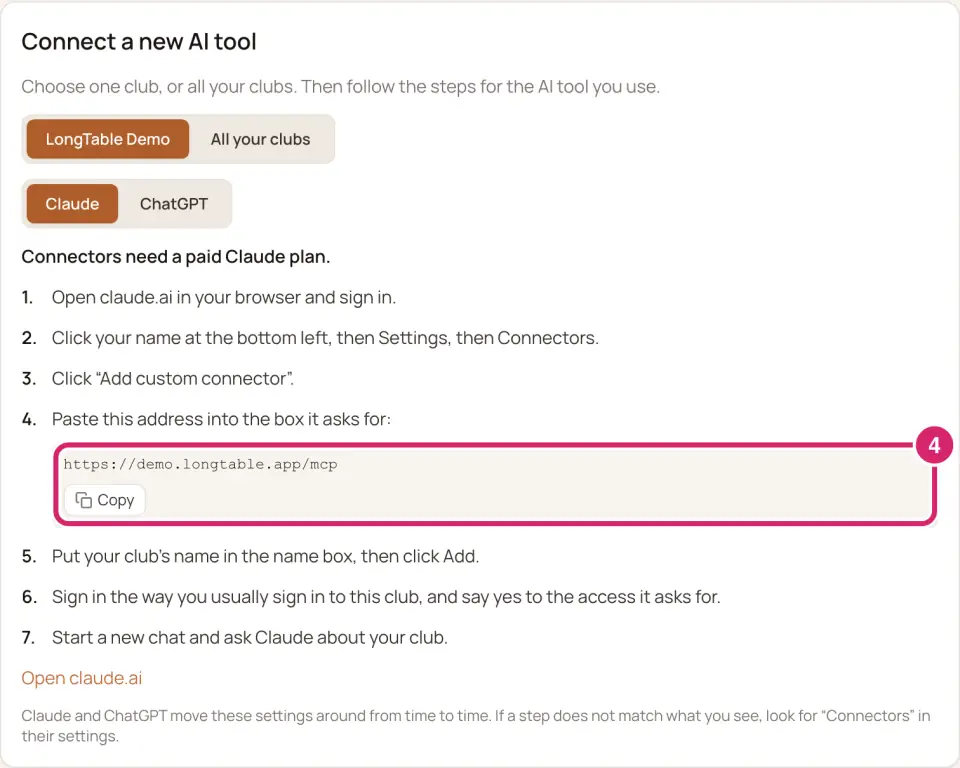
Put your club's name in the name box, then select Add.
Sign in to LongTable with the account you use for your club, then choose what Claude may do (below) and select Allow.
Start a new chat and ask Claude about your club.
Connect ChatGPT
Open chatgpt.com in your web browser and sign in.
Select your name at the bottom left, then Settings, then Connectors.
Select Create to add your own connector.
Paste your club's address into the box it asks for.
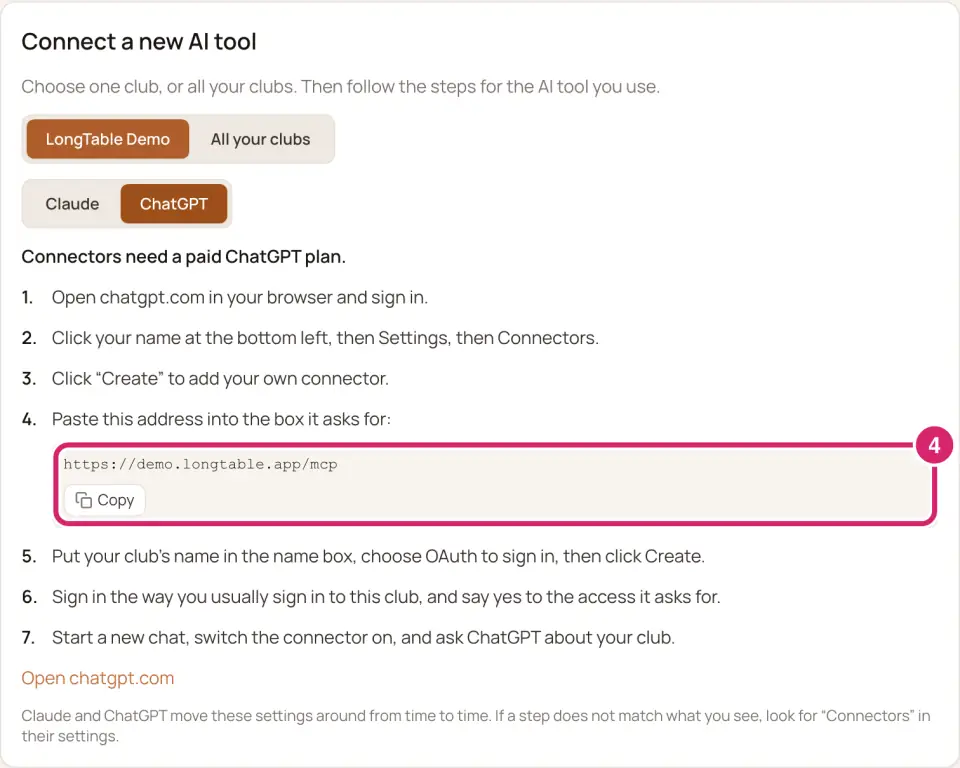
Put your club's name in the name box, choose OAuth to sign in, then select Create.
Sign in to LongTable with the account you use for your club, then choose what ChatGPT may do (below) and select Allow.
Start a new chat, switch the connector on, and ask ChatGPT about your club.
Claude and ChatGPT move these settings around from time to time. If a step doesn't match what you see, look for “Connectors” in their settings.
Choose what your AI app may do
After you sign in, LongTable shows Connect Claude to LongTable (or your app's name) and lists what the app is asking to do, one line each, with Deny and Allow at the bottom. How much should your AI app be allowed to do?
Read the list. The first two, Sign you in and Open your clubs, are marked Always included: without these two, the app can't work in your club at all.
Decide what to leave ticked. Everything else starts ticked.
Leave everything ticked — choose it when you'll ask your AI app to do club jobs for you, such as building a page or adding members, the way you'd ask the LongTable assistant. It still can't do more than your role allows.
Only the lines that start with See — untick every line that starts with Manage, Create and change, Message or Change. Choose it when you want answers, not changes: a coach looking up a member's phone number, or a secretary checking who's in a committee. Your AI app can look things up, but it can't change members, pages, events, files or settings, or message the club. It can still do what you can do for yourself, such as update your own details or reply to an event, and look after a group you own, including emailing it.
The lines about billing, member invoicing, integrations and votes make no difference: AI apps can't do those jobs, ticked or not. Nor do See your email address and See your basic profile: they open nothing in your club.
Not sure? Start with only the See lines. To allow more later, remove the connector in your AI app and add it again.
Select Allow. To cancel, select Deny.
Whatever you leave ticked, the app can never do more than your role allows.
If you untick something, the app can't do that job, even when your role could.
What your AI app can and can't do
Your AI app works in your club the way the LongTable assistant does, including its bigger jobs, such as importing members or building pages. It can do only what your role allows and what you left ticked.
Each change is proposed first and made only after a second, confirming step, so your AI app can check with you before anything changes.
It can't change billing or your plan, member invoices, integrations, sign-in and security settings, support tickets or your club's web address, and it can't read the audit log. Do those yourself in LongTable.
Each connector works with the club whose address you gave it. If you belong to more than one club, add a connector for each, or choose All your clubs on Linked apps for one address that reaches all of them.
It keeps working until you remove the connector in your AI app, or disconnect it in LongTable: open Linked apps, select the app, then select Disconnect. If your role changes, what the app can do changes with it.
If something goes wrong
This request has expired The page timed out or was already used. Go back to your AI app and connect again.
Your AI app finds nothing it can do in your club. A connector added a while ago may not include access to your club. Remove the connector in your AI app, then add it again.
Your AI app can't do a job you can do in LongTable. You may have unticked it when you connected: remove the connector, add it again, and leave that job ticked. Some jobs, such as billing, aren't open to AI apps at all.
There's no way to add a connector in your AI app. Connectors need a paid Claude or ChatGPT plan.