
Give your club the name members know, set the time zone it keeps, and turn off the parts of LongTable your club doesn't use, so members see only what matters to them.
Why use it
A small club can turn off whole parts it never uses, such as Newsletters or Files, so members find what they need faster.
Turning something off deletes nothing. Start simple, and turn a part back on the day your club needs it.
Your club’s name is what members see across LongTable. Keep it the name they know, spelled out in full.
The time zone decides how your club’s dates and times are entered and shown, so set it to where your club meets.
Rename your club
Watch it done in 15 seconds, or follow the steps below. The numbers in the video match the steps.
Go to Configuration › Club. It opens on the General tab.
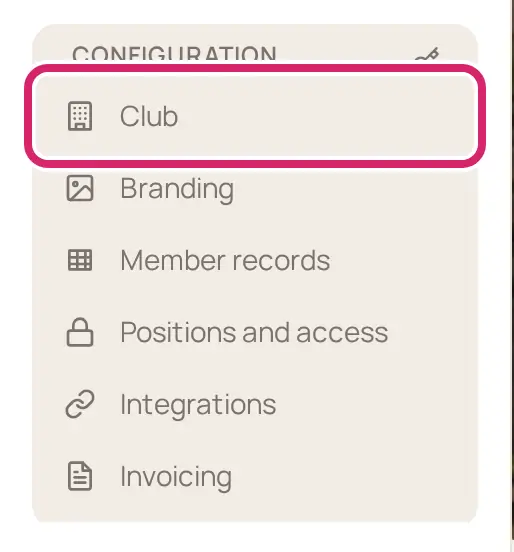
Under Identity, change the Club name. It can be up to 100 characters.
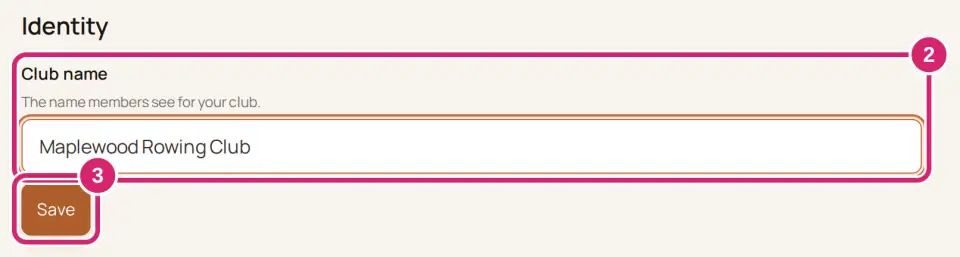
Select Save. You see Club settings saved.
Members see the new name across LongTable straight away. Your club’s web address doesn’t change with it: that’s Site address, on the Website tab, and changing it stops the old address and any links people saved from working.
Set your club’s time zone
Go to Configuration › Club. It opens on the General tab.
Under Club time, choose the Club time zone. Or select Use my current time zone to pick the one your computer or phone uses.
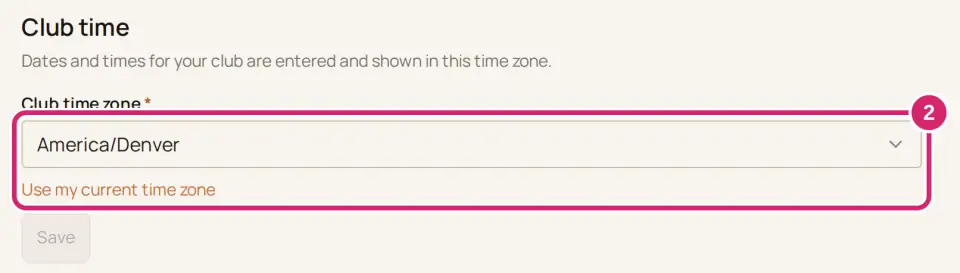
Select Save.
Pick the zone where your club meets, even if you live somewhere else. What changes when you save:
New events start in the club’s time zone, and announcements and scheduled messages are timed in it.
Events you already made keep their date and time. Each one remembers the time zone it was made in.
An all-day event leaves your website’s list of upcoming events at midnight after its last day, in the club’s time zone.
Decide which parts your club uses
Does your club need every part of LongTable? Under Features, each switch turns one part on or off for the whole club. All four are on for a new club.
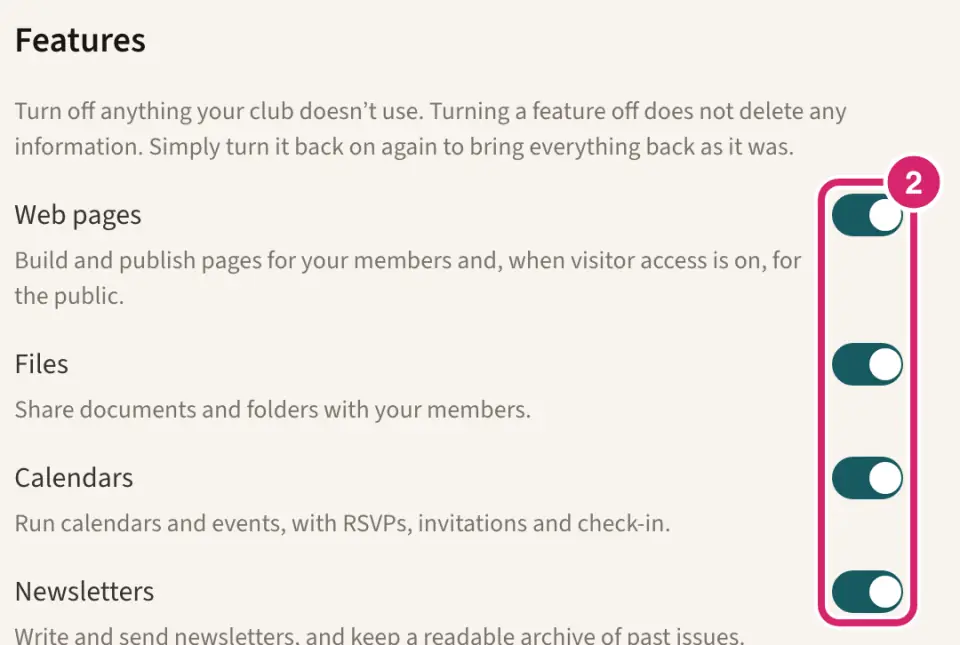
Web pages: turn it off when your club has no website and shares nothing on pages, such as a team that only needs its roster and messages. Your pages disappear from the sidebar for members and from your public site, where search engines stop finding them.
Files: turn it off when your club keeps its documents somewhere else. Files leaves the sidebar, and visitors can no longer open anything you shared publicly, including links already emailed out.
Calendars: turn it off when your club doesn’t run its events in LongTable. Calendars and events disappear for members, visitors lose your public event pages, flyers and calendar subscriptions, and any check-in kiosk closes.
Newsletters: turn it off when your club doesn’t send newsletters. The archive is hidden from members and visitors, and nobody can write or send a new issue. Messages to your groups still work.
Not sure? Leave a part on until you know your club won’t use it. Turning it off later is quick, and nothing is lost either way.
A signed-in member who follows a link into a part that’s off, such as an old link to an event, lands on your club’s home page and sees a message such as The Calendars section is turned off for this club.
Should your club offer the assistant?
Under Features, the Assistant switch decides whether your club offers the built-in LongTable assistant. It’s on for a new club.

On: choose it when your volunteers would welcome help with big jobs, such as importing a member spreadsheet or building pages. Admins, and members whose role lets them change something, see the sparkle button. Each message uses some of your club’s AI credits.
Off: choose it when your club would rather not use AI with its information, or wants fewer things on screen. Nobody sees the sparkle button or the buttons that offer to do a job with the assistant. Members who connect their own Claude or ChatGPT to your club can still use it.
The switch saves the moment you change it, without asking, and you see Assistant turned off. or Assistant turned on. Nothing is deleted: when it’s back on, earlier chats are still there, until seven days after their last message. Not sure? Leave it on. Only people who can change something see it, and it changes nothing until they confirm.
Should your club send email and texts?
Under Features, Messaging has two switches, one for each way your club reaches members.
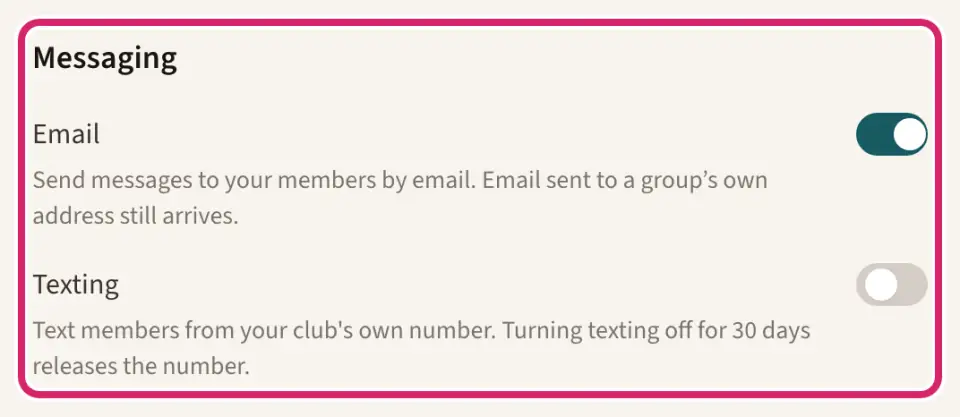
Email: on for a new club, and right for almost every club. Turn it off only when your club never emails members from LongTable. While it’s off, nobody can send club messages by email, and scheduled emails are skipped when they come due. Texting, newsletters and email sent to a group’s own address carry on, and your sent messages are kept.
Texting: off until your club registers its own number. Turning it on the first time opens the Texting tab: Set up texting for your club explains it. If texting stays off for 30 days, your club’s number is released, and registering again takes up to a week. Below the Basic plan you see an upgrade card instead of the switch.
With both off, Messaging has no Compose or Sent tab and opens on Announcements.
Turn a feature off or back on
Watch it done in 15 seconds, or follow the steps below. The numbers in the video match the steps.
Go to Configuration › Club. It opens on the General tab.
Under Features, turn off the switch for the part your club doesn’t use.
Read what turning it off hides, such as Turn off Calendars?, then select Turn off Calendars. Select Cancel to keep it. You see Calendars turned off.
To bring a part back, turn its switch on again. It saves straight away, without asking, and everything returns as it was. Email works the same way, with Turn off email? before it turns off.
Other settings on this page
Sign-in and joining decides who can sign in and who can ask to join: Invite members to sign in.
The Setup tab opens your Setup checklist, even after Setup has left the sidebar: Work through your Setup checklist.
Close this club takes your club offline: Change or cancel your plan explains what happens.
The Archive tab downloads a copy of everything: Download a copy of your club's data.
If something goes wrong
Club name can’t be empty. or Club name must be 100 characters or fewer. Type a name of up to 100 characters, then select Save.
Club name must not have leading or trailing whitespace. Remove the space at the start or end of the name.
We couldn’t detect your current time zone. Choose it from the list instead. Pick your club’s zone from Club time zone.
Someone else changed this club’s settings while this page was open. We reloaded them. Review and try again. Another admin saved a change at the same time. Check the page, then make your change again.
We couldn’t save your club settings. Try again in a moment., We couldn’t turn Calendars off. Try again in a moment. or We couldn’t turn the assistant off. Try again in a moment. Nothing changed. Wait a moment and try again.