
Invite a member through the email address of someone who looks after them, so that person answers for them and nobody signs in as the member. The second half of this page is for the households you invite: send it to them.
Why use it
Many members of a youth club, a scout group or a swim team have no email address of their own. The address you have belongs to whoever reads their club email.
With the address marked, the invitation says it's about the member's membership, not the reader's own, and its page starts on answering for someone in their household. Nobody signs in to your club as the member by mistake.
Their household then sees the member's club record and invoices, and your club still sees one member, marked Household.
Mark any address you're not sure is the member's own. The person who opens the invitation can still answer Me.
Mark the address and send the invitation
Is this email address the member's own? That's This email belongs to someone who looks after them. It starts off for every member.
On: choose it when the address belongs to whoever reads the member's club email: a youth team whose members are too young for email, or a member who has someone else handle their club mail. The invitation's subject is An invitation about …’s membership at …, and its page starts on Someone in my household.
Off: choose it when the address is the member's own. The invitation asks them to sign in to your club as the member.
Not sure? Turn it on. The person who opens the invitation can still choose Me while your club lets members sign in. The mark gives nobody access by itself, and changing the email address doesn't clear it, so check it whenever you change the address.
To add someone new:
Go to Community › Members and select Add member.
Enter their Display name and the Email you have for them.
Tick This email belongs to someone who looks after them. It's under Email, whether you chose Invite by email or Enter full details.
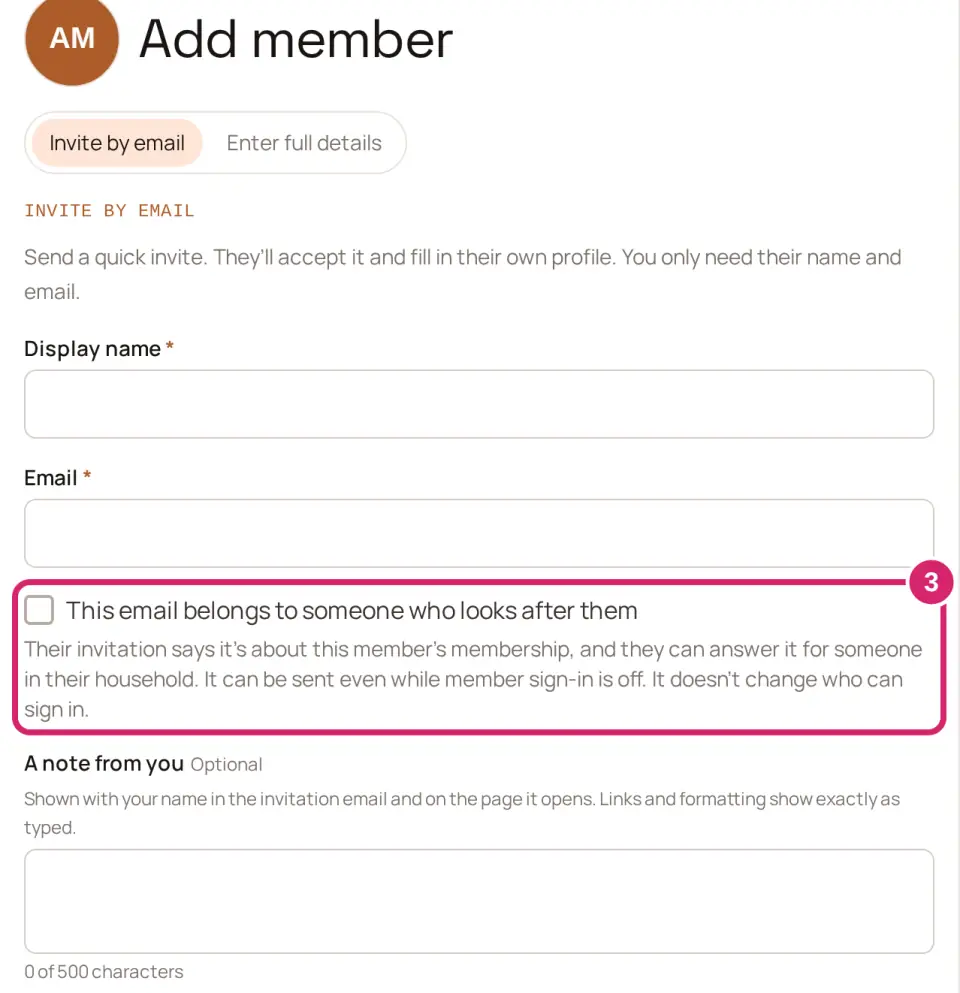
With Invite by email, add A note from you if you like. It shows with your name in the invitation email and on the page it opens.
Select Send invite, and the invitation goes out straight away. If you chose Enter full details, select Add member, then Invite … now: nobody is emailed until you do.
For someone already in your directory:
Go to Community › Members and open their record.
Under Access, turn on This email belongs to someone who looks after them. It shows while they have no login or a waiting invitation, and it saves as soon as you change it.
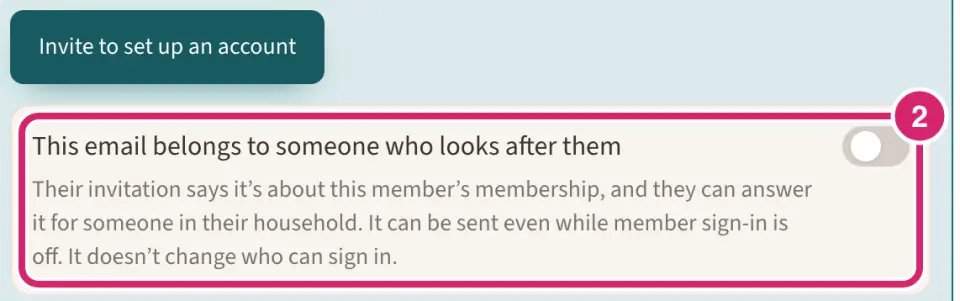
Select Invite to set up an account. If an invitation is already waiting, select Resend invite, so the email says it too. The old link stops working.
You can also tick it while you edit their record: select Edit, and it's under Email.
Can you invite households while member sign-in is off?
Yes, when the address is marked. While Members can sign in is off (Configuration › Club, under Sign-in and joining), LongTable still sends a marked invitation, and it can be answered only for someone in a household. Nobody can sign in to your club as the member. The record says Member sign-in is off for this club, so this invitation can be answered only for someone in their household. An address that isn't marked gets no invitation.
That suits a club where only officers sign in: households still see their members' records and invoices. Only admins can change Members can sign in; see Invite members to sign in.
What the person you invite sees
An email, An invitation about …’s membership at …, that says your club noted the address isn't the member's own. Its Open the invitation button works for 7 days. When your club knows who sent it, the subject is … sent an invitation about …’s membership at …, and the email names them under Invited by.
A page that names your club and the member before anything happens: This invitation is for … at …. Signing in, or creating an account, accepts nothing. When your club knows who sent it, the page also says … invited you.
One question, Who is …?, answered Me or Someone in my household.
For Someone in my household, they choose a person in their household who doesn't sign in, or add one with your club's name for the member filled in, then accept with one press.
They don't become a member of your club, and nobody gets a sign-in. On your side, the member's Access reads Household, and the invitation shows as Accepted on Community › Members › Invites. If they answer Me instead, Access reads Active sign-in, as for any member who accepts an invitation. For a household answer, we email whoever answered: … has joined …. A record waiting as Pending moves to your club's default status either way.
Send them this page before you invite them. The rest of it, from Answer an invitation for someone in your household, is written for them.
Answer an invitation for someone in your household
A club can invite you about someone else's membership: someone in your household who doesn't sign in to the club themselves. You answer once, and your household can then see their club record and invoices.
Open the email and select Open the invitation.
Sign in, or choose a password, tick I agree to the LongTable Terms of Service and Acceptable Use Policy. and select Create account. Nothing is accepted yet.
Under Who is …?, choose who the membership is for.
Me: choose it when the membership is your own. The page says You’ll sign in to … as …., and you select Accept.
Someone in my household: choose it when the membership belongs to someone in your household who won't sign in to the club. Nobody will sign in as them. If the club noted that the address isn't the member's own, this is chosen for you.
Under Who in your household is …?, choose them. If they aren't in your household yet, choose Someone new, and check Their name: it starts as the club's name for them, and you can change it to the name your household uses.
Select Accept for …, or Add … and accept.
You land on their record, as the club holds it. Select Back to Household to see everyone. Answering for someone doesn't make you a member of the club, and the invitation's link stops working once it's answered. Picked the wrong answer? See Fix a wrong answer, below.
If you weren't in a household, adding someone starts one, with you as its Household organizer.
Only a Household organizer can add someone new. Anyone else in the household can still choose someone already in it. The page names who to ask: ask them to add the person, then open the invitation again.
If the page says You’re signed in as someone else, select Sign in as … and sign in with the address the invitation went to. If that address has no account yet, select Continue as … to create one.
If the club has turned off member sign-in, the page offers only Someone in my household. You still sign in, or choose a password, the same way.
Add someone who doesn't sign in
Add someone by name, such as a young member with no email address, so any club's invitation can be answered for them with one choice. Only a Household organizer can add someone. If you're not in a household yet, adding someone starts one, with you as its organizer.
Select your picture at the top right, then Household.
Select Add someone by name.
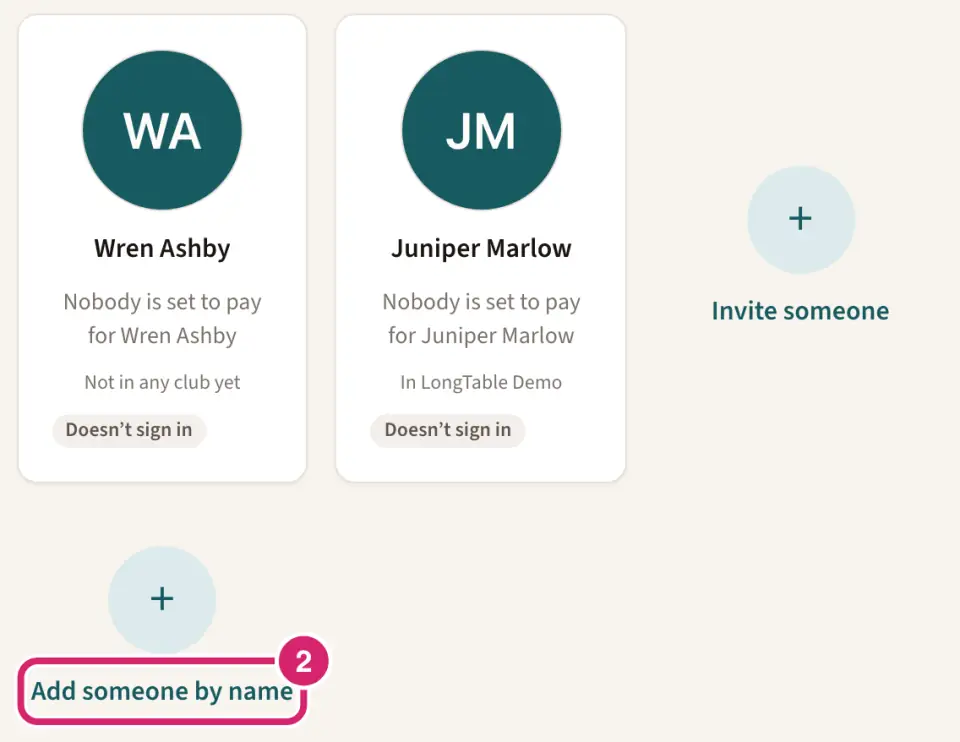
Enter Their name.
Select Add.
They won't sign in, so they can never pay for anyone or change the household. You pay for them until you choose someone else. A household can have up to 30 people, counting them. While they're in no club, their tile explains how to bring them into one: the club invites them using an organizer's email, marked as belonging to someone who looks after them, and the organizer answers Someone in my household.
An organizer can rename them, or take them out: select their tile, open the ⋮ menu and select Rename … or Remove from household. Removing someone first lists the club records that will stop showing in your household. It changes nothing at any club: the club still has their record.
Find their club records and invoices
Select your picture at the top right, then Household.
Find their tile. Someone who doesn't sign in shows Doesn’t sign in, and the clubs they're in, such as In Riverside Swim Club, or Not in any club yet.
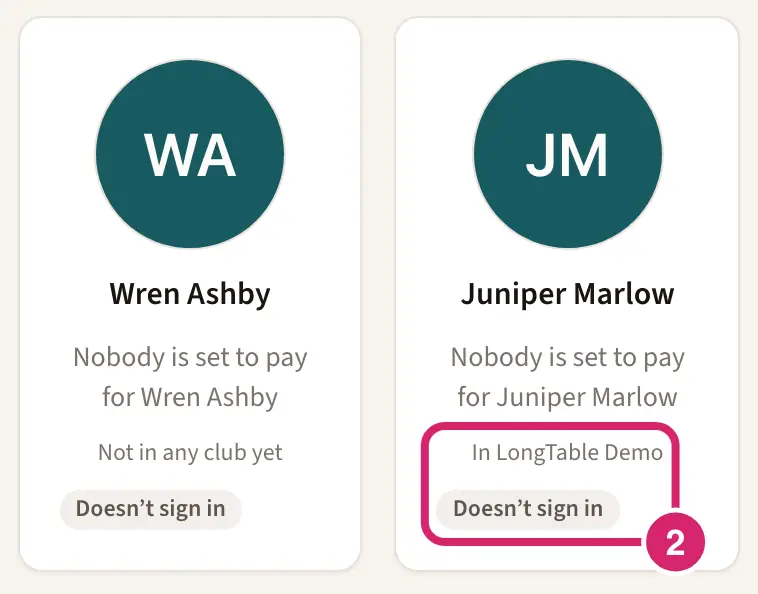
Select their tile to see their record. If they're in more than one club, choose one under Their clubs.
Their invoices are in My invoices, in the menu under your picture, under Invoices for … and their name. They go to whoever your household says pays for them. An organizer chooses who: select their tile, open the ⋮ menu and select Change who pays for …. A club can choose someone else for one of its members, and at that club its choice wins.
Who can change their club records
A Household organizer can change anyone's club record in the household: select their tile, then Edit. You can change the same things the club lets its members change about their own record.
A Household member sees everyone's club records but can't change other people's. Where the club lets members change something, the record says This is the club’s record. Only a household organizer can change it here.
When the club’s email on someone’s record belongs to whoever looks after them, an organizer can give them their own address: select their tile, enter it under Give … an email address, and select Send confirmation. We email a link to that address, and it goes on the record only once someone there confirms it, within 7 days.
Everyone still changes their own details under My information.
To make someone an organizer, an organizer selects their tile, opens the ⋮ menu and selects Make … a household organizer. See Set up a household.
Fix a wrong answer
Every answer can be changed later, with no time limit.
You answered Me, but it's someone else's: you hand it to them.
You answered for someone, but it's yours: you select This is me.
It's with the wrong person: an organizer selects Move to someone else.
It isn't anyone in your household: an organizer selects Release from household.
One person is in your household twice: an organizer combines them.
Hand a membership to someone in your household
Answered Me, but the membership is really for someone in your household who doesn't sign in? Hand it to them. You stop signing in to that club as the member straight away. Your other clubs aren't affected.
Select your picture at the top right, then My information.
Under Per club, choose the club.
Under Isn’t this you?, select Hand this membership to someone in my household.
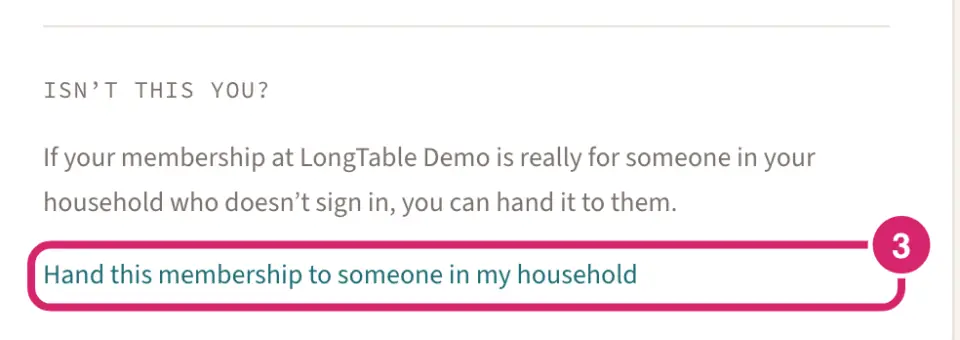
Under Who in your household is …?, choose them, or choose Someone new and enter Their name.
Select Hand to …, or Add … and hand over.
You land on their record, through your household. If you changed their details while you signed in as them, an organizer can fix them there. You can't hand a membership over while you're the club's only admin, or while the club has given it roles or positions: ask the club first.
Take a membership as your own
Answered for someone in your household, but the membership is really yours? Take it as your own.
Select your picture at the top right, then Household, and select their tile.
Under their record, select This is me. It shows only when the club has your own email address on the record and lets members sign in. Above it, the record says the club has your own address on it.
Read what will happen, then select Yes, this is me.
You then sign in to the club as the member. The person stays in your household until an organizer removes them. Anyone in the household can do this, organizer or not, as long as the club's address on the record is theirs.
Move a club record to the right person, or release it
A Household organizer can do this. Everyone else sees which person a record is with, and no actions.
Select your picture at the top right, then Household, and select the tile of the person the record is with now.
Under the club's name, choose what to do.
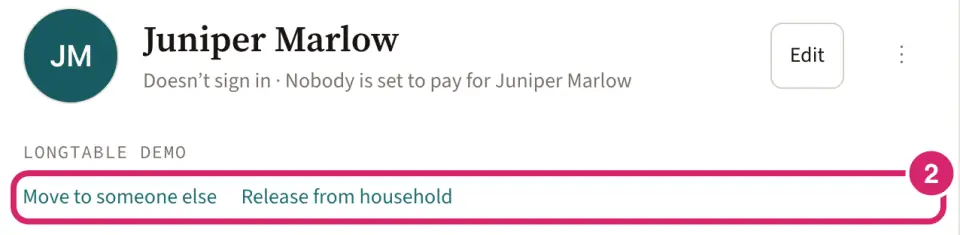
Move to someone else: choose it when you answered for the wrong person in your household. Your household keeps the same access, and invoices the club drafts from now on follow who pays for the person you choose. It shows when someone else in the household doesn't sign in either.
Release from household: choose it when the record isn't anyone in your household. Your household stops seeing it and its invoices, and the club can send a new invitation.
To move it, choose the person under Who is this … record for?, then select Move record. To release it, select Release record.
A person can have only one record at each club, so you can't move a record to someone who already has one there. Invoices already drafted or sent don't change.
Combine two entries for the same person
Ended up with the same person twice, for example after two households joined? A Household organizer can combine them.
Select your picture at the top right, then Household, and select one of them.
Open the ⋮ menu and select Combine … with someone else.
Under Who else in your household is …?, choose the other entry.
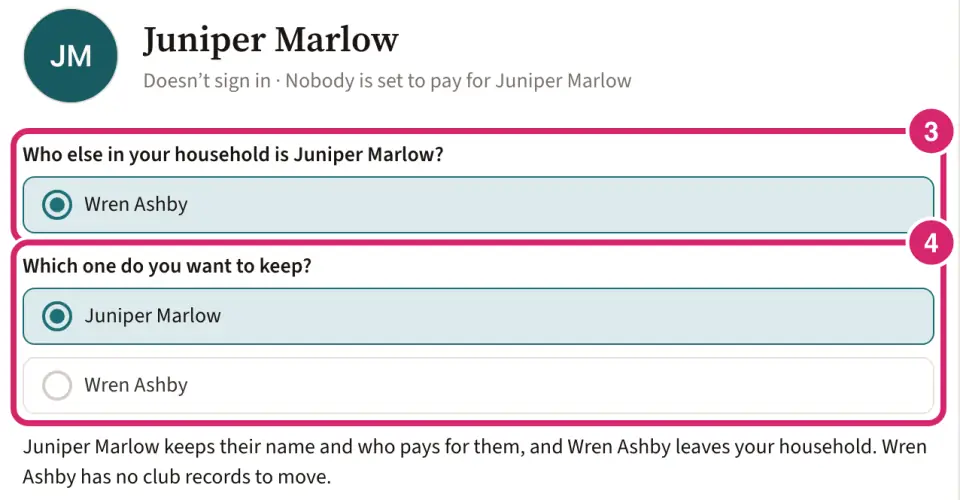
Under Which one do you want to keep?, choose the one to keep.
Select Combine.
The one you keep keeps their name and who pays for them, and every club record of the other moves to them. The other leaves your household. If both have a record at the same club, release one of them first.
Remove a household tie and invite again
A member whose invitation was answered for someone in a household reads Household under Access, in your directory and on their record. It's never flagged as waiting for a sign-in decision. Their record says Looked after by a household. Nobody signs in as them. The household can see this record and its invoices.
Remove the tie when the invitation went to the wrong address, or the household asks you to start again.
Go to Community › Members and open the member's record.
Under Access, select Remove household tie.
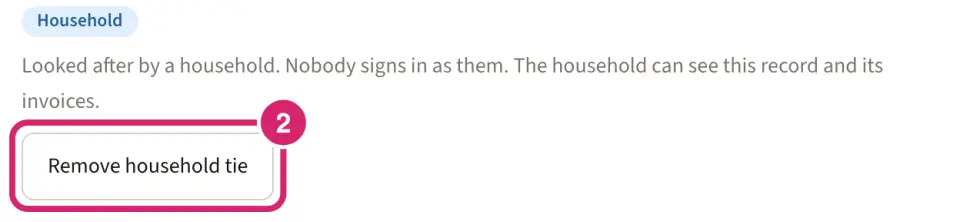
Select Remove household tie again to confirm.
The household stops seeing the record and its invoices, and sees a notice on that person's tile: … removed …’s membership. The record reads No login, and you can invite again, marking the address first if it isn't the member's own.
The member's invoices go to whoever their household says pays for them, unless your club chooses someone. After you remove the tie, they go to whoever your club chose, or the member. See Collect dues with invoices.
Moving a member to the Trash removes their household tie, and cancels any waiting invitation. The household sees the same notice. Restoring them brings neither back.
A marked address, or a household tie, doesn't make records look like duplicates, so members who share one address aren't flagged by Find duplicates. Two records with the same name still are. You can't merge two records that each have a sign-in or a household tie: remove one record's tie first.
If something goes wrong
Member sign-in is turned off for this club. They can’t be invited unless their email belongs to someone who looks after them. Turn on This email belongs to someone who looks after them if the address isn't the member's own, or turn on Members can sign in.
This invitation can’t be used The invitation expired, was canceled, or was already answered. Ask the club to send a new one.
You already sign in to … as a different member, and one account can be only one member there. You can't answer Me for a second membership at the same club. If the member is someone in your household, choose Someone in my household instead.
Only a household organizer can add someone new. Choose someone already in your household, or ask the organizer the page names to add them, then open the invitation again.
…’s membership at … has roles or positions … gave it. Ask … to remove them first. Nothing has changed. Ask the club to take the roles or positions off the record, then hand it over again.
They both have a record at …. Someone can have only one record at a club, so they can’t be combined. Release one of those records first, then try again. Release one of the two records, then combine them.