
Decide, one detail at a time, who in your club can see each member's email, phone, address, birthday and the rest. Share what members need to reach each other, and keep the rest between each member and the member managers.
Why use it
Many people join a club to take part, not to hand their phone number and home address to everyone. Keeping those private makes it easier to say yes.
Member managers always see every detail, so the treasurer can still chase dues and the secretary can still reach everyone.
Members can still find each other by name, while their contact details stay private.
Check these settings before you hand out a roster: every roster and spreadsheet members download follows them.
Decide who can see each detail
Go to Configuration › Member records. The Fields tab opens, with a row for each field.
Find the field, such as Email or Birthday.
In its Who can see column, choose who can see it. The change saves straight away.
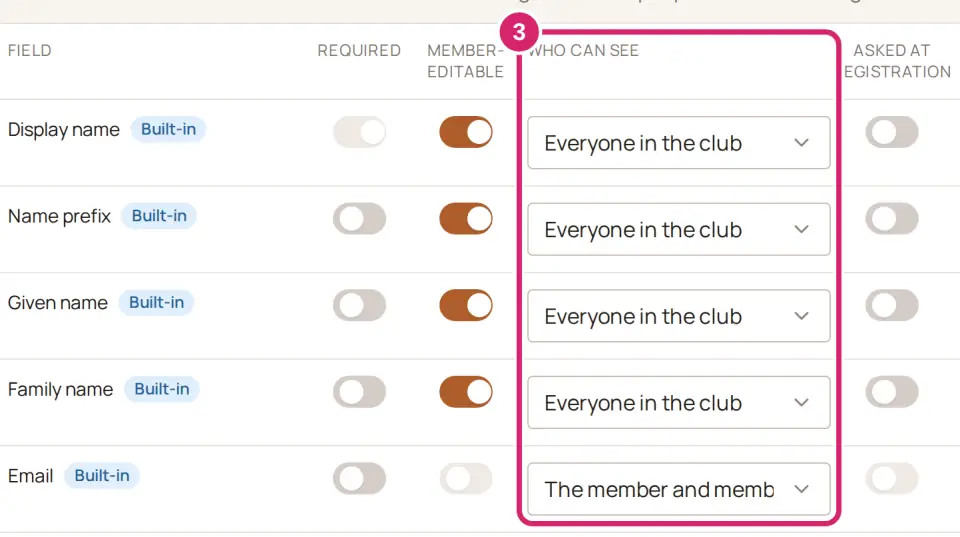
Who should see this detail?
Everyone in the club: choose it for what members need to know about each other, such as names, or phone numbers in a small team that shares rides to games. Every member sees it in the directory, on member pages and in rosters. For Address, it also puts members on the member map.
The member and member managers: choose it for contact details in most clubs. Each member sees their own on their profile and can keep it up to date. Other members see a dash in its place.
Member managers only: choose it for notes only officers should read, such as a medical note or a dues code. The member can't see or change it. Choosing it also turns off Member-editable and Asked at registration for that field, and a field marked Required doesn't offer it.
Not sure? The member and member managers is the safe start for email, phones, address and birthday. You can open a detail up to everyone later, at any time. Moving a field back from Member managers only leaves Member-editable and Asked at registration off until you turn them on again.
Don't see the Who can see column? Your club's plan doesn't include field rules. A Field rules card below the table offers an upgrade instead. Until then, each field keeps the setting it has, so nothing you kept private becomes visible.
A new club starts with Email, Primary phone, Backup phone, Address and Birthday at The member and member managers, and every other field at Everyone in the club. A club that has been on LongTable for a while may have every field at Everyone in the club, so check yours.
What members see
In the directory, on member pages, in group rosters and in member lists on your website, a detail a member may not see shows a dash. The column stays.
When Address isn't Everyone in the club, members see Member addresses are private in place of the member map.
Each member sees their own details on their profile, except fields set to Member managers only.
In a household, a household organizer sees what each member of it sees of themselves. Other people in the household see only what everyone in the club sees.
What members can download
A member goes to Community › Members and opens the Exports tab.
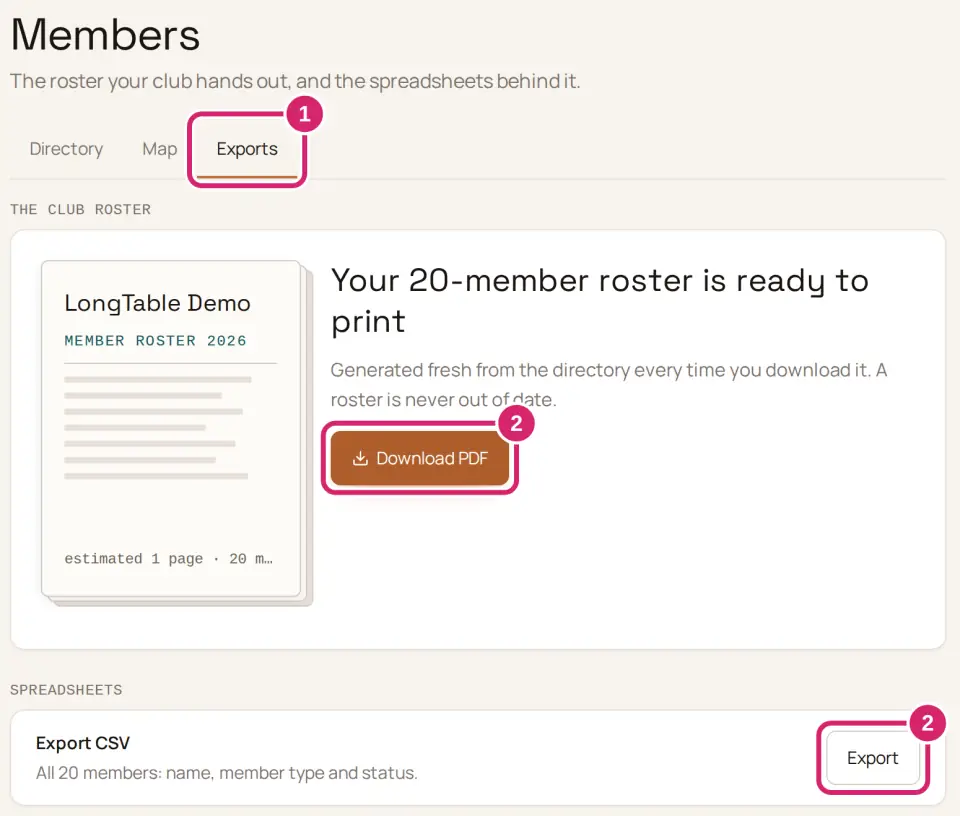
Download PDF gives them the club roster as a PDF, and Export beside Export CSV gives them a CSV file. Both leave out every detail the member may not see.
If something goes wrong
We couldn’t update the field. Try again in a moment. Your choice didn't save. Choose it again in a moment.
Couldn’t load member fields Select Retry.
A field only member managers can see can’t be required. Members would be asked for a value they can’t see. Turn off Required for that field first, or choose The member and member managers instead.
We couldn’t load which member details you can see. The CSV export is unavailable until it loads. A member sees this on Exports. Reload the page and try again.