
Ask the LongTable assistant for a new look. It walks you through Branding: a look, your brand color, your logo and publishing, and then your web address.
Why use it
A club that looks like itself before anyone is invited gets taken seriously.
Refresh it any time: “Can we freshen up our look for our 50th season?”
Apart from your logo, nothing changes on your site until you select Publish look.
Choose your look
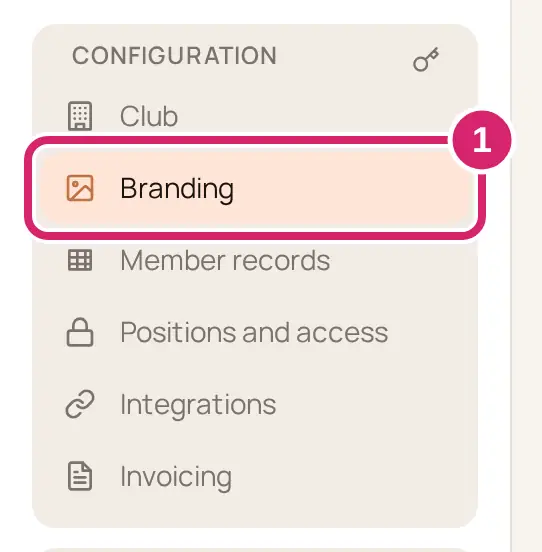
Ask the assistant to help with your look. It opens Configuration › Branding and starts a guided tour at the first stop. For a refresh, it first asks where to start: the looks, a new logo, or just the colors.
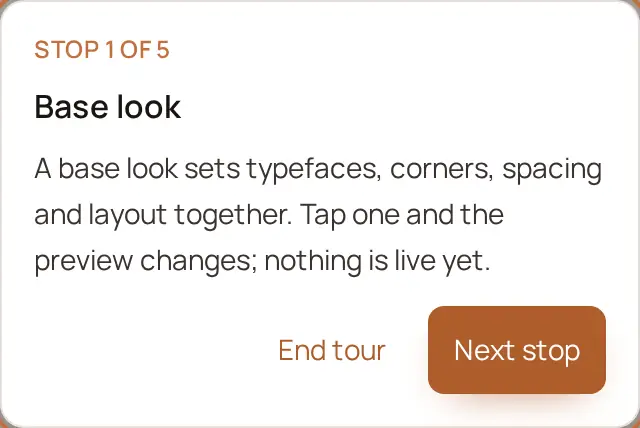
Under Base look, select a look, such as Hearth, Gazette, Regatta, Grandstand or Allotment. It sets the corner shape, typeface and spacing together, and your brand color too unless you’ve already picked one.
Under Brand color, pick your color. In a web browser, Custom also offers the colors in your logo.
Under Logo, select Choose image…, pick your logo, then select Save logo. It goes live straight away. No logo yet? Skip it: your club name stands in the header.
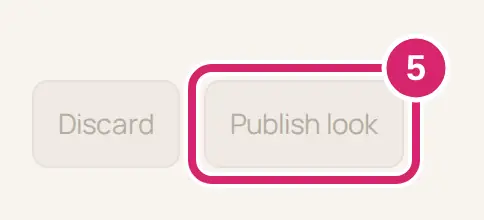
Select Publish look when the draft looks right, then confirm. Discard throws the draft away. If your site isn’t public yet, LongTable says Your new look is published for members.
The assistant then opens Club › Website for your web address. Keep the free address, or change it.
The assistant never publishes, uploads or changes the address for you. Where a stop offers Do it for me, it only puts its suggestion in your draft. On a phone you can set your logo, a look and your brand color; typeface, spacing and the site header wait for a computer.
If something goes wrong
We couldn’t read a color from your logo. Pick one instead. Choose a color yourself.
Enter a color like #2e7370. Type a hex color: # followed by six letters or numbers.
We couldn’t use that image. Please choose a PNG, JPEG, or WebP under the size limit.
We couldn’t publish your look. Try again in a moment.