
Put your club's live information on a page: what's coming up, the forms members need, who your officers are, and a video. These blocks fill themselves from the rest of LongTable, so the page stays up to date without anyone retyping it.
Why use it
Your website shows what's next without anyone editing it. Switch an event on for the website, and it joins the list by itself and drops off once it ends.
Forms, minutes and policies stay current. A Files block lists a folder, so when the secretary puts this year's form in Files, the page has it.
A list of officers follows every handover. Limit a Member directory to the positions you choose, and it shows whoever holds them today.
Use Event and Video blocks on pages for everyone, and put Calendar, Files, Member directory and Member map on members-only pages. Visitors never see those four, so a members’ page is where they belong.
Decide which blocks go on a public page
Each live block checks who is reading every time the page opens, and shows only what that person may see. On a public page:
Event is the one live block visitors can see. What they see depends on its layout (below). Members always see it.
Video shows to everyone who can open the page.
Calendar, Files, Member directory and Member map show to signed-in members only. We leave them out of the page visitors get, so visitors see no gap and no message.
Add a live block
Open the page and select Edit page, the pencil in its top-right corner.
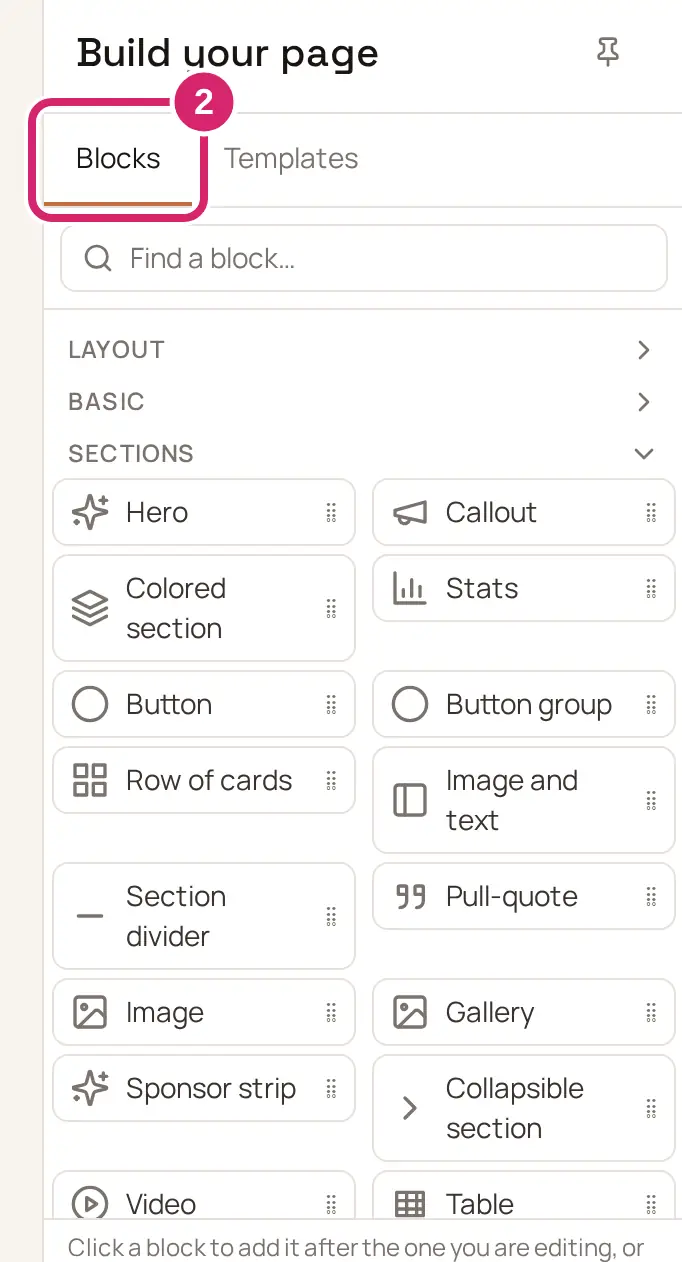
In the Build your page panel, open Blocks. Member directory, Member map, Calendar, Files and Event are under Features. Video is under Sections.
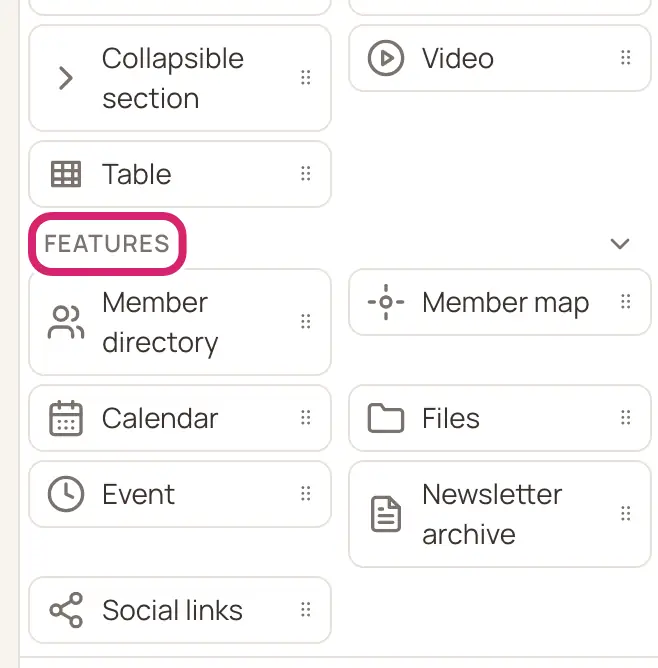
Click a block to add it after the one you're editing, or drag it to the exact place you want it.
Select the block and choose its settings in the panel. The sections below explain each block’s settings.
Select Preview, then As visitor, to see the page as people who aren’t signed in see it. Select Editing to go back.
Select Publish.
Your choices save to the draft as you make them. Readers see them once you publish.
Show your next events
The Event block shows events from your calendars. Its Layout setting decides how. Compact is selected to start.
Which layout fits this page?
Compact: choose it for one event’s details, such as the annual meeting on your members’ page. Members can RSVP from the block. Visitors see it only when the event’s calendar is published (below).
Featured: choose it to promote one big event on your home page, such as an open day. It’s a cover card with an RSVP button that opens the event’s flyer. Members and visitors see the same card. Only a hosted event shown on the website can be featured.
Upcoming events: choose it for a home page or an events page that should always show what's next. It lists the next few hosted events switched on for the website. Each one appears when its website switch is turned on and leaves once it ends, so nobody has to edit the page.
You can change the layout at any time. Each layout keeps its own choices, so switching back brings them back.
Put an event on the website
Featured and Upcoming events show only hosted events that are switched on for the website. In the event’s hosting settings:
Set Who can see the flyer to Anyone with the link.
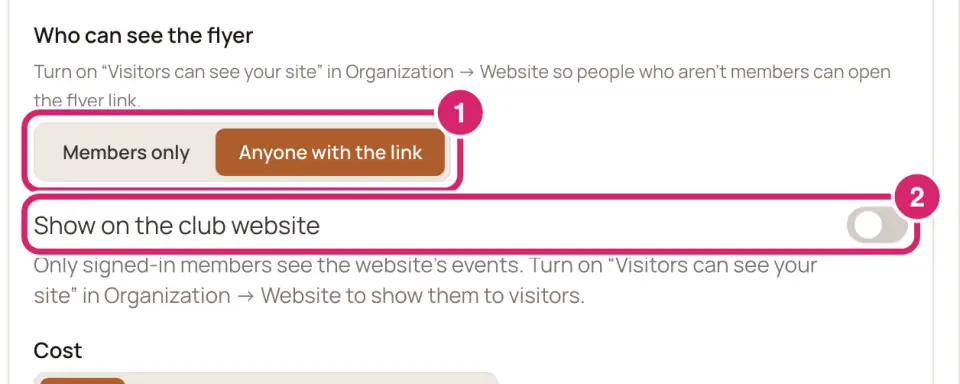
Turn on Show on the club website. It appears once the flyer is open to anyone with the link.
Visitors see these events only while Visitors can see your site is on for your club. Run a hosted event shows where the hosting settings are, and Make your site public explains the visitor setting.
Show one event with Compact
Choose a Calendar.
Under Event, choose one of its upcoming events. To find one quickly, type in Search events….
Choosing another calendar clears the event, so choose the event again.
Members see the event’s details and can reply from the block. Visitors see the details only when the event’s calendar is published: open Calendars, then More calendar actions › Public calendar feeds, and publish it. Until then, visitors see This event is not available. Visitors can reply from the block only when the event takes replies from people who aren’t members.
Feature one event with Featured
Choose a Calendar.
Under Shown on the website, choose the hosted event. If the calendar has none, the panel says No hosted events on this calendar are shown on the website yet. Put an event on the website first (above).
Choose what the card shows. All three switches are on to start.
What should the card show?
Show RSVP count: the number going and the spots left, when RSVPs are open to the reader. Keep it on when places are limited and you want people to see them filling. Turn it off if a low early count might put people off.
Show cost: the cost per guest on the card’s details line. Turn it off if you’d rather people read the cost on the flyer.
Hide after the event ends: on, the card disappears once the event ends or can no longer be shown. Keep it on for a page that reads fine without the card. Turn it off when the card fills a spot on your home page that would look empty. Visitors then see a quiet card saying Nothing featured right now and Check back soon for the next event. Either way, the event’s own card never shows after it ends.
Under Visitors see, the panel says what the card shares: Cover, tagline, when, where, cost, spots left and the RSVP button. Never the guest list, the people who claimed assignments, or the invited groups.
When the event can no longer be featured, people who can edit pages see a note on the block saying why and what visitors see, such as This event has ended. Visitors see an empty space here. To fix it, pick another event in this block’s settings.
List what’s coming up with Upcoming events
Under Calendars, choose the calendars to list. Choose none to list every calendar.
Decide on Only hosted events (below).
Under Heading, keep Show heading on and change the Heading text if you like. It reads Upcoming events to start, and can be up to 40 characters. Turn Show heading off when the page already introduces the list.
Under How many, choose from 1 to 10 events. It’s 5 to start.
Should members see your everyday events too? That is Only hosted events. It’s on to start.
On: choose it when the list is for everyone, such as on your home page. Members and visitors see the same list: hosted events switched on for the website.
Off: choose it on a members’ page where practices and meetings matter too. Signed-in members also see the ordinary events on the chosen calendars. Visitors still see only hosted events shown on the website.
Members also get a Full calendar link beside the heading. When nothing is coming up, readers see No upcoming events yet.
Show your club calendar
The Calendar block puts your calendars on a page, so members can look weeks ahead. Only signed-in members see it, and every member sees the same events. Visitors never see it, even on a public page.
Under Calendars, choose the calendars to show, up to 25. Choose none to show every calendar, including ones you add later.
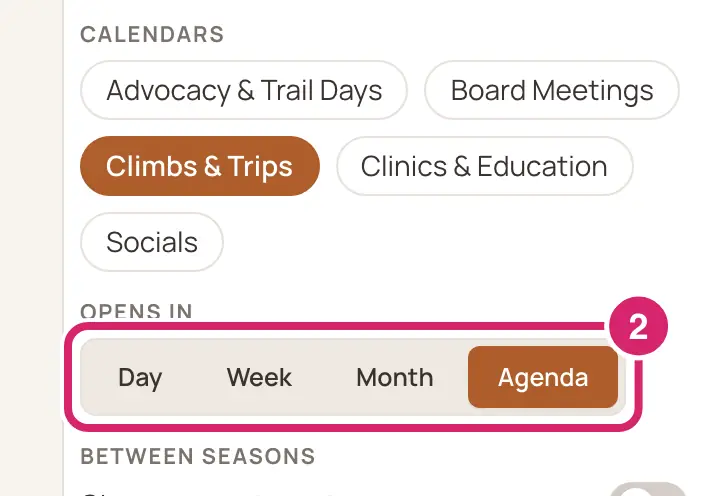
Under Opens in, choose how the calendar first looks (below).
Under Between seasons, decide on Show recent past events.
How should the calendar look when the page opens? That is Opens in. Month is selected to start.
Month: choose it for a club that meets every week or so. Readers see the whole month at a glance.
Agenda: choose it for a club with a few events spread over the year. It lists what’s coming, in order.
Week or Day: choose one when you run several events most days, such as a sports club with daily practices.
Show recent past events is off to start. Turned on, when nothing is coming up, the Agenda lists the latest few past events, each marked Past. Turn it on for a club with an off-season, so the calendar doesn’t look empty between seasons.
List files or show one file
The Files block lists a folder from your club’s Files, or shows one file right on the page. Only signed-in members see it, and each member sees only the files they may open. Visitors never see it.
Under Show, choose Folder list or Embed a file (below).
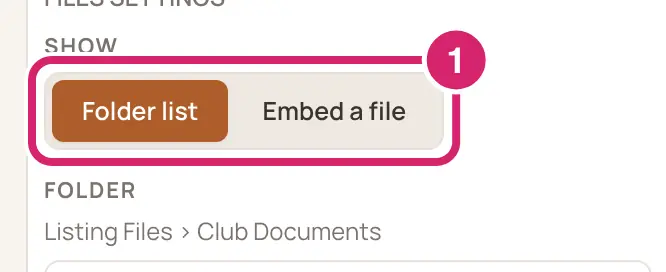
Under Folder or File, open folders in the tree and select the one to show. A line above the tree confirms your choice, starting Listing or Showing.
For a folder list, choose a Sort: Name lists A to Z, and Updated and Created list the newest first.
Show a whole folder, or one file? That is Show. Folder list is selected to start.
Folder list: choose it for documents that change, such as forms, minutes or policies. It lists the folder’s files, each with Download. A new file in the folder shows up on the page by itself.
Embed a file: choose it for one document everyone should read on the page, such as the club rules. A photo shows in place and a PDF opens in a reader, with the file’s Download or Open button underneath.
While your club’s Google Drive is turned on, Google files are listed too, with Open. Folders LongTable keeps for its own features, such as the Website folder, are never listed. A member who can’t open the chosen folder or file sees No files to show yet.
Show who’s who with a member directory
The Member directory block shows a live list of members, such as your committee or your coaches. Only signed-in members see it, and each member sees only the details they may see. Visitors never see it, even on a public page.
If you like, enter a Title, such as Our committee. Leave it empty for no title.
Under Display, choose Table or List (below).
Under Columns, choose the details to show, in order. Name and email are there to start.
Under Sort, choose a field, then Asc or Desc. It sorts by name, A to Z, to start.
Under Per page, choose how many members show at once, up to 100. It’s 10 to start, and readers page through the rest.
Under Filter members, choose who appears (below).
How should the list look? That is Display. Table is selected to start.
Table: a sortable table with one column per detail. Choose it for a long list readers will sort, such as the whole membership.
List: a stacked list where the first detail is each member’s heading. Choose it for a short list, such as officers and their phone numbers.
Should readers be able to search the list? That is Let viewers search this list. It’s off to start. Turn it on for a long list: it adds a search box that searches name, email, phone, type, status and access.
Who should appear? A member must match every filter you set. Leave them all empty to list everyone.
Member type and Member status: choose these to show, say, only Life members, or only Active ones. They filter on each member’s member type and member status.
Group: choose it to show one committee or team.
Position: choose it for a list of officers. It shows whoever holds the positions you choose today, so when an office changes hands, the list follows.
Show where members live on a map
The Member map block puts your members on a map, from their addresses. It needs Plus or above. Only signed-in members see it; visitors never do. Selecting a member on the map opens their page.
Under Type filter and Status filter, choose who appears.
To show everyone, leave both empty. The panel says Empty filters show everyone with a shared location.
Members whose addresses your club keeps private don’t appear. When nobody can be shown, readers see No members to show on the map yet.
Add a video
Open the page and select Edit page.
In the Build your page panel, open Blocks and click Video, under Sections. Add a video opens.
Choose where the video comes from: YouTube link, selected to start, or Website folder (below).
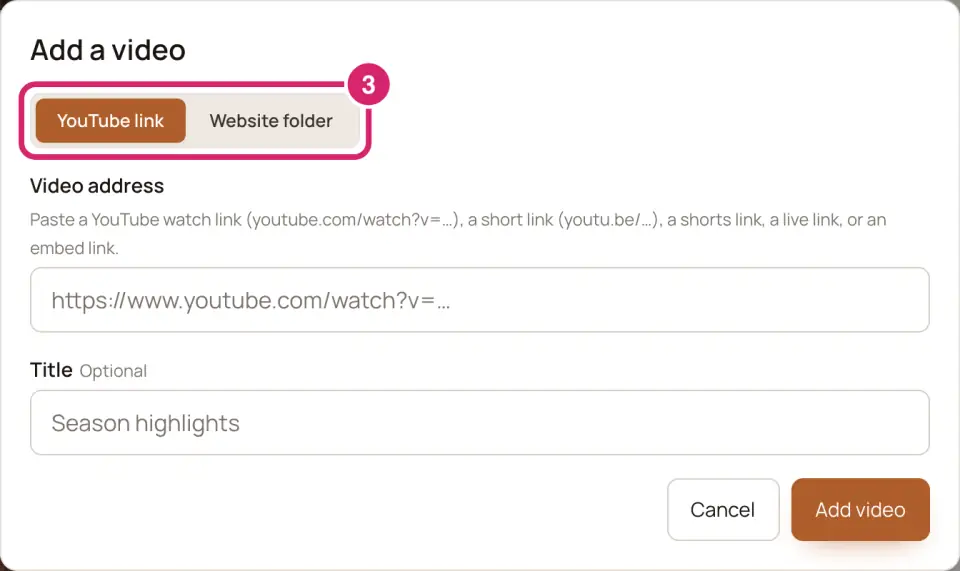
For a YouTube video, paste its link in Video address. For a video file, select Upload from device and choose it, or pick one under Or choose from the Website folder.
Enter a Title, such as Season highlights. Screen readers read it out.
Select Add video for a YouTube link, or Use this video for a file.
Use YouTube, or upload the video to your club? That is the choice at the top of Add a video.
YouTube link: choose it when the video is already on YouTube, or it’s long. The video stays on YouTube. A watch link, a youtu.be short link, a shorts link, a live link or an embed link all work.
Website folder: choose it for a short clip you have as a file, such as a welcome from your chair. It goes in your club’s Website folder and uses your club’s file storage. The chooser says An MP4 video (H.264), up to 500 MB. (an MP4 file).
For a video file, you can add a Cover image in the block’s settings: select Add cover image. It’s shown under the play button before the video starts. Without one, the video’s first frame shows. A YouTube video has no cover image.
Members and visitors see the video on any page they can open. To change it later, select the block and use Replace video or Remove video.
If something goes wrong
This event is not available. Visitors see this on a Compact event when its calendar isn’t published, or the event was deleted. Publish the calendar in Public calendar feeds, or use the Featured layout for a hosted event.
This event isn’t marked to show on the club website. Only people who can edit pages see this, on a Featured event. Turn on Show on the club website for the event, or pick another event in the block’s settings.
We don’t recognize that video address. The link isn’t a YouTube link. Copy the video’s address from YouTube again and paste it in Video address.
This file is too large. The maximum upload size is 500 MB. Make the video shorter, or put it on YouTube and add it with YouTube link.
This video is in a format … that some phones and computers can’t play. Export it as MP4 with H.264 video and AAC audio, then add it again. On an iPhone, choose Most Compatible under Settings › Camera › Formats for new videos.
Couldn’t load the map The member map couldn’t load. Select Try again. If it never loads, check your plan: the member map needs Plus or above.