
Groups let you reach part of your club at once, such as a committee, a team or an age group. Pick a group's members yourself, or set a rule that keeps it up to date for you.
Why use it
Reach a committee, team or age group in one message, without keeping your own mailing list.
Show a page only to a group's members, or give a group its own folder in Files.
On the Plus plan and above, let a dynamic group keep itself up to date. A group of everyone who holds an officer position changes by itself when the officers change.
Make the person who runs the group an owner, so they can look after its members without being an admin.
Create a group
Watch it done in 20 seconds, or follow the steps below. The numbers in the video match the steps.
Go to Community › Groups.
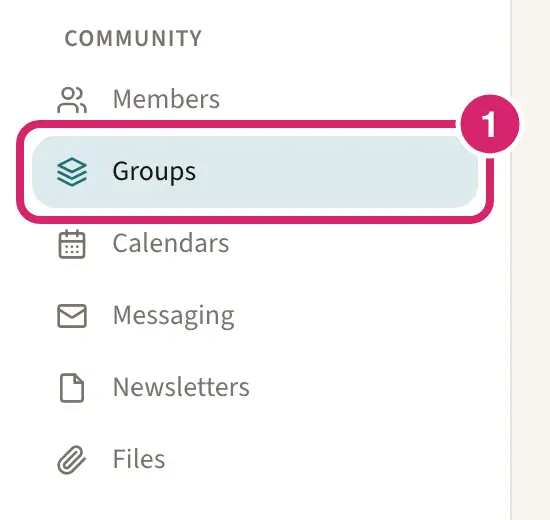
Select Add group.
Enter a Group name. Under About this group, add one line that tells members what the group is for.
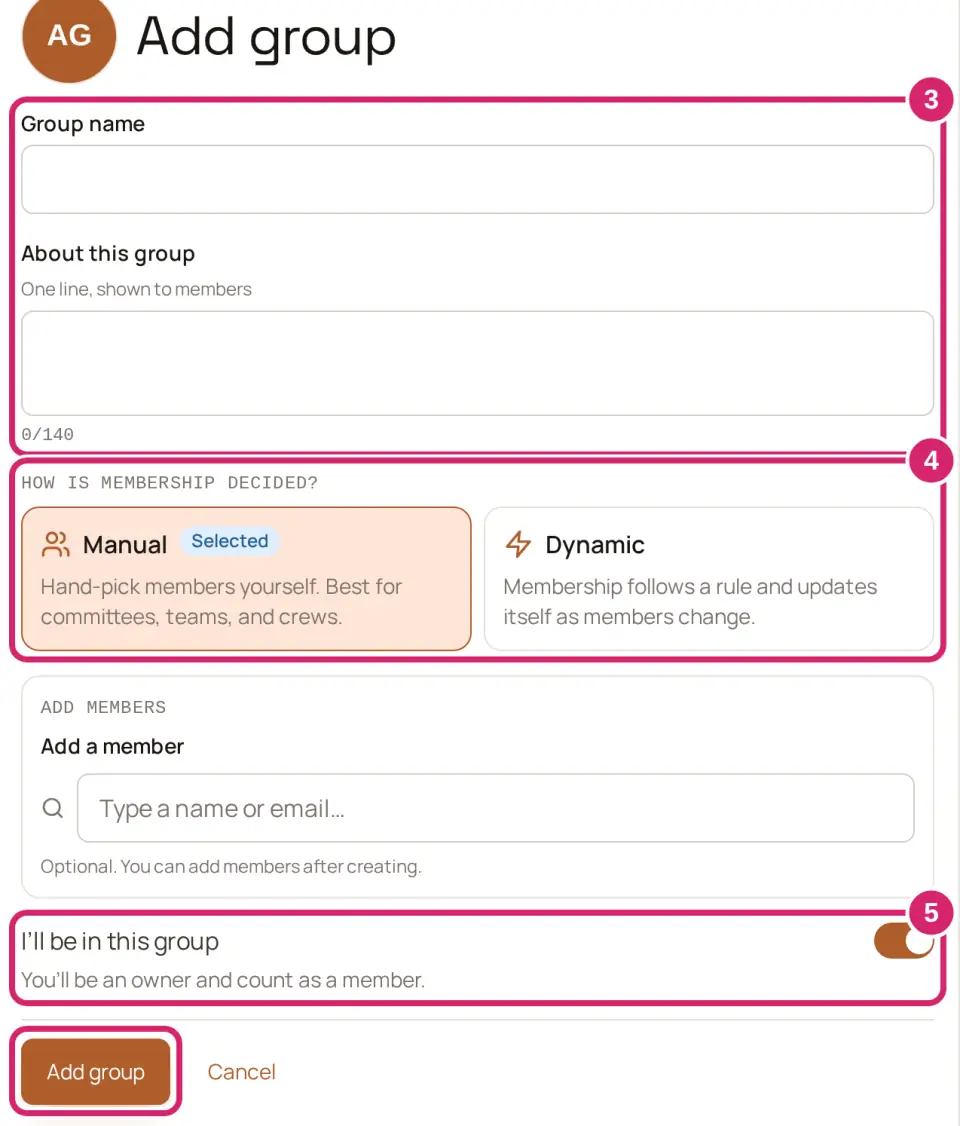
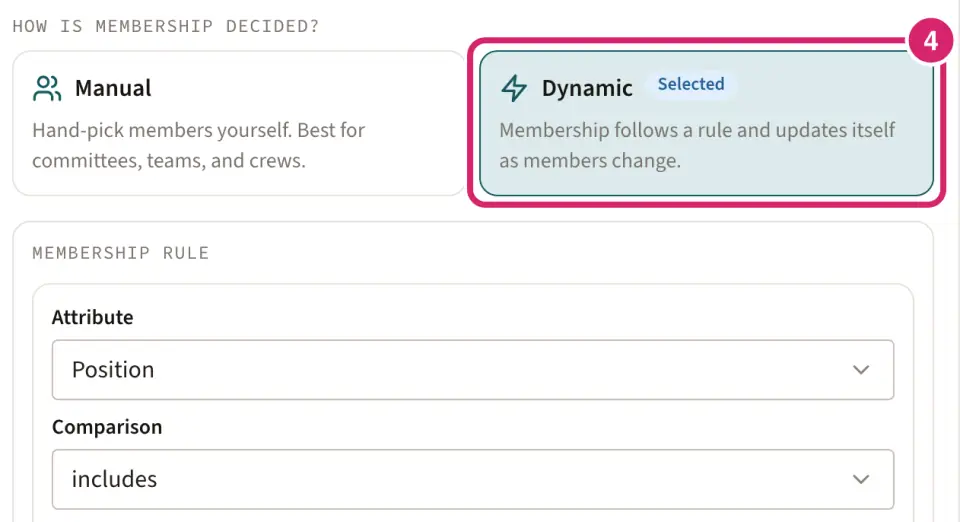
Under How is membership decided?, choose how people get into the group. A new group starts as Manual.
Manual — choose it when people are picked: a committee elected at the annual meeting, a team the coach chooses, a crew of volunteers. Members come and go only when someone adds or removes them. You can add the first ones now, under Add a member.
Dynamic — choose it when the group follows something already on members' records: everyone who holds an officer position, every junior member, everyone with a certain role. Build the Membership rule from an Attribute (a position, a role, Member type, Member status or one of your member fields), a Comparison and a Value. Below the rule you see how many members match right now. LongTable keeps the group up to date as members' details change, and members can't join or leave it by themselves. On a plan below Plus, Dynamic isn’t offered: the form shows Rule-based groups instead, with Upgrade to Plus for whoever manages your club’s bill. If your club moves below Plus later, its dynamic groups keep following their rules, but nobody can change a rule or its manual exceptions.
For a rule with more than one condition, select Add condition, then choose Match all conditions or Match any condition. Once the group exists, you can add people the rule misses under Always included, or leave someone out under Always excluded, both under Manual exceptions. Only member fields that every member can see are offered as an attribute.
Not sure? Start with Manual. On the Plus plan and above you can make a manual group dynamic later, but a dynamic group can’t go back to manual.
Decide whether you’ll be in the group yourself.
Should you be one of its members? That’s I’ll be in this group. It’s on to start.
On — choose it when you’re part of the group, such as the committee you chair. You become its first owner and count as a member, so you get its messages. In a dynamic group, you count as a member only when the rule matches you.
Off — choose it when you’re setting the group up for someone else, such as a team a coach will run. You won’t be in it or get its email, but you can still manage it. Pick at least one person under Name an owner: they run the group and appear under Owners.
You can change this later by adding or removing yourself, as long as the group keeps another owner.
Select Add group at the bottom of the form.
Add members and owners
Watch it done in 15 seconds, or follow the steps below. The numbers in the video match the steps.
In Community › Groups, select the group.
Under Members, find each person in Add members and select them. Each person you pick waits above the field; select the × beside a name to take them off. People already in the group show Already in this group. A dynamic group's members come from its rule, so this shows only for a manual group.
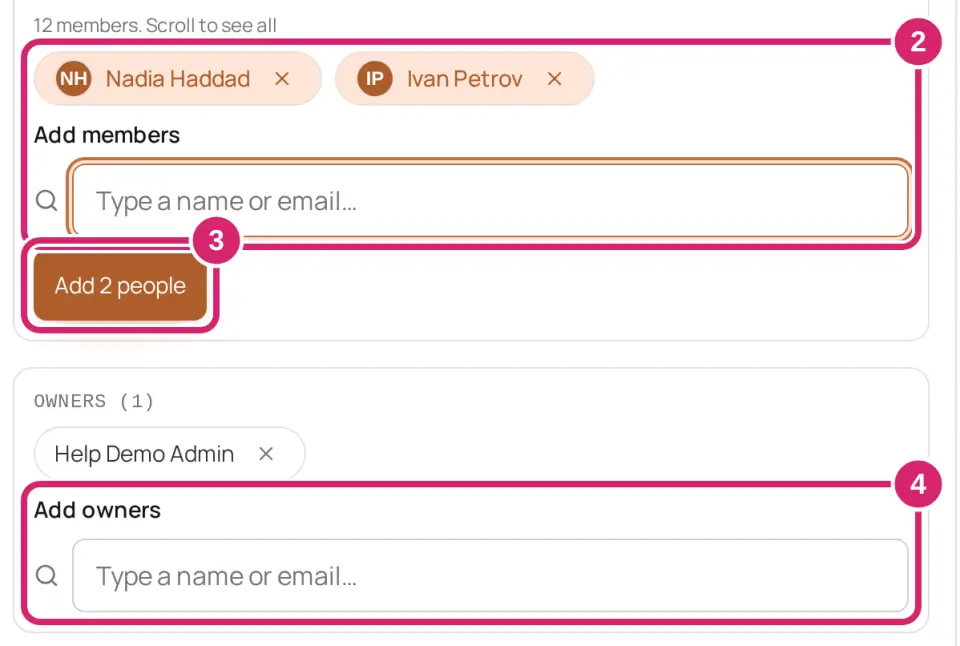
Select the button that names how many you picked, such as Add 2 people. LongTable confirms with a message such as Added 2 people to Fundraising committee. If someone can't be added, everyone else still goes in, and the people left over stay picked so you can try again.
Under Owners, find the person in Add owners. Who should run the group? Owners are the people members turn to, such as the committee chair or the team coach.
Owners — choose one or two people who look after the group. Owners can add and remove members of a manual group, rename it, change who can join and who can see it, turn on its email address, and message the group. Owners can also make another member of the group an owner, and step down once someone else owns it. Only admins and Communications managers can make anyone else an owner, remove another owner, change a rule or delete the group. A group always keeps at least one owner.
Members — everyone else in the group. They get the group's messages and can see who else is in it, but can't change anything.
In a manual group, owners are members too: they're listed under Members, and they get the group's messages and the mail sent to its email address. An owner stays a member while they're an owner, so their name reads Owner · change this under Owners instead of offering an ×. In a dynamic group, owners run the group and still get its messages and email, but they're members only if the rule matches them. To take someone out of a manual group, select the × beside their name. A message such as Nadia Haddad removed from Weekend Crew. offers Undo, which puts them back as they were. If you set up a group for someone else and kept yourself in it, add them as an owner, then remove yourself.
If you own a group but aren’t an admin or Communications manager, select Group settings on its card under Community › Groups. Under Make an owner, pick someone already in the group to share the work. Step down as owner hands the group back. You stay a member of a manual group; in a dynamic group you stay in only if its rule matches you. If you’re the only owner, make someone else an owner first.
Decide who can join and who can see the group
Two settings decide how members find a group. Each saves as soon as you change it, and you can change it back at any time.
In Community › Groups, select the group.
Select Group settings.
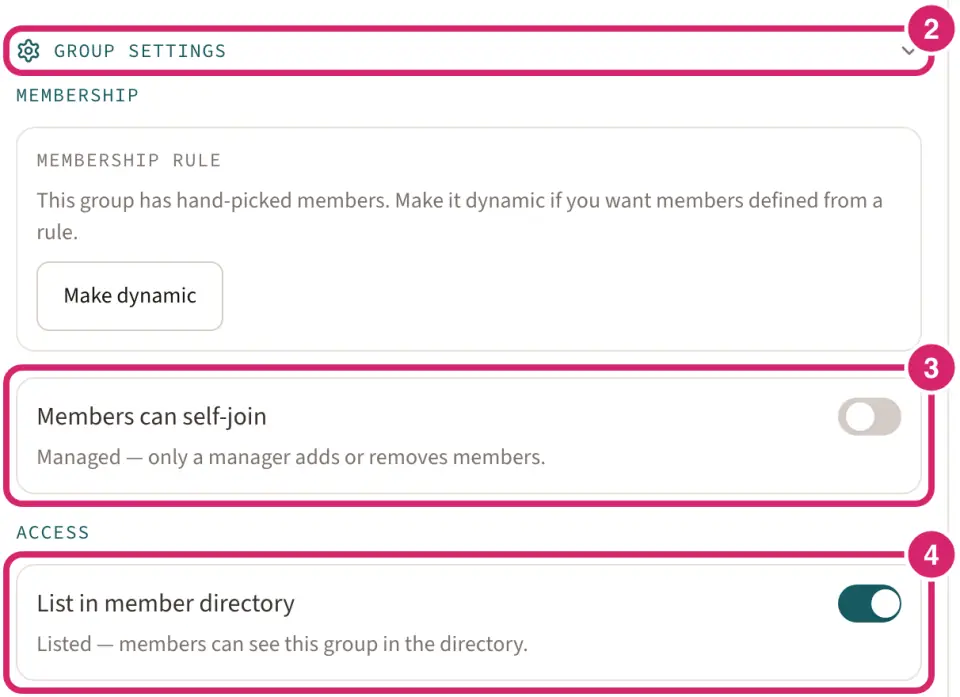
Can members join and leave by themselves? That's Members can self-join. It's off for a new group, and only a manual group has it.
Off — the group reads Managed. Choose it when someone decides who's in: a board, a team with a fixed roster, a committee. Only owners, admins and Communications managers add or remove members, and members can't leave by themselves.
On — the group reads Open. Choose it for things people sign up for themselves: a book club, a walking group, a volunteer rota. Members find the group under Open to join and select Join, or Leave when they're done. Turning it off later keeps everyone who has joined.
Should members see the group? That's List in member directory. It's on for a new group.
On — the group reads Listed. Choose it for most groups, so members can see what the group is and who's in it.
Off — the group reads Hidden. Choose it for a group the rest of the club doesn’t need to see, such as a safeguarding team or the planners of a surprise party. Only the people in it, its owners, admins and Communications managers can see it, and members in it see it marked Hidden. You can still message it. Hiding a group needs the Plus plan or above. On a lower plan, whoever manages the group sees Hidden groups with an upgrade offer in place of this switch. A group hidden before your club moved below Plus stays hidden; select List in member directory to show it again, but hiding it again then needs an upgrade.
An open group always stays listed, so turn off Members can self-join before you hide a group.
Inbound email, below these settings, gives the group its own email address. See Use a group as an email list.
To rename the group, select the pencil beside its name, then Save. In a web browser, you can add an icon there too. To change the line members see, select Edit under About.
To delete a group, select Delete at the bottom of Group settings, type DELETE, and select Delete group. The group moves to the Trash, where you can restore it for 90 days. If the group is the audience of a live or scheduled announcement, the confirmation says so: its members stop seeing the announcement while the group is in the Trash, and restoring the group brings it back.
Message a group and see who's in it
Message the group, at the bottom of the group's panel, opens a new message addressed to the group.
View full group roster opens a page listing everyone in the group, with its owners marked Owner. Every member can open it for a listed group.
Membership history shows who added or removed members and owners, and when. Changes a rule made are marked Automatic. Only admins see it, and the page says how long the history is kept.
If something goes wrong
Enter a name for the group. The name is empty. Type one, then select Add group again.
A group called “…” already exists. Each group needs its own name, and capital letters don't make a name different. Choose another name.
Keep the name to 120 characters or fewer. Shorten the name, then save again.
Choose an attribute and value for every condition before saving the rule. Finish each condition, or remove the ones you don't need.
This rule matches no members right now. You can still save it. This is a warning, not an error. The group fills as members come to match the rule.
A group needs at least one owner. Add another owner first. Add a second owner first, then remove the first one.
Name an owner for this group, or choose to be in it yourself. You turned off I’ll be in this group. Pick someone under Name an owner, or turn the switch back on.
Couldn’t add 1 of 3 people: Below it, each person who wasn't added is listed with the reason. Everyone else is already in the group. The people listed stay picked: select the button again to retry, or take them off.
A group called “…” already exists. Rename that group first, then restore this one. You're restoring a group from the Trash while another group has its name. Rename the other group, then restore this one.
Another group already uses that address. Choose a different one. Each group's email address must be its own. Type a different address under Inbound email.