
A hosted event has its own pages for the people running it: who’s coming, who’s bringing what, and the flyer you share. Open them with Manage hosting to follow replies, fill your sign-up slots and get the word out, all in one place.
Why use it
You see exactly who is coming, who hasn’t answered and who is on the waitlist, instead of counting replies by hand.
Sign-up slots share out the work, such as main dishes, desserts and setting up chairs, so nothing is brought twice and nothing is missed.
One flyer link, QR code and printable PDF work for the noticeboard, the newsletter and people outside the club.
Give a helper co-host access for the event rather than a role for the whole club. They can follow along, and you take it away when the event is over.
First add the event and turn on Host this event: see Create events and collect RSVPs.
Open an event’s hosting pages
Go to Community › Calendars and select the event.
Select Manage hosting.
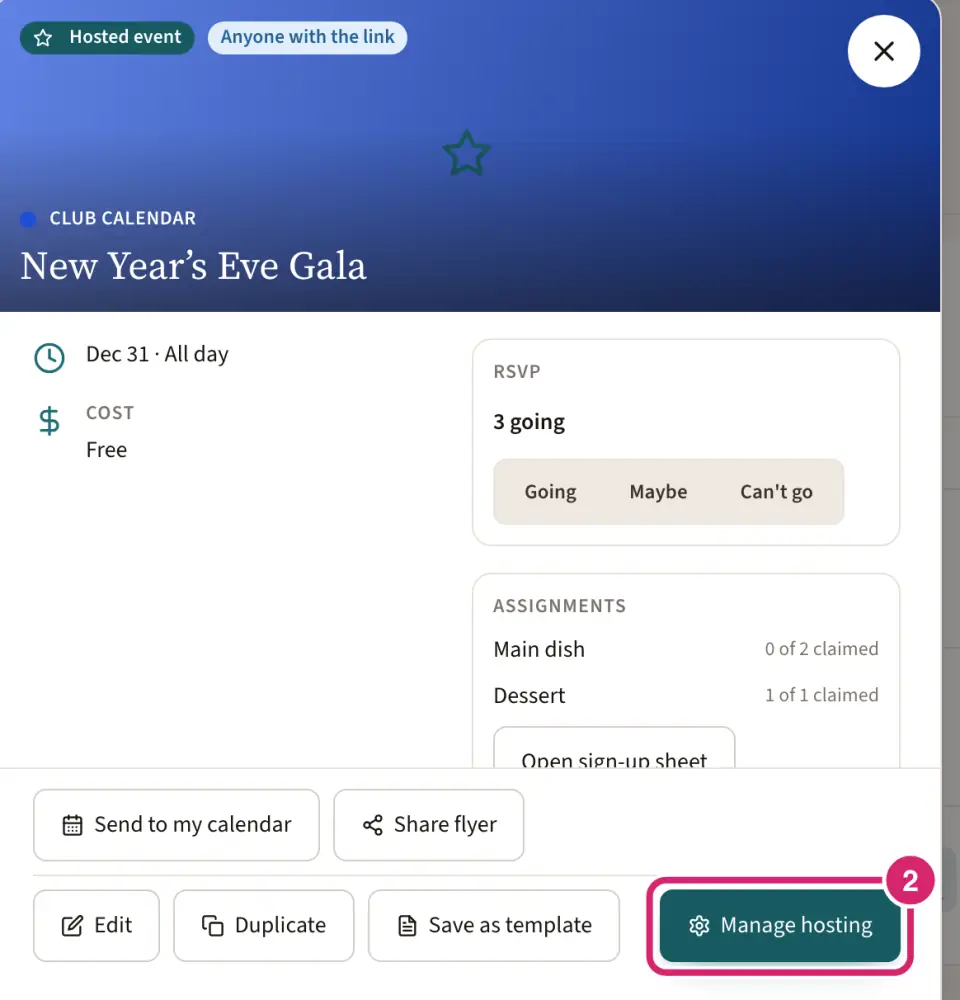
The hosting pages have up to five tabs: Overview, Guests (once the event collects RSVPs), Assignments (once it has sign-up slots), Promote and Settings. Edit event at the top changes the title, time and place. If you change the title, the date or time, the repeat or the place, Save asks Tell members about this change? so you can choose Save and notify or Save without notifying: see Create events and collect RSVPs.
Set these pages up on a computer or tablet; the steps below describe that layout.
Check how the event is going
The Overview tab is the event at a glance:
Going, Waitlist and Not responded, with how many days are left to reply. An event that doesn’t collect RSVPs shows its Website listing instead.
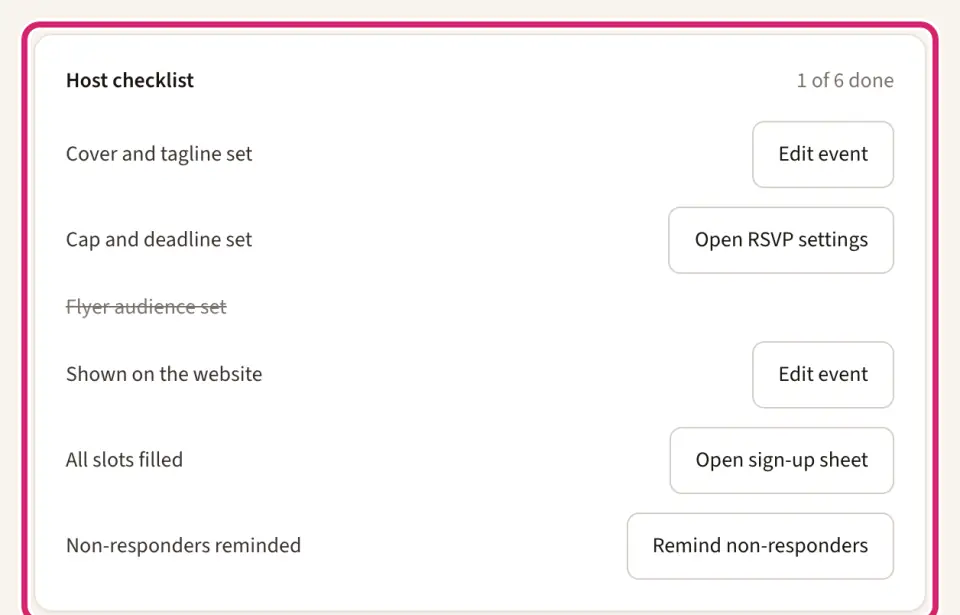
Host checklist: Cover and tagline set, Cap and deadline set, Flyer audience set, Shown on the website, All slots filled and Non-responders reminded, the ones that apply to your event. Each open item has a button that takes you to fix it.
Sign-up slots, Flyer and Hosts cards, each with a shortcut to the tab that manages it.
Recent: the latest replies, claimed slots and reminders. When a reminder couldn’t reach everyone, or someone couldn’t move up from the waitlist, the item says Needs attention. Select Retry to try again.
See who’s coming
Watch it done in 15 seconds, or follow the steps below. The numbers in the video match the steps.
Open the Guests tab. It lists everyone: members who replied, people you added, and anyone who replied through the flyer link, marked Public link.
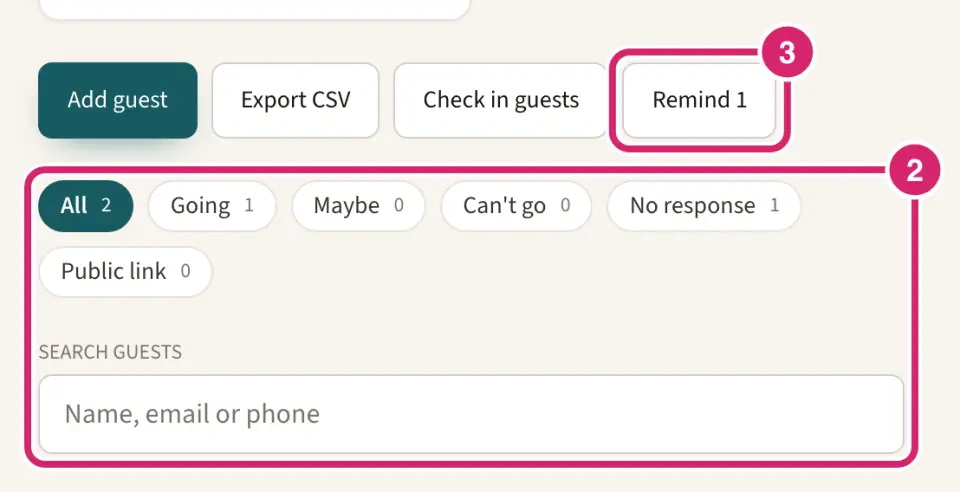
Pick a filter, such as Going, Maybe, Can’t go, No response or one of the invited groups, or search by Name, email or phone.
To nudge the people who haven’t answered, select Remind with the number beside it.
From the same tab:
Add guest puts a member on the guest list and its reminders before they reply. Find them and select their name; they’re added at once. To take them off again, select Remove on their row. Someone who has already replied keeps their reply.
Export CSV downloads the guest list as a CSV file.
Check in guests opens the door list for the day: see Check people in at events. It needs Basic or above.
Add sign-up slots
A slot is something people can put their name down for. Each one has a name and a Capacity, the number of people it needs.
Watch it done in 15 seconds, or follow the steps below. The numbers in the video match the steps.
On the Overview tab, under Sign-up slots, select Manage sign-up slots. Once the event has slots, the Assignments tab opens the same page.
Select Add slot.
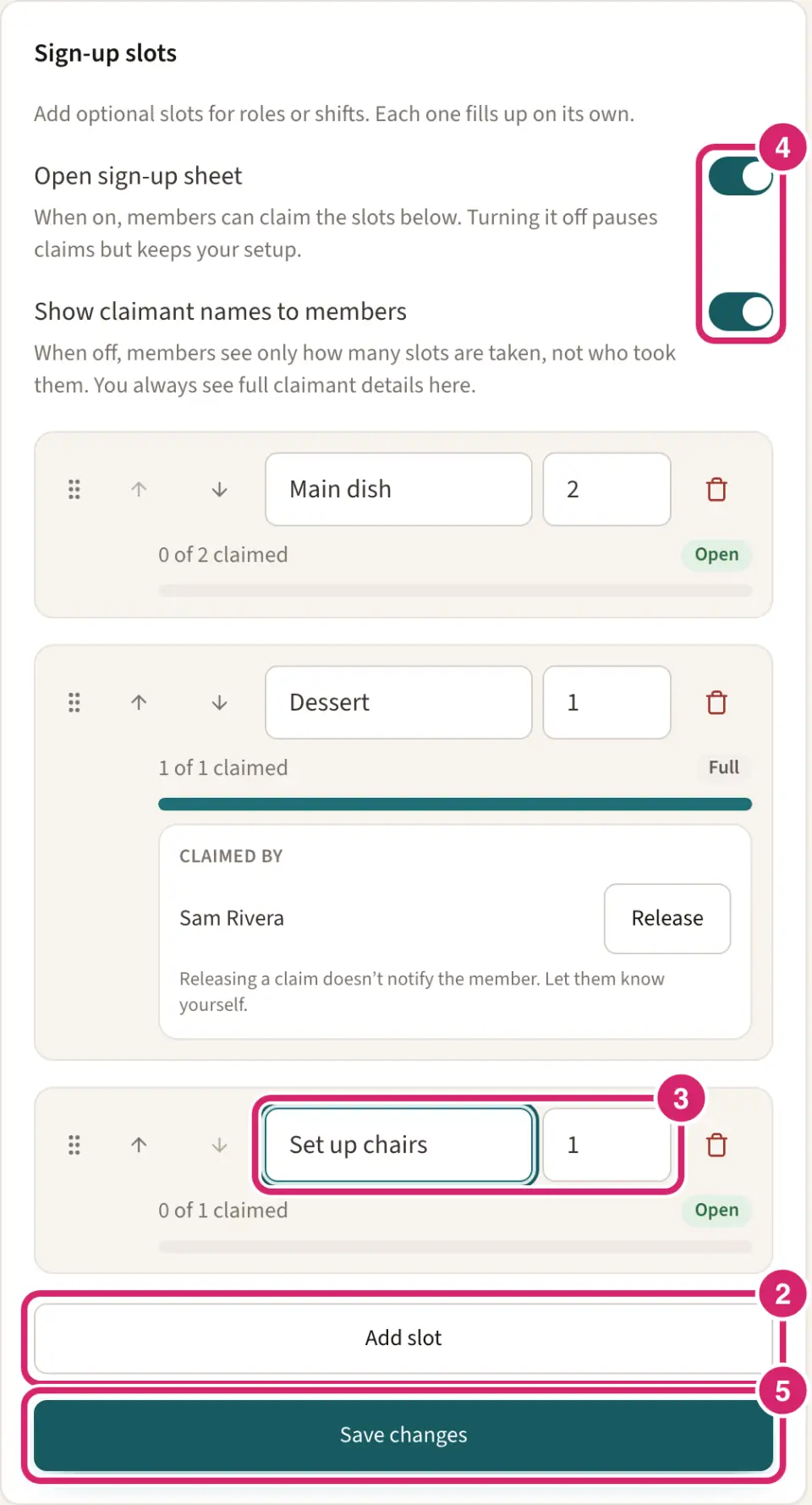
Type the slot’s name, such as Set up chairs, and its Capacity. Use the arrows or drag a slot to change the order.
Decide who can claim and what members see:
Open sign-up sheet — turn it on when you’re ready for people to claim. Turning it off later pauses claims and keeps your slots and who claimed them.
Show claimant names to members — leave it on for a potluck, where seeing who brings what helps people choose. Turn it off when names should stay private, such as volunteers for a sensitive job: members then see only how many places are taken. You always see the names here.
Select Save changes. Nothing changes for members until you do.
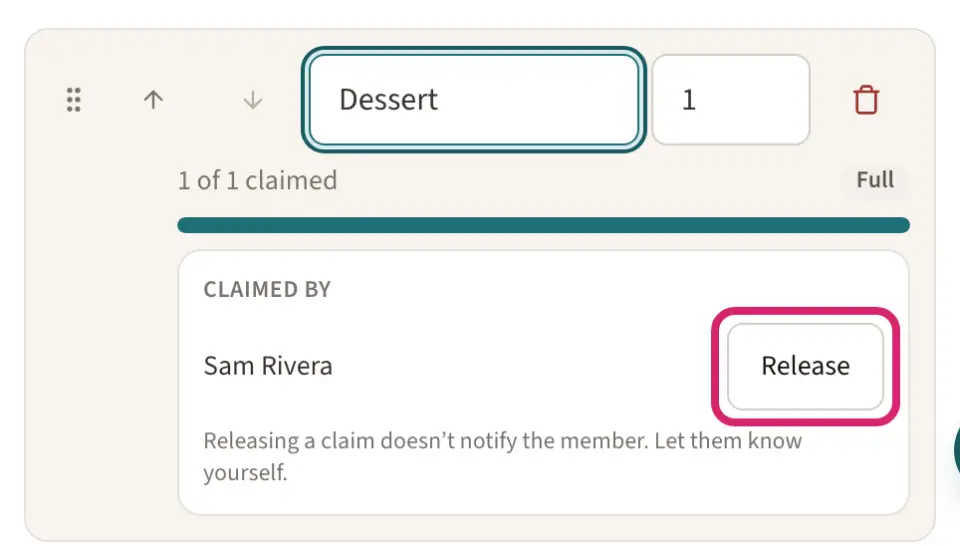
To let someone off a slot, select Release beside their name. Releasing a claim doesn’t tell them, so let them know yourself. Claims can’t be released once the event has started. Removing a slot that people have claimed asks first, then releases their claims when you save.
Share the flyer
The flyer is the event’s own page, where people read the details, reply and claim a slot. The Promote tab has everything for spreading the word.
Watch it done in 15 seconds, or follow the steps below. The numbers in the video match the steps.
Open the Promote tab.
Under Flyer link, select Copy and paste the link into a message, a newsletter or a social post.
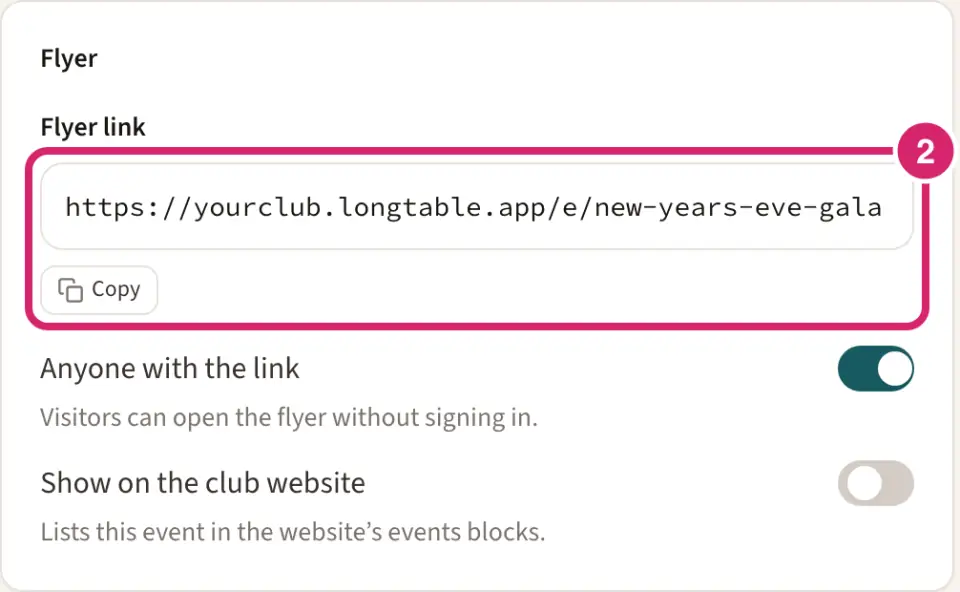
Who should be able to open it? That’s Anyone with the link:
Off — choose it for members-only events, such as an annual general meeting. Anyone who opens the link is asked to sign in.
On — choose it for events open to the public, such as an open day or a fundraiser. Visitors can open the flyer and reply without signing in. Then decide whether to Show on the club website, which lists the event in your website’s event blocks.
For the noticeboard and the door, scan or print the QR code, or select Download PDF for a printable flyer. Both appear only while the flyer is open to anyone with the link.
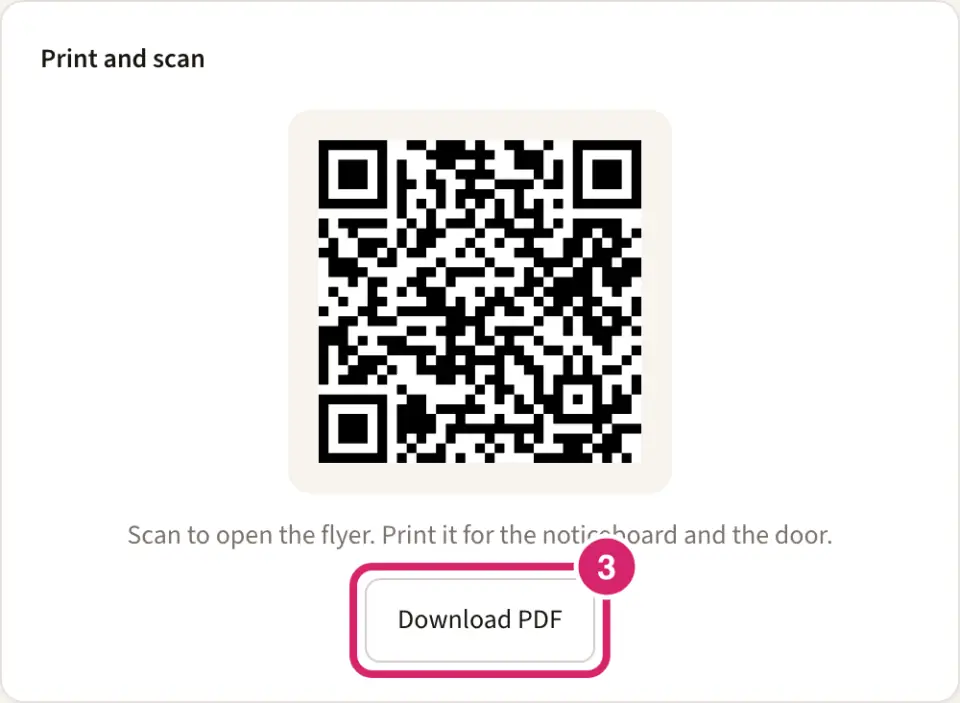
On a plan below Basic, a Printable flyers card takes the place of the QR code and the PDF. The flyer link still works on every plan.
Under Featured on the website, see whether a page’s Featured event block shows this event. If it shows another event, select Feature on and the page’s name to swap it. This changes that page on your website straight away. It needs Show on the club website on, and only admins and Marketing managers get the button.
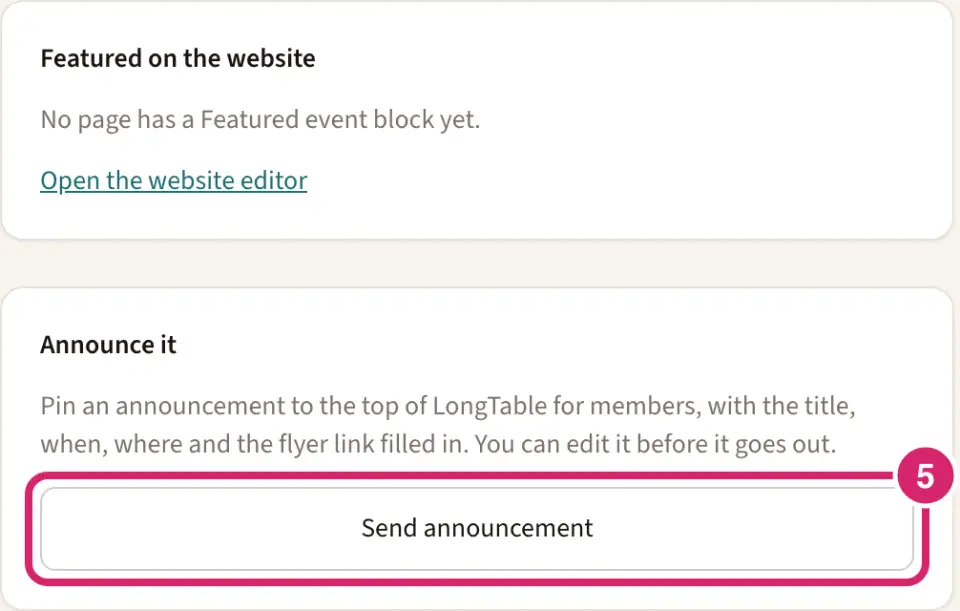
Under Announce it, select Send announcement. A new announcement opens with the event’s title, when and where, and a link to the flyer already written. It goes at the top of LongTable for members. Nothing is posted until you publish it: see Post an announcement. Admins and Communications managers see this button.
Change the event’s settings
The Settings tab holds everything you chose when you turned on hosting, so you can change it as plans firm up.
Watch it done in 15 seconds, or follow the steps below. The numbers in the video match the steps.
Open the Settings tab.
Change what you need:
Cover image: select Choose image…, then drag the point onto the part of the photo that should stay in view. The new cover is kept when you save.
Tagline, Who can see the flyer, Show on the club website and Cost (Free, Suggested donation or Required).
Collect RSVPs, Who can RSVP, Guest cap, RSVP by and Waitlist and auto-promote. Raising the cap moves people up from the waitlist, and each of them gets an email. The cap, the deadline and the waitlist need Basic or above.
Fields collected: what to ask when someone replies, Name, Email, Phone number or Note, and whether each is required. Share RSVP form gives a link to the reply form on its own.
Should members see how many are coming? That’s Can members see how many are coming?, under Attendee count. It starts as Only admins see how many are attending.
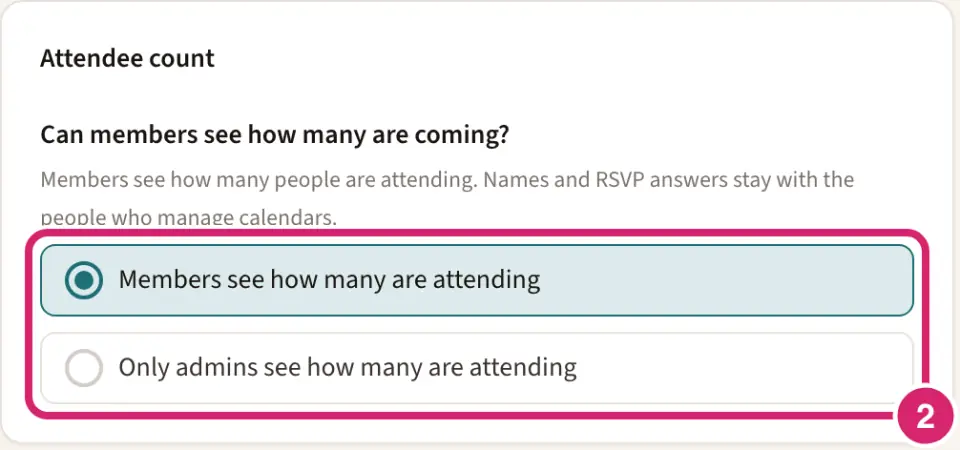
Only admins see how many are attending — choose it when replies are private, such as a committee dinner. Members don’t see how many are attending when they open the event in Calendars. The flyer still shows how many are going.
Members see how many are attending — choose it when a crowd draws a crowd, such as a social. Members see how many are attending when they open the event in Calendars. Either way, names and RSVP answers stay with the people who manage calendars.
Select Save settings. Saving here doesn’t email members, apart from anyone it moves up from the waitlist.
Add a co-host
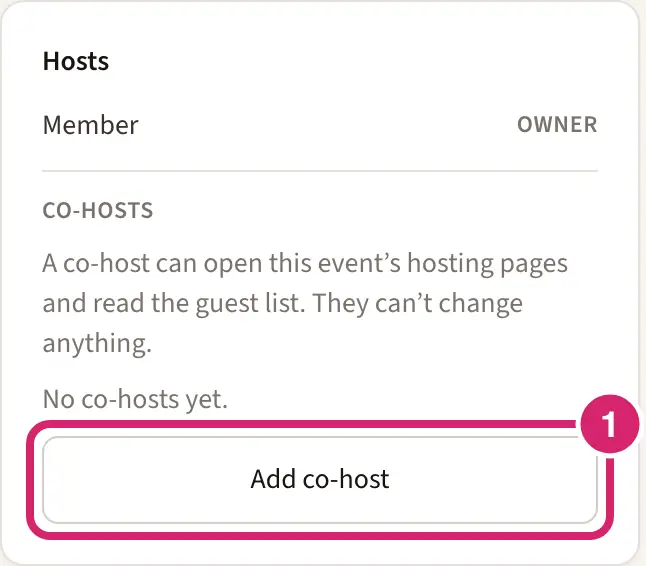
A co-host helps run the event. They see its Overview, Guests and Assignments tabs, so they can see who’s coming and who has claimed what, but they can’t change anything, send reminders or add guests. They find the event in Calendars with View hosting.
On the Overview tab, in the Hosts card, select Add co-host.
Under Find a member to add, search for the member and select their name. They’re added straight away.
To take the access away, select Remove beside their name.
What members and visitors see
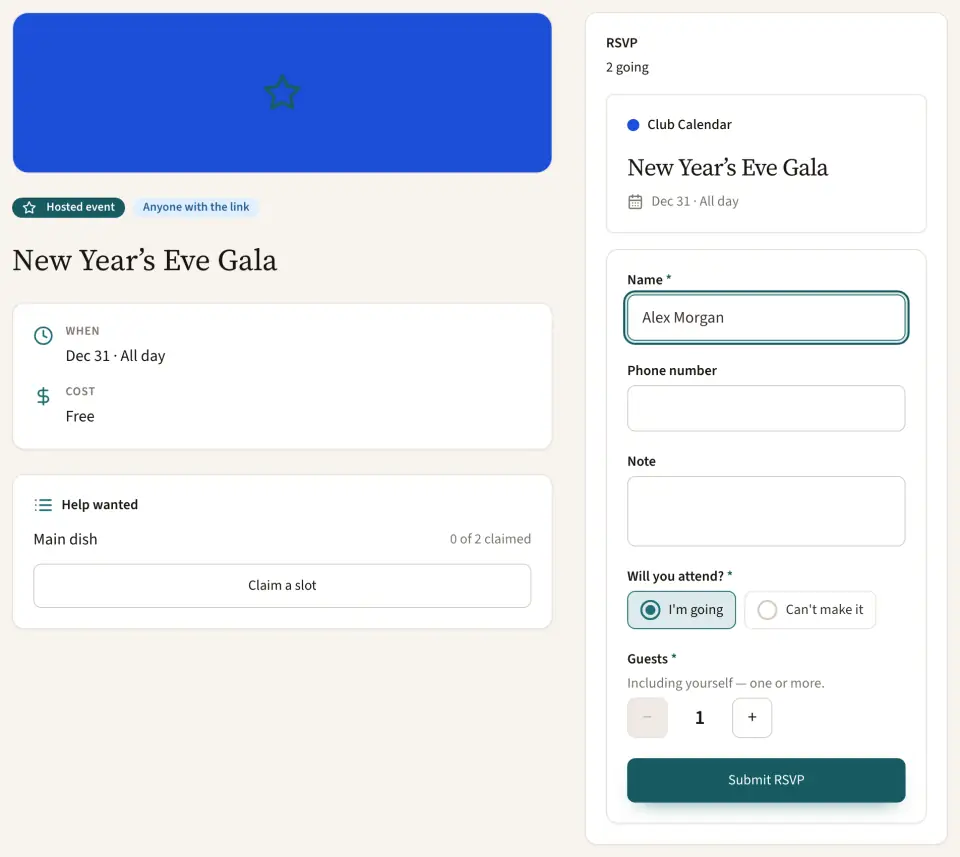
The flyer shows the cover, when and where, the cost, any slots under Help wanted, and a form to reply. A member selects Claim a slot to open the sign-up sheet.
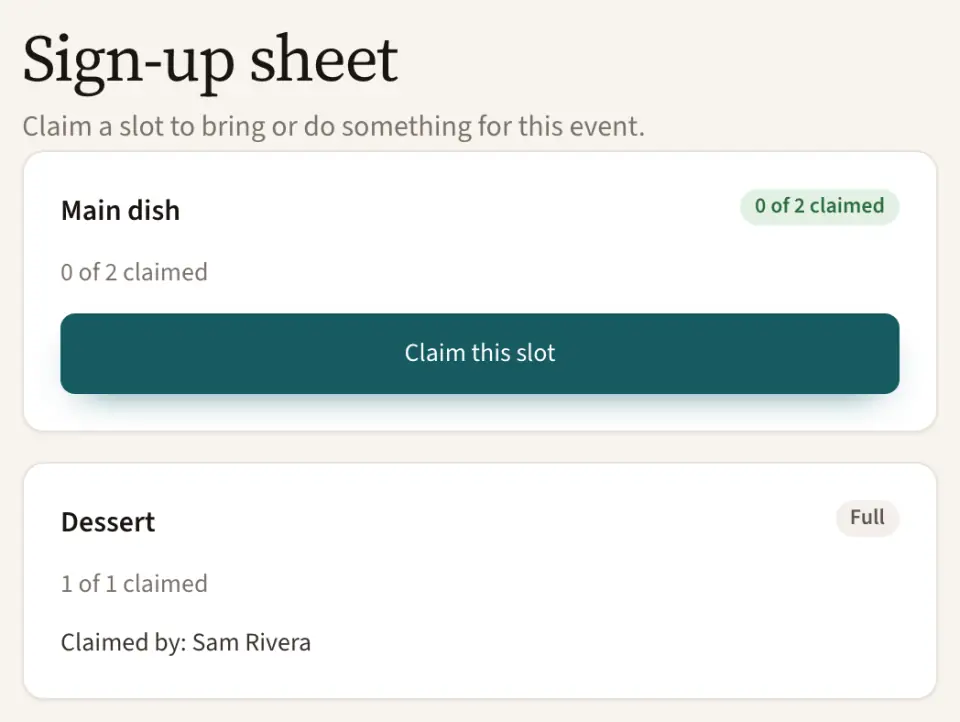
On the Sign-up sheet, members select Claim this slot, or Release my slot to give it back before the event starts. The event in Calendars also lists the slots and an Open sign-up sheet button.
A visitor with the link to a flyer open to anyone types their name, answers Will you attend? with I'm going or Can't make it, sets Guests and selects Submit RSVP. They don’t need an account, but they can’t claim slots.
When the event is full, people see This event is full. If the waitlist is on, they can join it and move up as places open.
If something goes wrong
This event already has RSVPs or claimed sign-up spots, so hosting can’t be turned off. Once anyone has replied or claimed a slot, the event stays hosted.
This event already has RSVPs, so RSVP collection can’t be turned off. Replies are kept, so Collect RSVPs stays on. Set an RSVP by date to stop new replies.
This event’s flyer is for members only, so only members can RSVP. Make the flyer visible to anyone with the link first. Change Who can see the flyer before letting anyone reply.
This flyer is for members only, so there’s no QR code or printable flyer. Turn on Anyone with the link on the Promote tab to get them.
Add at least one sign-up slot before opening the sign-up sheet. Add a slot, or turn off Open sign-up sheet, then save.
A slot needs a capacity of 1 or more, or capacity can’t go below the number already claimed. Raise the Capacity, or release claims first.
Two slots have the same name. Give each slot a different name. Rename one of the slots, then select Save changes again.
A sign-up sheet can have up to 100 slots. Remove or combine slots before you save.