
Open your club's website to visitors, so people who aren't members can find out what you do and how to join. Your site stays for members only until you turn this on, and you choose which pages visitors see.
Why use it
Let people who are thinking of joining see what your club does, when it meets and how to join.
Share the address of a public page in a flyer, an email or a social post. Anyone can open it without signing in.
Keep member information, such as the directory, minutes and board papers, on members-only pages while the rest of the site is public.
Your home page goes public the moment you open the site, so get it ready first.
Decide what visitors can see
The first three switches under Visibility decide what people who aren't signed in can reach. Look at them before you open your site, and again whenever what you share changes.
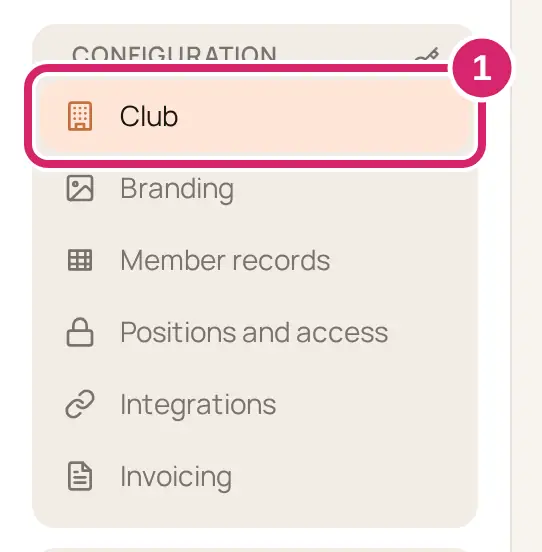
Go to Configuration › Club › Website.
Scroll to Visibility. Its first three switches are about visitors.
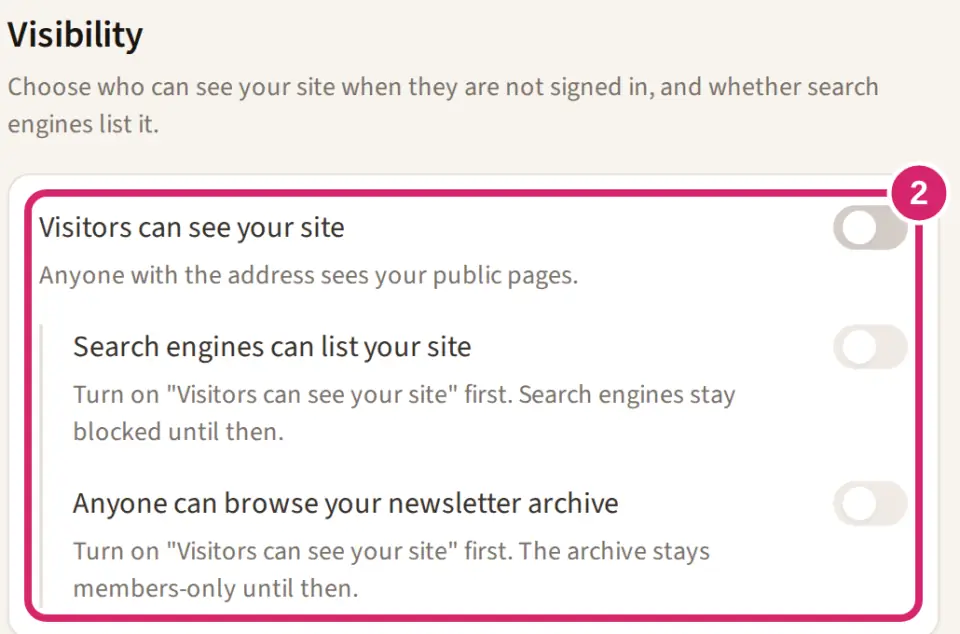
Should people who aren't members see your site?
Visitors can see your site opens your website to anyone who has its address. It's off for a new club.
Off: choose it while your site isn't ready, or when your club has nothing to show outsiders: a private society, or a club that takes new members only by invitation. Anyone who opens your site's address sees your club's name and logo, a line saying the site isn't public yet, and Sign in.
On: choose it when you want new people to find you: a walking group, a choir that's recruiting, a club that runs events for the public. Visitors see your home page and the pages you make public, with a Sign in button. Members-only pages stay hidden.
Turning it on makes your home page public, along with any page you've already set to Public. Every other page stays members-only until you make it public (below). Either way, we ask before anything changes.
Turn on Visitors can see your site. Nothing is saved yet. We ask Make your site visible to visitors? and list the pages anyone with your address will see without signing in. Members-only pages stay members-only, and nobody is emailed.
In the same box, decide whether search engines can list your site with Search engines can list your site (below).
Select Make it public. We confirm with Public access updated. To keep your site members-only, select Cancel instead.
Get your home page ready before you turn the switch on: it goes public with your site, whatever is on it. If it has nothing published yet, the box warns you: Your home page has nothing published yet. Visitors will land on an empty page until you publish something on it.
Should search engines list your site?
Once your site is open, change Search engines can list your site here whenever you like. It starts on for a club that has never chosen.
Search listing needs the Plus plan. Below Plus, a Search engine optimization (SEO) upgrade card takes the place of this switch, and search engines are asked not to list your site, whatever the switch in the box that opens your site says. See what each plan includes on the compare plans page.
On: choose it when you want people to find you by searching, such as for a choir in their town. Search engines such as Google can list your public pages and the events you show on your website.
Off: choose it when only people you give the address to should find you: a youth club, or a society that keeps a low profile. We ask search engines not to list your club. Anyone who has the address can still open your public pages.
If you'd rather not be listed, turn it off in the box that opens your site (step 4), or here at any time after. While your site is closed to visitors, this switch is off and grayed out.
Should visitors read your past newsletters?
Anyone can browse your newsletter archive lets anyone read the newsletters you've sent. It's off for a new club.
Off: choose it when your newsletters are written for members: they name members, share their news and photos, or talk about club business. Members still read them in LongTable.
On: choose it when your newsletter is a good way to show outsiders what your club does. Anyone can read every newsletter you've sent, and download each one as a PDF, at your site's address followed by /newsletters. While Search engines can list your site is on, search engines can list them too.
Turning off Visitors can see your site closes the archive too. When you open your site again, check this switch.
Make a page public
Every new page starts members-only. You choose who can see it the first time you publish it, because that's the first moment it has something to show.
Select Add page and build your page. The New page dialog doesn't ask who can see it.
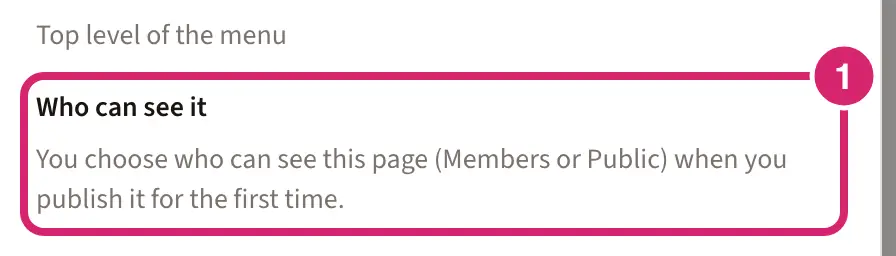
When it's ready, select Publish. The first time, the confirmation asks Who can see it.
Choose Members or Public. Members stays selected until you pick Public.
Who should see this page?
Members: choose it for anything about your members or club business, such as minutes, a committee's notes, or photos of young members. Only signed-in members can see it, and visitors don't see it in the menu.
Public: choose it for pages that help newcomers find you: what you do, when you meet, how to join. Anyone with your address can read it without signing in, and search engines can list it while Search engines can list your site is on.
Public is grayed out, with the reason under it, when visitors can’t see your site yet (Turn on “Visitors can see your site” in Club → Website to allow public pages.), or when the page has nothing on it (Add content to this page to make it public.). If your plan has no public site, it names the plan that adds one.
Not sure? Choose Members. You can make the page public later in Page settings, and take it back to members-only the same way.
If a page above it in the menu is members-only, choosing Public makes those parent pages public too. The confirmation names each one. It's all or nothing: if a parent page should stay private, choose Members instead.
Select Publish and make public. If you chose Members, the button says Publish now.
A page you make public shows in your visitors' menu within about 15 seconds.
To make a page public after its first publish, open it, select Edit page, then open More options › Page settings. Under Page visibility, choose Public. If a page above it is members-only, we show Make parent pages public first and list them. Select Make all public to make them all public with it.
A page can be public only if every page above it in the menu is public too. To take a page off the public site, choose Members instead. Its public sub-pages become members-only too; we list them and ask you first. Moving a public page under a members-only page in the menu does the same without asking: see Organize your website's menu.
What visitors see
Your home page, your public pages in the menu, and Sign in. Pages set to Members don't appear.
If none of your pages is public, visitors see your club's name followed by is for members, with Nothing here is public. Sign in to see the pages, events and files.
If your home page has nothing published but other pages are public, visitors see Nothing published on this page yet and are asked to choose a page from the menu.
A button that leads to a members-only page is hidden from visitors. Members still see it and can use it.
The address of a members-only page takes a visitor to sign in, then back to that page.
While Visitors can see your site is off, a visitor who opens your site's address sees your club's name and logo, This club’s site isn’t public. Only members can sign in., and a Sign in button. Nothing else about your club shows. The address of any other page takes them to sign in, then back to that page.
An Event block shows visitors the event's details and how to reply, but never who's coming.
Keep some pages private
Pages set to Members are only for signed-in members. To narrow a members' page further, use Restrict to groups in Page settings so that only certain groups can see it.
To close the whole site again, turn off Visitors can see your site. We ask Turn off visitor access? and list the public pages visitors will lose. Select Turn off to make the site members-only, along with your newsletter archive, and search engines stop listing it. Your pages keep their Public setting, so they're public again as soon as you turn it back on.
If something goes wrong
Public website access appears instead of the switch. Your club's plan doesn't include a public site. Compare plans to see which do.
Search engine optimization (SEO) appears instead of Search engines can list your site. Search listing needs the Plus plan. Until then, search engines are asked not to list your site. Compare plans to see which include it.
Turn on "Visitors can see your site" first. Search engines stay blocked until then. Turn on Visitors can see your site above it, then the search engine switch becomes available.
We couldn’t load what would become public. Cancel and try again. We couldn't read your pages to list them. Select Cancel, then turn on Visitors can see your site again.
Page published for members only. It wasn’t made public. The page was published, but making it public didn't work. Open Page settings and choose Public again.
This page is set to Public, but your club’s “Visitors can see your site” setting is off. Visitors can’t see this page until that setting is back on. Turn on Visitors can see your site in Configuration › Club › Website.
You can't find Visibility. It appears only for admins and members with the Marketing manager role, under Configuration › Club › Website.