
Put your club's website and LongTable on a web address you already own, such as members.yourclub.org. Your LongTable address keeps working too, so members can always reach you.
Why use it
An address with your club's name is easier to remember, looks like it belongs to you, and fits on a flyer.
Your LongTable address keeps working the whole time, so a problem with your domain never takes your site offline.
You try the domain first and choose the moment it goes live, so you can set it up quietly and switch over when you're ready.
Keep the sign-in for your domain company with the club, not with one volunteer, so the next committee can fix the record if it ever breaks.
Decide which address to use
Every club has a LongTable address, and it keeps working whatever you decide. The question is whether members and visitors should also reach you at an address of your own.
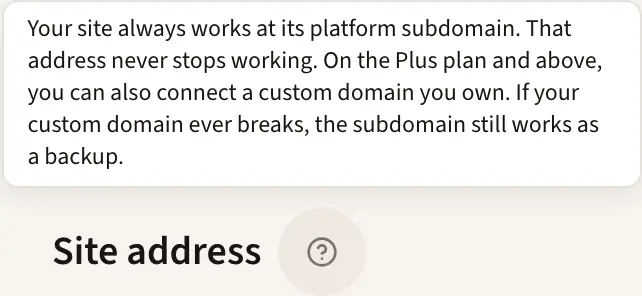
Your LongTable address: choose it when your club doesn't own a domain, or nobody at the club can sign in to the company that manages it. There's nothing to set up or look after, and it works on every plan. It's shown under Site address on Configuration › Club › Website.
An address of your own, such as members.yourclub.org: choose it when your club already owns yourclub.org and wants its website and LongTable under its own name, on flyers and signs. Members and visitors can use either address, and your LongTable address stays as a backup.
Not sure? Keep your LongTable address for now. You can add your own address later, and if you remove it, members simply use your LongTable address again.
Before you start
You need a domain your club owns, and a sign-in to the company that manages it. That's usually where you bought the domain.
Use a subdomain, such as members.yourclub.org. A bare domain such as yourclub.org on its own won't work.
Your club can have one custom domain at a time.
Set up your domain
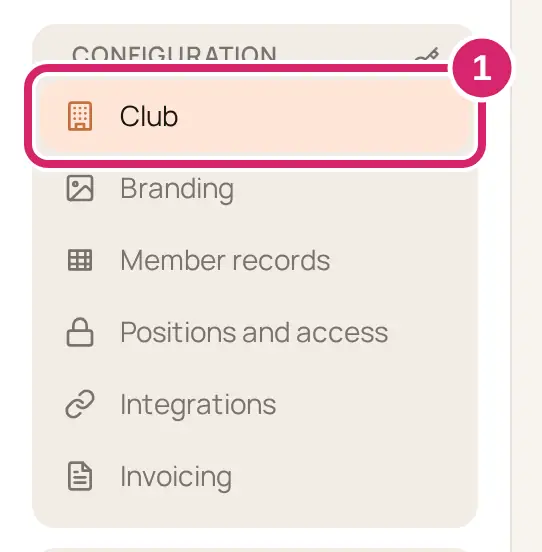
Go to Configuration › Club › Website.
Find Site address at the top.
Under Custom domain, enter your domain, such as members.yourclub.org.
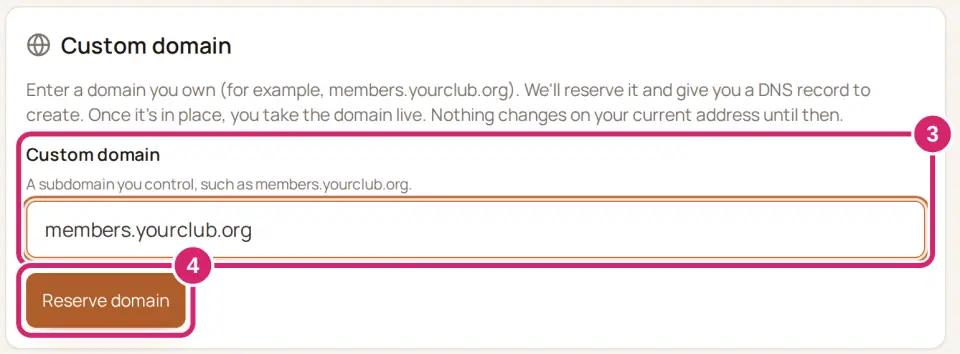
Select Reserve domain. This only holds the name for your club: nothing changes for your members yet.
We show you one DNS record to add. At the company that manages your domain, add a record with the Type, Name (Host) and Value (Target) shown; each has a copy button. If the company won't accept the full name, enter only the part before your domain.
Back in LongTable, select Check DNS. The record shows In place, Incorrect or Not verified yet.
When the status reads Ready to try, select Open your domain and make sure your site looks right there. Then select Make domain live.
Your domain now shows your website, and LongTable for members who sign in. Nothing moves to it until you select Make domain live, so you choose the moment: a quiet week, before you print new flyers. Tell members the new address; links to your LongTable address keep working.
Your club's email and calendar feeds stay on your LongTable address.
How long it takes
A new DNS record can take from a few minutes to 48 hours to reach the whole internet.
Select Check DNS as often as you like. You don't have to wait the full time if it's ready sooner.
Once the record shows In place, the status reads Setting up while LongTable sets up the secure connection for your domain. This usually takes a few minutes before Ready to try appears.
Change or remove your domain
To move to a different domain, select Change domain, enter it in New custom domain, and select Start change. Your current domain keeps working while you add and check the new record. When the new one reads Ready to switch, select Switch now and type I AGREE to confirm. The old domain stops working straight away, so members need to update their bookmarks. You can select Cancel change any time before you switch.
To stop using a custom domain, select Remove custom domain, then Remove domain. Members reach you at your LongTable address again. If the domain isn't live yet, select Start over, then Remove and start over, to use a different one.
If something goes wrong
Waiting for your DNS record: we can't see your record yet. Check that you added it, then select Check DNS again in a few minutes.
Needs attention: the record is there but points to the wrong place. The panel shows the value to change it to.
Enter a subdomain, such as members.yourclub.org, not yourclub.org on its own. You entered a bare domain. Put a name in front of it, such as members.yourclub.org.
That domain is already in use. Another club, or another website, already uses that domain. Choose a different one.
Finish setting up …, or remove it, before adding another domain. Your club already has a domain waiting to go live. Make it live, or select Start over to remove it, before you enter a new one.
If a live domain stops working, the record at your domain company has usually been changed or removed. Add it again exactly as shown, then select Check DNS.
We check every live domain once a day and email your club's admins if it stops working. Your LongTable address works the whole time, so your site is never offline.