
Send your members invoices for dues and other charges, and let them pay online. The money goes straight to your club's own bank account through Stripe.
This is your club collecting money from its members. It's separate from Administration › Billing, where your club pays for its LongTable plan (see Change or cancel your plan).
Why use it
Nobody chases cash or checks. Members get each invoice by email and pay it online, and Stripe puts the money in the club's bank account. LongTable never sees your bank details or holds your money.
The treasurer sees who has paid. Every invoice shows whether it's open, paid or void, and you can record a cash or check payment on it too.
Invoice schedules do the regular work. A dues schedule makes the invoices every week, month or year, and you check them before anything is sent.
Plan for handovers. Give the Treasurer role to your treasurer's position, not the person, and give a second club leader their own login in Stripe, so the club never depends on one person.
Know who handles what
When your club bills its members, the agreement and the money are between your club and the people it bills: its members, and anyone who pays for them. Stripe is the payment processor that moves the money, and LongTable is the tool that makes the work easier.
Your club — the seller. It decides what to charge and when it's due, sends the invoices, and decides on refunds and on anything it waives. The money is the club's. A member's question about a charge goes to the club's treasurer or admin, not to LongTable.
Stripe — the payment processor. Your club has its own Stripe account, which takes each payment and pays the money into the club's bank account. Stripe also handles refunds and disputes. Questions about the club's Stripe account, its verification, money that hasn't reached the bank, or Stripe's fees go to Stripe: select Stripe Support on the Stripe card.
LongTable — the tool. We make and schedule invoices, send reminders, and show who has paid, so your treasurer spends less time on paperwork and chasing payments. We never hold your club's money, and we aren't part of the agreement between your club and its members. Our support team can help with LongTable's invoicing tools, such as a schedule that didn't run.
Decide who handles the club's money
Anyone who can open invoicing sees what every member owes and who pays for whom. Before you connect Stripe, decide who manages the club's money in LongTable and who only needs to look. Only admins give out roles; Give access with roles and positions has the details.
Go to Configuration › Positions and access.
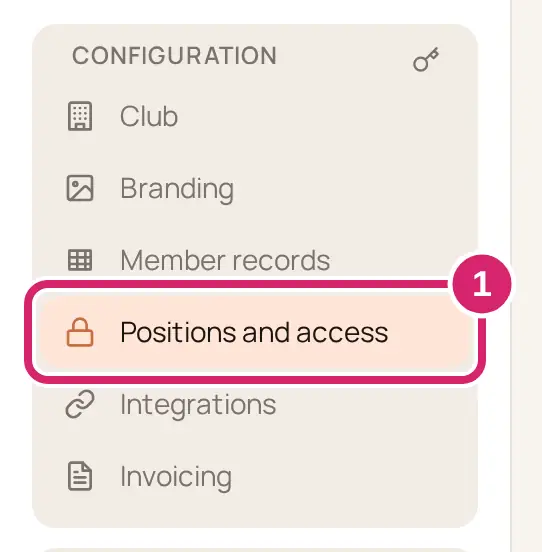
Open your treasurer's position and, under Roles this position grants, check Treasurer.
For someone who should only look, make a role that allows only View invoicing: under Advanced · Roles, select Edit roles, then Continue to roles and Add role.
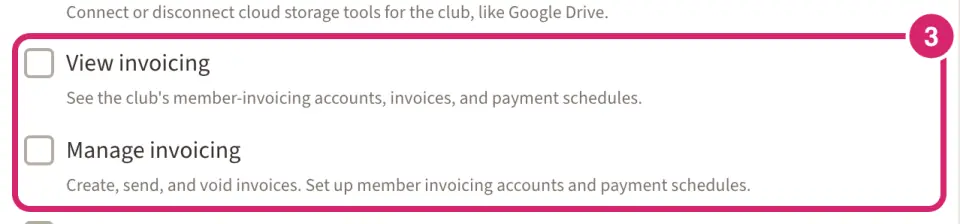
Check that role on their position, the same way as step 2.
Who should manage the money, and who should only look?
Manage invoicing comes with the built-in Treasurer role. View invoicing on its own needs a role you make.
Manage invoicing (the Treasurer role) — choose it for whoever runs the club's money: your treasurer, and perhaps an assistant treasurer who covers for them. They connect Stripe, send and void invoices, run schedules and set reminders. The Treasurer role also lets them add, edit, remove and import members, and look after the club's LongTable bill in Administration › Billing. They get the club's treasurer notifications by email.
View invoicing only — choose it for someone who checks the books but shouldn't send anything: a club president, an auditor, or a finance committee. They see invoices, schedules, who pays for whom, and the club's balance and payouts, and they can download accounting exports. They can't send, change or void anything.
Admins can always do both, and they get the treasurer notifications too. You can change who holds a position at any time, and the access goes with the position. Not sure? Give Treasurer to your treasurer's position only, and add viewers when someone asks to see the books.
Connect your club's Stripe account
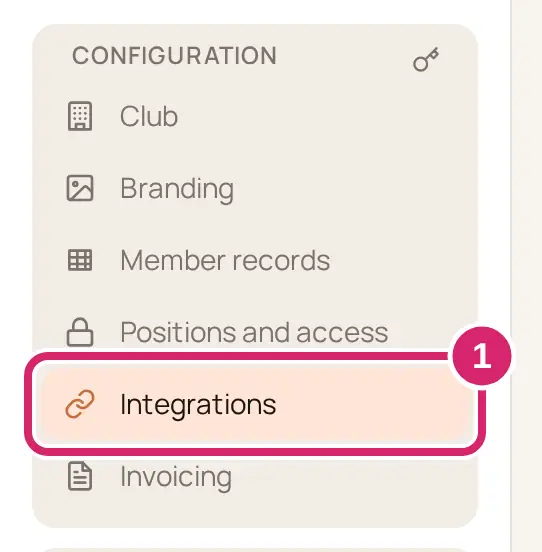
Go to Configuration › Integrations.
On the Stripe card, select Enable Stripe.
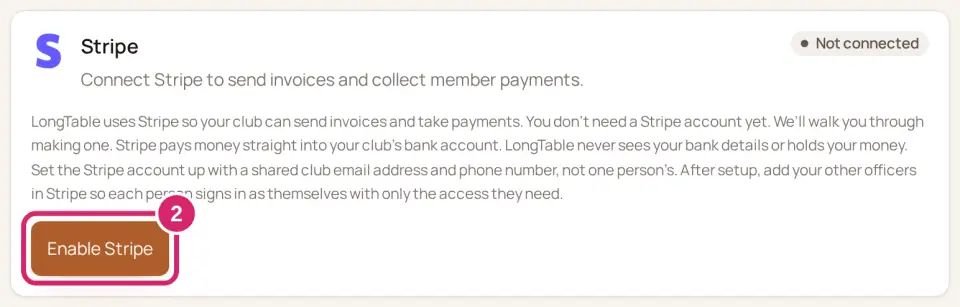
Stripe's own setup page opens in a new tab or window. Follow its steps to set up the club's Stripe account and add the bank account the money should go to. You don't need a Stripe account already.
When you finish, Stripe brings you back to Integrations. The card shows Connected once Stripe has approved the account.
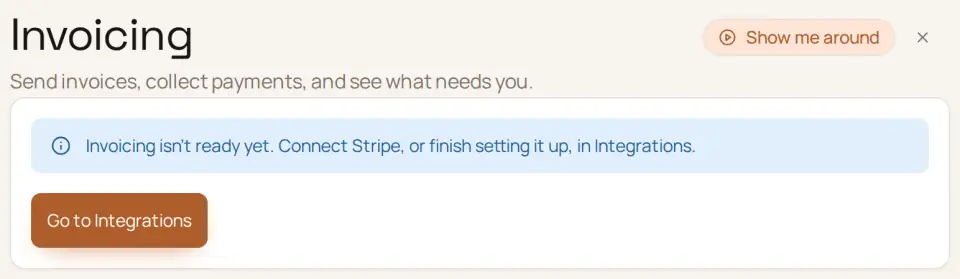
Until then, Configuration › Invoicing shows only a notice and Go to Integrations.
If Stripe needs more from you, the Stripe card says so. See If something goes wrong below.
Once you're connected, add a second club leader to the Stripe account. Select Open Stripe dashboard in Configuration › Invoicing › Settings › Stripe connection, then in Stripe go to Settings › Business details › Team members. We strongly recommend that at least two members can sign in to Stripe. See Keep access to Stripe when your treasurer changes.
For questions about what Stripe asks for, select Stripe Support on the card.
If nobody can sign in to the club's Stripe account, the card shows Nobody can sign in to the club’s Stripe account? Only Stripe Support can move the account and its sign-in to someone new, so select Contact Stripe Support. See Keep access to Stripe when your treasurer changes.
To stop collecting payments, select Remove invoicing and type REMOVE INVOICING. This removes schedules, reminders and unfinished work from LongTable. Stripe keeps the club's account and its financial records. If you connect again later, your invoice history comes back, but you'll set up schedules and reminders again.
Choose who pays for a member
Each member's invoices go to one person: the member, or whoever pays for them. Set this before you make invoices if you can. If you change it later, the member's open invoices move to the new payer.
Go to Configuration › Invoicing.
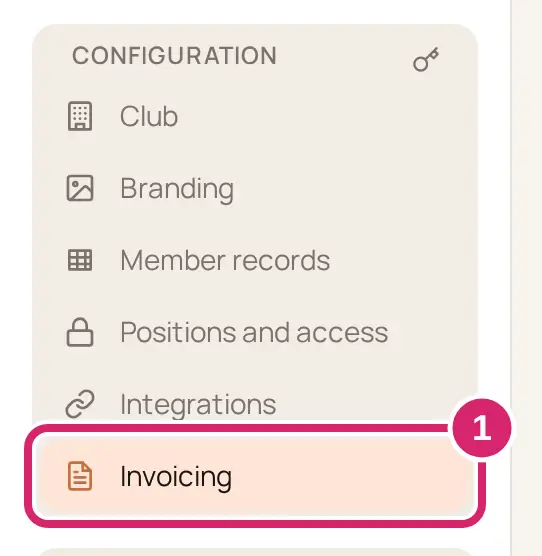
Select the Settings tab, then Who pays. Each member's line says who gets their invoices, and why: household, club setting or the member.
Select the member's line. To find them, type their name in Look up a member.
Under Change who gets the invoice, choose who pays for them (below).
Read Check before you change who pays: it lists which open invoices move and which stay. Then select Change who pays.
Who should get this member's invoices?
Their household's answer — choose it when households sort out who pays among themselves, as in a youth club where one adult pays for the young members they look after. Invoices go to whoever the member's household names, even someone who isn't in your club. If the household names nobody, the member pays. Every member starts here; to go back to it, select Use their household’s answer.
They pay for themselves — choose it for adults who pay their own dues, or to overrule a household at your club: an adult who shares a household but pays their own way.
Another member, found in Pick a member — choose it when one of your members pays for another and it should stay that way at your club: someone who looks after a young member and is a member too, or a sponsor who covers a player.
Send invoices to an email address — choose it for someone who isn't in your directory, such as someone outside the club who covers the fees. Enter their Email address and select Send invoices here. It takes effect once you confirm, and nobody has to accept. The member gets an email saying where their invoices now go, with an offer to add that person to their household. Their answer doesn't change what your club set.
What you choose applies only at your club, and it wins over whatever the household says. It never changes the household itself. Not sure? Leave members on their household's answer, and choose a payer only when a household asks you to. A young member with no email address needs someone to pay for them, or nobody can be emailed their invoice.
What happens to invoices already sent? Each of the member's open, unpaid invoices is canceled and sent again to the new payer, and an overdue one comes back due today. Paid invoices stay as they are. So does an open invoice that a payment, dispute or correction has started on, or whose payment is what restores the member's membership. We email the new payer, and whoever the moved invoices went to, so they know they don't need to pay them. If some open invoices are still waiting to move, select Move the rest.
Send an invoice to one member
Use one invoice for a charge that happens once, and a schedule for charges that repeat:
New invoice — choose it for a one-time charge or one person: a new member who joins mid-year, a replacement key, a trip deposit.
New invoice schedule — choose it for a charge a group pays again and again: dues each year, a charge each season, monthly subs. See Bill members on a schedule below.
Go to Configuration › Invoicing.
Select New invoice at the top of the page.
In Member, search for the member by name or email. The invoice goes to whoever pays for them.
Choose the Due date.
Under Line items, enter a Description and an amount for each charge. Select Add amount for another line.
Select Save draft. Nobody else sees the invoice until you send it.
Select Send invoice, then confirm in Send this invoice?.
Stripe emails the invoice to whoever gets it. If someone else pays for the member, the invoice shows Gets the invoice: and their name. The member can also pay it from My invoices in LongTable.
Nobody can be emailed: if the person who gets the invoice has no email address, Send this invoice? asks for one. Add it and select Save and send, or select Send without email and share the invoice's Payment link yourself. The invoice then shows … has no email address. Share the payment link with them yourself. beside its payment link.
Someone paid in cash or by check: open the invoice, select Record offline payment, note how they paid in Payment method note, then select Mark paid.
An invoice nobody should pay: select Void invoice and give a Reason.
Money to give back on a paid invoice: select Refund payment, enter the Refund amount (USD) and a Reason, then select Refund. Stripe sends the money back from your club's Stripe account. Giving a refund is your club's decision.
Bill members on a schedule
Go to Configuration › Invoicing.
Select New invoice schedule.
Enter a Schedule name.
Set when it runs: Repeats (Weekly, Monthly, Yearly or Custom…), Starts on and Due after (days). For dues each year, choose Yearly and set Starts on to the day your membership year starts. For a charge every three months, choose Custom…, enter 3 in Every and choose months in Unit.
Under Who gets invoiced, choose who the schedule bills, then select Preview who matches now to see who it includes.
A group — choose it when a group already holds the people who pay, such as your full members. Whoever is in the group when each run starts gets an invoice, so newcomers are billed next time.
Directory filter — choose it when a detail on the member's record decides who pays, such as their member type. Whoever matches when each run starts gets an invoice.
Specific members — choose it for a short, fixed list, such as the members who rent boat spaces. Nobody else is billed until you add them.
Under Invoice lines, add the lines each invoice carries, the same way as for one invoice.
Answer the three questions below.
Select Save schedule.
When should the first invoices go out?
First run decides when a new schedule starts. You choose it only when you create the schedule, and the form shows the date in Next run preview.
On the next repeat date — choose it when the first invoices belong to the next period, such as dues for a year that starts in January. It's already selected.
Right away — choose it when this period's invoices are due now. The first run starts within about a minute of saving.
What about people who join partway through?
First-invoice proration decides whether someone who joins the target partway through a period is billed for it. It starts on No proration.
No proration — choose it when everyone pays for the whole period whenever they join, or when you'd rather bill latecomers yourself. Every invoice is the full amount.
Remaining days in the period — choose it when people join all year and should pay only for the time left. Each day, LongTable looks for new people in the target and makes their first invoice for the days left in the period. Later invoices are the full amount.
Should invoices go out without your check?
Send generated invoices without review is off for a new schedule.
Off — choose it while you're getting started, or whenever the people in the target change often. Each run makes private drafts, and nobody is emailed until you approve them.
On — choose it for a schedule you've watched run correctly a few times, with a list that rarely changes. Invoices are emailed as soon as each run makes them.
Not sure? Leave it off. You can turn it on later with Edit future runs.
To check a run, open the schedule, choose the run under Run history, look over its Invoice preview, then select Approve and send and confirm. If some members have no email address and nobody pays for them, you're asked to confirm that they won't get their invoice by email; share their payment link with them yourself.
To change or stop a schedule, open it. Edit future runs changes the runs still to come, not invoices already made. Pause stops it for a while, such as over the off-season, and Resume starts it again. Retire stops it for good: it can't be restarted, and its past runs and invoices stay for your records.
Remind members to pay
Go to Configuration › Invoicing › Settings › Reminders and late fees.
Select Send LongTable payment reminders (see below).
In Days from due date, enter when to send reminders, separated by commas. Use negative numbers for days before the due date and positive numbers for days after it, such as -7, 1, 7.
Turn off Stripe's automatic invoice reminders in your Stripe account, then select I’ve turned off Stripe’s automatic invoice reminders.
To charge a late fee too, select Apply one late fee, enter the Grace period (days), and choose Fixed amount or Percentage of the unpaid balance.
There’s no Save button. A checkbox or choice saves as soon as the settings are complete, and a box you type in saves when you leave it.
Who should remind members: LongTable or Stripe?
Send LongTable payment reminders is off for a new club.
On — choose it to keep reminders beside your invoices, such as a week before dues are due and a week after. On each day you list, at 9 in the morning in your club's time zone, Stripe emails the invoice again to whoever gets it. Reminders stop once it's paid. To give one schedule its own days, open the schedule and, under This schedule’s reminders and late fee, select Give this schedule its own settings.
Off — choose it if your treasurer already sets up reminders in Stripe, or would rather follow up with late payers personally.
Changes apply as soon as they’re saved, including to invoices already open. A reminder day that has already passed isn't sent late.
What should happen when an invoice stays unpaid?
When an invoice stays unpaid, under Settings › Overdue members, is off for a new club. Select Act when an invoice stays unpaid, enter the Days overdue, then choose one or both:
Change member status — choose it when an unpaid member should show as lapsed on their record, using one of your club's member statuses. When they pay, their earlier status comes back by itself. The member isn't told.
Email the treasurer when this happens — choose it when you'd rather follow up in person first. Everyone who manages invoicing gets the email, and nothing changes on the member's record.
It saves as soon as the settings are complete. Members it has caught are listed under Members with an overdue invoice, where Restore previous status or Clear overdue mark undoes it. Not sure? Start with the email only, and add a status change once you’ve seen who it catches.
Who should hear about money events?
Treasurer notifications, under Settings › Notifications, decide which events reach everyone who manages invoicing, admins included. They arrive in the app, under Updates on the Overview tab, and by email. All eight are on for a new club.
All on — choose it for a small club whose treasurer wants to see each payment arrive.
Turn off Payment received — choose it when you bill many members at once: each payment is one email to everyone who manages invoicing. Keep Account restricted, Run stalled, Run finished with invoices not sent, Dispute opened and Refund stuck on, because each needs someone to act.
Member overdue emails only when Email the treasurer when this happens is on too. Each switch saves as you change it. Turning one off never removes anything from invoice or run history.
Check payments and payouts
The Overview tab shows what's Owed to the club, what's Overdue and what was collected this month, with anything waiting on you under Needs you.
The Invoices tab lists every invoice with its state, such as Draft, Open, Paid, Paid offline or Void. Select one to see its details.
On the Overview tab, In Stripe shows the club's Balance, Payments and refunds and Disputes. Select one to open the club's Stripe dashboard in a new window, where each of these, and payouts, has its own tab. Payouts are what reaches your bank account. Someone with only View invoicing can't open the dashboard; See recent payouts → shows them the balance and recent payouts. To answer a dispute, open the invoice, select Respond in Stripe, and send the evidence Stripe asks for.
For your club's accounts, go to Settings › Accounting export, choose a Start date and End date, and select Prepare accounting export. The dates start on the current month, from its first day to today. When it's ready, select Download CSV for each CSV file you need. Download links expire after 15 minutes, and prepared files after 7 days. Store the files securely: they hold member names and financial records.
If something goes wrong
Invoicing isn’t ready yet. Connect Stripe, or finish setting it up, in Integrations. Stripe hasn't approved your club's account yet. Select Go to Integrations to see what the Stripe card says.
Payment setup is in progress. Stripe still needs details from you. Select Continue setup in Stripe.
Stripe is reviewing your details. You don’t need to do anything. You can send invoices as soon as the review is done. Stripe is checking what you sent. You can send invoices once it's done.
Stripe has limited the club’s account, so invoices can’t be sent. Give Stripe what it asks for and sending starts again. Select Fix in Stripe and send Stripe what it asks for.
Stripe can’t take payments for this club on this account. Review it in Stripe to see why. Stripe won't accept payments for this account. Select Review in Stripe, or ask Stripe through Stripe Support.
We couldn’t email this invoice to … Share the payment link with them yourself. The person who pays has an email address, but the invoice didn’t reach it. Copy the invoice’s Payment link and send it to them yourself.
We can’t reach the person who gets this member’s invoices. Choose who gets them instead. Under Who pays, the member's line shows Needs attention, and this message shows when you open it. The person who gets their invoices has no email address we can use. Choose someone else, or select They pay for themselves.