
The audit log shows who changed what in your club, and when. Use it to answer “who changed this?” and to catch a mistake before it spreads.
Why use it
Many volunteers share access to a club. When something changes and nobody remembers doing it, the log shows who did it and when, so you can ask them instead of guessing.
Read it after a handover. A new officer can see what was changed recently and pick up where the last one left off.
Put a mistake right quickly. Many entries show what changed, such as a page’s new visibility.
See which changes the LongTable assistant made for someone, and which an AI app made through a connector.
See who changed something
Look as soon as you notice a change nobody expected, such as a setting that switched or a member who's missing, and whenever a new officer takes over. Each entry stays in the log for 90 days.
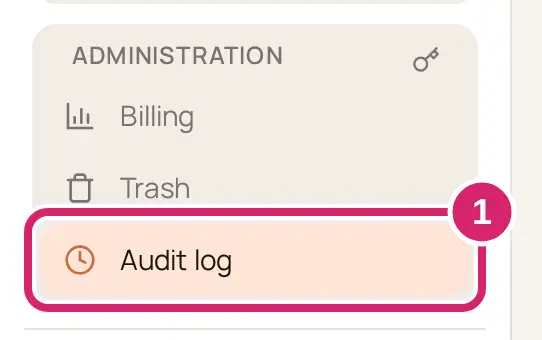
Go to Administration › Audit log. The newest changes are at the top.
Narrow the list with the filters above it.
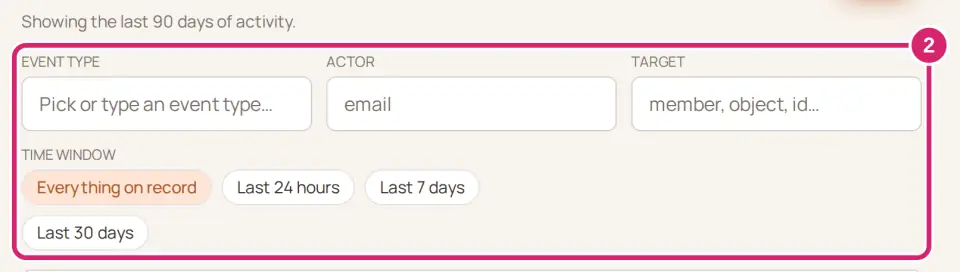
Which filter finds it fastest? Start with what you already know.
Time window: choose it first when you know roughly when it happened. If it was still right at last week's meeting, choose Last 7 days. You still see every kind of change, just fewer of them. Everything on record shows everything from the last 90 days.
Event type: choose it when you know what kind of thing changed. Type a word such as group or page, or pick from the list that opens. It shows every change of that kind.
Target: choose it when you know what changed and it has a name, such as a group or a member field. Type the name exactly as it's written, capital letters included. To see every change to pages or to members' records, type page or member.
Actor: choose it when you want to see everything one person changed, such as after a volunteer hands over their role. Type part of their email address.
The search box below the filters finds words in the event, in the person's email address, or in what changed.
Each filter you set shows as a chip. Select a chip to clear that filter, or select Clear all.
Not sure? Start with Time window, then add one more filter. The filters work together: an entry shows only if it matches every filter you set.
Select an entry to see its details.
What an entry shows:
When: how long ago it happened. The details show the exact time.
Event: the kind of change.
Actor: who made it. When they confirmed the change in the LongTable assistant, via the guide shows under their name.
How: Web or Mobile app when someone made the change themselves, Assistant when the LongTable assistant made it for someone, AI tool (MCP) when an AI app made it through a connector, and LongTable (automatic) when LongTable made it by itself.
Object: the kind of thing that changed and its name. Some entries for a member's record or a page show a code instead of a name.
In the details, Entry repeats the time, event type, actor, object and how, and Details lists what the change recorded, such as a page’s new visibility or how many changes a publish put live.
On a narrow screen some columns are hidden; open an entry to see everything. Select Load more at the bottom for older entries.
The log records each change made in your club, such as to members, groups, pages, events, files, settings, roles and positions. That includes changes made through the LongTable assistant or a connector, and some that LongTable makes by itself, such as clearing old items out of the Trash. Opening or reading something doesn't add an entry.
When the assistant carries out a plan you confirmed and only part of it works, the log shows Guide action partly done. Its details list what was Done and what was Not done.
The Event column names every kind of change in plain words, such as Page published, File moved to Trash or Announcement ended. A change to who can visit your site says which way it went, such as Visitor access turned on. The Event type filter's list still shows short codes, such as member.roles_changed.
Keep a copy of the log
Set the filters to show the entries you want.
Select Export.
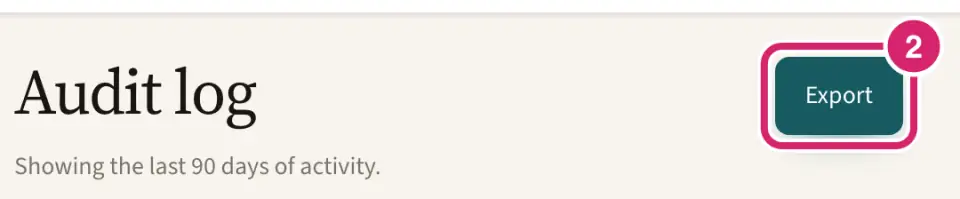
You get a CSV file of the entries that match your filters.
How long entries are kept
LongTable keeps each entry for 90 days, then removes it for good. The top of the screen says Showing the last 90 days of activity. To keep a longer record, export the log every couple of months and save the file.
If something goes wrong
No entries match the current filters. Clear a filter, check the capital letters, or choose a longer Time window. A change older than 90 days is no longer in the log.
Couldn’t load the audit log Select Retry.
There are no audit entries to export. Nothing matches your filters. Change them, then select Export again.
This export was bounded. It doesn’t include every matching entry. Narrow your filters to export the rest. Choose a shorter Time window and export each part.
We couldn’t export the audit log. Try again in a moment. Select Export again.