
Invite your members to sign in, so each person keeps their own details up to date and sees what your club shares. You can also let new people ask to join from your website.
Why use it
Members who sign in can see the directory, calendars and files, and keep their own details up to date, so your officers don't have to.
An invitation needs only a name and an email address. Each person fills in the rest.
Mark members who won't sign in as offline members, so their records read as settled instead of waiting for an invitation.
Asking to join lets people find you through your website, while you still decide who gets in.
Decide how people get in
Three settings decide how people get into your club. Look at them when your club starts on LongTable, and again whenever the way you take new members changes. Only admins can change them.
Go to Configuration › Club. It opens on General.
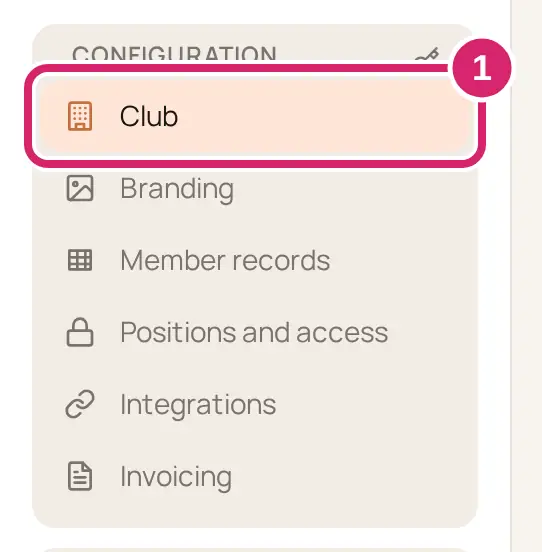
Scroll to Sign-in and joining. Each switch takes effect as soon as you change it.
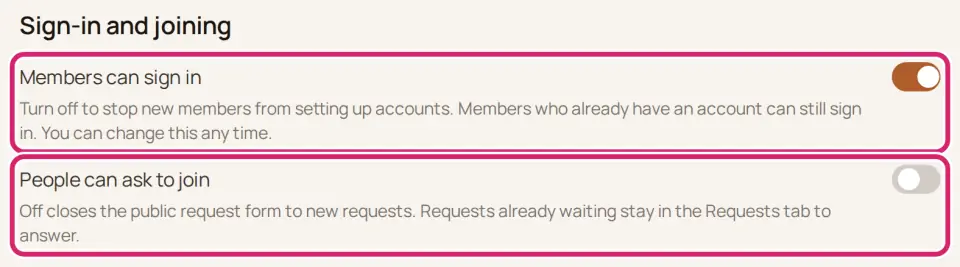
Should members sign in?
Members can sign in decides whether people can set up an account with your club. It's on for a new club.
On: choose it when members should keep their own details up to date and see what your club shares. Almost every club wants this. Anyone you add with an email address gets an invitation.
Off: choose it while you're not ready for members to set up accounts. People you add get no invitation unless you mark their address as belonging to someone who looks after them. Invitations already sent can't be accepted, or resent, until you turn it back on, but they can still be answered for someone in a household who doesn't sign in.
Importing a spreadsheet of members? It invites nobody unless you tick Invite new members to sign in as you import. Import members from a spreadsheet explains the choice.
Should new people be able to ask to join?
People can ask to join opens a short form where anyone can ask to become a member. It's off for a new club.
Off: choose it when your club is by invitation only, such as a board, a team with a fixed roster, or a club with a waiting list you keep yourselves. Nobody can send a new request, and the Requests tab shows only while requests are still waiting.
On: choose it when new people find you through your website or by word of mouth, and you'd like them to ask without tracking down an officer. They give their name and email, what they're interested in, and anything else they want to say. Their request waits under Community › Members › Requests.
While it's on, Your request link shows under the switch. Copy it and share it in a newsletter or on social media, so people can go straight to the form.
When a request arrives, the person who asked gets an email saying we have their request. Everyone whose role lets them manage members gets an email, New request to join …, unless they've turned off club email in their notification settings. If a request is still waiting after 7 days, they get one reminder. Agree who will answer requests, so nobody assumes someone else will.
To show visitors a Request to join button, add a Join request block to a public page. Visitors see the block only while People can ask to join is on.
Turning it off closes the form at once and turns off automatic approval too. Requests already waiting stay under Requests for you to answer, and the tab goes away once you've answered the last one.
Should everyone who asks get in straight away?
Auto-approve requests appears once People can ask to join is on. It’s off for a new club. Below the Plus plan you see an upgrade card in its place, and a manager welcomes each request from the Requests tab.
Off: choose it when you want to know who joins before they're in: a youth club that checks every new member, a club that collects dues, or anywhere members' details are private. Nobody joins until a manager selects Approve.
On: choose it when anyone is welcome and there's nothing to check, such as an open walking group. Each new request becomes a member straight away, as an ordinary member, and gets an email, Your request to join … was approved, inviting them to sign in. Nobody is emailed about the request itself.
Not sure? Leave it off until you've answered a few requests yourself. Turning it on doesn't approve requests already waiting, and a current member who fills in the form gets a second record you'll need to tidy up.
Invite someone new
Watch it done in 20 seconds, or follow the steps below. The numbers in the video match the steps.
Go to Community › Members and select Add member.
Choose how to add them.
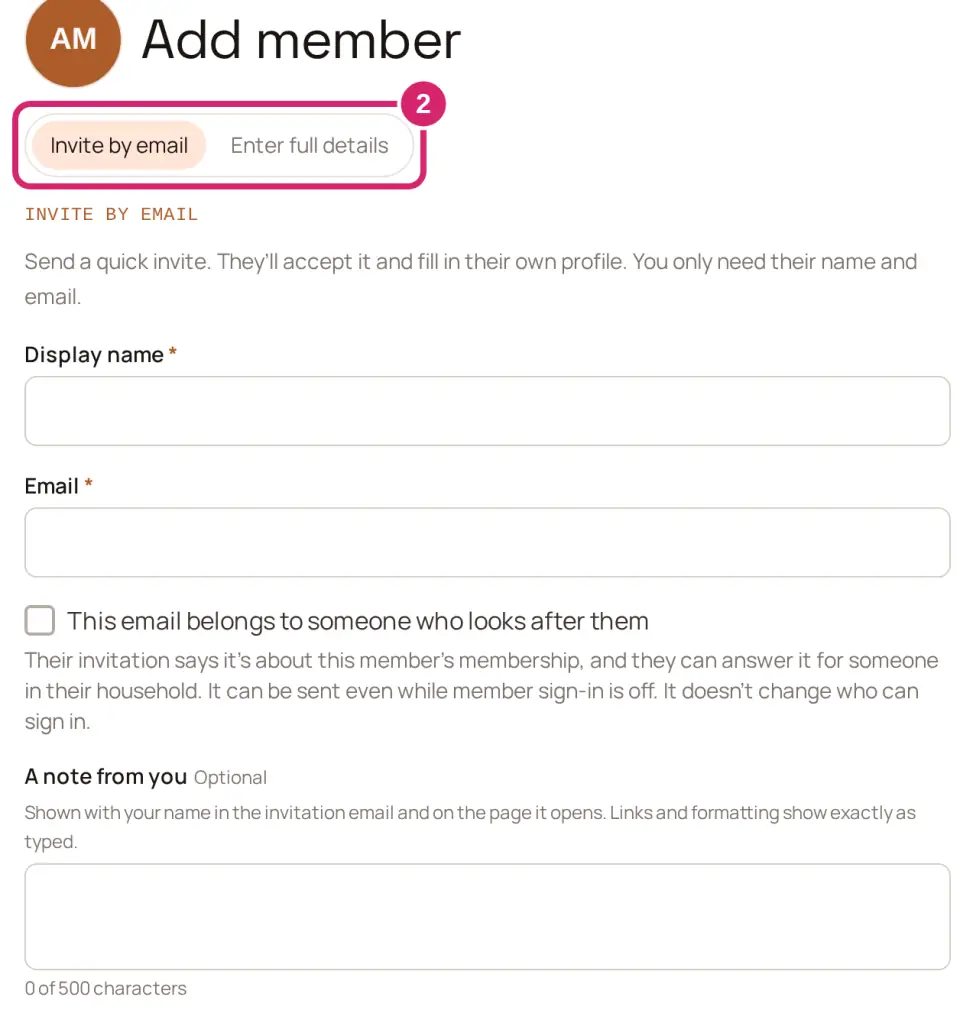
Invite by email: choose it for most adults. They'll keep their own details up to date, so you need only their name and email.
Enter full details: choose it when you already have their details, from a paper form or last season's list, and want the record complete now. Nobody is emailed, even if you enter an email address. You can send their invitation as soon as you save.
Fill in the form. For an invitation you need only their Display name and Email.
Is the address someone else's, such as whoever reads a young member's email? Tick This email belongs to someone who looks after them, under Email. Their invitation then reads An invitation about …’s membership at …, and can be answered for someone in a household.
Want to say why you’re inviting them? Write it in A note from you. It’s optional, and it shows with your name in the invitation email and on the page it opens.
Select Send invite, or Add member if you entered full details.
With Invite by email, they get an email, You've been invited to join …, that names who invited them and shows your note, with a Create your account button, or Sign in to accept if they already have a LongTable account. The invitation page names your club and the member, and says who invited them (… invited you.). They sign in or choose a password, then select Accept. We send them a Welcome to … email, and they finish their own profile. The invitation works for 7 days. The invitation page's How to answer this invitation link opens our guide.
Until they accept, their record's status is Pending. It changes to your club's default status when they accept.
If their email address already has a LongTable account, they get the same invitation and sign in to accept it. Nobody is connected to a member until they accept.
While Members can sign in is off, the member is added and nobody is emailed, unless you ticked This email belongs to someone who looks after them.
With Enter full details, the form confirms … added. Nobody was emailed. Select Invite … now to send their invitation, or invite them later from their record.
Give someone access, or take it away
Go to Community › Members and open the person's record.
Under Access, choose an option.
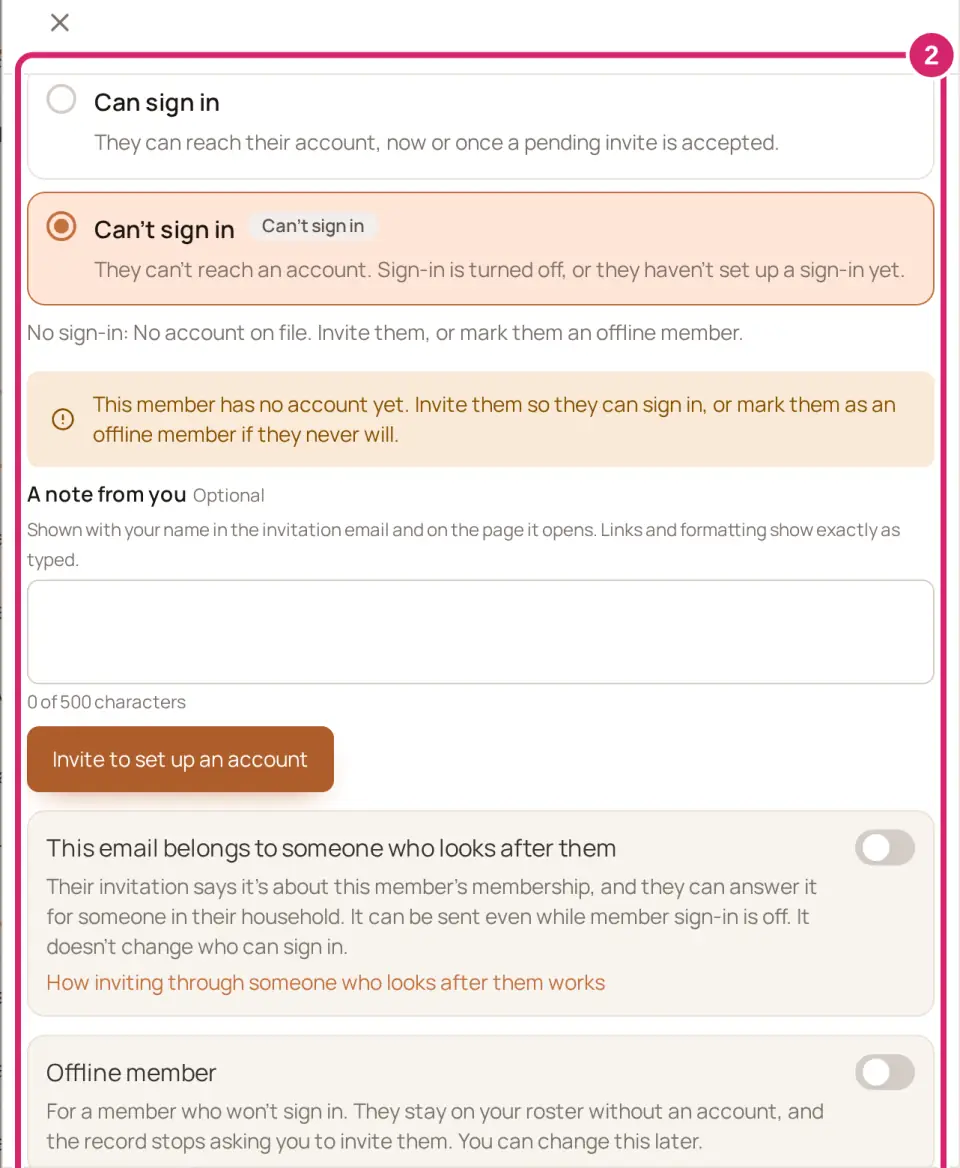
Can sign in: choose it for anyone who should use LongTable. For someone without an account, it sends them an invitation, the same as Invite to set up an account. Add A note from you first if you want to say why.
Can’t sign in: choose it when someone should stay in your directory but lose access: a member who has left mid-season, or an account you don’t recognize. If they have an account, they lose access at once and are told their sign-in is turned off for your club. A waiting invitation is canceled. Only admins can turn off someone’s sign-in, and nobody can turn off their own.
This email belongs to someone who looks after them: shows for someone with no account, or with an invitation waiting. Turn it on when the email on their record is someone else's, such as whoever reads a young member's email. Their invitation then asks about this member's membership, and can be answered for someone in a household. It doesn't change who can sign in. Its How inviting through someone who looks after them works link opens our guide to it.
Offline member: shows for someone with no account. Turn it on for someone who will never sign in, such as a young member with no email address of their own. Their record reads as settled, and the note asking you to invite them goes away.
Household: shows instead of the two options when a household answered the member's invitation for someone in it. Nobody signs in as them, and the household sees their record and invoices. To invite them again, select Remove household tie and confirm. The household stops seeing the record and its invoices, and sees a notice that it was removed.
You can change any of these back later.
Resend or cancel an invitation
Go to Community › Members › Invites. Invitations are grouped as Pending, Accepted and Expired. Stalled marks one whose first invitation went out more than 7 days ago.
Resend sends a new link for a pending or expired invitation and starts the 7 days again. The old link stops working.
Cancel withdraws a pending invitation.
On a member's record, the same actions are Resend invite and Cancel invite. For someone who already signs in, Send password reset emails them a way to choose a new password.
While Members can sign in is off, Resend and Resend invite are hidden, because a new link couldn't set up an account. An invitation sent to the address of someone who looks after the member can still be resent.
Answer a request to join
Go to Community › Members › Requests. The tab shows while People can ask to join is on, or while requests are still waiting.
Read the request, then select Approve or Decline.
Approve: choose it when you know who they are, or they meet your club's rules. They're added to your directory and invited to sign in.
Decline: choose it when the request isn't for your club, or it's spam. Nobody is added, and they can ask again later.
If you chose Decline, check the Message to the requester (optional), then select Decline request to confirm.
Approving sends an invitation, even when their email address already has a LongTable account: they sign in to accept it.
The message starts as a short, kind note you can change. Declining always emails the requester, Your request to join …, saying your club can't approve it. Your message is included; clear it to send the notice without one.
If something goes wrong
Member sign-in is turned off for this club. They can’t be invited unless their email belongs to someone who looks after them. Turn on Members can sign in. Or, if the address belongs to someone who looks after the member, turn on This email belongs to someone who looks after them under Access first.
Member added. No invitation was sent because member sign-in is turned off for this club. Turn on Members can sign in, then invite them from their record. If the address belongs to someone who looks after them, mark it there and invite them now.
We added the member, but we couldn’t finish setting up their access. You can set it up from the member’s page. Open their record and select Invite to set up an account.
Too many invites went out just now. Wait a moment, then try again. Wait a moment, then try again.
A member sees This invitation can’t be used. The invitation expired, was canceled, or was already accepted. Select Resend on Invites.