
Find anyone in your club in a few keystrokes, see where members live on a map, and download a roster PDF to print or share.
Why use it
A volunteer needs a phone number or an email at short notice. The directory finds anyone by name, email or phone.
The map shows who lives near whom, which helps plan carpools and local events.
A printed roster serves members who aren't online, and meetings with no Wi-Fi.
Share the roster only with members, and download a fresh one after changes. It's built from the directory each time, so a new copy is always current.
Find a member
Watch it done in 20 seconds, or follow the steps below. The numbers in the video match the steps.
Go to Community › Members. The Directory tab opens.
Type a name, email, phone number, type or status in Search members….
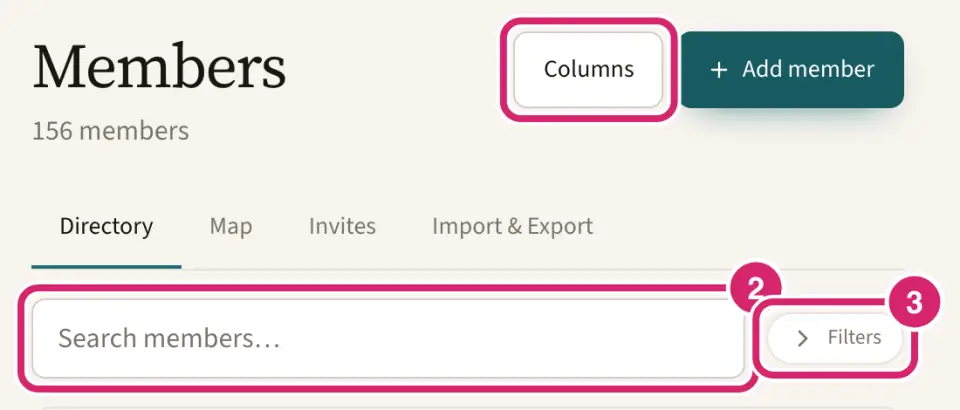
To narrow the list, select Filters and choose from Type, Member status, Role, Position or Access.
Select a member to open their record.
Select a column heading to sort by it.
Other members see a detail only when your club shares that field with Everyone in the club. A new club keeps email, phone numbers, address and birthday between each member and the people who can manage members. See Customize member records.
Get in touch with a member
A member's record is also the quickest way to reach them. Their email address, phone numbers and address are links.
Watch it done in 17 seconds, or follow the steps below. The numbers in the video match the steps.
Go to Community › Members and select the member to open their record.
If they have a photo, select it to see it full size.
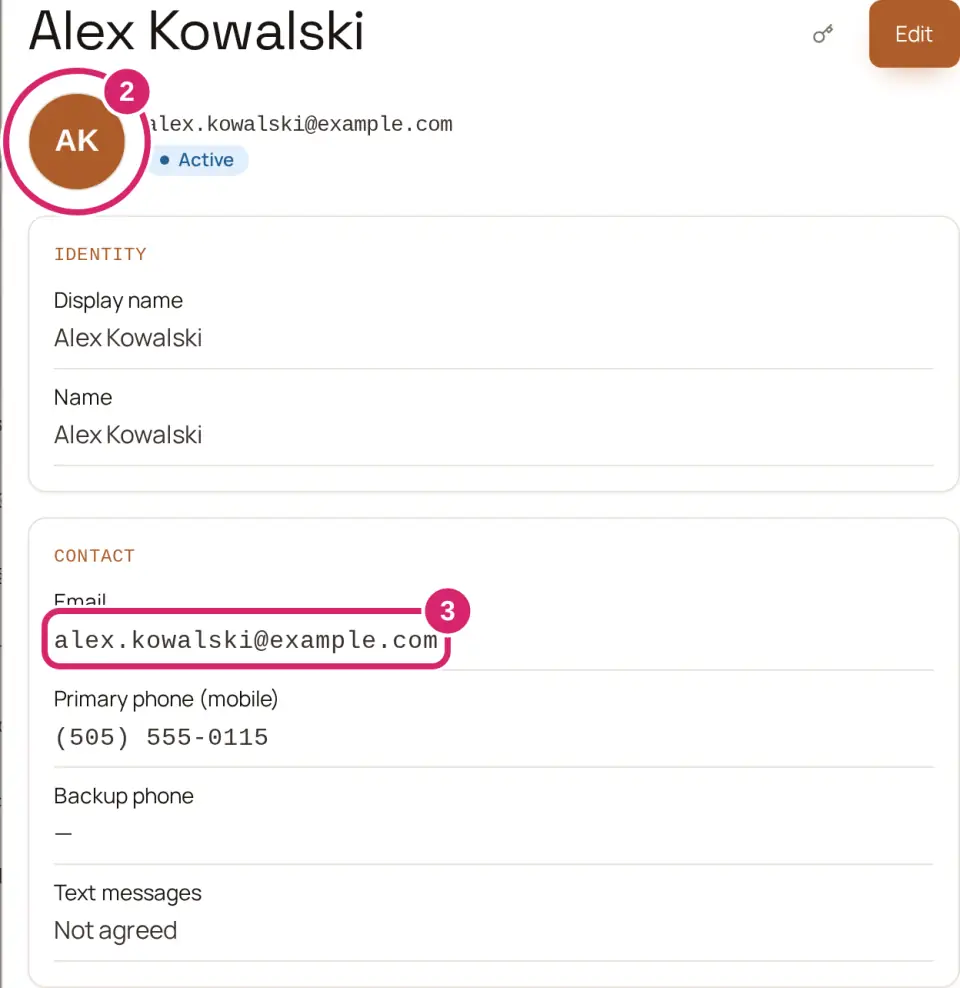
Select their email address to write to them in your email app, a phone number to call it, or their address to open it in Google Maps.
To keep their details on your phone or computer, select Add to contacts. You get a contact card with their name, phone numbers, email, address and photo, which your address book opens.

Choose the directory's columns
Everyone in the club sees the same columns, so choose what helps most people find each other. A new club shows all six, and Name always comes first.
Watch it done in 15 seconds, or follow the steps below. The numbers in the video match the steps.
On Community › Members, select Columns.
Tick the columns to show, and use the arrows to put them in order.
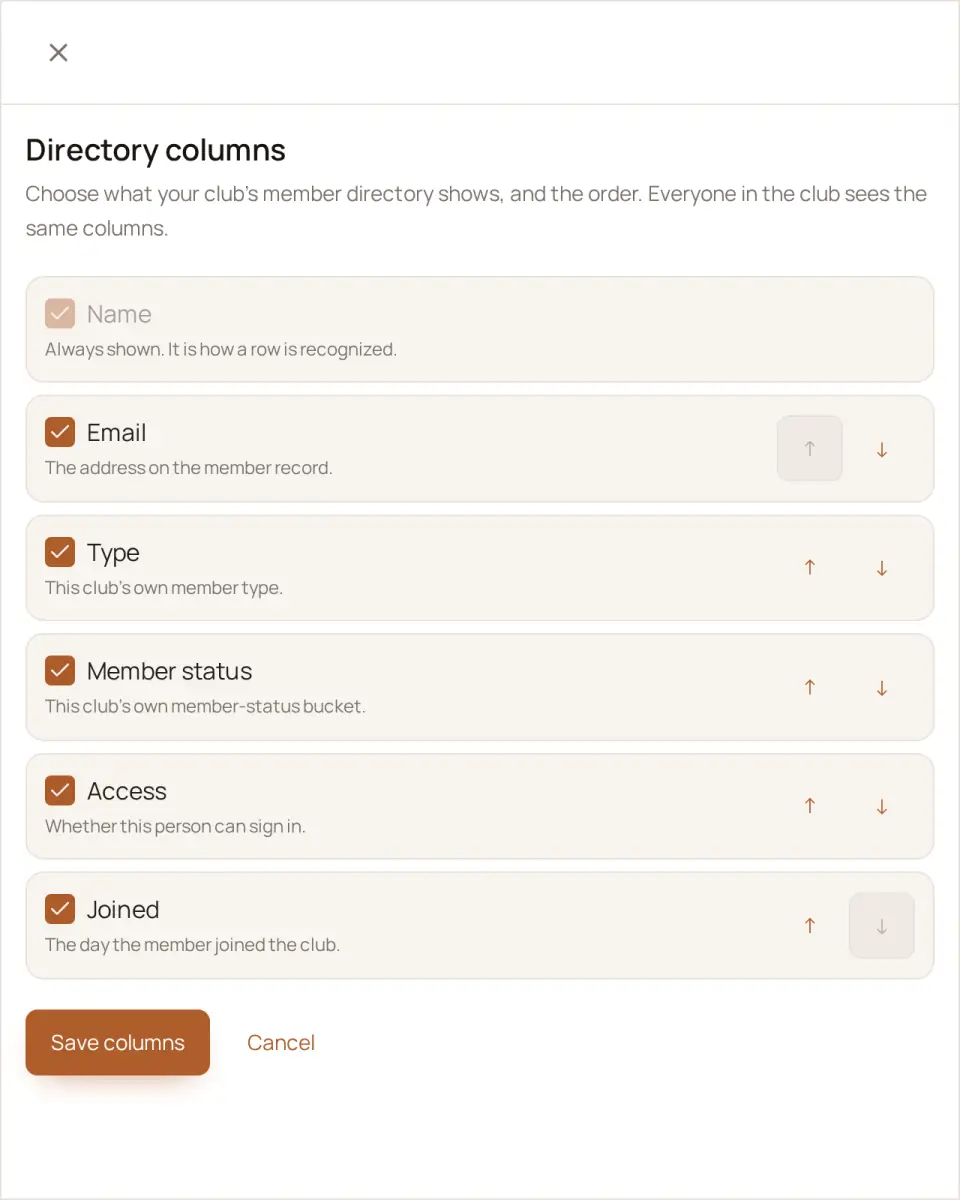
Email — keep it when members contact each other directly, such as a book club arranging who hosts. Take it off when members should go through your officers. Other members see addresses only when your club shares Email with Everyone in the club; a new club doesn't.
Type and Member status — keep them when your club sorts people by membership, such as juniors and seniors, or current and lapsed members.
Access — says whether each person can sign in. It mostly helps whoever sends invitations.
Joined — the day each member joined your club: the date on their record, or the day the record was added if nobody changed it. Handy for spotting new members to welcome.
Select Save columns.
The list changes for everyone at once, and you can change it back at any time. Taking a column off hides nothing else: the details stay on each member's record.
See where members live
On Community › Members, select Map.
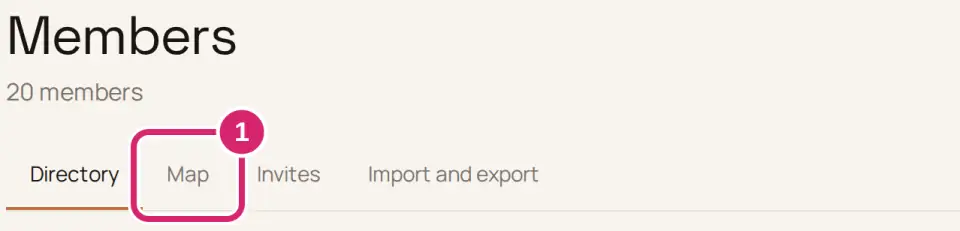
Select a marker to see who it is.
Select View profile to open their record.
A member appears when their record has an address we can place on the map. The page says how many members without a mappable address are not shown.
In a web browser, select Use my location to see where you are on the map. The mobile app shows the same members as a list instead of a map.
If your club doesn't share Address with Everyone in the club, other members see Member addresses are private instead of the map. People who can manage members still see everyone. A new club keeps addresses private this way.
What should members see when they select a marker? Select Marker fields, tick the fields, then select Save. A new club's markers are set to show email. Only people who can manage members see Marker fields.
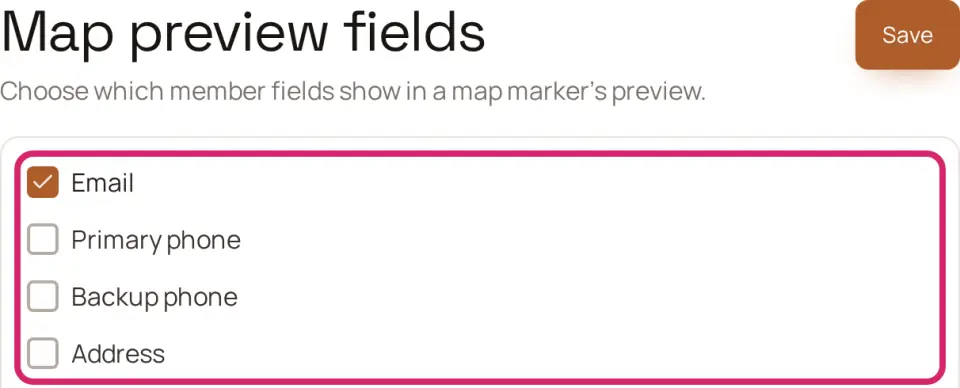
Email — the safe start. Members can get in touch without sharing anything more.
Primary phone or Backup phone — choose one for arranging carpools and lifts, such as for a youth team's away games.
Address — shows the full address. Leave it off unless members are happy to share it: the marker already shows roughly where they live.
Your club's own fields appear in the list too. A field your club doesn't share with Everyone in the club never shows on a marker to other members, even if you tick it. So in a new club, members see only names on the markers until you share Email.
Decide who gets the roster
A roster puts everyone's details in one file, and a copy can't be taken back once it's printed or forwarded. Every signed-in member can download it. A member's copy carries only the fields your club shares with Everyone in the club; the people who can manage members get every column.
On Community › Members › Import and export, select Change layout.
Scroll to Roster file.
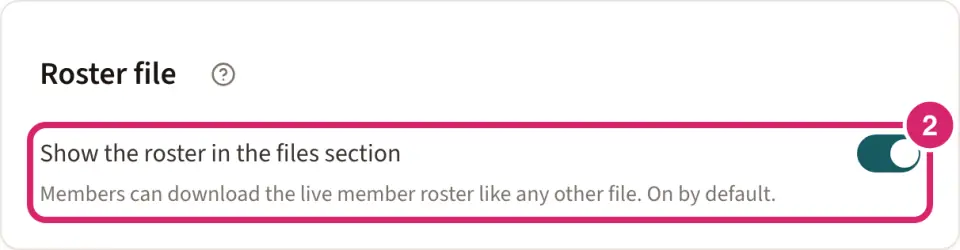
Should the roster also sit in your club's files? That's Show the roster in the files section. It's on for a new club, and it matters only if your club uses Files.
On — choose it when members look for club documents in Files, such as a society that keeps its handbook and minutes there. The roster sits beside them, built fresh each time someone opens it.
Off — choose it when Files is for other things, or you'd rather members didn't come across the roster while browsing. It leaves Files straight away, and you can turn it back on at any time.
Print copies only for the people who need them, such as the volunteers who phone round before an event, or members who don't use email. Each copy's title shows the date it was made, so print a fresh one after changes.
Print a roster
Watch it done in 15 seconds, or follow the steps below. The numbers in the video match the steps.
On Community › Members, select Import and export. If you can't edit members, the tab is called Exports.
Under The club roster, select Download PDF.
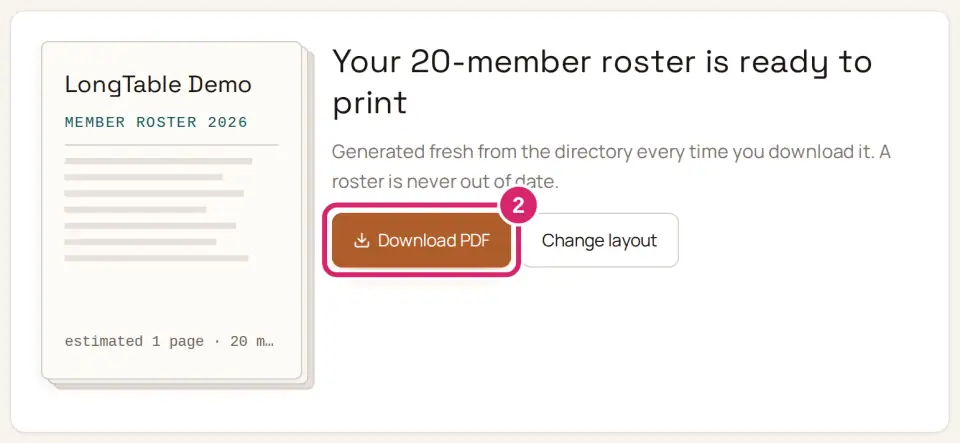
Open the file, then print it or share it with members.
The roster lists Name, Email and Primary phone, sorted by name, until your club changes its layout. Its title shows the date it was made.
A member's copy always leaves out the fields your club doesn't share with Everyone in the club.
Select the picture of the roster to preview it before you download.
On a plan below Basic, select See your roster free to preview sample sheets.
Change the roster's layout
Watch it done in 25 seconds, or follow the steps below. The numbers in the video match the steps.
On Community › Members › Import and export, select Change layout.
Under Columns and sort, choose what the roster shows. A new club's roster is a table of Name, Email and Primary phone, sorted by name.
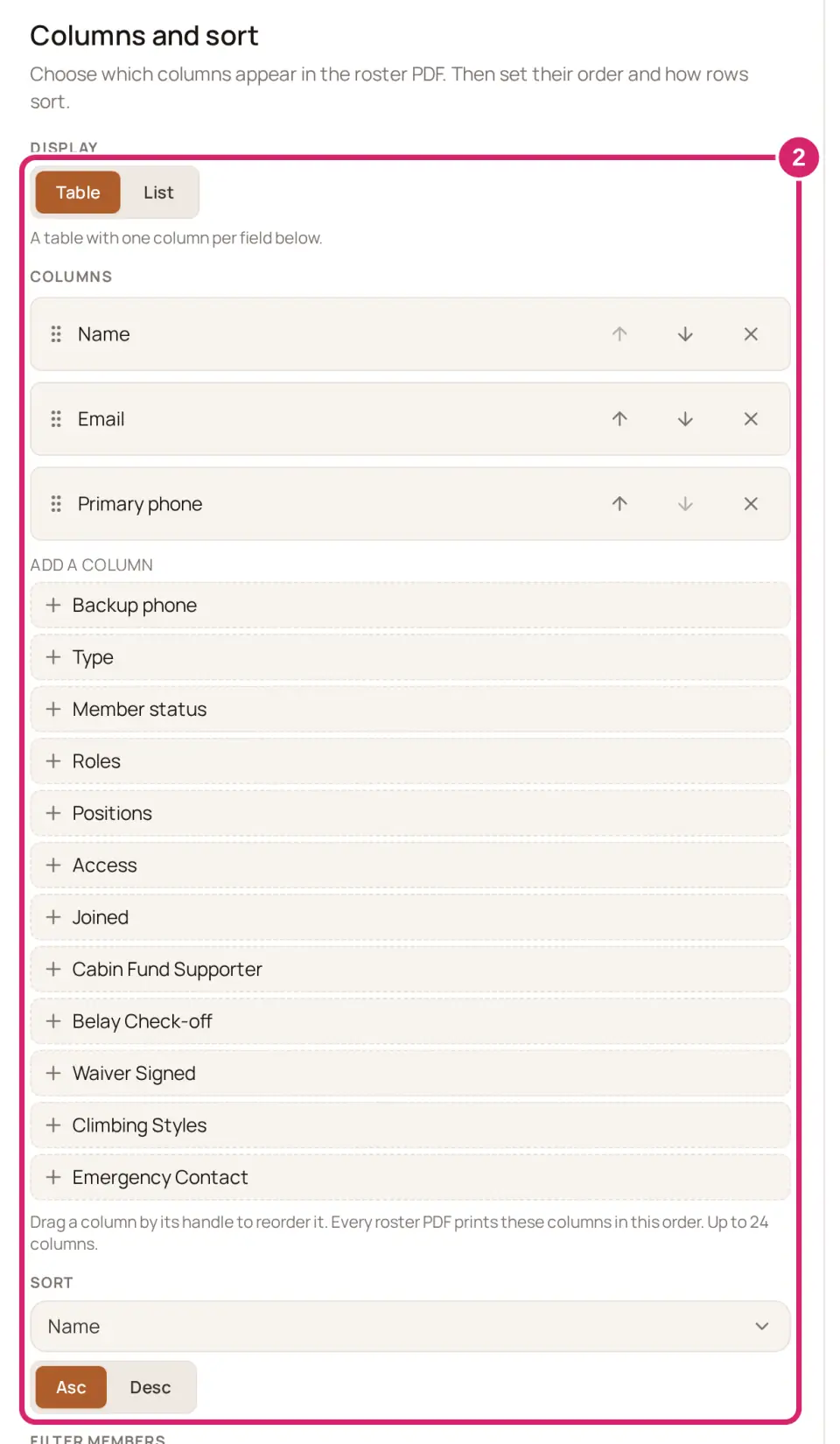
Display — Table gives each field its own column. List stacks each member, with the first column as their heading, which suits a printed booklet.
Columns — the columns, in order. Under Add a column, select a field to add it, such as Backup phone for a phone tree. Drag a column by its handle, or use its arrows, to move it, and its cross to remove it. A roster can have up to 24 columns. Leave out anything people shouldn't carry around on paper, such as Email on a list pinned up at the clubhouse.
Sort — choose a field, then Asc or Desc. Sort by Joined, Desc, to see your newest members first.
Filter members — print only some members by choosing a Member type, Member status, Group or Position, such as a list of just the committee. A member must match every filter you set. Leave them empty to print everyone.
Decide whether to show photos with Include member avatars. It's off for a new club. Turn it on for a welcome booklet that helps new members put names to faces; members without a photo get their initials. Leave it off for a plain contact list.
Select Save PDF layout.
Running header and footer adds a line to every page, such as a note that the roster is for members only. Codes such as {{date}} and {{page}} fill in the date and the page number. Leave a field empty to turn it off, then select Save header/footer.
Cover and closing pages adds pages with images before and after the roster.
If something goes wrong
Couldn’t load the directory Select Retry.
No members match your search Check the spelling, or clear the search to see everyone.
No members to map yet No member has an address the map can use. Add addresses to members' records.
Member addresses are private Your club keeps addresses from other members, so the map has nothing to show you. Anyone who can manage members can change who sees Address (see Customize member records).
Member details are private Your club keeps member names from other members, so nobody can be shown on the map. Anyone who can manage members can change who sees members’ names (see Customize member records).
We couldn’t find your location. Your browser couldn't find where you are. Check that it's allowed to use your location, then try again.
We couldn’t download the roster PDF. Try again in a moment. Wait a moment, then select Download PDF again.
Your session expired. Sign in again to continue. Sign in, then download the roster again.