
Keep your club's forms, minutes and policies in Files, sort them into folders, and choose who can see each folder. Everything stays with the club when volunteers change.
Why use it
Your documents outlive any one volunteer. Kept in Files rather than someone's inbox, last year's minutes are there for the next secretary on day one.
Members always get the current version. Replace file swaps in a new copy and keeps the same link and folder.
Share a folder with a role, a position or a group rather than one person, so access passes on when officers change.
Keep most folders open to all members, and give Edit only to the people who look after them.
Decide how to arrange your folders
Who can see a file comes from the folder it sits in, so a little planning before the files pile in saves work later. Put the folders that need different access at the top, and let everything inside follow them.
Should folders follow your committees or your seasons?
By committee or team — choose it when different people need different papers: the board, the events committee, the coaches. Give each one a folder at the top and set who can see it once. Everything you add inside follows that folder.
By season or year — choose it when the same people use everything and the same kinds of document come around each year, such as minutes, programs and newsletters. Start a folder for each season, and last season's folder becomes your archive.
Most clubs mix the two: a folder for each committee, with a folder for each season inside it. Not sure? Start with one folder for each set of people who need different access, and add season folders inside them as the years go by. Folders can go up to 10 levels deep, and you can rename or move them at any time.
Upload files
Watch it done in 15 seconds, or follow the steps below. The numbers in the video match the steps.
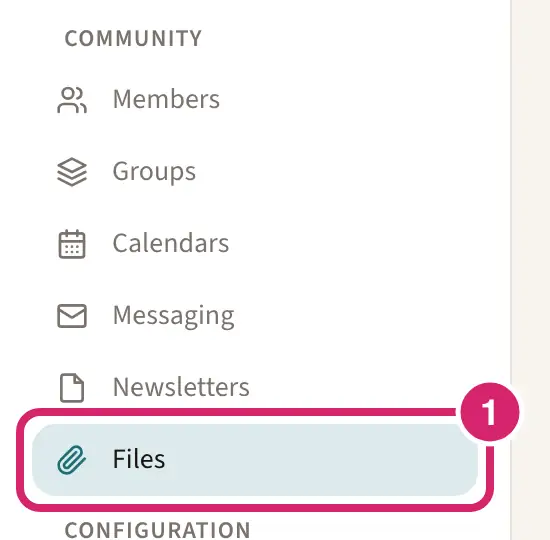
Go to Community › Files.
Open the folder the files belong in.
In a web browser, select Upload and choose one or more files. You can also drag files from your computer onto Drag files here, or tap to upload.

Each file shows Uploading…, then Uploaded. Select Clear finished to tidy the list.
If you can change who sees files, the line under the buttons, Who can open new items here, says who will be able to open what you add. A new file follows the folder it goes in.
Uploaded files stay in LongTable. If your club also turns on Google Drive, see Keep your club's files in Google Drive for which documents belong there instead.
Make folders and keep them tidy
Watch it done in 15 seconds, or follow the steps below. The numbers in the video match the steps.
Go to Community › Files and open the folder that should hold the new one.
Select New folder. On a narrow screen, it's in the ⋮ menu beside Upload.
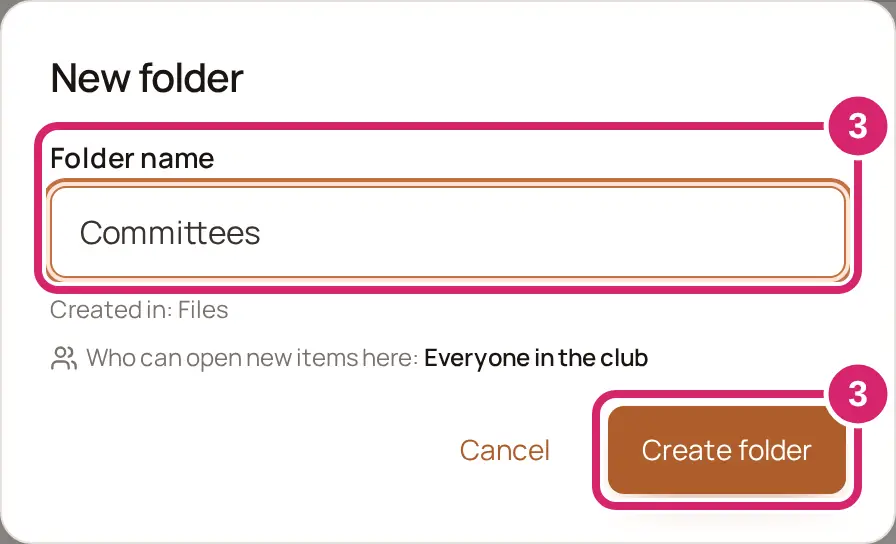
Enter a Folder name and select Create folder.
To rename a file or folder, select its ⋮ menu, or right-click it in a web browser, and choose Rename. A folder's menu also offers New subfolder.
Type in Search files… to find a file by name. The sort buttons above the list put it in order by Name, Type, Description, Size, Updated or Created.
A folder marked Managed belongs to another part of LongTable, which puts files there for you. You can't rename, move or delete it. Select the question mark beside it to see why. The Website folder is one: see Look after the Website folder below.
The Newsletters folder lists every newsletter your club has sent, by year and month. Select one to read it. Nothing in it can be changed.
To list a folder's files on a page of your website, add a Files block to the page. Only signed-in members see it. See Build and edit pages.
Move a file or folder
Watch it done in 15 seconds, or follow the steps below. The numbers in the video match the steps.
Go to Community › Files and open the folder the file or folder is in.
Select its ⋮ menu, or right-click it in a web browser.
Choose Move. The list shows every folder in Files as a tree.
Select the folder to move it to. It moves straight away.
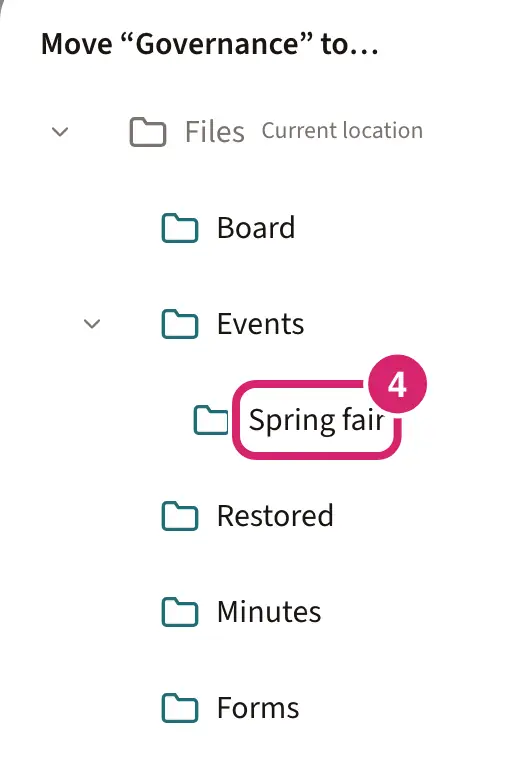
Select the arrow beside a folder to fold its subfolders away. A folder you can't move it into is gray, such as the one it's in now, marked Current location.
In a web browser, you can also drag a file or folder by its handle onto another folder.
To move several files at once, see Work with several files at once below.
A moved folder may change who can see it. See Moving a folder can change who sees it above.
Look after the Website folder
The Website folder holds the photos and videos your club's pages show. Admins, and anyone whose role includes Manage the website (such as the Marketing manager), look after it. Nobody else sees it, not even people whose role includes Manage all files.
Go to Community › Files and open the Website folder.

Select Upload and choose photos, or videos saved as MP4 files.
You can replace, rename and delete the files in it. A photo can only be replaced by another photo, and a video by another video.
You can't make folders inside it, or move files into it or out of it. Who can see it is fixed, so it has no Permissions….
A video can be up to 500 MB. If yours is another kind of video, you'll see Videos must be MP4 files so they play on every phone and computer. Export the video as MP4 (H.264) and try again. Export it as MP4 from your video app and upload it again.
A photo you delete from it and then restore goes back into the Website folder, so the pages that show it work again.
Preview, download and replace a file
Select a file to preview it. Pictures, PDFs, office documents and text files open right there.
Select Download to save a copy.
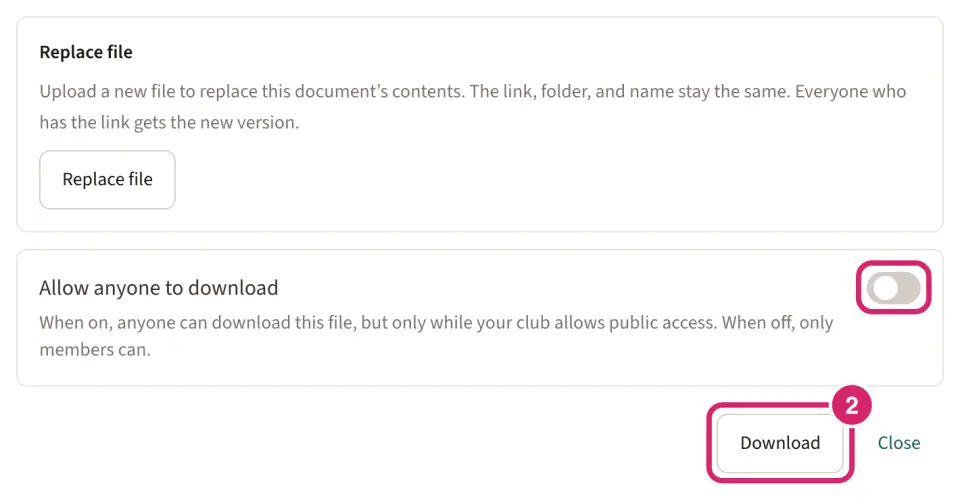
To update a document, open it and select Replace file (in a web browser). The link, folder, name, and who can open it stay the same, and everyone who has the link gets the new version. The current version goes to the Trash for 90 days, so you can restore it as a separate file.
Should people outside the club be able to download it?
Allow anyone to download, at the bottom of a file's preview, decides whether people who aren't signed in can download that file. It's off for every file you upload, and it saves as soon as you change it. Download access in a file's ⋮ menu opens the same preview. Only admins and people whose role includes Manage all files can change it.
Off — choose it for nearly everything: minutes, budgets, member lists, anything meant for members. Only signed-in members who can see the folder can download the file.
On — meant for a document you'd hand to anyone, such as a membership form or an event flyer. A visitor could download it, but only while Visitors can see your site is on for your club and the folder the file is in is open to All members. A file in a folder you've kept for some people never goes public.
Choose who can see a file or folder
Watch it done in 20 seconds, or follow the steps below. The numbers in the video match the steps.
At first, every member can view everything in Files, unless your club chose otherwise in File settings (see below). Each file and folder uses the same access as the folder it's in, until you change it. Set access on folders rather than single files, so a file you add later is covered right away. Only admins and people whose role includes Manage all files can change who sees a folder.
In Community › Files, select the folder's ⋮ menu, then Permissions…. In a web browser, you can also right-click the folder. The dialog starts with Who can open this, such as Everyone in the club, and shows the access the folder gets from the one above, such as All members · view.
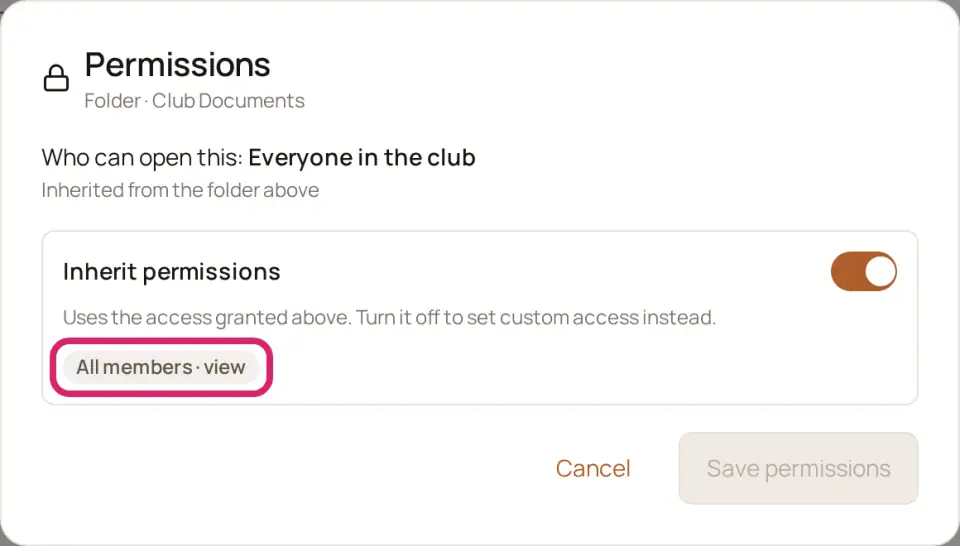
Should this folder follow the folder above it, or have its own list of people? That is Inherit permissions, and it's on for every new folder.
On — choose it for folders every member should see, such as newsletters, forms and past minutes. The folder gets whatever the folder above it allows, and changes when that does.
Off — choose it when a folder is for some people only: the board's papers, a committee's working drafts, the treasurer's bank statements. Only the roles, positions and groups you add get in. Members who aren't on the list don't see the folder or its files at all.
To go back, turn Inherit permissions on again and save. The folder's own list is removed, and it follows the folder above it again.
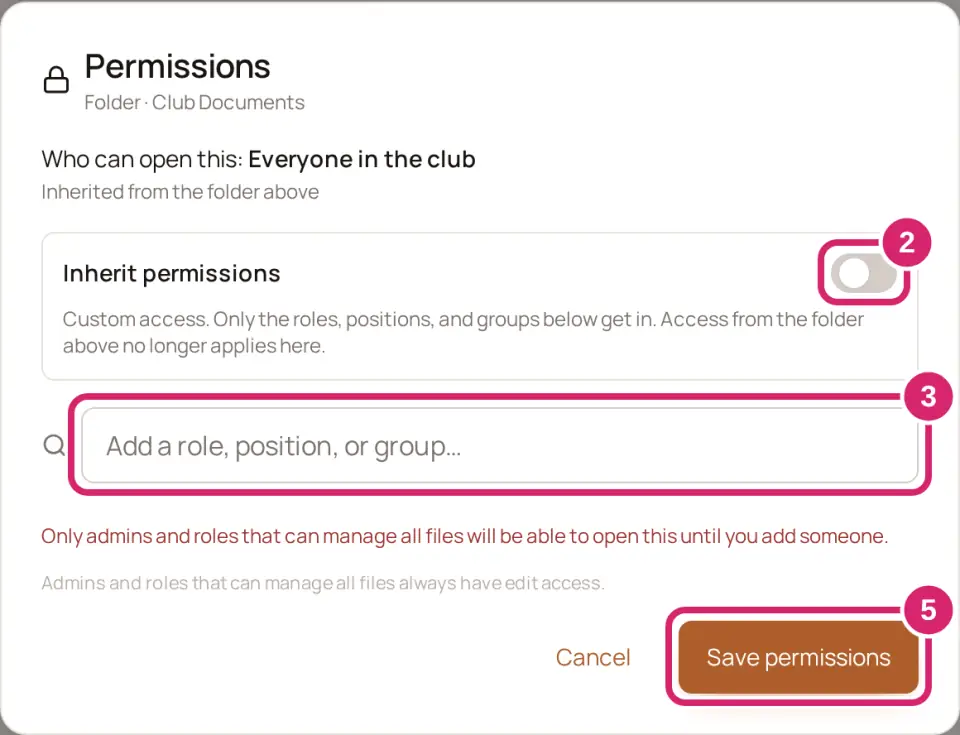
In Add a role, position, or group…, type a name, then select Add beside it. Who should you add?
All members — choose it to keep a folder open to everyone while you give a few people more, such as View for all members and Edit for the newsletter team.
A position, such as Secretary — choose it for a job that changes hands. Only whoever holds the position gets in. When a new secretary takes over, they get the access and the old one loses it. You can add a position nobody holds yet.
A role, such as Member manager — choose it when access should follow what people do across the club. Everyone with the role gets in, whether it's given to them directly or comes with their position.
A group, such as the Garden Committee — choose it for a committee or team. People who join the group get in, and people who leave it lose access. A dynamic group keeps itself up to date.
You can't add one person, on purpose. When access comes from a position or a group, it moves on by itself when people change jobs, and nobody has to remember to take it away from last year's treasurer. If one person needs a folder, give them a position or add them to a group.
Choose View or Edit for each one. Everyone you add starts at View.
View — choose it for people who only need to read and download: members reading the minutes, a committee checking the budget.
Edit — choose it for the people who look after the folder, such as the secretary who files the minutes. They can add, replace, rename, move and delete files there, and put back files deleted from it. They can't change who sees the folder. For Google files in the folder, Edit also lets them change the file in Google.
Select Save permissions. It stays gray until you change something.
Admins and roles that can manage all files always have edit access. They aren't listed, and they can't be removed.
If a member can see a folder that sits inside one they can't, they still see the outer folder's name on the way to it, but none of its files.
You can give a single file its own access the same way, from its ⋮ menu. Folders are easier to keep track of.
A file or folder with its own access shows a lock beside its name. Select the lock to open its permissions.
If you can change who sees files, each file and folder in the list says who can open it, such as Everyone in the club or Board only, with Inherited from the folder above when it follows its folder.

Decide who new top-level folders start open to
Should a new folder or file at the top of Files be open to every member straight away, or stay private until someone shares it? That is Who can open new top-level folders and files, in File settings. Admins and people whose role includes Manage all files can change it.
In Community › Files, select File settings.
Under Who can open new top-level folders and files, choose one.
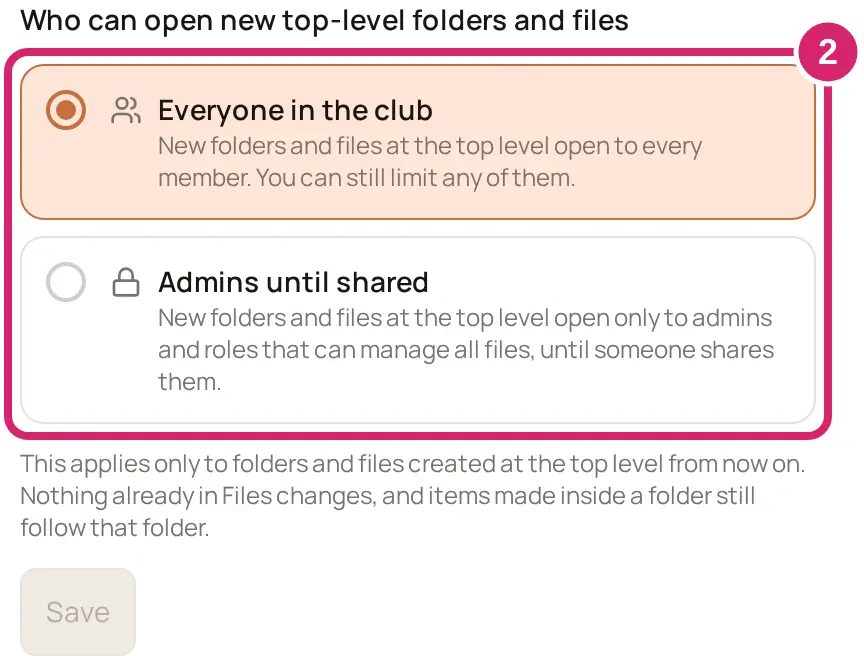
Everyone in the club (how a new club starts): choose it when most papers are for every member, such as a walking club's route sheets and newsletters. Members can open a new top-level folder or file as soon as it's added, and you can still limit any of them.
Admins until shared: choose it when the board sets things up before members see them, or when most papers are private, such as a club that keeps members' details and budgets in Files. A new top-level folder or file opens only to admins and people whose role includes Manage all files, and shows Admins only, until someone shares it from Permissions….
Select Save.
It applies only to folders and files made at the top level from now on. Nothing already in Files changes, and anything made inside a folder still follows that folder. You can switch back at any time.
Work with several files at once
Check the box beside each file.

Select Move to… to move them to another folder, or open the ⋮ menu beside it to Download or Delete them.
Several files download together as one ZIP file.
Select Clear to unselect them.
Delete a file or folder
Select a file's or folder's ⋮ menu, then Delete. There's no confirmation: it moves to the Trash right away and you see Moved to Trash: “…”, with Undo. It stops counting toward your club's file storage, and anyone who can edit its folder can put it back for 90 days.
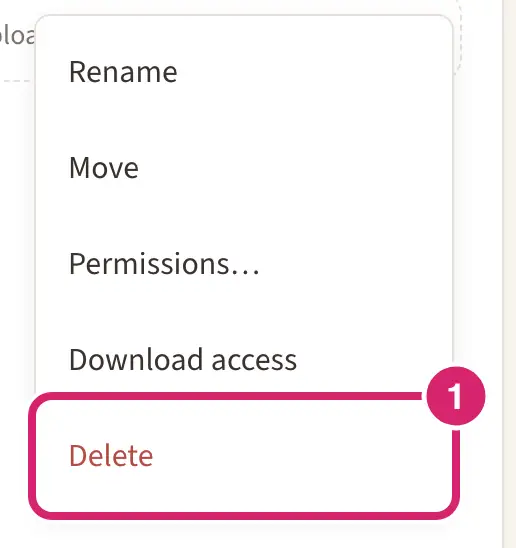
A folder must be empty before you can delete it. If it isn't, you see This folder isn’t empty. Move or remove its contents before deleting it.
Put back a deleted file or folder
Deleted something by mistake? If you can edit the folder it was in, you can put it back yourself from Files.
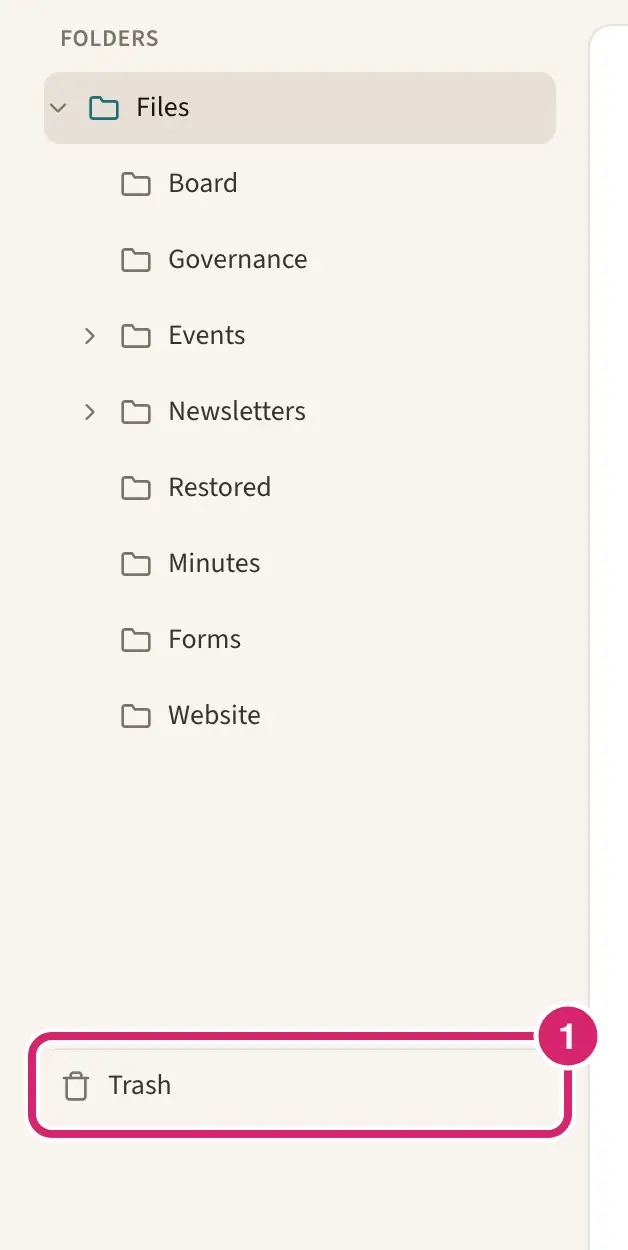
In Files, select Trash at the bottom of the folder list. On a narrow screen, open the folder list first.
Select Restore beside the file or folder.
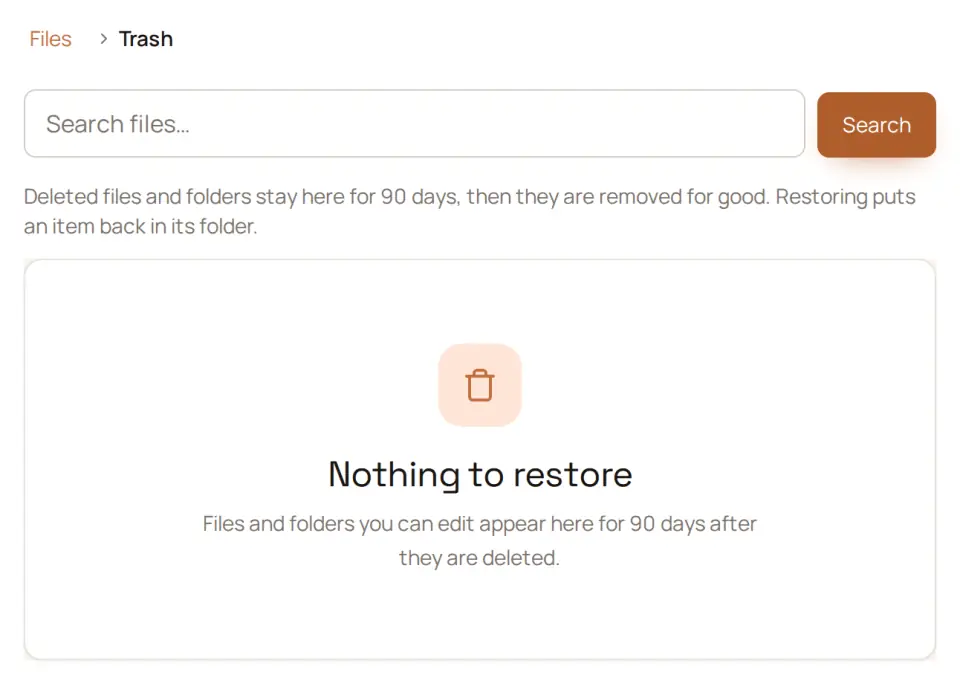
It goes back into the folder it came from, with the access it had, and you see Restored “…” to its folder.
The list shows only what you can put back, with the folder each item came from and who deleted it. After 90 days an item is removed for good.
The version a file had before someone used Replace file is in the list too. Restoring it adds it as a separate file, and you see Restored “…” as a separate file. The current file is unchanged.
A restored file counts toward your club's file storage again, so it can't be restored if your club has no room for it.
If the file's folder is in the Trash too, restoring the file brings that folder back first, as long as you can edit it. If the folder is gone for good, only admins and people whose role includes Manage all files can restore the file, and it lands in a folder called Restored. See Restore something you deleted.
If something goes wrong
Files isn't in your menu. An admin may have turned Files off. They can turn it back on in Configuration › Club, under Features. Nothing is deleted while it is off. A link to Files then shows The Files section is turned off for this club.
A folder with that name already exists here. Choose another name. Or open the folder that’s already there.
This file’s folder is in Trash. Ask someone who can edit that folder to restore it. The folder the file came from was deleted too, and you can't edit it. Ask someone who can, or an admin, to restore it.
This file can’t go back to its folder. Only a file admin can restore it. Its folder is gone for good. Ask an admin to restore it into the Restored folder.
That file type isn’t allowed. The message lists the kinds of file you can upload. Save your file as one of those, such as a PDF, and upload it again.
This file is too large. The message gives the largest file you can upload. Make the file smaller, or split it, and try again.
This plan includes … of file storage and this upload would exceed it. Your club's files have filled its storage. When you put back a deleted file, the message ends restoring this file would exceed it instead. Files in the Trash don't count, so delete files you no longer need, or compare plans.
Someone else changed these permissions. Review and save again. Another person saved first. Check what's there now, make your change, and save again.