
The LongTable assistant can show you a real page, one control at a time, and an admin can take a 2-minute tour of the whole app. Nothing goes live until you press the page's own button.
Why use it
A new admin sees where everything lives in two minutes, and where to turn for help.
You learn where things are, so next time you don't need help.
The assistant never fills in a copy of the page in a chat: you do it on the real one.
A guided tour uses no AI credits once it has started.
Take the 2-minute tour
Select Help at the foot of the menu, then Tours, then The 2-minute tour.
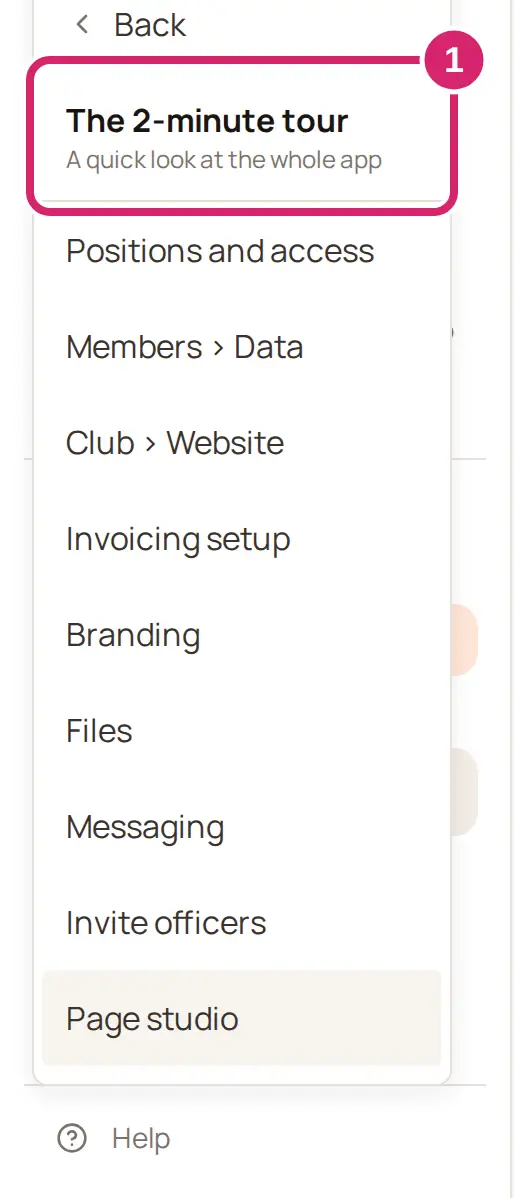
Read each card, then select Next. Back returns to the card before.
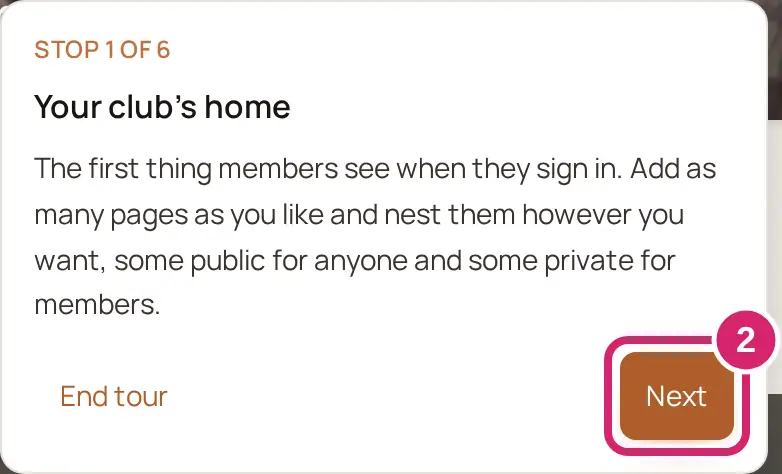
On the last card, Help is always close, find the places to turn to: The assistant, The documentation and, for a club on a paid plan, Support.
Select Keep looking around to finish.
The tour stays on Home and points at the menu: your club’s home, Calendars, Members, Website and Files. It skips an entry your role can't open. End tour jumps to the last card.
A member who isn't an admin finds Tour of the club under Help › Tours instead: the same walk through Home, Calendars, Members and Files, without Website. Someone who has just accepted an invitation is offered it on their welcome screen, where the Show me around switch is on to start with.
Follow a tour
Select Help › Tours and choose a page, or ask the assistant to show you a page. When you set up positions, you can also choose the tour when the assistant offers it.
Read the note beside the highlighted control: STOP 1 OF 3, the control’s name and what it does.
Select Next stop. On the last stop it says Finish tour.
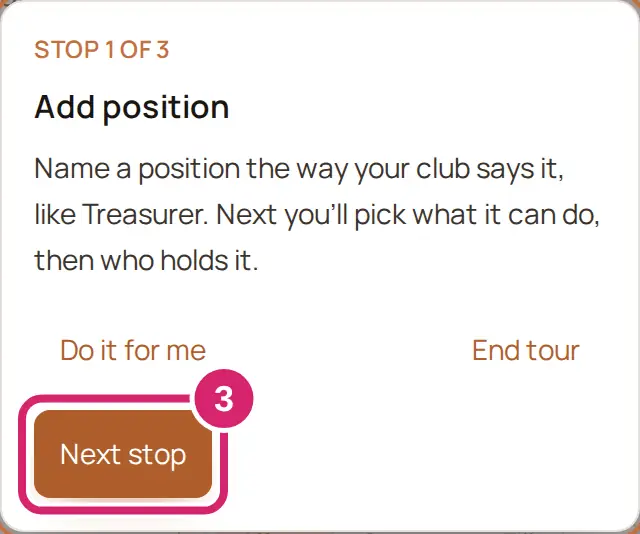
Where offered, select Do it for me to fill in that part of the page. You still save or publish it yourself.
The assistant panel lists every stop and marks where you are; select a stop there to go back to it. There's no Back button on a page tour. To stop, select End tour, press Escape in a web browser, or leave the page.
Pages with a tour
Help › Tours lists the tours your access lets you run, and marks the page you're on with This page.
Positions and access
Members › Data, for importing members on Members › Import and export
Club › Website
Invoicing setup, which picks up where it left off when you come back from Stripe's pages within 12 hours, in the same browser
Branding
Calendars, Files, Messaging, Invite officers and Page studio
In the LongTable phone app, the control is outlined without dimming the rest of the page. On a phone, the tour's note also carries Ask the guide, so the assistant is one tap away while the tour runs on.
If something goes wrong
You can't find the assistant at all. Your club's admin can turn it off for everyone with the Assistant switch under Features in Configuration › Club › General. While it's off, nobody can start a page tour. Ask your admin to turn it back on.
Skipped “<stop>”: it isn’t on the screen right now. That control isn't showing. The tour moves on.
Skipped “<stop>”: your access doesn’t include it. Your role doesn't cover that part. The tour moves on.
Skipped “<stop>”: do it on a computer. On a phone, that part of the page is set up on a computer. The tour moves on.
That part isn’t on the screen right now. Open it again, or move on. The part the tour points at has closed. Open it again, or select Next stop.
Tour ended. Couldn’t open <tour>. The page didn't open. Ask the assistant again.