
The Trash keeps what you delete for 90 days, so you can bring it back if you change your mind.
Why use it
Mistakes happen when many volunteers share a club. The Trash is your undo: a member, page or event deleted by accident comes back in a few clicks.
Check the Trash before you re-create something. Restoring brings it back with its details; re-creating starts from nothing.
You have time to notice. Each item stays for 90 days, and the Trash shows the date it will be removed for good.
Decide whether to restore it or make it again
Something's missing and you need it back. Should you restore it from the Trash, or make it again from scratch?
Restore: choose it for almost anything deleted by mistake, such as the wrong member removed during a tidy-up, or an event deleted before it happened. It goes back where it was, with what it had (below).
Make it again: choose it only when it's been gone more than 90 days, or you'd rather start fresh, such as a group you want to set up differently this season. A new one starts empty, without the old one's members or replies.
Not sure? Restore it first. If you still want a fresh start, you can delete it again. Don't do both: making something again and then restoring the old one leaves you with two.
What comes back with a restore:
A member comes back with their details and positions, and can sign in as before. They go back into the groups they were added to by hand or ran, as long as those groups still exist. Groups that pick members by a rule, such as everyone who holds a position, include them again by themselves.
A restored member can't sign in if Members can sign in is off, or if their account is now linked to another member record, such as one you made for them again. A note above the list says why, and what to do next.
A restored member counts toward your plan's member limit. If your club is at its limit, the member stays in the Trash until you make room.
A file goes back into the folder it was deleted from, with that folder's access. If that folder is in the Trash too, it comes back first, so the file returns to exactly where it was. If the folder is gone for good, the file lands in a folder called Restored at the top of Files, and only an admin or someone whose role includes Manage all files can restore it there. Check who can see that folder before you leave the file there.
A folder comes back where it was, with its own access. If a folder with the same name is there now, the restored one gets a new name, and a note says so.
When someone replaces a file, the earlier version goes to the Trash, marked Earlier version kept when the file was replaced. Restoring it adds it as a separate file. The current file is unchanged.
A restored file counts toward your club's file storage again. If your club doesn't have room for it, the file stays in the Trash until you delete other files or change your plan.
A group comes back with its members, owners and settings as they were. While a group is in the Trash, its members don't see the announcements meant for it; restoring the group brings them back. If you've made a new group with the same name since, rename the new one first, or the restore fails.
An event comes back with its details and replies. A hosted event keeps its flyer link, unless a new event with the same title took it meanwhile; then it gets a new one.
Restoring a calendar brings back the events that were deleted with it. An event you deleted on its own before that stays in the Trash; restore it separately.
While a calendar is in the Trash, events you deleted from it earlier don't show there. They appear once you restore the calendar.
A page goes back under the page it sat under. If that page is in the Trash too, restore it first.
A page that was public comes back public, so visitors can see it again. If the page it sits under is no longer public, it comes back as a members-only page instead.
If another page has taken its address since, the page comes back at a new address, and a note above the list gives the new one. Update any links you shared to it.
Restore something
Watch it done in 15 seconds, or follow the steps below. The numbers in the video match the steps.
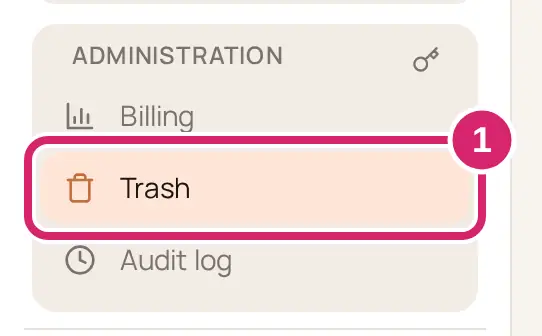
Go to Administration › Trash.
Find the item. Type in Search the trash, or select a type, such as Member, to see only that kind.

Select the box beside each item you want back, or the box at the top of the list to select them all.
Select Restore.
To bring back a single item, you can skip the box and select the restore button at the end of its row instead.
If a page you restore would be public again, the app asks first: “…” will be public again. Visitors to your website will be able to see it. Select Restore to go ahead, or Cancel.
Each item goes back where it was and leaves the list. A note above the list says what came back and, for a page, where it is now. If one can't be restored, the reason shows under its name, and the rest are still restored.
Deleting a page asks first: Delete the “…” page? It moves to the Trash, and you can restore it for 90 days. A public page also warns that visitors will no longer be able to see it. Afterwards you land on the page it sat under, or your home page for a top-level page.
In Files, deleting a file doesn't ask first. A message shows Moved to Trash: “…”. with Undo: select Undo straight away to put the file back where it was.
What the Trash holds
The Type column says what each item is. You see only the kinds your role lets you restore; admins see them all.
Member: Member managers and Treasurers.
Page: Marketing managers.
Group: Communications managers.
Calendar and Event: Events managers.
Document and Folder: admins and anyone whose role includes Manage all files. Someone with Edit on a folder puts back that folder's files from Trash in Files instead. See Share files with your club.
Newsletter: Communications managers.
Pages, calendars, events, documents, folders and newsletters show only while your club uses that feature. Deleted and Deleted by say when and by whom; Removed for good shows the date it goes for good. On a narrow screen some of these columns are hidden.
If something goes wrong
Restoring this file would put your club over its plan’s file storage. Delete files you no longer need, or upgrade, then restore. It shows under the file you tried to restore. Files in the Trash don't count, so deleting files you no longer need makes room straight away. Then restore again.
Your club is over its plan’s limits, so it’s read-only. Remove members or files, or upgrade, then restore. Bring your club back within its plan first, then restore again.
This item is no longer in the Trash. Someone may have restored it already. Look for it where it was before you deleted it.
Your club has reached its plan’s member limit, so this member can’t be restored yet. Remove someone to make room, or upgrade the plan, then restore. Delete a member you no longer need, or change your plan, then restore again.
We couldn’t restore it. Try again in a moment. Select the item and Restore again.
No matching items Nothing matches your search or type. Clear them. If the item still isn't there, it may be more than 90 days old, or a kind your role can't restore; ask an admin.