
An announcement is a short banner at the top of LongTable that members see until it expires. Use it for news everyone should notice, such as a closure or a deadline, and email it too when it matters.
On a plan below Basic, members see no banners, and the Announcements tab offers an upgrade in place of New announcement. You can still end or delete the announcements already there. To see what each plan includes, compare plans.
Why use it
A banner reaches members who skim past email. They see it each time they open LongTable.
Keep Urgent for closures and safety notices, so members still take it seriously.
Aim it at the people it concerns. A practice change for one team can go to that team's group only.
Every announcement has an end date, so old news comes down by itself.
A banner reaches only members who open LongTable. For news that should land in every inbox once, send a message instead; for a regular roundup, send a newsletter.
Post an announcement
Watch it done in 30 seconds, or follow the steps below. The numbers in the video match the steps.
Go to Community › Messaging and open the Announcements tab.
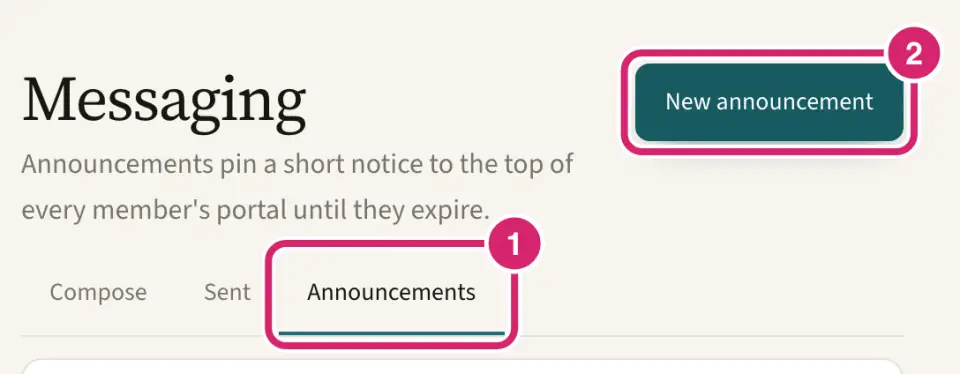
If your club has turned off both email and texting, Messaging has no Compose or Sent tab and opens straight on Announcements.
Select New announcement.
Pick a Type.
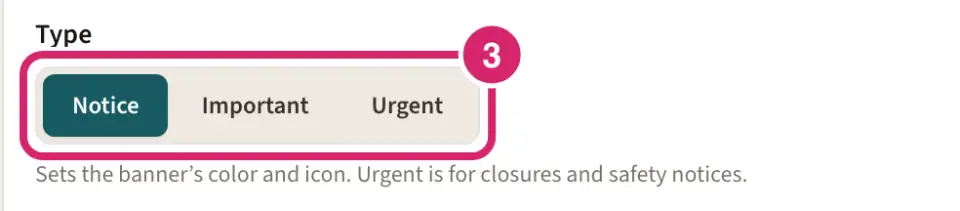
How much should this banner stand out? That's Type. It sets the banner's color and icon, and nothing else: everyone in the audience sees it whichever you choose. Notice is selected to start.
Notice — choose it for everyday news, such as a work party next Saturday or a new photo album.
Important — choose it for something members must act on, such as a sign-up deadline or dues falling due.
Urgent — choose it only for closures and safety notices, such as the clubhouse closed after a storm. Used sparingly, it still gets noticed.
Write the Announcement, up to 200 characters. To point people somewhere, add a Link label and a Link URL: a club page such as /work-parties, or a full web address. A link to another website opens in a new tab.
Under Audience, choose who sees the banner.

Who needs this news? That's Audience. Everyone is selected to start.
Everyone — choose it for news for the whole club, such as a closure or the annual meeting. Every member sees it when they open LongTable.
Specific groups — choose it when the news concerns only some members, such as a practice change for the under-12s. Search for the groups and select them. The list offers only the groups you manage. Only members of those groups see it.
Each audience has one live announcement at a time. A new one for Everyone replaces the current Everyone banner, even one that hasn't started yet, and one for a set of groups replaces the banner for exactly those groups. The form warns you first; select View current to see what you'd replace. Announcements to different sets of groups stay up side by side, so a member in both sees two banners.
Under Starts, choose Now or Schedule.
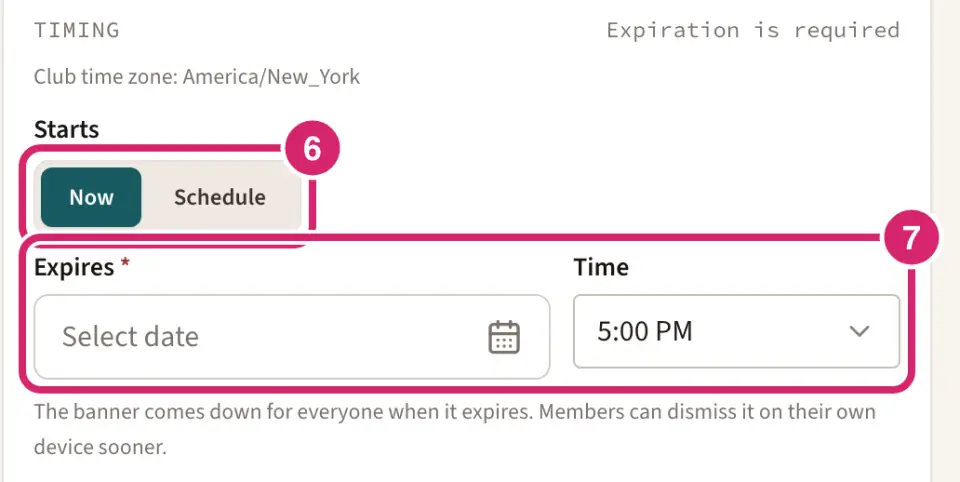
When should the banner go up? That's Starts. Now is selected to start.
Now — choose it when the news is true today. The banner appears as soon as you publish.
Schedule — choose it to put the banner up later, such as a week before the fundraiser. Pick a Start date and Time. It goes up by itself, and the form shows when it Goes up. A start that has already passed goes up straight away, and the form says so.
Set when it Expires. Every announcement needs an end: pick the moment the news stops being true, such as the day after the event or the evening of the deadline. The banner comes down for everyone then. Times use your club’s time zone, which the form names under Timing. Below the date, the form spells out the moment the banner Comes down.
Under Delivery options, decide whether to email it too.
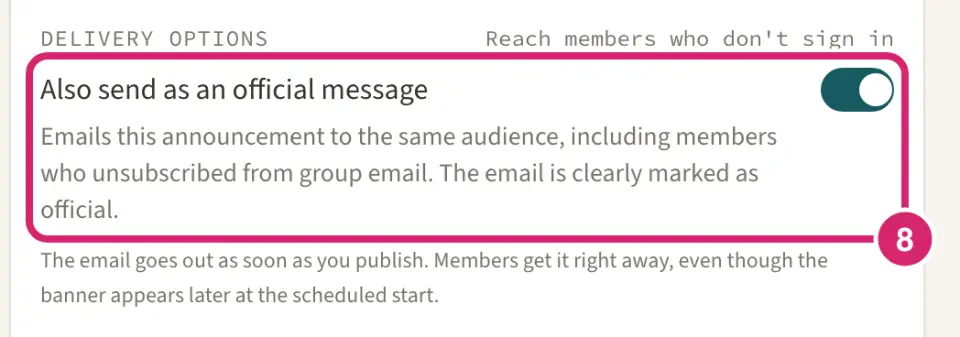
Should members who don't open LongTable hear it too? That's Also send as an official message. It emails the announcement to the same audience, and it's off each time you start an announcement.
Off — choose it for most announcements. Members see the banner the next time they open LongTable, and nobody gets an email.
On — choose it when members who never sign in must hear too, such as an annual meeting notice or a closure. The email reaches everyone in the audience, including members who unsubscribed from group email, and it’s clearly marked as an official message. Its subject starts with [Official] and the start of your announcement. Unless the banner is scheduled, the button then reads Publish and send email.
Once it’s on, the form counts who the email reaches, such as Emails 12 people, and warns you when the send would go over your monthly allowance. People who haven’t accepted their invitation yet aren’t included.
If your club has turned off Email for its messages, the switch can’t be turned on and the form says Email is turned off for this club, so an official message can’t be sent. The banner still publishes. An admin sees a Turn on email link to the setting; anyone else asks an admin.
Check the Preview. It shows the banner as members will see it.
Select Publish, Publish and send email, or Schedule announcement if it starts later. If you chose Schedule but the start has already passed, the button reads Publish now.
Announcing a hosted event? If you also manage events, open the event's Promote tab and, under Announce it, select Send announcement. The New announcement form opens with the event's title, when and where already written, and a See the flyer link to its flyer. Carry on from step 3.
What members see
The banner shows at the top of LongTable for everyone in its audience, until it expires or you end it.
When several banners apply to a member, the most urgent comes first. A banner meant for some groups shows the group's name.
On a phone, when several banners apply, members see the most important one in full and a Show 2 more announcements link (the number varies) that opens the rest.
Members can dismiss a banner on their own device. If you edit it, they see it again.
Members see banners in a web browser and in the LongTable phone app. You create and manage announcements in a web browser.
Edit, end or delete an announcement
Watch an edit done in 15 seconds, or follow the steps below. The numbers in the video match the steps.
Go to Community › Messaging and open the Announcements tab. It sorts announcements into Active now, Scheduled and Ended. Ended announcements stay in the list for 90 days. Each card says who posted it, who last edited it, and who ended it.
On the announcement, select its menu button (the three dots).
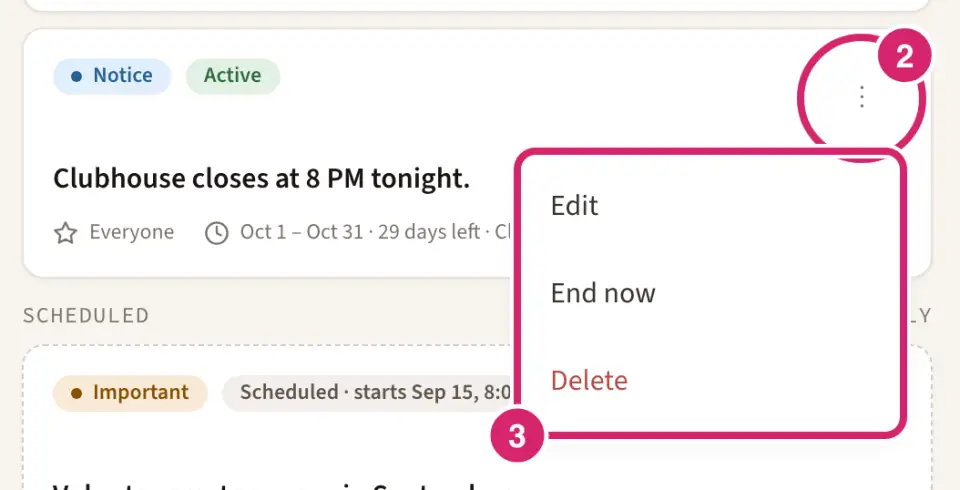
Choose Edit, End now or Delete.
Edit opens the announcement beside the list. You can change the type, text, link, audience and dates, but not whether it’s emailed. Select Save changes when you’re done. Saving shows the banner again to everyone, including members who dismissed it, so save a fix once rather than in small pieces. An ended announcement can’t be edited; one that expired by itself can, so you can move its Expires date later. On a plan below Basic, Edit isn’t offered.
End now takes the banner down straight away, for example when a closure ends early. A message says Announcement ended. Members no longer see it. Select Undo in that message to put it back up.
Delete asks Delete this announcement? first. Select Delete again to remove it. You can delete an announcement whether it’s active, scheduled or ended.
If something goes wrong
The announcement text is required. or The announcement can be at most 200 characters. Write the announcement, or shorten it.
Enter a club page path (/work-parties) or a full web address (https://…). Fix the Link URL.
Add a link address to go with the label. Add a Link URL, or clear the Link label.
The audience needs at least one group. Choose groups or switch to Everyone. Pick a group, or choose Everyone.
The expiry must be after the start. Move the expiry later or the start earlier. Change the dates so the banner ends after it starts.
This expiry has already passed. Pick a later expiry. Choose an Expires date and time that is still ahead.
You can post only to groups you manage. Remove the other groups and try again. Someone else’s group is on the announcement. Remove it, or ask an admin to post it.
The announcement is published, but the official email failed: We couldn’t send the announcement email, and nothing went out. Try again in a moment. The banner is up and nobody was emailed. Wait a moment, then select Retry email.