
If your club already has a website somewhere else, the LongTable assistant can bring its pages, pictures, documents and events across for you. Give it your old site's address, and it rebuilds your pages here.
Why use it
Retyping an old site is the main reason a new one never gets finished. The import carries your words, pictures and documents across in one conversation.
Everything lands where it stays up to date. Fixtures become calendar events and documents go into Files, so your pages show them live instead of copies that go stale.
You stay in charge. The assistant tells you what it found, asks your questions first, and changes nothing until you confirm.
Keep your old site running until you've checked the new pages. The assistant reads it only when you ask.
Decide what to bring across
The assistant asks two questions before it builds anything. Decide your answers first, and what you'd rather rebuild yourself. Either way, it builds the pages for members first, and visitors see nothing until you say so.
Should the new pages be public?
Members-only — choose it when you want to check every page before anyone else sees it, or when your old site was mostly for members: fixtures, minutes, committee news. Only signed-in members see the new pages, which makes them members-only pages, and the assistant doesn't offer to make them public. It's the safe start.
Public — choose it when your old site was your club's front door. The assistant still builds the pages for members first and tells you where to see them. Then it asks, as a question of its own, whether to make them public, and you can still say no. Say yes and every page it built becomes a public page, the home page included, and visitors can see them straight away. On a phone, it first offers a link so you can look at the pages on a computer or tablet.
Your answer covers every page it builds. You can make a page public, or members-only, yourself later.
Should it use your old site's color?
Yes — choose it when the color it found really is your club's color. The assistant puts it live straight away, so every page, your site header and footer change for every member and visitor at once.
No — choose it when you'd rather choose your look yourself. On Configuration › Branding you can try colors in the preview before anyone sees them (Change your colors, logo, header and footer).
It asks the same way before it changes your club's name or makes your old logo your club's logo. A new logo shows straight away too. If it saves your social media accounts, check Social links on the Branding page afterward.
What to rebuild by hand
A list your old site typed out, such as fixtures or a committee, gets a live block after it that stays up to date by itself. The assistant offers to remove the old typed list; say yes once the block shows what you expect, so the page doesn't show both.
Your members come from a spreadsheet, not from your old site. See Import members from a spreadsheet.
Repeating events, forms, maps and pages behind a sign-in don't come across: add them yourself (see What doesn't come across, below).
Import your website
Gave your old website’s address when you created your club? Then we already copied its home page and up to three of its menu pages, for members only. To bring over the rest, open Setup and select Ask the assistant beside Bring over more of your old site, or follow the steps below.
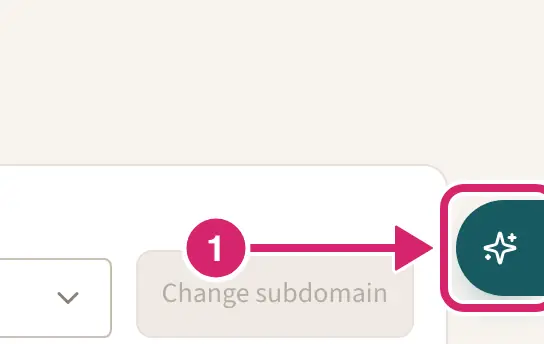
Select the sparkle button at the bottom right of the screen to open the assistant.
In Ask about this club, ask it to import your website, and give the address, such as www.yourclub.org.
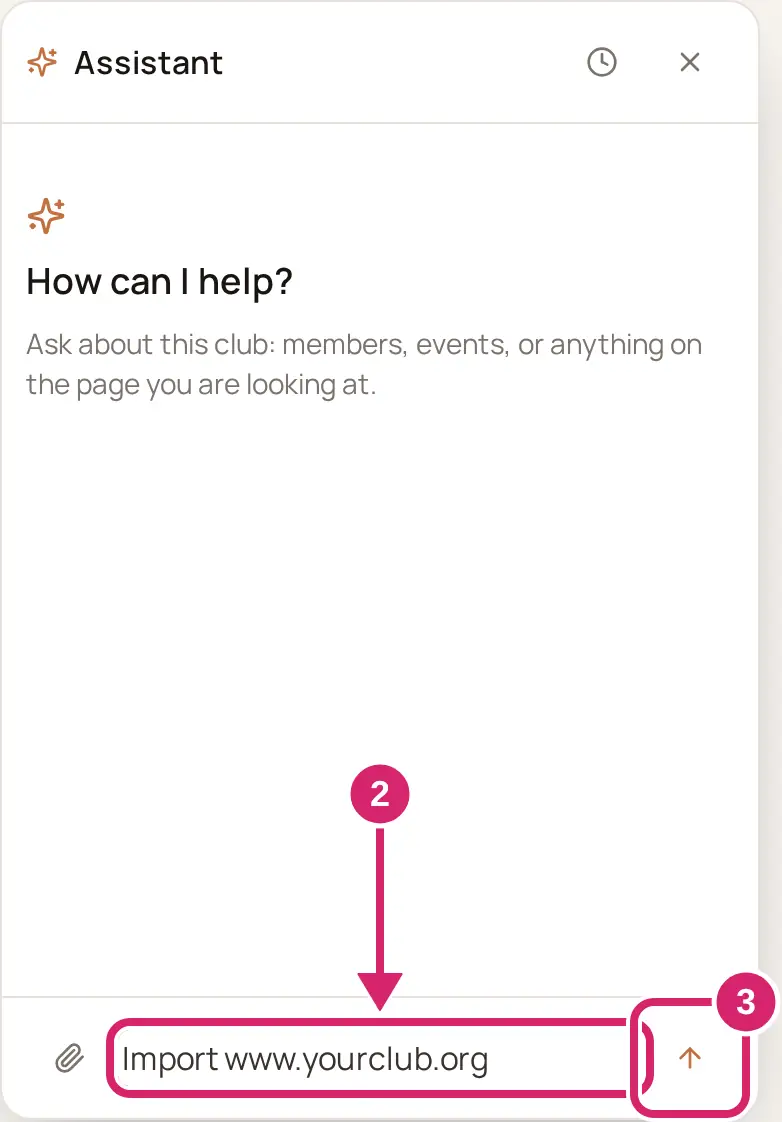
Select Send.
The assistant asks to read your old site, and names its address. Select Confirm. That one confirmation covers the whole read, and the assistant tells you how far it has got as it goes.
Read what the assistant found, then answer its questions: should the pages be public or members-only, and should it use the color it found? (See Decide what to bring across, above.)
The assistant proposes the work in a few plans. Review each one and select Confirm, or Not now to stop.
When it's done, the assistant lists what came across and what didn't. Check each page.
If you asked for public pages, the assistant then asks whether to make them public now. Select Confirm to open them to visitors, or Not now to keep them for members.
The assistant reads your old site the way a visitor does, without signing in. LongTable keeps what it read for 7 days, then deletes it.
To stop a read partway, select Stop: the Send button turns into Stop while the assistant works. It keeps the pages it has read so far, and can still build those.
What comes across
Your pages' words: headings, text, lists, tables, quotes, buttons and YouTube videos. Links between your old pages point to the new ones. Menus, sidebars and footers stay behind.
Pictures, saved with your website's other pictures. The assistant can also make your old logo your club's logo.
Documents, which go into a Files folder. The page that listed them gets a Files block.
Fixtures and events, which become events on your calendar. The page that listed them gets a Calendar block.
Your social media accounts, your club's name and its color. The color comes from your old site or its logo, and the assistant asks before it uses it.
A committee or officers page gets a Member directory block, a contact page a Social links block, and a join page a Join request block. Each block goes after the old page's words, so look for a list that now shows twice.
What doesn't come across
People. Names, email addresses and phone numbers stay on the old site; the Member directory block shows your real members instead. The assistant can import your members from a spreadsheet separately.
Repeating events. Add them yourself so they repeat correctly.
Pages behind a sign-in on your old site, such as a members' area.
Maps, forms and Vimeo videos.
Documents that Files doesn't accept. The assistant names them.
Anything past 120 pages, or past the pictures, documents and events one import can carry. Bring the rest over by hand.
Before you go public
The assistant publishes each page it builds for members only. Visitors see the pages only if you say yes when it offers to make them public.
Imported events, documents and member directories appear in blocks that only signed-in members can see. To show events to visitors, add an Event block to the page.
Check each page, then make it public when it's ready.
If something goes wrong
There's no sparkle button. An admin may have turned the assistant off. They can turn it back on under Configuration › Club, in Features: turn on Assistant. A member who connects their own AI tool to your club can still import your site that way; see Connect your own AI tool.
The assistant says some pages are behind a sign-in. It reads your site the way a visitor does, so a members' area doesn't come across. Copy those pages over by hand.
The assistant says the site refused it, because of a firewall or bot-protection setting. If your club owns the site, ask whoever hosts it to allow automated reads, or bring the content over by hand.
The assistant says some pages build their content in the browser. There was little to read in them, so add what's missing by hand.
The assistant says no site answers at your address. Check the address, and that the old site is still online.
The assistant says the read stopped. It reads up to 120 pages, and it stops when you select Stop. The pages it read can still be built. Bring the rest over by hand.
The assistant says the import isn't available any more. It keeps what it read for 7 days. Ask it to read your site again.