
Move your club to another plan, or switch between paying monthly and yearly, from Administration › Billing. If your club is winding up, you can cancel the plan, or an admin can close the club. Keep a copy of its data first.
Why use it
Move up when your club needs a feature or more room, and move down when it needs less. Plans differ in what they include; compare them on our pricing page.
To stop paying but keep your club running, move it to Free. Canceling closes the club.
Keep a copy of your club's data before you cancel or close. After 90 days, a closed club and everything in it are deleted for good.
Give the Billing or Treasurer role to whoever looks after the bill, so they can change the plan and update the card without being an admin. See Decide who manages your club's bill.
Change your plan
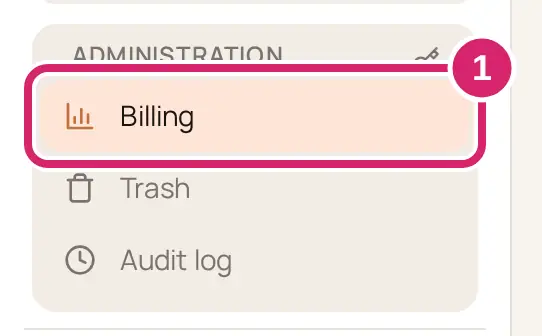
Go to Administration › Billing.
On the Plan tab, find the plan you want and select its button: Move up to … or Move down to …. The move uses the cycle the plans are showing, Monthly or Yearly. The page opens on the cycle your club already pays, so a move keeps it.
Move up to …: choose it when your club needs a feature or more room now, such as after a membership drive fills your plan. It usually starts right away. We credit what the club already paid this period, so it pays only the difference today.
Move down to …, including Move down to Free: choose it when your club needs less, such as when the season ends. It usually waits for the end of the current billing period, and the club keeps its current plan and features until then. So you can book it early.
Check the confirm step. It shows what is Due today, the Next charge date, how the club is Billed, what it pays Then, and when it Takes effect: Right away, or on the date the current billing period ends.
Select Continue to plan change.
Finish on our secure payment page, which opens in a new tab. Nothing changes until you confirm there.
Back on the Billing page, the new plan shows once the change goes through. If it still shows the old plan after a minute, reload the page.
We email the club's admins, everyone with billing access and the billing contact when the plan changes, with the subject “… moved from … to …”.
A club with no paid plan to change sees Start … buttons instead, or Start … demo if it hasn’t used its one demo yet. Its confirm step ends with Continue to checkout. See Pay for your plan on Stripe's page.
Switch from monthly to yearly
How often should the club pay? A club paying monthly can switch its current plan to yearly here.
Monthly: choose it when your club might change plans again soon, or would rather pay as it goes, such as a new club still finding its feet. The club is charged once a month.
Yearly: choose it when your club budgets by the year, such as a club that collects annual dues. There’s one charge and one receipt a year for your treasurer to reconcile.
On the Plan tab, choose Yearly above the plans.
On your current plan's card, select Switch to yearly.
Check when it Takes effect, then select Continue to plan change.
Finish on our secure payment page, which opens in a new tab.
A club paying monthly also sees a note below Current usage on the … plan with a Switch to yearly button that opens the same confirm step. A club paying yearly can switch back the same way: choose Monthly, then select Switch to monthly. A club on Free has nothing to switch.
What happens to features the new plan doesn't include?
Changing plans never deletes your club's data. When a move down starts:
Anything the new plan doesn’t include stops. Where it was, admins see a card with an Upgrade to … button, and members don’t see it at all. What you made with it is kept, and it’s back as it was if you move up again.
If the new plan doesn’t include a public website, visitors can no longer see your site. Members who sign in still can.
A club archive you made before the move can still be downloaded until it expires.
Monthly allowances, such as emails and texts, change to the new plan’s at once.
Update your card or see invoices
Go to Administration › Billing and select Payment settings.
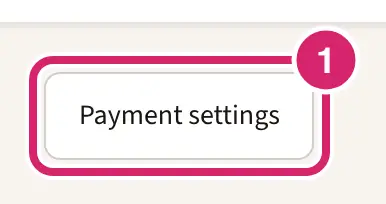
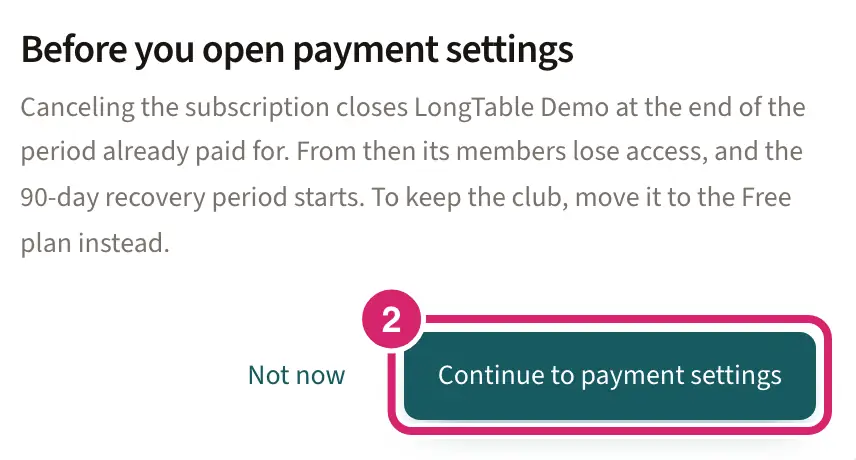
If you’re an admin, a reminder about canceling opens first: select Continue to payment settings. Our secure payment settings open in a new tab, where you can update your card and billing details.
The reminder, Before you open payment settings, says that canceling closes the club. Continuing cancels nothing. Members with the Billing or Treasurer role can’t cancel, so they don’t see it: payment settings open straight away.
A card you add in payment settings becomes the one the club is charged on. The first line of the Billing page names the card the next charge uses.
Your club's past invoices for LongTable are on the Invoices tab.
Decide whether to move to Free, cancel or close
Is your club stopping for good, or just spending less? Three choices sound alike but do very different things to your members and your data. Only one keeps the club open.
Move down to Free: choose it when the club carries on with less, such as a small committee between seasons or a club whose budget was cut. The club stays open, members keep signing in, and nothing is deleted. It starts at the end of the billing period. Change your plan, above, shows how.
Cancel the plan: choose it when the club is winding up once the time you’ve paid for runs out, such as a club that voted to dissolve at the end of its year. Only an admin can cancel. The club runs as usual until the end of the paid period, then closes. For 90 days, an admin or a member with the Billing or Treasurer role can bring it back.
Close this club: choose it when the club must go offline now, such as a club that has merged into another, or one set up by mistake. It closes straight away and billing stops. Only an admin can close it, and only an admin can reopen it, within 90 days.
Not sure? Move down to Free. Nothing closes, and you can move up again whenever you like.
Cancel your plan
Go to Administration › Billing and select Payment settings.
Read the warning, then select Continue to payment settings.
Cancel your plan in the payment settings that open.
Only admins can cancel. Members with the Billing or Treasurer role see payment settings without the option to cancel.
Your club keeps running until the end of the period you’ve paid for.
When the period ends, the club closes. We email its admins, everyone with billing access and the billing contact, with the subject “… is closed”. Members get no email.
For 90 days, your clubs page shows the club as Canceled, with a countdown. To bring it back, select Reactivate, then Choose Free, or Select beside a paid plan. A paid plan reopens the club once the payment goes through, and it doesn’t start with a demo. On Free, a club with more members or files than Free allows is read-only.
Admins and members with the Billing or Treasurer role see the countdown and Reactivate. Other members see the club marked closed, with the names of its admins to ask. After 90 days, the club and everything in it are deleted for good.
Close your club
Closing takes your club offline straight away, without waiting for the end of the billing period. Only admins can close a club.
Go to Configuration › Club. The General tab opens.
At the bottom, select Close this club.
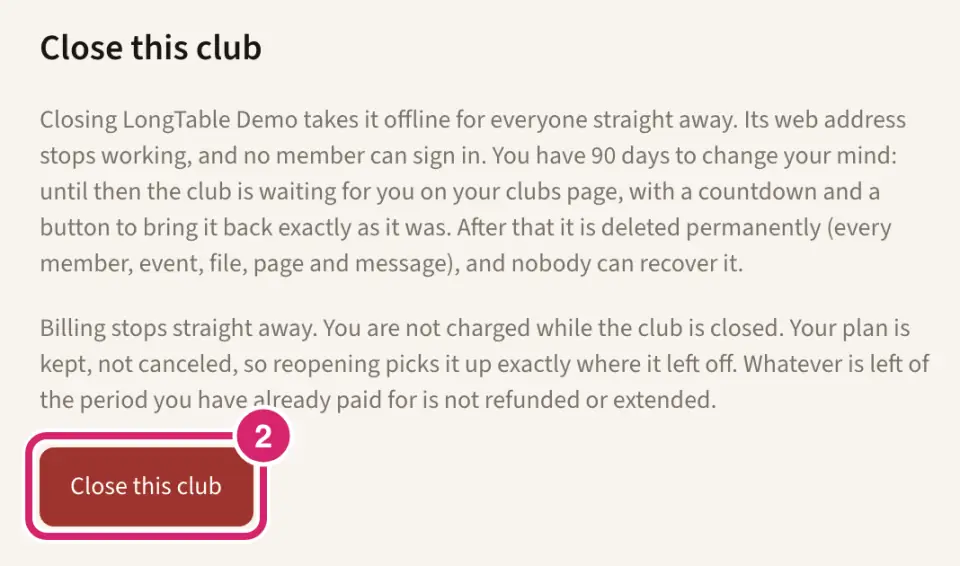
Download everything you want to keep. If your plan includes it, select Download a Club archive first and follow Download a copy of your club's data.
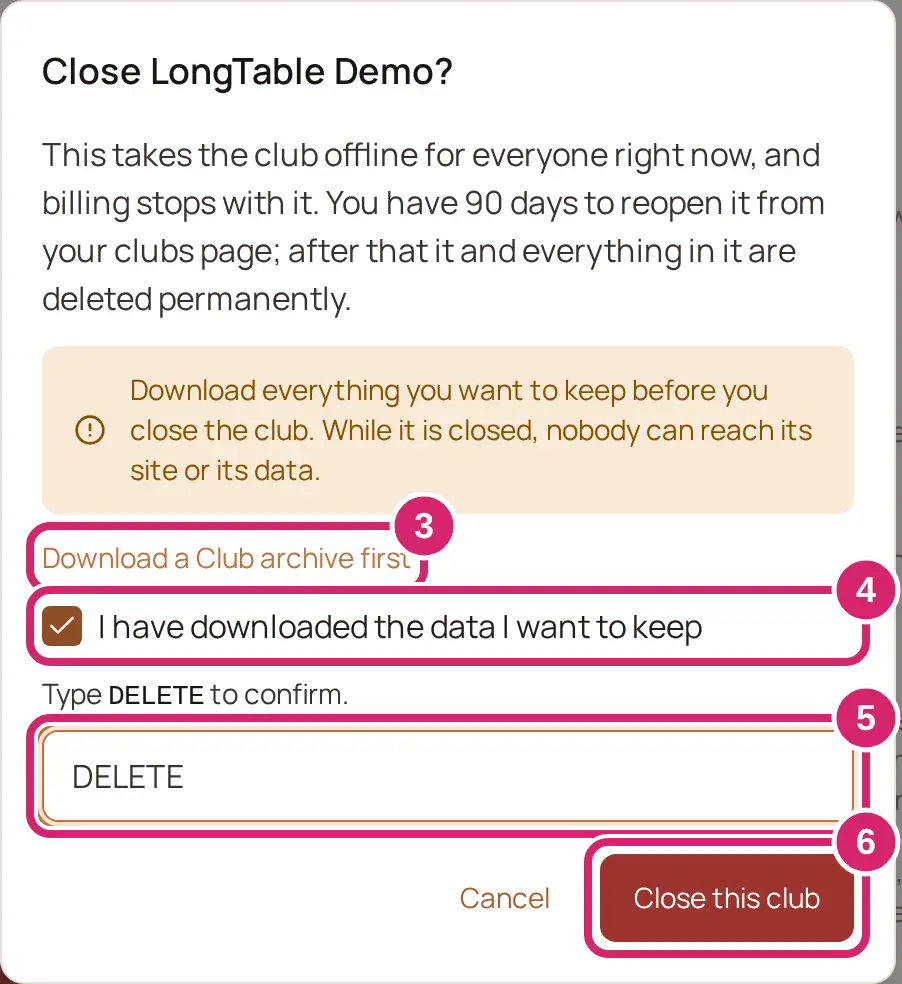
Check I have downloaded the data I want to keep. Nothing checks this: it’s your own word.
Type DELETE.
Select Close this club.
Your club goes offline for everyone straight away. Its web address stops working, and no member can sign in.
Billing stops straight away. Your plan is kept, so reopening picks it up where it left off. The rest of the period you’ve already paid for isn’t refunded or extended.
For 90 days, an admin can bring the club back from your clubs page: select Reopen, then Reopen club. Everything comes back as it was. Members with the Billing or Treasurer role can’t reopen a club an admin closed. After 90 days, the club and everything in it are deleted for good.
We email the club's other admins, everyone with billing access and the billing contact, with the subject “… is closed”, and with “… is open again” if it is reopened. Members get no email.
If something goes wrong
Plan changes aren’t available right now. Your current plan is unaffected. Try again in a moment.
Your club is over its plan’s limits, so member records and files are read-only. Remove members or files, or upgrade your plan. Your club has more members or files than its plan allows. Delete members or files you no longer need, or move up a plan. A deleted file stops counting straight away.
A member import is still running. Try again once it has finished. Wait for the import to finish, then close the club.
We couldn’t pause billing, so the club was not closed. It is still running. Try again in a moment. Your club is still open. Wait a moment, then close it again.
This club closed when its subscription ended. Reactivate it from billing instead. Select Reactivate on your clubs page instead of Reopen.
This club can no longer be reopened. Its 90 days have passed.