
Keep your name, contact details and photo up to date yourself, and choose how each of your clubs contacts you. It all lives in the menu under your picture.
Why use it
Your club reaches you at the email, phone number and address on your record. When you move or get a new number, change it here so nothing goes astray.
If you belong to more than one club, one change can reach all of them, so you don't update each club separately.
You can stop a club's non-essential email, or start its texts, without leaving the club or asking anyone.
Open your profile
Select your picture at the top right.
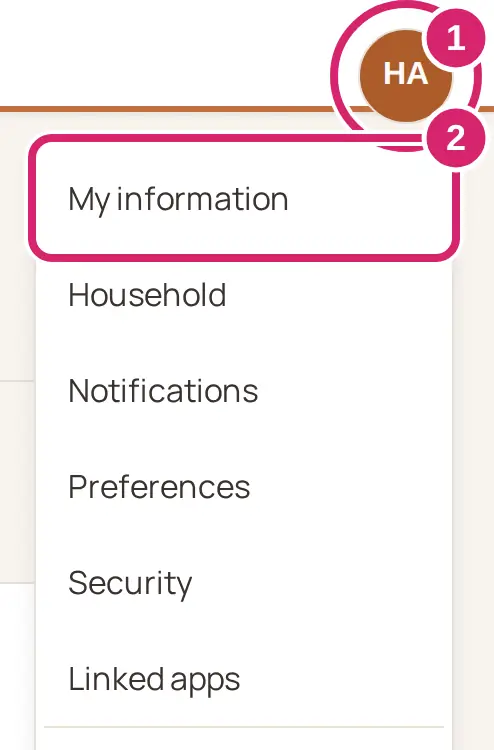
Select My information. Household, Notifications, Preferences, Security and Linked apps in the same menu open the page's other tabs.
The page has six tabs:
My information: your email, photo, name, phone numbers, address and birthday, and what each club keeps about you.
Household: the people in your household and who pays for whom. See Set up a household.
Notifications: how each club reaches you, by email, event email and text message.
Preferences: how LongTable looks, and which emails LongTable itself sends you.
Security: how you sign in, and the Google account your clubs share files with.
Linked apps: the AI apps, such as Claude, you've allowed to reach your clubs, and a way to disconnect each one. See Connect your own AI tool.
The menu also shows My invoices when one of your clubs sends invoices through LongTable, or bills someone in your household. See Pay an invoice from your club.
Update your details
On My information, change what you need, such as Display name, Backup phone or your address.
Stop typing for a moment, or move on to another part of the page. LongTable saves the change by itself, and the line at the top of the page says Saving…, then All changes saved.

If you belong to more than one club, Apply to which clubs? opens before the change is saved. Choose the clubs that should get it, then select Apply changes.
Which clubs should get the change? Every club starts selected.
Every club: choose it for a change that's true everywhere, such as a new address after you move or a new phone number. Each selected club's old value is replaced.
Only some: choose it when you keep different details for different clubs, such as your work phone for a business networking group and your home phone for the swim club. Clear the others, and they keep their values. A club where you can't edit your record is grayed out and skipped.
Changed your mind? Select Cancel and nothing is saved. The line at the top then counts what's waiting, such as 1 unsaved change, with Try again beside it.
If a save doesn't go through, the same line counts your unsaved changes and offers Try again. If you leave the page before they're saved, LongTable asks Leave with unsaved changes? first.
In a web browser, select Change picture under your photo to add or replace it, or Remove to take it off. If you belong to more than one club, you choose which clubs get the change there too.
When you change your Display name, the name in the menu under your picture changes too, everywhere you sign in. Your other clubs keep the name they have unless you choose them in Apply to which clubs?.
Each club decides which of these details its members can change, and can keep some for its managers only. Those don't show on your profile. If you can't change something, ask your club's admin to update it. There's no setting on your profile for what other members see of you: each club decides that.
Member type, Member status and Joined are set by your club and are read-only.
Change your sign-in email
Watch it done in 15 seconds, or follow the steps below. The numbers in the video match the steps.
Next to Email, select Change.
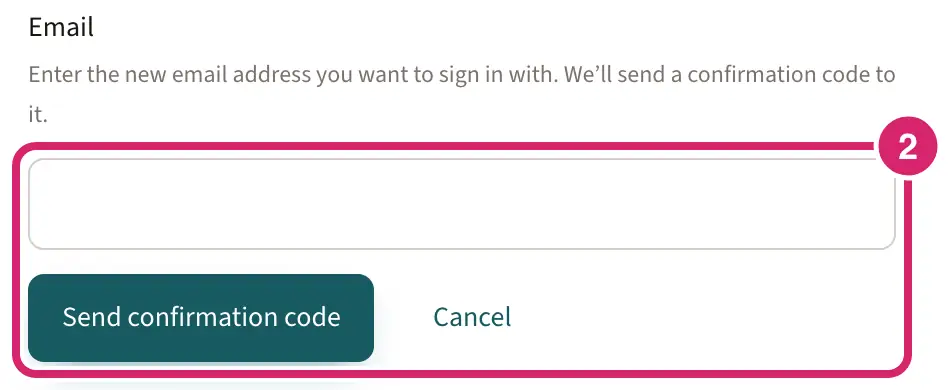
Enter the new address, then select Send confirmation code.
Enter the code we email to the new address, then select Confirm new email.
Your current address keeps working until you confirm. If your club's admin has asked to change your email, you see their request instead: select Approve to get a code at the new address, or Decline to keep your current one.
Choose how each club contacts you
Watch it done in 15 seconds, or follow the steps below. The numbers in the video match the steps.
Each club you belong to has its own tab on Notifications, with its own email and text choices.
Select your picture at the top right, then Notifications. On My information, each club's tab under Per club also has a Choose how … reaches you link to the same place.
Select the club's tab. If you came from a club's own site or from one of its emails, that club's tab is already open.
Under How … reaches you, choose Email, Event email and Text messages.
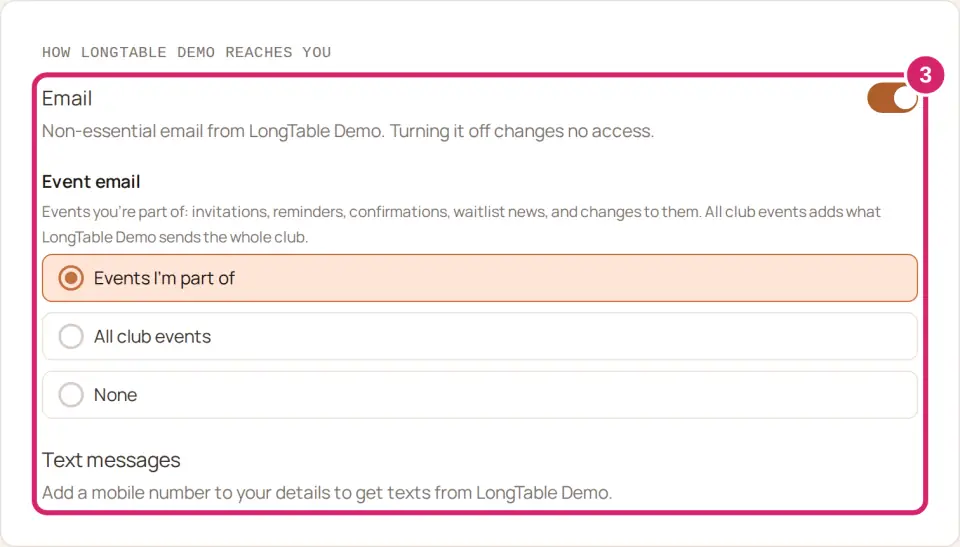
Email: it's on until you turn it off. Keep it on for a club you're active in, so you hear about events and changes. Turn it off for a club whose everyday email you don't need, such as one you've stepped back from. Its group email and its event email both stop. You stay a member with all your access, and an official message from the club still reaches you. The unsubscribe link in the club's emails turns this off too.
Event email: it shows while Email is on, and starts at Events I’m part of. That sends invitations, reminders, confirmations, waitlist news and changes for the events you're invited to or have answered. Choose All club events when you want to hear about every event the club announces to everyone, such as in a small club you go to often. Choose None to stop event email from that club and keep its other email.
Text messages: it's off until you turn it on, and nobody else can turn it on for you. Turn it on for news you'd want on your phone straight away, such as a practice canceled for bad weather. The club texts each mobile number on your details that you agreed to, and no other number. The switch shows once your details include a mobile number: under Primary phone or Backup phone, leave … is a mobile number on. Until then, the tab says Add a mobile number to your details to get texts from ….
Each choice saves by itself, and you can change any of them back at any time.
If you replied STOP to a club text, reply START to that text, then turn Text messages on.
Is a club's membership really for someone in your household who doesn't sign in, such as a child? On My information, under Isn’t this you? on that club's tab, select Hand this membership to someone in my household. See Set up a household.
Unsubscribe from a club's email
Every group email, newsletter and event email a club sends through LongTable ends with a link to stop its everyday email. You don't need to sign in to use it.
At the bottom of an email from the club, select Unsubscribe. The line around it says why you got the email, such as that you belong to one of the club’s groups or are a member of the club.
On Unsubscribe from club email, check whose email it turns off, then select Unsubscribe.
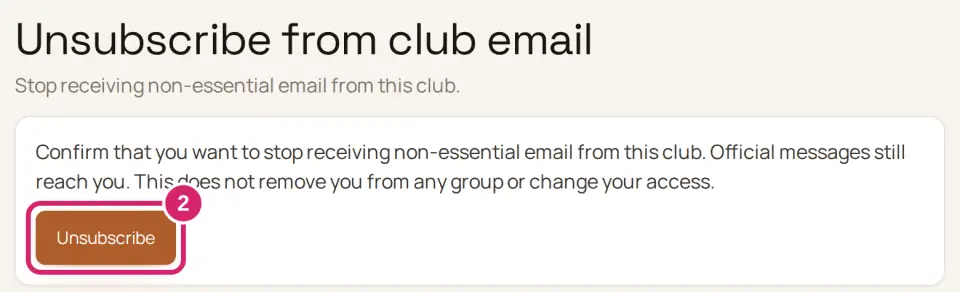
The page says Email turned off for and the name of each person it applies to.
This is the same as turning off Email for that club on Notifications: the club's group email and its event email both stop. You stay in your groups with all their access, and an official message from the club still reaches you. To get its email again, turn Email back on for the club on Notifications.
Do several people in your household share one email address at the club? The page names all of them, and the link turns off the club’s everyday email for each of them. Each person can turn it back on from their own profile.
Choose your preferences
On Preferences, each choice applies as soon as you make it:
Appearance: Light, Dark or System, which follows your device's light or dark setting.
LongTable notifications: turn General announcements, New product features and Product training emails on or off. They come from LongTable, not your club, and apply everywhere you sign in. Account and security emails aren't affected.
Keep your account secure
Security shows how you sign in, one row each: Password, Two-factor authentication, Linked accounts and Stay signed in. Select a row's button to change it. Passkeys are under Two-factor authentication.
For step-by-step help, see Sign in to LongTable.
Choose a Google account for club files
If your club keeps files in Google Drive, it shares them with a Google account you choose. It doesn't have to be the address your club has for you, and it is not used to sign in to LongTable.
Select your picture at the top right, then Security.
Under Google account for club files, select Choose a Google account, then sign in to that account with Google.
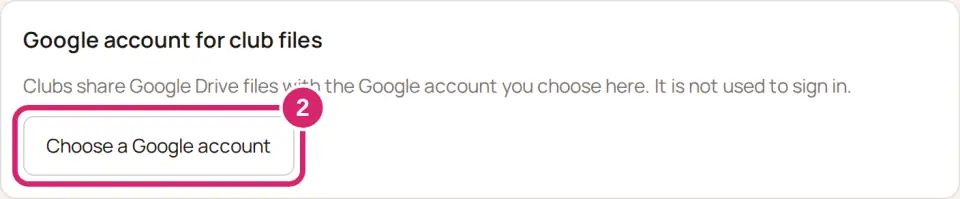
Once it's saved, the card shows the account with Change and Remove. If you sign in to LongTable with Google, it shows that account and there's nothing to choose.
Does someone else in one of your clubs already use that Google account for club files, such as a family account? LongTable asks first: This Google account is shared. Anyone signed in to a shared Google account can open every club file shared with it. Select Use this account if everyone who uses it should see those files, or Cancel to save nothing.
If something goes wrong
Enter a display name. Your account needs one. Your Display name can't be empty. Enter a name, and LongTable saves it.
Enter a valid email address. Check the new address for a typo, then select Send confirmation code again.
Enter the confirmation code from your email. Find the code we sent to the new address and enter it.
Select at least one club to apply your changes to. Choose one or more clubs in Apply to which clubs?, or select Cancel to save nothing.
… wasn’t changed: followed by a reason, under a club’s name after you apply a change to several clubs. That club kept its old value for the detail it names, usually because it doesn’t let members change it. Ask that club’s admin to update it.
We couldn’t load your clubs. Your details above it are fine. Refresh the page to try again.
That took too long. Try again. The Google sign-in for club files took too long. Select Choose a Google account again.
This unsubscribe link is invalid or has expired. The link in that email no longer works. Turn off Email for the club on Notifications instead, or use the link in a newer email.
We couldn’t turn email off. Try again in a moment. on the unsubscribe page. Select Try again, or select Unsubscribe again.