
Decide what your club records about each member. Choose who can see and change each field, add custom fields of your own, and set up the member types and statuses your club uses.
Why use it
Record what your club needs beyond name, email and address, such as a t-shirt size, a dietary need or a membership number.
Keep contact and sensitive details from other members, or from everyone except the people who manage members.
Ask new members for a field when they sign up, so they fill it in themselves.
Use a type for the kind of membership someone holds, such as Junior or Life, and a status for where they stand today. A type is usually chosen once; a status changes as their standing changes.
Decide who sees and fills in each field
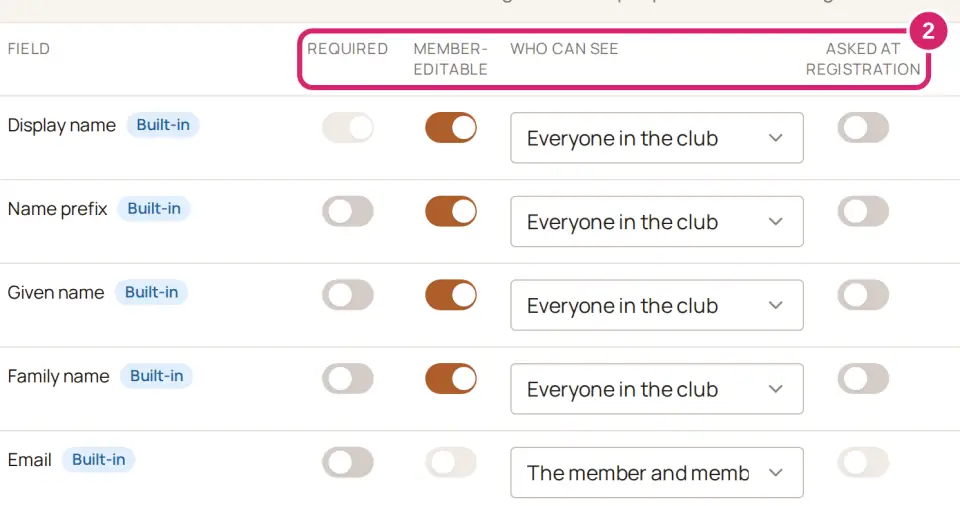
Three switches and a Who can see choice on each field decide who must fill it in, who can change it, and who can read it. Every signed-in member can open the directory and read other members' records, so set these before anyone fills in something personal.
These field rules need the Basic plan or above. Below Basic, the four columns are hidden and a Field rules card stands in for them. A club that moves down to a lower plan keeps the rules it already set, so a private field stays private, but nobody can change them until the club is back on Basic.
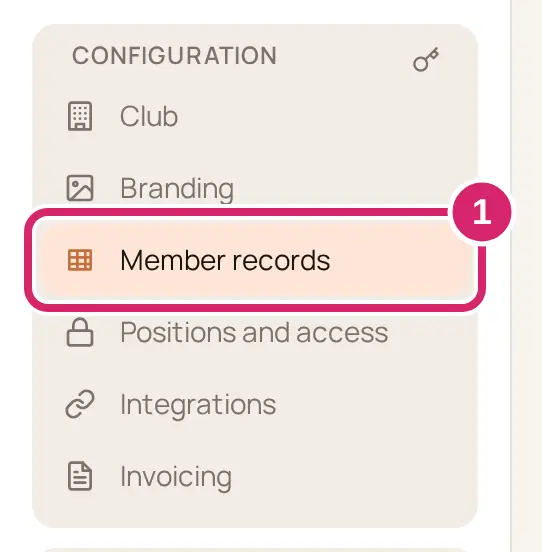
Go to Configuration › Member records.
On Fields, find the field's row, turn its switches on or off, and choose its Who can see. Each change saves straight away.
Must every record have it?
Required means nobody can add or save a member without it. It's off for a new field, and Display name is always required.
On: choose it for something your club can't do without, and always has when someone joins. Whoever adds or edits a member must fill it in, and every new row in an import needs a value.
Off: choose it for anything that's useful but not essential, such as a t-shirt size. Most fields belong here.
Turning it on doesn't fill in existing records: the next time someone edits a member who has no value, they must add one before they can save. While any field besides Display name is required, add people with Enter full details: Invite by email asks only for a name and email, so it stops with … is required. A required field can't be set to Member managers only.
Can members change it themselves?
Member-editable lets each member update the field on their own profile. It's on for a new field and for most built-in fields.
On: choose it for details only the member knows, or that change often, such as a phone number, an address or a t-shirt size. Members keep them up to date, so your officers don't have to.
Off: choose it for anything the club decides, such as a membership number or the date dues were paid. Only admins and managers can change it. Email, Member type and Member status are never member-editable.
Who should see it?
Who can see decides who can read the field. The people who can manage members always see every field. A custom field starts at Everyone in the club. A new club starts Email, Primary phone, Backup phone, Address and Birthday at The member and member managers.
Everyone in the club: choose it for what members are happy to share with each other, such as a t-shirt size or the committees someone wants to help. Every signed-in member can read it on the member's record and in the directory, and it prints on members' copies of the roster.
The member and member managers: choose it for contact details in a club where members go through the officers, such as a youth club, and for personal details like an emergency contact. The member sees it on their own profile; other members don't see it in the directory, on the roster or on the map. If Address is set this way, other members see Member addresses are private instead of the map. On a member’s edit form, a field set this way carries the note Other members can’t see this in this club.
Member managers only: choose it for anything the member shouldn't see either, such as a safeguarding check or a note your officers keep. Choosing it turns off Member-editable and Asked at registration, and it can't be Required.
A field kept for Member managers only can't be Required, Member-editable or Asked at registration, because members would be asked for something they can't see. You can change Who can see at any time, and the change applies straight away.
Should new members fill it in when they sign up?
Asked at registration asks new members for the field when they finish their profile, after accepting an invitation. It's off for a new field.
On: choose it for what you want from everyone on day one, such as an emergency contact or a t-shirt size for the welcome pack. Turning it on also turns on Member-editable.
Off: choose it for everything else, so the first form stays short. Members can still fill the field in later on their profile, if it's member-editable.
Putting it together
T-shirt size: Member-editable and Asked at registration on, Who can see at Everyone in the club.
Emergency contact: Asked at registration on, Who can see at The member and member managers. Members fill it in themselves, and other members can't read it. Add Required only if you'll always have it when you add someone yourself.
Safeguarding check: Who can see at Member managers only. A manager enters it, and only the people who manage members see it.
Add a custom field
Watch it done in 20 seconds, or follow the steps below. The numbers in the video match the steps.
On Configuration › Member records › Fields, scroll down to Add a custom field.
Enter a Label.
Choose a Type. What kind of answer are you collecting? You can't change the type once the field is created.
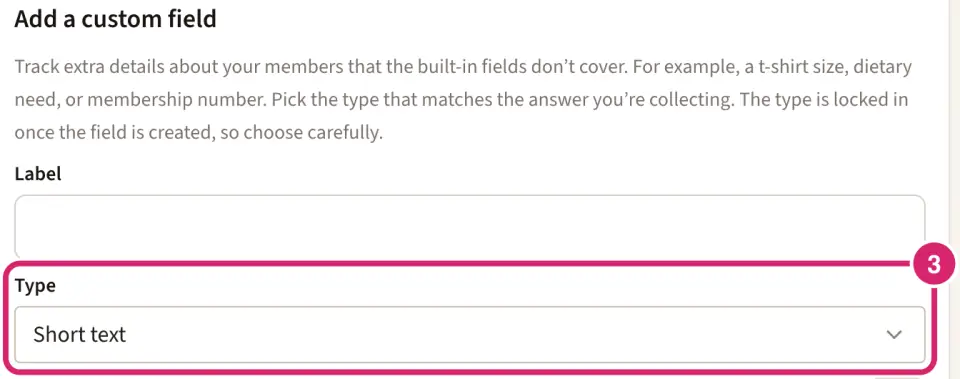
Short text: a few words or a number, such as a membership number or an emergency contact.
Date: a date, such as when someone's first-aid certificate runs out.
Single select: one answer from a list you write, such as t-shirt sizes. Answers stay tidy, with no misspellings to sort out later.
Multi select: any number of answers from your list, such as the committees someone wants to help.
Rich text: several lines of text, such as a medical note or a short bio.
Not sure? If the answers come from a short list, choose Single select; otherwise Short text. To change a type later, you'd have to delete the field, which removes its values from every member.
For Single select or Multi select, type each choice in Add option and select Add.
Turn on Required if every member must have a value.
Leave Offer on member-list pages off unless you put a member list on one of your club's pages: when it's on, page editors can add this field to that list, and pages that already show it keep it. It doesn't add a column to Community › Members.
Select Create field.
The new field starts member-editable and visible to everyone in the club. Set its switches and Who can see on Fields (above) before anyone fills it in.
Change or remove a custom field
Watch it done in 15 seconds, or follow the steps below. The numbers in the video match the steps.
On Configuration › Member records › Fields, select the pencil beside the custom field.
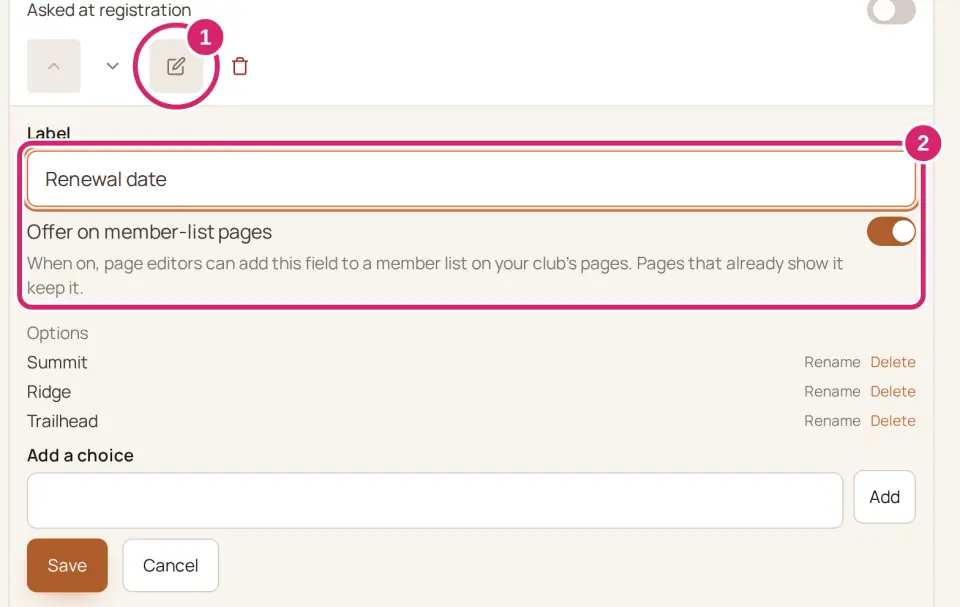
Change its Label, or switch Offer on member-list pages on or off.
For a Single select or Multi select field, change its choices under Options. These changes save straight away.
To add a choice, such as a new t-shirt size, type it in Add a choice and select Add. Members' answers stay as they are.
Rename changes a choice's name everywhere it's been picked.
Delete asks first: Delete the choice “…” from “…”? This can’t be undone. It says how many members have answered the field. Select Delete permanently to remove the choice; anyone who picked it loses that answer. A pick list always keeps at least one choice.
Select Save.
Use the up and down arrows beside a custom field to change where it appears on member records.
To remove a custom field, select its trash can icon, then Delete permanently. Its values are removed from every member, and this can't be undone.
Built-in fields can't be removed. Turn off Member-editable or choose a narrower Who can see instead.
Set up member types and statuses
Every member record has one status and one type. A status says where someone stands today, such as Active, Lapsed or Honorary, and changes as their standing changes. A type says what kind of membership they hold, such as Adult, Junior or Life, and is usually set once. Both show on records, in the directory's filters and on exports.
Watch it done in 15 seconds, or follow the steps below. The numbers in the video match the steps.
Go to Configuration › Member records.
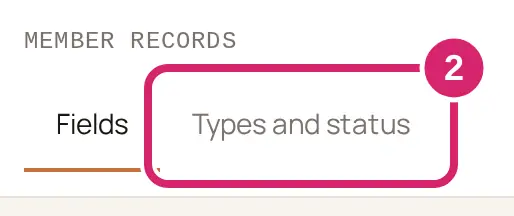
Select Types and status.
Select Add a status or Add a type.
Enter a Name, and a Description so everyone applies it the same way.
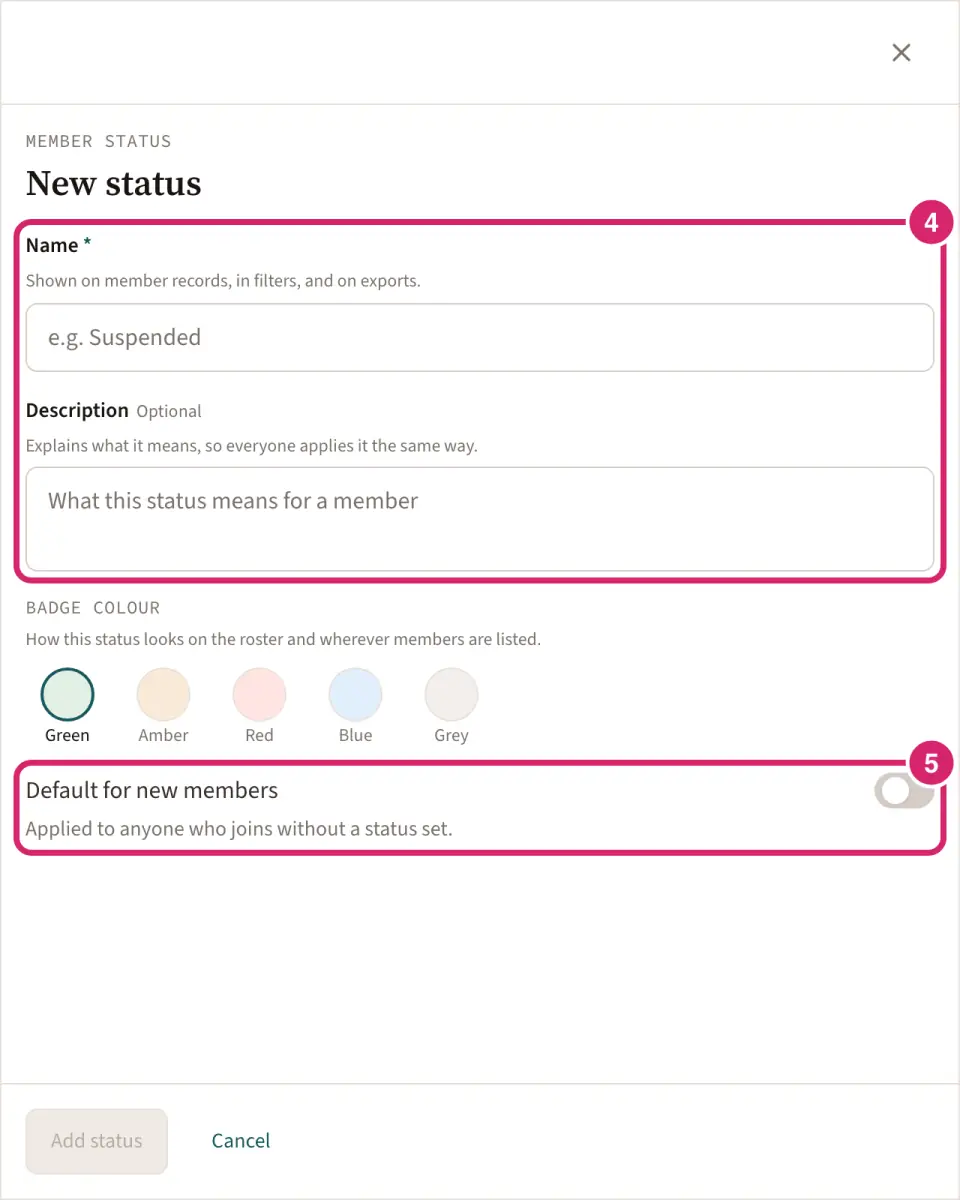
Decide whether everyone new should start with it. That's Default for new members. Only one status and one type can be the default: turning it on for one turns it off for the one that had it.
On: choose it for the way most people join, such as a New status your membership secretary changes once dues arrive, or an Adult type. Anyone who joins without one gets it: people you add or invite, approved requests to join, and imported rows that leave it blank.
Off: choose it when there's no sensible starting point and you'd rather set each person yourself. New members start with none.
Changing the default later doesn't change anyone who has already joined.
Select Add status or Add type.
To change one, select it in the list. Changes save as you go; select Done when you're finished.
Each status can have its own color, which shows on its badge in the directory.
Renaming keeps every member who already has it. Deleting clears it from every member who has it, so rename one rather than delete it when only the name is changing.
If something goes wrong
… is required A field your club made required is empty. Fill it in. If you started with Invite by email, switch to Enter full details to see the field.
Enter a name. Give the type or status a name before you add it.
Enter a name for the new choice. Type the choice in Add a choice before you select Add.
A custom field labeled “…” already exists. Choose a different label. Choose a label no other field uses.
“…” is a reserved name because it matches a built-in member column. Choose a different label. A built-in field, such as Email, already has that name. Choose a different label.
We couldn’t update the field. Try again in a moment. Wait a moment, then change the switch again.
This no longer exists. Another admin deleted it. Nothing was saved. Someone else deleted that type or status while you had it open. Close the panel.