
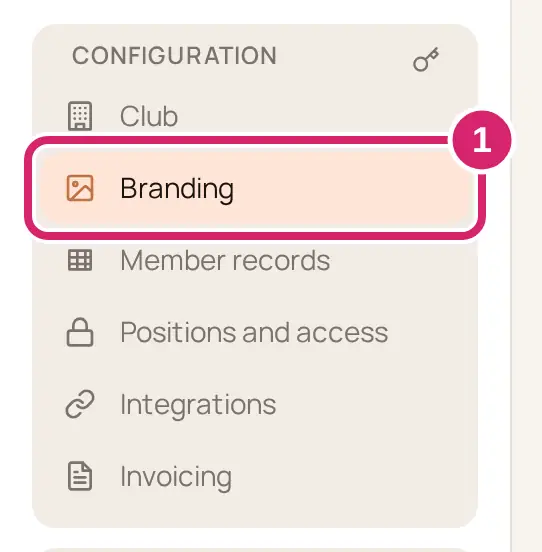
Put your club's logo, colors and type on your website and in LongTable, and choose the header and footer that frame every page. It all lives in Configuration › Branding.
Why use it
Members and visitors know they're in the right place when your site carries the same logo and colors as your flyers, signs and shirts.
One place sets the look everywhere: your website, what members see when they sign in to LongTable, and the emails your club sends.
You can try things safely. The preview shows every change, and your colors and type don't go live until you select Publish look.
Take your brand color from your logo so the two match, and give the footer a club email address rather than a person's, so a change of volunteers changes nothing.
What goes live, and when
The Branding page saves in three ways. Each change reaches every member, and every visitor once your site is public, so know which kind you’re making before you start.
Straight away: your logo and your social links. They change for everyone the moment you save them.
When you select Publish look: your base look, brand color, mode, corner shape, typeface and spacing. Until then only the preview on this page shows them.
When you publish in the page editor: your site header and site footer.
Change your logo
Go to Configuration › Branding.
Under Logo, select Choose image… (or Choose a different image… if your club already has a logo).
Pick a PNG, JPEG or WebP picture.
Select Save logo.
Your new logo shows straight away, for everyone; it doesn't wait for Publish look. It appears at the top left of LongTable, in your site header, and at the top of messages your club sends by email. A newsletter shows it next to your club's name. With no logo, LongTable, your site header and your newsletters show your club's name instead. To go back to the name, select Remove. It takes the logo off at once, without asking.
Which picture? A wide logo with your club's name written in it works best with the header set to show the logo alone, so the name doesn't appear twice. A square badge or crest sits well beside your name. Both keep their shape in every header layout (see below).
Upload a logo in a web browser, or from your photo library in the phone app.
Start from a base look
A base look sets the corner shape, typeface and spacing together, so they suit each other. If you haven't picked a brand color yet, it sets that too; a color you've picked, one of the 12 or your own, stays.
Go to Configuration › Branding. The base looks are at the top of the page.
Select the look that fits your club. The preview beside the settings, Your site with these changes, shows your site in it.
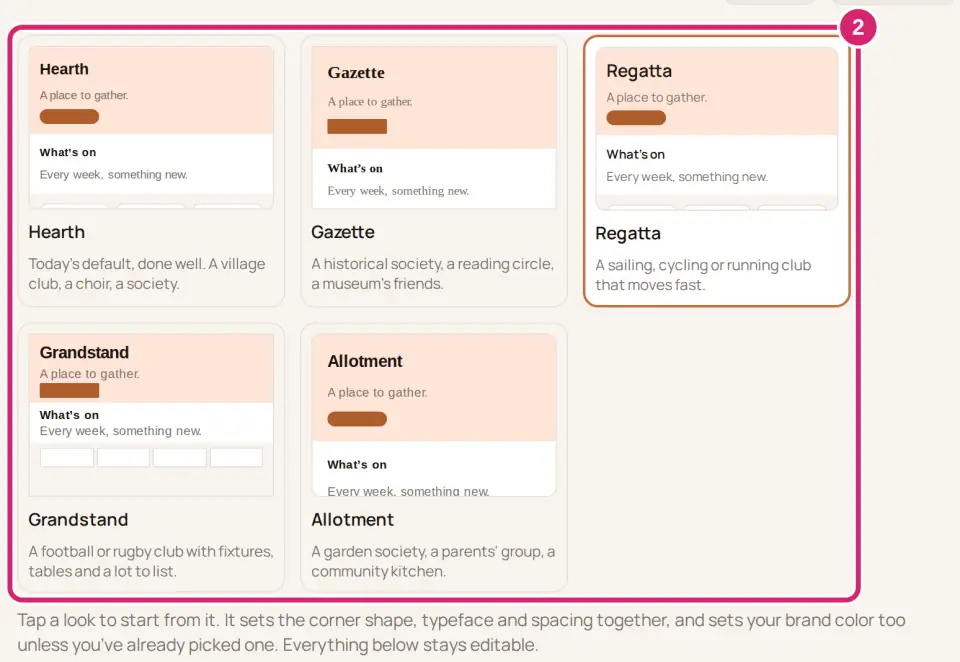
Hearth — the default: soft corners, the Bonfire typeface and standard spacing. Choose it for an all-round look that suits most clubs, such as a village club, a choir or a society.
Gazette — square corners, the Editorial typeface and airy spacing. Choose it for a club with a lot to read: a historical society, a reading circle, a museum's friends.
Regatta — round corners, the Modern typeface and standard spacing. Choose it for a club that moves fast: a sailing, cycling or running club.
Grandstand — square corners, the Bold typeface and compact spacing, so more fits on each screen. Choose it for a football or rugby club with fixtures, tables and a lot to list.
Allotment — round corners, the Friendly typeface and airy spacing. Choose it for a garden society, a parents’ group or a community kitchen.
Not sure? Stay on Hearth and change one thing at a time under Fine-tune (optional). A look changes only the preview until you select Publish look, so you can try each one. It replaces any corner shape, typeface or spacing you'd picked but not yet published.
Then adjust it under Fine-tune (optional), further down the page. Once you change something, the page says Your own mix. Tap a look to start from it.
Corner shape: Square, Soft or Round.
Typeface: five pairs of fonts, one for headings and one for text. They apply to every page of your site and to what members see when they sign in.
Spacing: Compact, Standard or Airy, the room around and between the blocks on every page.
Pick your colors
Under Brand color, choose a color.
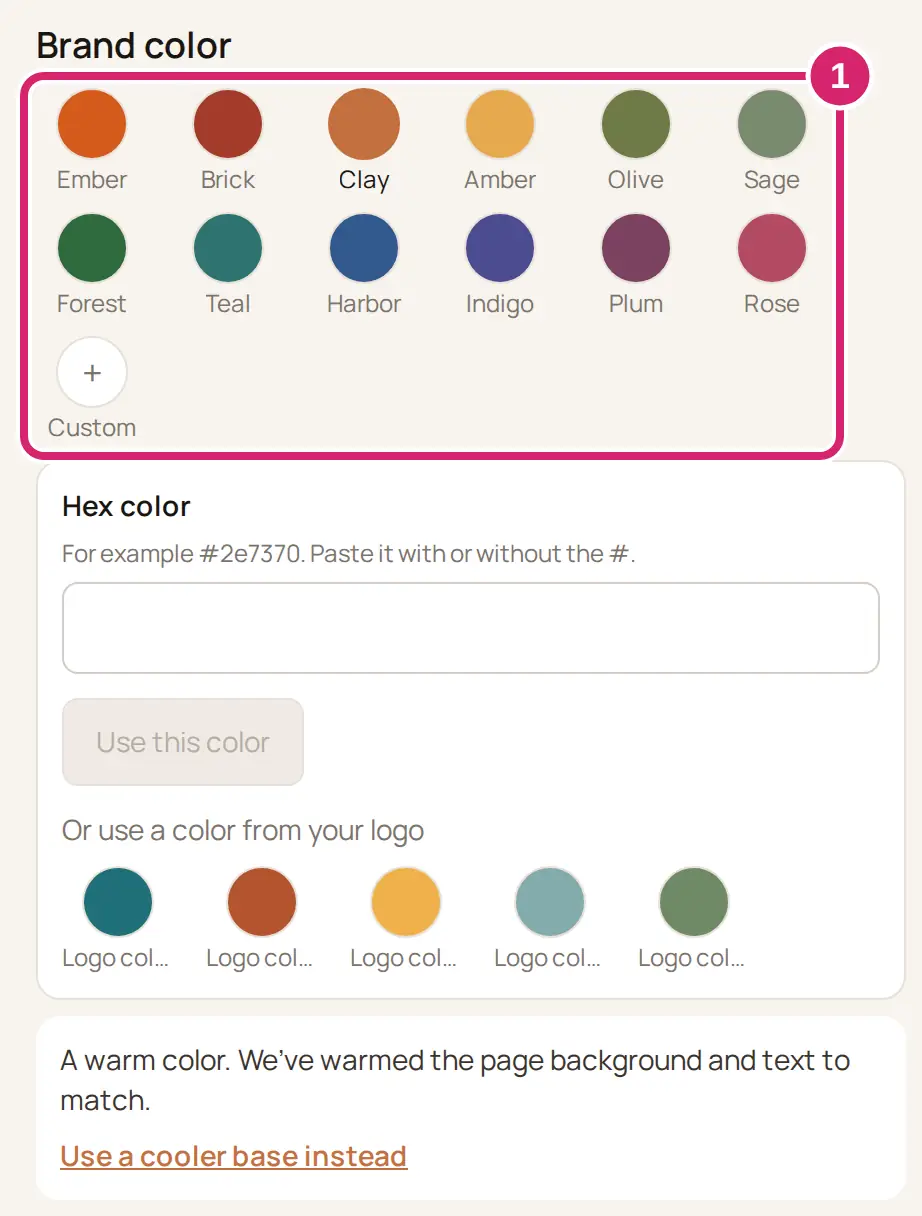
One of the 12 colors, from Ember to Rose — choose it when your club has no set color, or one of these is close to yours. Each is checked in advance, so it always works for buttons and text.
Custom — choose it when your club already has a color, from its logo, flyers or shirts. Type its hex color into Hex color and select Use this color. If your club has a logo, Custom also offers the colors in it, under Or use a color from your logo.
LongTable checks a color of your own before it uses it, so your buttons and links stay easy to read. It turns down three kinds, and offers a fix you can take with one click:
A color so pale it would disappear into the page: Use the deeper version.
A red so close to the red of delete buttons that the two would be mistaken: Use the deeper version, a deeper wine red.
A color too grey to build buttons from: Use Graphite, a quiet charcoal look.
Your page background and text follow your color: warm, neutral or cool. The line under the colors says which. To keep a different one, select the link under it, such as Use a cooler base instead.
Under Mode, choose how light or dark your pages are.
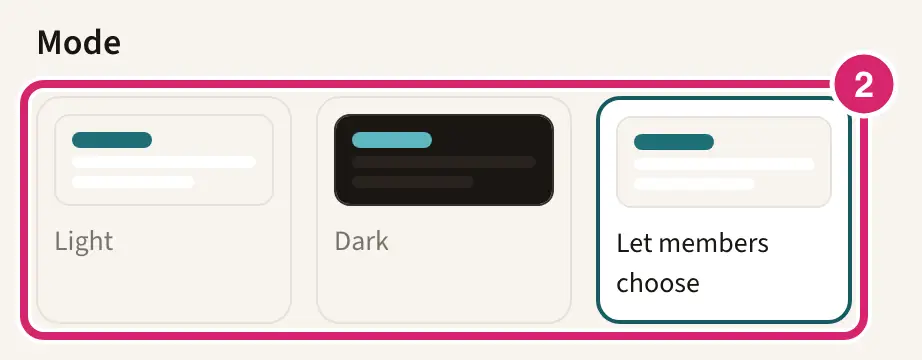
Let members choose — the default. Each person sees light or dark to match the setting on their own phone or computer. Choose it for most clubs: nobody gets a look they didn't ask for.
Light — always light, for everyone. Choose it when your logo or photos are made for a white page, such as a black logo with no background around it.
Dark — always dark, for everyone. Choose it when your club's look is dark by nature, such as a jazz club or a stargazing society.
Your brand color is used for buttons, links and highlights on every page of your site and wherever members sign in. Once you've picked one and published it, emails your club sends, such as messages and invitations, use it too.
Put your look live
Your base look, colors, mode, corner shape, typeface and spacing wait until you publish them. The top of the page counts them, such as 2 unpublished changes. They belong to the club, not to you: anyone else who can edit Branding sees the same changes, and publishing puts theirs live too.
Check the preview. Use Home and A page, and Desktop and Phone, to see different views.
At the top of the page, choose what to do with the changes.

Publish look — choose it when the preview shows what you want every member and visitor to see.
Discard — choose it when you were only trying things out, or changes are waiting that you don't want. They're thrown away, and your live site stays as it is.
Select Publish look or Discard again to confirm. The confirmation says who will see the change: every member and visitor, or, while your site isn’t public, every member, with visitors seeing it once your site is public. If the site header has changes waiting, publishing offers Also publish your header changes?; leave it ticked to put both live together. We confirm with Your new look is live. or, while your site isn’t public, Your new look is published for members.
Change the site header
The site header is the band at the top of your site's pages. You change it in the page editor, on a computer.
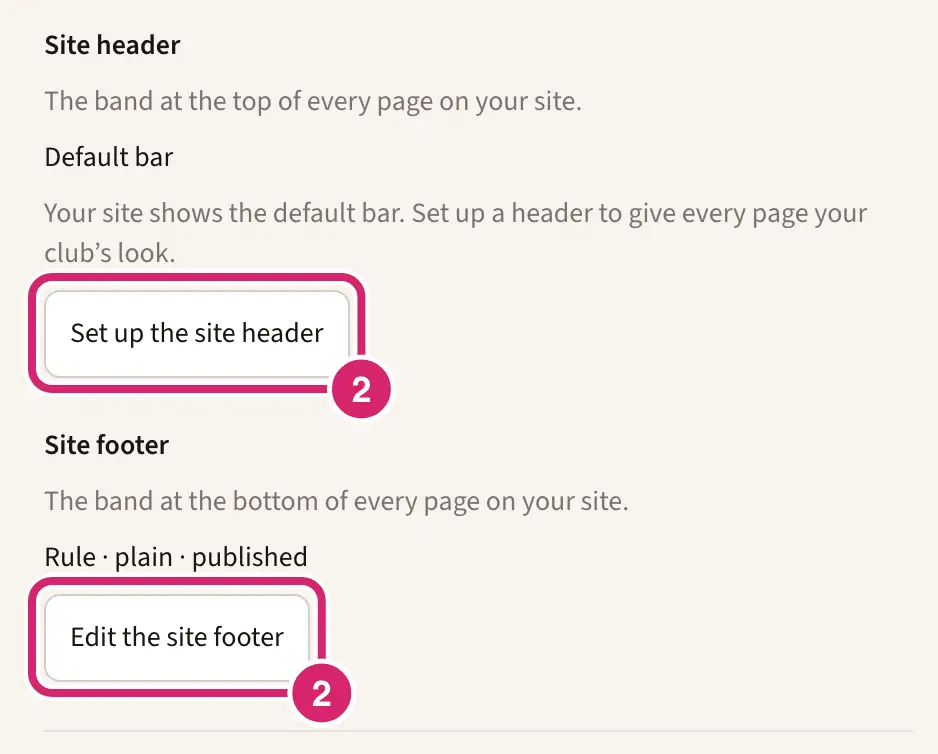
Go to Configuration › Branding.
Under Site header, select Set up the site header (or Edit the site header).
The page editor opens with the header's settings in a panel just under it. Under Layout, choose how the band is arranged.
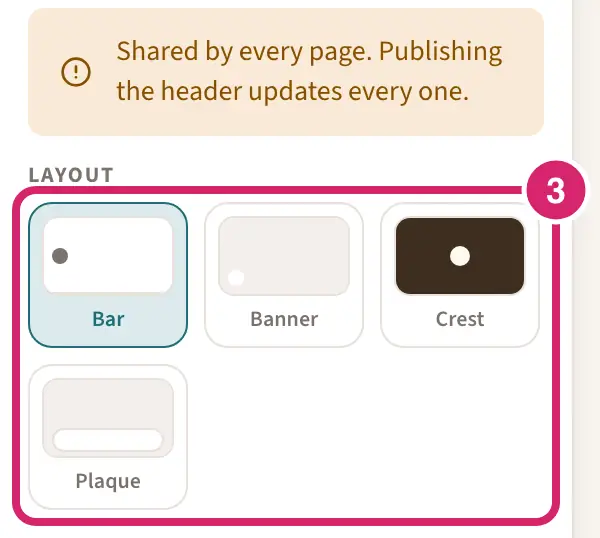
Bar — a slim band with your logo, then your name, in one row. It's the default. Choose it for a wide logo, or when you want pages to start near the top of the screen. It can't carry a photo.
Banner — a taller band with your logo and name at the bottom left. Choose it when you have a good photo of your club to show behind them.
Crest — your logo centered above your name, with a short line beneath. It shows your logo largest. Choose it for a square badge or crest.
Plaque — a band with a raised card along its lower edge that carries your logo and name. Choose it to show a photo while keeping your name clear of it.
Your logo keeps its own shape in every layout and is never cropped. On a phone, every layout except Bar puts your logo above your name.
Under Show, choose what the header shows.
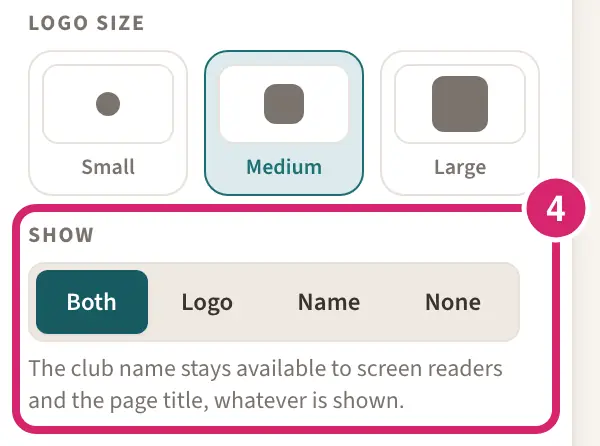
Both — your logo and your name. It's the default, and right for most clubs.
Logo — your logo alone, a little larger. Choose it when your logo already spells out your club's name.
Name — your name alone. Choose it while your club has no logo, so the header doesn't show a letter in its place.
None — nothing over the backdrop, for a header that's only a photo. Plaque doesn't offer it: its card is there to carry your logo or name.
Members see your choice too. Once they sign in, the pages they open show a slim bar with your club at the top, and it follows Logo or Name the same way. With None, that bar still shows your logo and name. Whatever you choose, your club's name stays available to screen readers and in the page title.
Choose the rest: Backdrop (Plain, Toned or Photo), Height, Logo size and an optional Tagline.
Full header on the members’ home is on for a new club: members see the full header on their home page and the slim bar everywhere else. Turn it off to give their home page the slim bar too.
Select Publish. As the panel says, Shared by every page. Publishing the header updates every one.
Check the list of changes, then select Publish now (or Publish both or Publish all when more is waiting).
The first time anyone opens the editor, LongTable offers Give your site a header with the four layouts. Pick one and select Start editing, or select Not now to keep the default bar.
Change the site footer
The site footer is the band at the bottom of your site's pages. Visitors see it on every public page, and members see it on their home page; the other pages members open don't show it.
Go to Configuration › Branding.
Under Site footer, select Edit the site footer.
Under Layout, choose how much the footer holds.
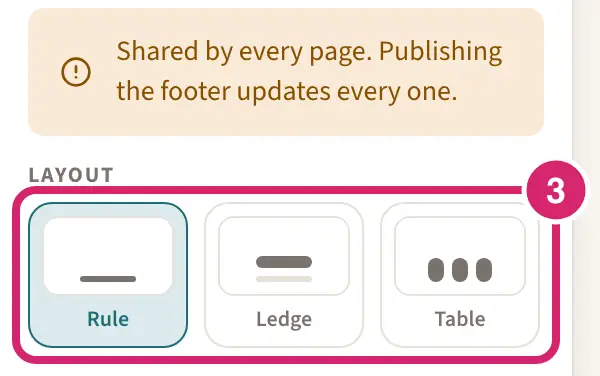
Rule — one slim row: your copyright line, your links and the LongTable mark. It's the default. Choose it when your pages already say how to reach you, such as on a contact page. It has no room for contact details or social links.
Ledge — your club's name, links, contact details and social links above a thin line. Choose it for a club with one email address and a few links.
Table — the same things set out in columns. Choose it when you have more to list, such as several contacts and all your social accounts.
Switching to Rule hides your contact details and social links but keeps them: choose Ledge or Table again and they come back.
Fill in what the footer shows.
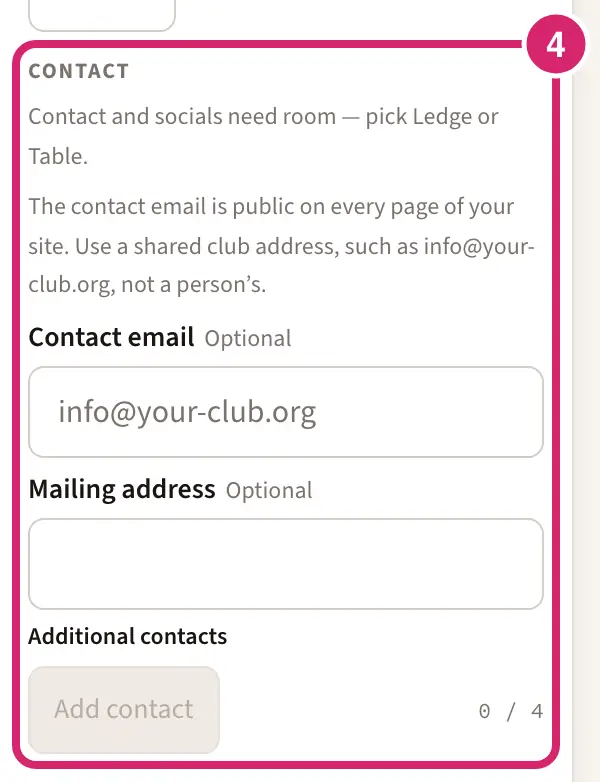
Links: up to 4, each a label and a full web address that starts with https://.
Contact email, Mailing address, and up to 4 Additional contacts, each with a label such as Membership.
Show social links: shows the social links you save on the Branding page (below). It's off for a new club.
Copyright line: made from your club's name and the current year, so there's nothing to type. It's on for a new club.
The LongTable mark always shows, and you can't turn it off.
Select Publish, check the list of changes the same way as for the header, then select Publish now (or Publish both or Publish all).
Add your social links
Which accounts should you list? Every link you save shows wherever your social links appear: in the footer when Show social links is on, and in every Social links block on your pages. List the accounts someone at the club keeps up; a page nobody has posted on since last season tells visitors the club has gone quiet. A box you leave empty doesn't show.
On the Branding page, under Social links, paste the full web address of your club's page into Instagram, Facebook, YouTube or X (Twitter).
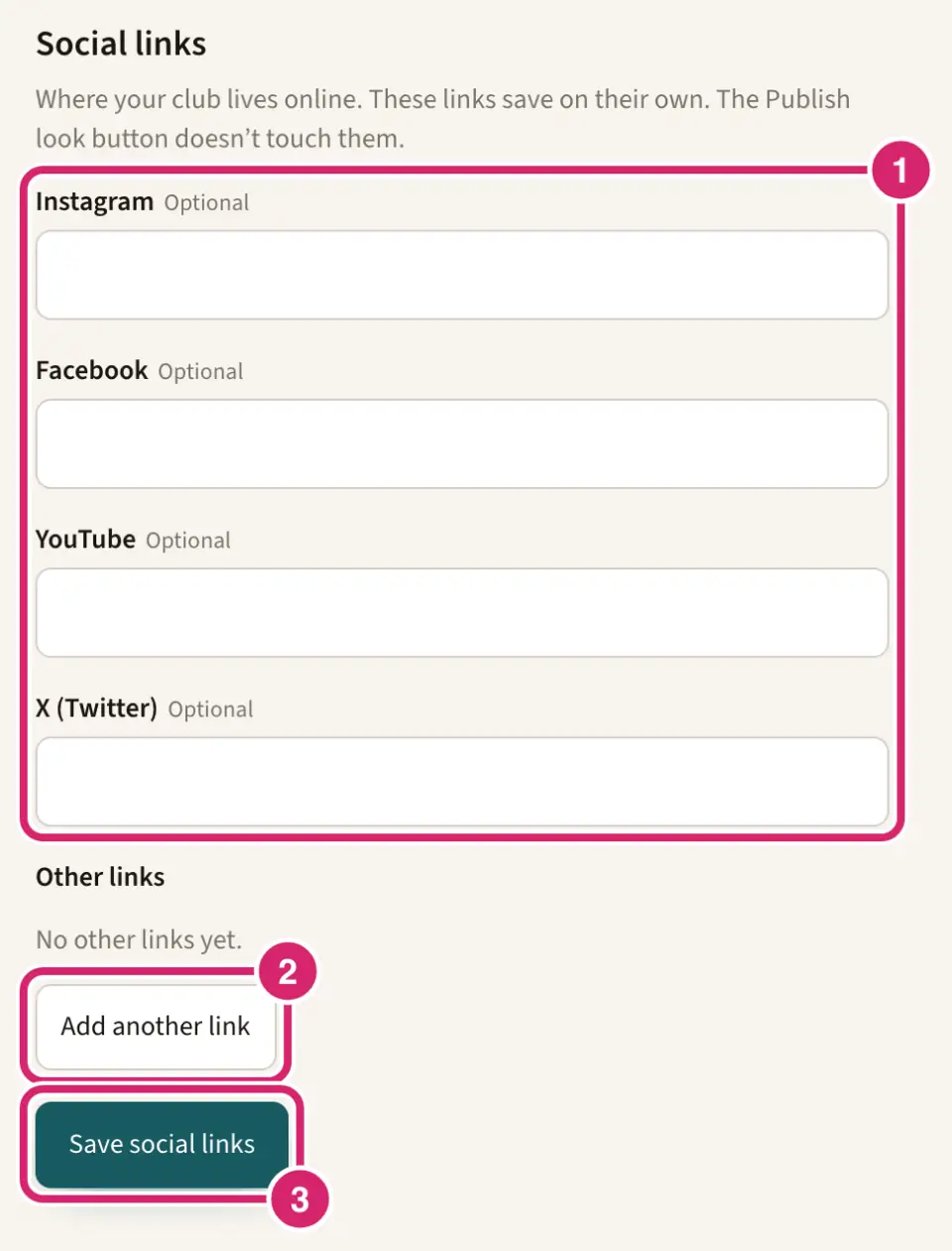
For another site, select Add another link, then fill in Name and Address. You can add up to 8.
Select Save social links.
Social links save straight away, for everyone; Publish look doesn't touch them. To stop showing one, clear its box, or select Remove beside another link, and save again.
If something goes wrong
This color is too pale against the page background. We can use a deeper shade of it instead. Your own color is too pale for buttons and text. Select Use the deeper version, or choose another color.
We couldn’t load that image. Please choose a PNG, JPEG, or WebP. Save your logo as a PNG, JPEG or WebP picture and choose it again.
Instagram: enter a full web address that starts with https://. The name changes with the link. Copy the address from your web browser, starting with https://, and paste it in.
Contact and socials need room. Pick Ledge or Table. The Rule layout has no room for them. Choose Ledge or Table under Layout; what you typed is kept.
You have a header change that is not published yet. Open the site header to publish it. Select Edit the site header, then Publish in the page editor.
Open your club on a desktop browser to edit the site header. The header and footer can't be edited on a phone. Use a computer.