
Connect your club’s public website to Google Search Console to see how people find it in Google, and to Google Analytics to count who visits. You paste one code from Google into LongTable for each, and you can use either one, both or neither.
Why use it
Prove to Google that your site belongs to your club, then see which searches bring people to it.
Count the people who visit your public pages and see which pages they read, so you know whether your flyers, posts and events bring newcomers in.
Measure your site without exposing your members. Google only ever sees visitors who are not signed in, on your public pages. Nothing behind sign-in is sent to Google.
Open your site to visitors first
Both tools need a site Google can reach. While Visitors can see your site is off, Search and analytics is grayed out, you can’t change or remove anything in it, and it reads Turn on "Visitors can see your site" first. Google can’t reach a members-only site, so these tools stay off until then.
To open your site, follow Make your site public, then come back here.
Connect Google Search Console
Search Console needs proof that your site is yours before it shows you anything. Once you save the verification tag Google gives you, your site carries it on every page, which is the proof Google looks for.
Go to Configuration › Club › Website.
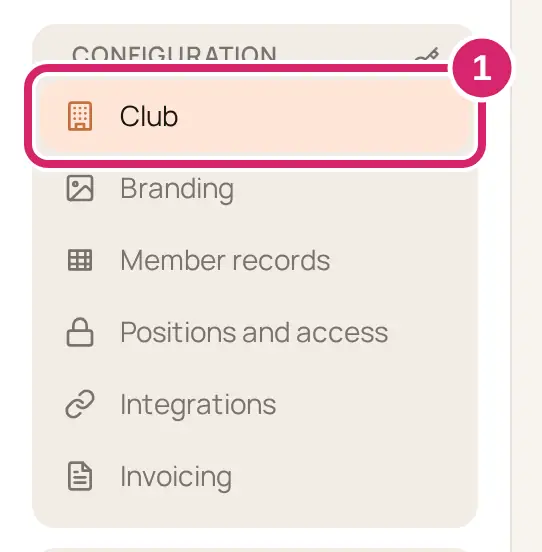
Scroll to Search and analytics and find the Google Search Console card.
In Google Search Console, add a URL-prefix property with your site’s address, and choose the HTML tag method. These are the steps the card gives.
Copy the tag Search Console shows you.
Back in LongTable, paste it into Verification tag. As the field says, you can paste the whole tag or only the value inside content="…".
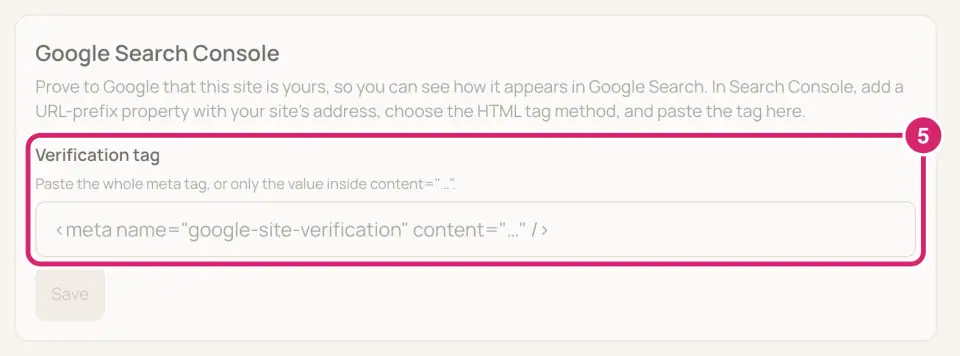
Select Save. We confirm with Search Console tag saved.
Wait a few minutes, then select Verify in Search Console. The card reminds you: Your site carries this tag now. Wait a few minutes, then select Verify in Search Console.
Measure visits with Google Analytics
The Google tag card connects your public site to Google Analytics, or to Google Ads if your club advertises and wants to count what its ads bring in.
Should your site count its visitors?
There is no switch. Your site counts visits while a Google tag ID is saved, and stops when you remove it. A new club has none saved.
Leave it empty: choose it when nobody will look at the numbers, or when you’d rather your site set no cookies for Google at all, such as a small social club whose members already know the address. Visitors see nothing different.
Add your Google tag ID: choose it when someone will use what it tells you: a club that recruits online, runs public events, or wants to know whether its flyers work. Members notice nothing, because the tag never runs for anyone signed in. Visitors in the EEA, the UK and Switzerland are asked about cookies first (see What visitors notice, below).
You can remove the ID at any time, and counting stops. What Google already collected stays in your Google account, under the settings you chose there.
Not sure? Leave it empty until someone in your club is ready to look at the numbers.
In Google Analytics, find your Google tag ID. The card says where: under Admin, then Data streams. If you use Google Ads, copy it from Google Ads instead.
Go to Configuration › Club › Website, and scroll to the Google tag card under Search and analytics.
Paste the ID into Google tag ID. It starts with G-, GT- or AW-. You can paste the whole tag code Google gives you instead, and we keep only the ID.
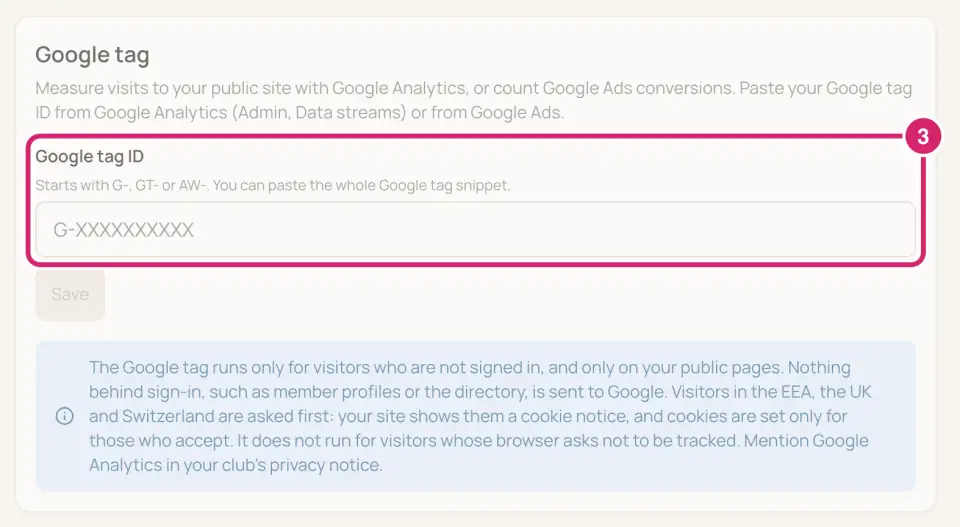
Select Save. We confirm with Google tag saved.
It can take a few minutes for your site to pick up the change. After that, every visitor who opens a public page is counted.
What visitors notice
The tag runs only for visitors who are not signed in, and only on your public pages: your home page, your website pages, event flyers, the request-to-join form and the public RSVP page. Members are never counted, and nothing behind sign-in, such as member profiles or the directory, is sent to Google.
It doesn’t run for visitors whose web browser asks websites not to track them.
Visitors in the EEA, the UK and Switzerland are asked first. A notice at the bottom of the page says This site would like to use analytics cookies to understand how visitors use it. They are set only if you accept. and offers Reject and Accept. Google sets no cookies for them unless they accept.
Visitors anywhere else never see the notice. LongTable decides who is asked, so there is nothing for you to set.
Where the notice applies, visitors can change their answer at any time with Cookie settings at the bottom of the page.
Remove a tag
Go to Configuration › Club › Website and scroll to Search and analytics.
Select Remove on the card you want to clear. It takes effect straight away, with no question first.
We confirm with Search Console tag removed. or Google tag removed.
Removing the Search Console tag ends your verification. To verify again, save the tag again and select Verify in Search Console.
If your club moves to a plan without these tools, your site stops carrying both at once, and the section says Your site does not carry these saved values while your plan does not include them. You can still remove them. Select Remove Search Console tag or Remove Google tag to clear them. If your club moves back up, the saved values work again.
If something goes wrong
Paste the HTML tag from Google Search Console, or only the value inside content="…". What you pasted isn’t a Search Console tag. Copy the whole tag from Search Console again and paste it.
Universal Analytics IDs (UA-) no longer collect data. Enter your Google tag ID, which starts with G-. That is an old Google Analytics ID. Find your current one in Google Analytics under Admin, then Data streams.
Google Tag Manager containers are not supported. Enter your Google tag ID, which starts with G-, GT- or AW-. An ID starting with GTM- belongs to Google Tag Manager, which LongTable doesn’t accept. Paste your Google tag ID instead.
Enter your Google tag ID. It starts with G-, GT- or AW-, like G-A1B2C3D4E5. The ID is incomplete or mistyped. Copy it from Google again.
Turn on "Visitors can see your site" first. Google can’t reach a members-only site, so these tools stay off until then. Your site is for members only. Open it to visitors first, as Make your site public explains.
Google Search Console and Google tag appears with an upgrade button instead of the fields. Your club’s plan doesn’t include these tools. Compare plans to see which do. If you don’t manage billing, the card says Ask whoever manages your club’s billing to compare plans.