
See which plan your club is on, and what LongTable shows when a feature needs a different one.
Why use it
Know before you plan an event, a campaign or a new website whether your plan covers the features you'll need.
Plans differ in what they include, such as how many members your club can have and which features it gets. Compare plans on our pricing page.
Check how much your club uses before you move to a smaller plan. A club with more members or files than its plan allows can't add or change members or files until it fits again.
See which plan your club is on
Go to Administration › Billing.
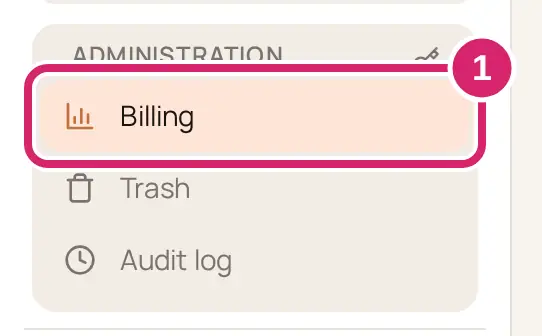
Read the line under Billing. It names your club's plan.
On the Plan tab, Current usage on the … plan shows how much your club uses: Members, File storage, Emails sent, Texts sent and AI credits. The note beside it, such as Room for … more members, names the one closest to its limit.
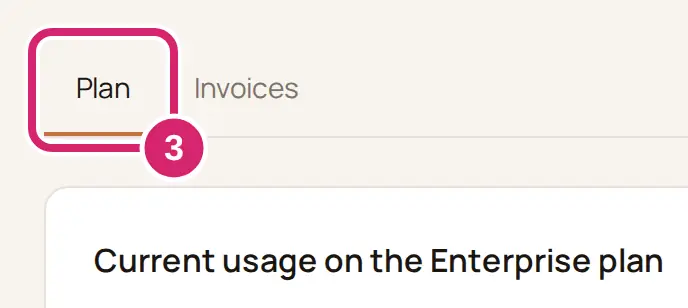
Scroll to Plans to see what each plan includes. Your club's plan is marked Your plan.
Decide which plan your club needs
Before you move up or down, check four things. The Plans list on the Billing page says what each plan includes, and so does our pricing page.
How many members will you have at your busiest? Every member counts, including young members and others who never sign in.
How much will you store? Everything in Files counts toward File storage, including the pictures on your website. A file you delete stops counting as soon as it goes to the Trash, and counts again if you restore it.
How many emails and texts do you send in your busiest month? Emails sent and Texts sent start again each month. Emails sent counts messages, newsletters, announcements and group email. Invitations and automatic emails don’t count.
Which features do you need? Plans differ in things such as a website visitors can see, your own web address, letting people who ask to join in straight away, check-in at the door from a shared tablet, and a download of all your club's data.
In a web browser, point at a plan: a second bar under each meter shows how your club's use would fit on it.
During a demo, a meter marked Demo allowance shows the demo's own limit, with a note saying what the plan gives once paid. It doesn't show the second bar. An admin or a member with the Billing or Treasurer role can select Start paying now to end the demo and get the plan's full allowance. Anyone else sees Ask a billing manager to start paying.
Get a feature your plan doesn't include
When your plan doesn't include a feature, its screen shows a card instead. The card names the feature and the plan that includes it, and has an Upgrade to … button.
On the card, select Upgrade to …. Administration › Billing opens.
Compare the plans under Plans, or on our pricing page.
Move to the plan you need. Change or cancel your plan shows how.
A screen like this stays in the menu whatever your plan, so you can always find it. For example, Help › Get support is always there for admins, and its screen shows the card when your plan doesn't include support tickets.
Members don't see these cards. A control their club's plan doesn't include, such as a download button, just isn't there.
If something goes wrong
Ask whoever manages your club’s billing to compare plans. You can't see Billing. Ask an admin, or a member with the Billing or Treasurer role.
Billing isn't in your sidebar. Only admins and members with the Billing or Treasurer role see it.
Couldn’t load billing Select Retry.
We couldn’t load the plans just now. Select Retry.
Web pages, Files, Calendars or Newsletters is missing from the sidebar. An admin has turned it off under Configuration › Club, in Features. Turning it back on brings everything back as it was.