
When you create a club, we set up a look, starter pages, positions, member types and a few sample events from what you told us. Your Setup checklist walks you through each one, at your own pace.
Why use it
You see what we set up in one place, and each item opens the page where you change it, so you don't have to hunt through the menus.
Nothing on it is required, and nothing has a deadline. Skip anything your club doesn't need.
Your pages stay members-only until you choose to make your website public, so you can try things first.
Open your checklist
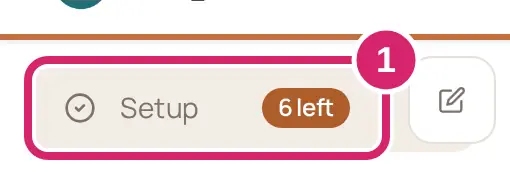
Select Setup at the top of the menu, above Home. The number beside it, such as 6 left, is how many items are still open.
The page shows how far you've got, such as 7 of 13 done.
The first time you open your new club, you see Welcome, <your name>. <Your club> is ready to explore. It shows what we set up. Select Show me my checklist to go to Setup. On a computer, Setup links back to that page with What we set up for you, and offers Take the 2-minute tour.
Check each item
The items sit in four groups: Check what we set up, Bring in your people, Run the club and Open up when you are ready. Items tagged From your goals match what you told us when you signed up, and come first in their group.
Read the item's status: We set this up. Have a look., You changed it, You marked it Looks good, You marked it Not for us or Not started.
Select the item's link, such as Open Branding, and change what you need on that page. The item ticks once you change something. Only opening it doesn't count.
If there's nothing to change, mark the item instead:
Looks good: choose it when what we set up already suits your club, such as positions that match your committee. It ticks the item. It shows only on an item we set up that nobody has changed.
Not for us: choose it when your club doesn't do this at all, such as a walking group that collects no dues. It counts the item as done. Core items don't offer it.
Undo: clears either mark if you change your mind.
Marks are shared: every admin sees the same checklist. Items tagged Core are the important ones: Your look and colors, Your website pages, Positions and Member types and statuses, plus Make your website public when your plan includes a public website. Once they're all done, Setup leaves the menu, and the page says The important things are done, so Setup has left the menu. You can find it any time under Club › Setup.
An item your plan doesn't include stays on the list with the plan it needs and See plans, and it doesn't count toward your total. On the Free plan, for example, Make your website public says A public website comes with <plan>. Until then your pages are for members only.
Change the kind of club
Is the kind of club right? It decides the positions, member types, starter pages, look and sample events we set up. Change it when your club isn't quite what you picked at sign-up, such as a social club that turned out to be a hiking group.
At the top of Setup, select <kind> · change. If no kind is set, the page asks What kind of club is <your club>?
Select the kind that fits best. It saves straight away.
We replace only what nobody has changed yet. Anything you changed stays as it is, and a starter page or sample event we take away goes to the Trash, where you can restore it. The page then says Updated for <kind>. Anything you changed stayed as it was. and lists what changed.
If something goes wrong
We couldn’t load your setup steps. Select Try again.
Someone else changed setup just now. Try again. Another admin changed the checklist at the same moment. Do it again.
That didn’t save. Try again. Your mark didn't reach us. Try again in a moment.
You don't see Setup in the menu. All the core items are done, or someone hid it. Open it from Configuration › Club › Setup.