
Share one link, and people who want to join your club can ask with their name and email. A member manager approves or declines each request, so nobody gets in without your say.
Why use it
People who meet you at an event, or hear about you from a friend, can ask to join that day. Nobody has to type them in by hand.
A request is not an account. The person sees nothing of your club, and your members' details stay private, until a member manager approves them.
Every request waits in one place, so any member manager can answer it, not only the one who saw the email.
Answer within a week. A request that waits 7 days sends every member manager one reminder, and that is the only one.
Decide who can ask to join
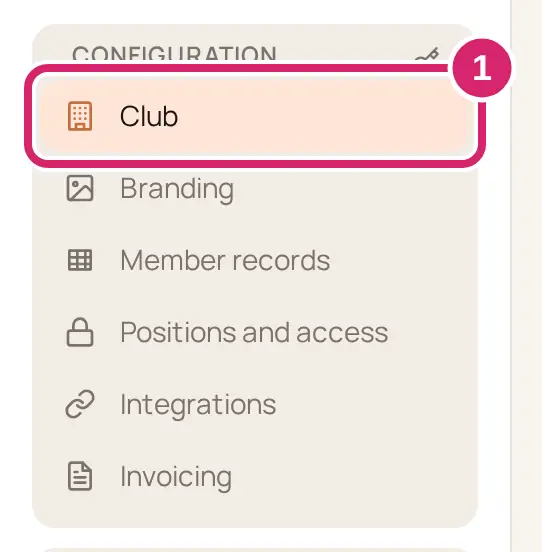
Go to Configuration › Club.
Under Sign-in and joining, turn on People can ask to join. It's off for a new club.
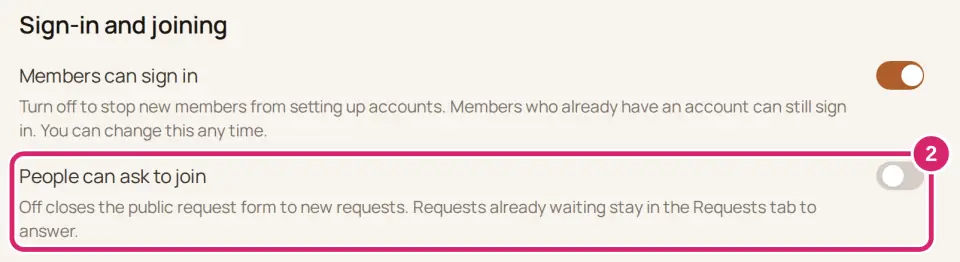
Should anyone with the link be able to ask?
Off: choose it when you bring people in yourself, such as a board of eight or a club that only takes members by nomination. Anyone who opens the link sees that requests aren't open.
On: choose it when you want new people to find you, such as a running club that hands out flyers at races. The request form opens at your request link, and each request waits under Community › Members › Requests.
You can switch it back at any time. Turning it off closes the form to new requests, and the requests already waiting stay for you to answer.
Decide whether to let people in straight away. Auto-approve requests appears once People can ask to join is on. It's off to start with. It needs the Plus plan or above: on a lower plan an upgrade card stands in for it, and a member manager answers each request.
Off: choose it when you want to know who joins before they're in: a youth club that checks every family, a club that collects dues, or anywhere members' details are private. Nobody joins until a member manager selects Approve.
On: choose it when anyone is welcome and there's nothing to check, such as an open walking group. Each new request becomes a member straight away and gets an invitation. Member managers get no email about it.
Not sure? Leave it off until you've answered a few requests yourself.
Share your request link
Go to Configuration › Club. With People can ask to join on, Your request link shows under it.
Select Copy. The button reads Copied.
Paste the link where new people will see it: an email, a social post, or a flyer.
The link uses your club's LongTable address, even if your website has its own domain, so a printed flyer keeps working. To put the form itself on your website, add a Join request block to a page. The editor offers it while requests are open (see Build and edit pages).
What people see when they ask
The form is Request to join and your club's name. It asks for Your name and Email, and, if they like, What are you interested in? and Anything else? They select Send request.
They see Request sent, and we email them that we have their request. With Auto-approve requests on, they see You’re in instead.
Each member manager gets an email, New request to join and your club's name, with a Review requests button. Someone who turned off email from the club doesn't get it.
Someone who asks again while their first request waits sees Request already waiting. Nothing new is sent.
Answer a request
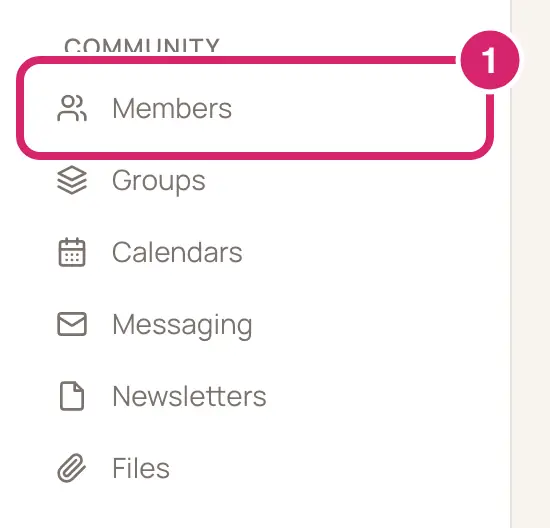
Go to Community › Members and open the Requests tab. It shows while requests are open, or while any are still waiting.
Read the request: the person's name, their email, what they wrote, and how long it has waited, such as Waiting 3 days.
Select Approve to let them in. We add them to your member list. If Members can sign in is on, they get an invitation and show as Invited in the directory. If it's off, they show as No login, and we email them that they're on the club's member list.
Or select Decline. Message to the requester (optional) starts with a polite note. Change it or clear it, then select Decline request.
The person is emailed that their request wasn't approved, with your message if you wrote one. They are never added to your member list.
Stop taking requests
Go to Configuration › Club.
Turn off People can ask to join.
Anyone who opens your request link now sees Requests aren’t open.
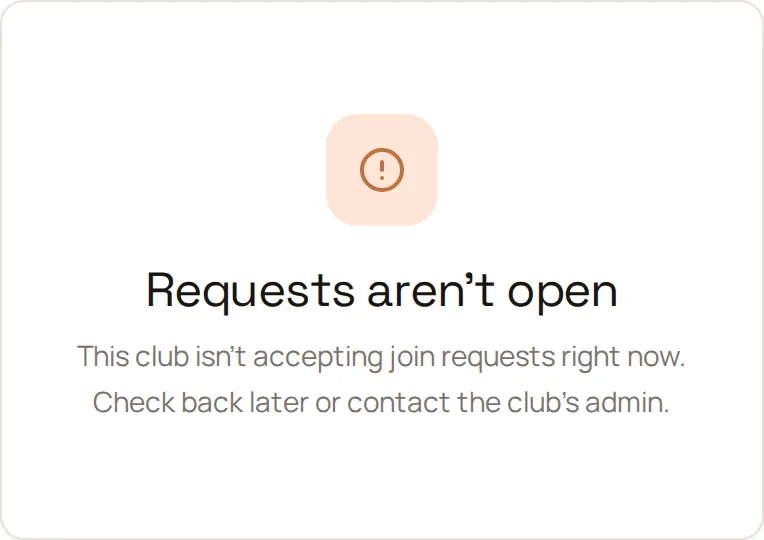
Requests already waiting stay in the Requests tab for you to answer, and the tab goes away once they are. Turn the switch back on at any time to reopen the same link.
If something goes wrong
We couldn’t update join requests. Try again in a moment. The switch didn't save. Wait a moment and turn it again.
Your club has reached its plan’s limit of … people. Approving would take your club over its member limit, so the request still waits. Remove someone to make room, or ask whoever manages your club's bill to change the plan.
The request from … was already decided. Nothing changed. Another member manager answered it first.
Too many requests right now. Try again in a little while. The person asking has sent several requests today, or your club has had a great many. Ask them to try again tomorrow.
Requests aren’t open on your own link. People can ask to join is off, or your club's plan no longer includes it.