
If your club's payments failed or a payment dispute was lost, your club moves to the Free plan but stays open. Here's what changes, and how to move it back up to a paid plan when you're ready.
Why use it
A club whose card stopped working hasn't chosen to leave. Free keeps it running, with every member, page and file, until someone pays again.
Moving back up switches the paid features on again, and anything you made with them is still there.
If the club is over Free's limits, its member records and files stay read-only until it moves back up or makes room, so don't leave it long.
Check that the card is sorted before you move up, so the new plan doesn't fail the same way. See Fix a failed payment.
Know why your club is on Free
A club moves to Free without anyone choosing it in two cases:
Its payments failed. A renewal payment stayed unpaid after Stripe, the company that takes LongTable's payments, ran out of tries. The notices and emails about the failed payment named the date beforehand.
A payment dispute was lost. Someone asked their bank to take back a payment for the plan, and the bank sided with them. See Understand a disputed payment.
Canceling the plan is different: the club closes when the paid time runs out, instead of moving to Free. See Change or cancel your plan.
When the club moves to Free, we email every admin, everyone with billing access and the club's billing contact to say why, what Free means and how to move back up. Its subject is “… is now on the Free plan”, and it can arrive a little after the change. The email names no amounts and goes out even when your club's email is turned off. Members get no email.
In the app, the first line on the Billing page says why the club is on Free. After failed payments, admins and everyone with billing access also see a notice at the top of the other pages. After a lost dispute there is no such notice: only the email and the Billing page say so.
What changes on Free
The club stays open. Members keep signing in, and nothing is deleted.
Anything Free doesn't include stops. Where it was, admins see a card with an Upgrade to … button, and members don't see it at all. What you made with it comes back when you move up. Compare plans to see what Free includes.
If the club has more members, or stores more files, than Free allows, it becomes read-only: nobody can add or change members or files, but you can still delete them. Admins see a notice at the top of each page, apart from Billing, that starts Read-only:. The Billing page says it in its own red notice. Other members aren't told unless they try a change that is blocked.
Decide whether to move back up
Does the club need its paid plan back, or can it carry on with Free?
Move back up: choose it when the club relies on a paid feature or has outgrown Free, such as a club that emails all its members every week or is over Free's member limit. Everything comes back as it was.
Stay on Free: choose it when the club fits within Free and can do without the rest, such as a small committee between seasons. Nothing is charged, and you can move up later whenever you like.
Not sure? Stay on Free while you decide, but make room first if the club is read-only, so members' details can still be kept up to date.
Move back up to a paid plan
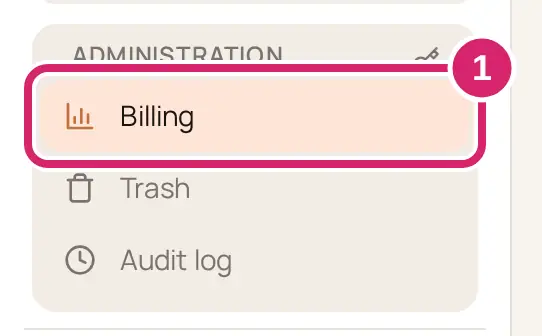
Go to Administration › Billing.
Read the first line under Billing, then the red notice below the Current usage on the … plan card. Together they say why the club is on Free, and whether it's read-only.
If the notice has a Pay … button, select it to pay what the club still owes on Stripe's invoice page, which opens in this tab in a web browser. Once that payment goes through, the club is back on its paid plan, and you can skip the rest of these steps. A club with this button sees no plan buttons. If the notice shows Update payment method instead, select it and update the card.
Otherwise, in the plan cards below the notice, find the plan you want and select Start …. A read-only club sees Restart on … on the recommended plan and Move to … on the others instead, or can select Turn the club back on in the notice. A club that can still try its one demo may see Start … demo on the recommended plan.
Check the confirm step, then select Continue to checkout.
Add or confirm the card on Checkout. In a web browser it opens in this tab, and you come back to the Billing page after paying. See Pay for your plan on Stripe's page.
Back on the Billing page, the new plan shows once the payment goes through. Paid features switch on again, and if the new plan fits the club's usage, it's no longer read-only.
We email your club's admins, everyone with billing access and your billing contact to say the plan changed, with the subject “… moved from … to …”. Only admins and members with the Billing or Treasurer role see the buttons on the Billing page.
A club that was reopened on Free from your clubs page, after a canceled plan, sees Move up to … buttons instead. Its confirm button is Continue to plan change, which opens the plan change in a new tab. Follow Change or cancel your plan.
Make room while the club is on Free
If the club is read-only and you'd rather stay on Free, bring it within Free's limits.
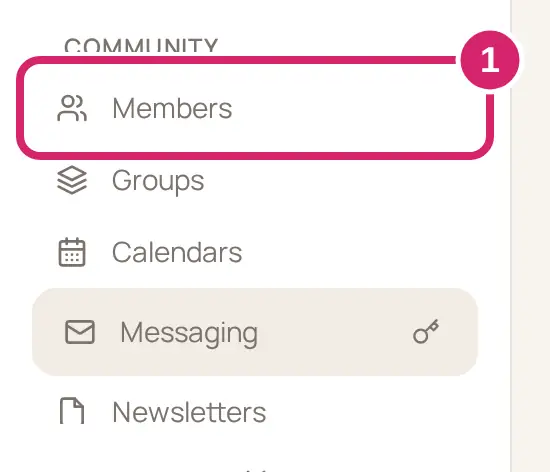
Go to Community › Members and delete members who have left the club.
Go to Community › Files and delete files you no longer need. A file stops counting toward storage as soon as it goes to the Trash.
The club stops being read-only as soon as it fits, with nothing else to do. The Current usage on the … plan card on the Billing page shows how close it is.
If something goes wrong
Your club is over its plan’s limits, so member records and files are read-only. Remove members or files, or upgrade your plan. Someone tried to add or change a member or a file while the club has more members or files than Free allows. Delete members or files you no longer need, or move back up.
…’s plan is still being confirmed, so plans can’t be bought or changed here yet. It usually takes under a minute, and the page updates by itself.
We couldn’t load the plans just now. Select Retry.
Ask whoever manages your club’s billing to compare plans. You don't have billing access. Ask an admin, or a member with the Billing or Treasurer role.
You don't see Billing in the menu. You don't have billing access. Ask an admin for the Treasurer or Billing role.