
Put your club's meetings, practices and socials on a shared calendar every member can see. Invite the groups who should come, and collect RSVPs so you know how many people to expect.
Why use it
One calendar the whole club can see, instead of dates passed around by email. Members can subscribe to it in their own calendar app.
RSVPs tell you how many chairs, meals or boats you need before the day, not at the door.
Invite a group rather than a list of names. Someone who joins the group later is invited too.
Give each team or kind of event its own calendar, such as Under-10s or Socials, so members can subscribe to just the ones they need.
On a phone, Calendars opens on Agenda, the events coming up, under a week strip. Switch to Day, Week or Month at the top. To show or hide calendars, add a calendar, import events or open a calendar’s settings, select the calendars button at the bottom left. The steps below describe a computer or tablet.
Decide how many calendars you need
Every event belongs to one calendar, and it can’t move to another one later. So decide how to split your calendars before you add many events.
One calendar, or one for each team?
Every member who signs in sees every calendar and every event on it. Each calendar has its own color, and members subscribe to each one on its own.
One calendar — choose it when your club runs one kind of thing and most members come to most of it: a book club, a garden club, a small board. Members have one calendar to check and one to subscribe to.
A calendar for each team, group or place — choose it when members care about only part of what you run: a youth soccer club with under-8s, under-10s and under-12s, or a sailing club with racing and social events. Someone who follows one team subscribes to just that team’s calendar, and each calendar shows in its own color.
A separate calendar for public events — choose it when people outside the club should be able to subscribe to some of your events. Publishing a calendar shares every event on it, so keep members’ events on another calendar.
You can add a calendar at any time. To move an event to another calendar, you would copy it with Duplicate and cancel the original, which emails members (see below). Deleting a calendar moves it and its events to the trash, where you can restore them for 90 days.
Create a calendar
Watch it done in 20 seconds, or follow the steps below. The numbers in the video match the steps.
Go to Community › Calendars.
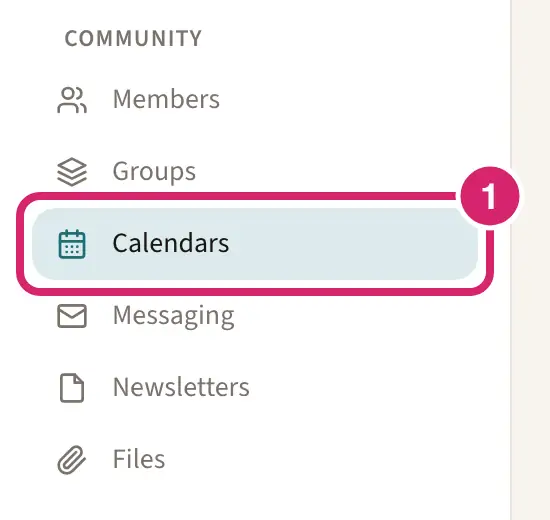
Under My calendars, select Add calendar.
Enter a Calendar name, and a Description if you like.
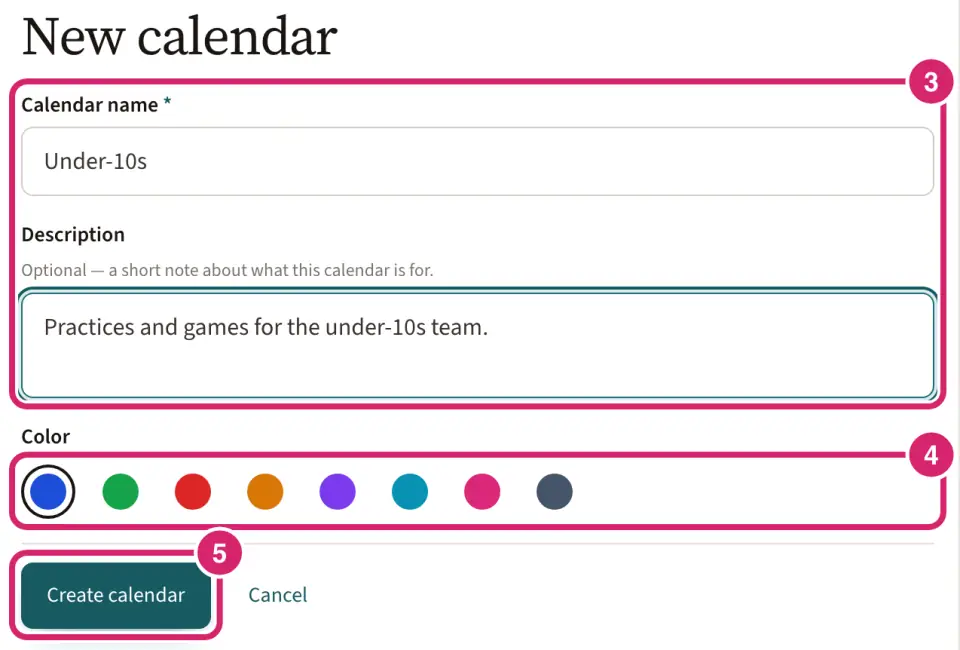
Pick a Color. The calendar's events show in that color.
Select Create calendar.
Add an event
Watch it done in 20 seconds, or follow the steps below. The numbers in the video match the steps.
Go to Community › Calendars and select Add event.
Enter a Title and choose the Calendar it belongs to.
If your club has no calendar yet, the event creates the first one. Under Calendar, the form suggests your club’s name followed by “events”. Change it if you like, and pick the calendar’s color.
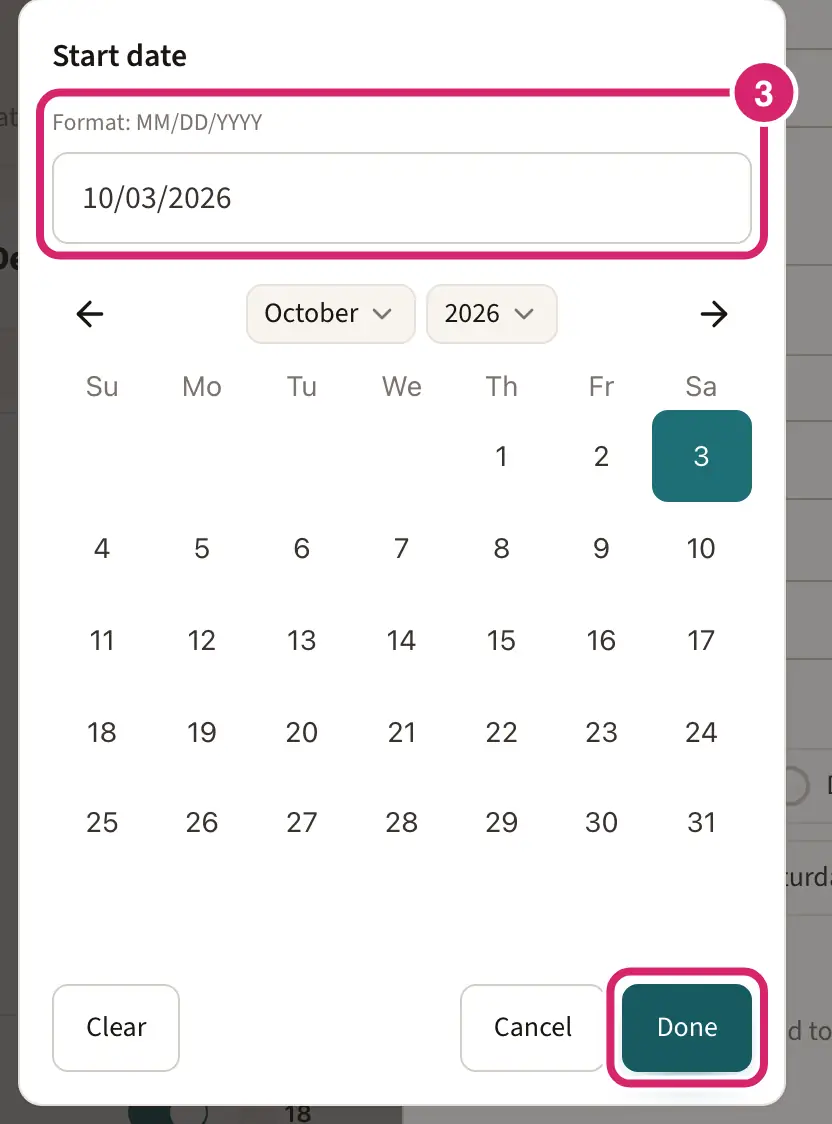
Set when it Starts and Ends, or turn on All-day. To type a date instead of picking it, select the date and type it in the box above the calendar, such as 10/03/2026, then select Done. Once you have set the end, moving the start moves the end with it, so the event keeps its length.
Check the Time zone. A new event starts in your club’s time zone, and every member sees it at that clock time, wherever they are. Change it only for an event held somewhere else, such as an away trip in another time zone.
Choose whether it repeats, under Repeats.
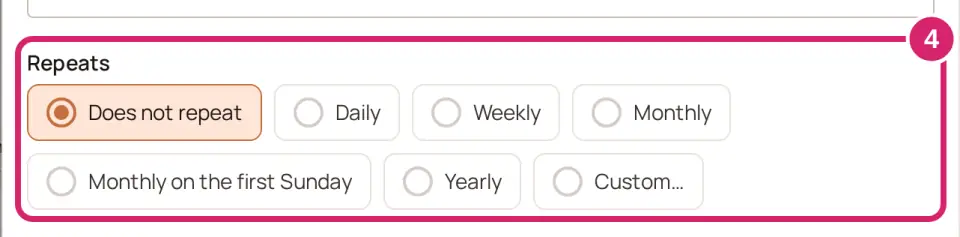
Does not repeat — choose it for a one-off: a fundraiser, an annual dinner, a trip.
Daily, Weekly, Monthly or Yearly — choose it for anything on a fixed pattern: Tuesday practice, a social on the 15th of each month, the yearly general meeting. Monthly repeats on the same date each month.
Monthly on the first Saturday — choose it for a meeting on a weekday of the month, such as the board on the first Monday. The choice is named from the start date: start on a second Tuesday and it reads Monthly on the second Tuesday. When the start date is the last such weekday of its month, Monthly on the last … is offered too, for a meeting on the last Friday.
Custom… — choose it to repeat every few days, weeks or months, on chosen weekdays such as every Monday and Thursday, and to stop after a number of times or on a date.
Under the choices, the form spells the repeat out in words, so you can check it before you save.
Add a Location and a Description if you like. Under Saved venue, you can pick a place your club has saved instead of typing it.
Choose whether to host the event, with Host this event.

Off — a plain calendar event. Choose it for practices, meetings and anything members just need on their calendar. It can still ask for RSVPs, but you see only how many replied.
On — a hosted event. Choose it for a supper, an open day or a fundraiser: anything you want to share with a flyer, limit to a number of places, or know exactly who is coming. Its settings open below the switch: see Host an event and see who’s coming below.
Once anyone has replied, hosting can’t be turned off again.
Choose who to invite, under Invite groups.
One or more groups — choose it when the event is for particular people: a team’s practice, a committee meeting. The event appears on each group member’s Invitations tab, and someone who joins the group later is invited too.
No groups — choose it for a drop-in event anyone can come to, such as an open evening or a work party.
Inviting a group doesn’t email anyone. To tell them about the event, send a message to the group.
For a plain event, choose whether to Collect RSVPs. When it’s on, members can answer Going, Maybe or Can’t go.
Select Create. Adding an event doesn’t email anyone.
A new club’s first calendar can start with a few sample events, so you can see how events work. Only officers see them, marked as officers-only, and they send no emails or reminders. Give one a real name to make it a real event, or open it and select Delete this sample.
Change an event
Watch it done in 15 seconds, or follow the steps below. The numbers in the video match the steps.
Open the event on the calendar and select Edit.
Make your changes.
Select Save.
If you changed the title, the date or time, the repeat or the place, choose whether to tell members.
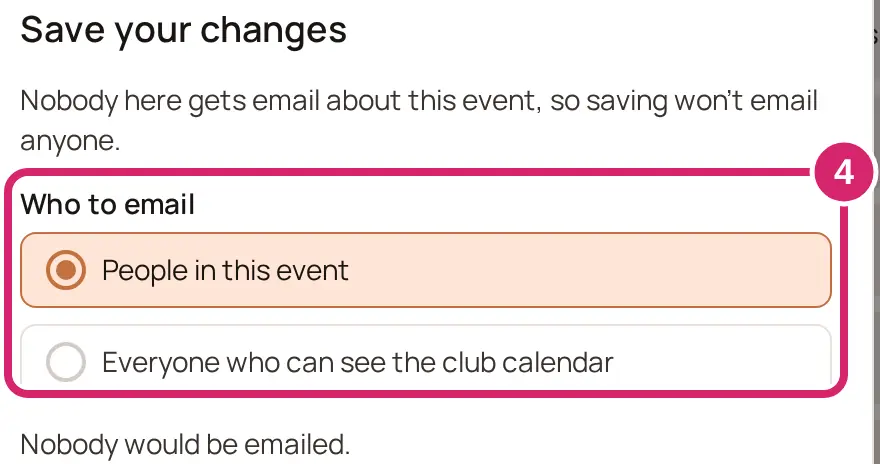
Should anyone hear about this change? The app asks Tell members about this change? Under Who to email, it starts on People in this event: the members invited to it, those who answered its RSVP and those who claimed a sign-up slot. Choose Everyone who can see the club calendar to tell the whole club. The app shows how many members would be emailed; select See who for their names. If nobody would be, it asks Save your changes and offers only Save.
Save and notify — choose it when people need to act on the change: a new time, a new place, a meeting moved to another week. Each of them gets an email about the change, with the event’s title, unless they turned off email from your club. The email ends with an Unsubscribe link. A member who follows it stops getting email from your club, apart from official messages.
Save without notifying — choose it for a fixed typo or a tidier description, where nothing changes for anyone. The event changes on the calendar and nobody is emailed.
Neither is picked for you, and the choice is for that one save: the next change asks again. Other changes, such as the description or the RSVP and hosting settings, save without asking and email nobody.
Cancel an event
To call an event off, open it and select Cancel event. Choose Who to email, add a Message saying why if you like, type CANCEL, then select Cancel event again. It stays on the calendar, marked as canceled. After that you can select Delete event to move it to the trash, where you can restore it for 90 days.
Change or cancel one date of a repeating event
Watch it done in 10 seconds, or follow the steps below. The numbers in the video match the steps.
A repeating event with a start time lists its next dates, or occurrences, when you open it. You can cancel or rename one of them and leave the others as they are.
Open the repeating event on the calendar. Its dates are under Upcoming occurrences.
Select Cancel beside the date.
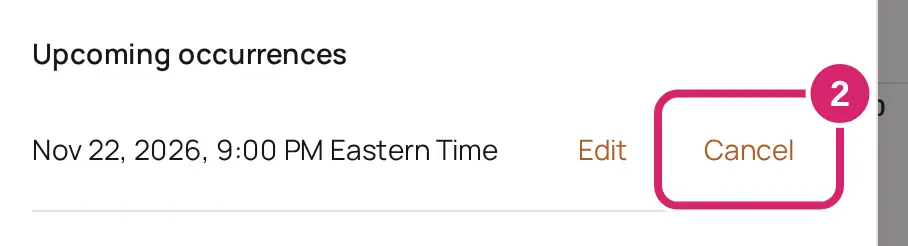
Choose whether to tell anyone. The app asks whether to tell members the date is canceled, with the date, and says the other dates won’t change. Under Who to email, choose People in this event or Everyone who can see the club calendar.
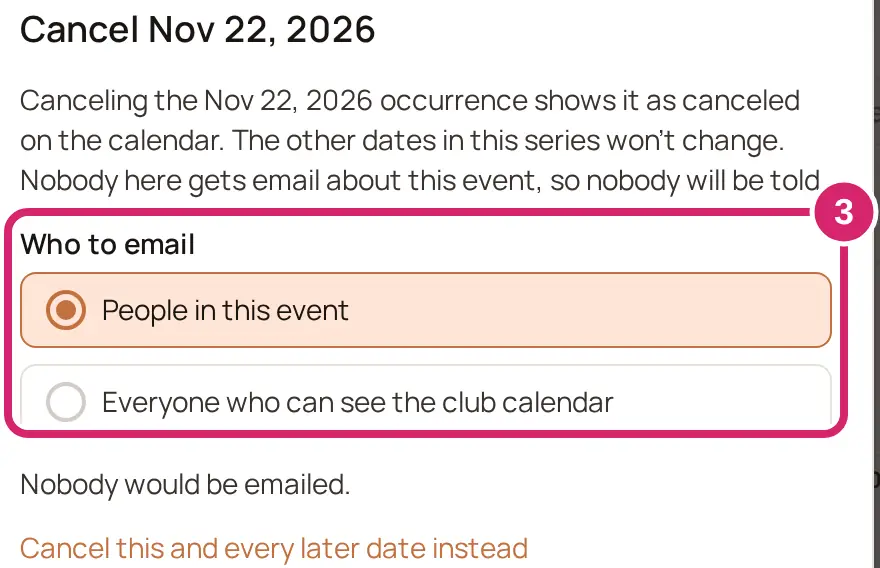
Cancel and notify — choose it when people would otherwise turn up: a practice called off for a holiday, a meeting the venue can’t host. They get an email that names the date and says the other dates are unchanged.
Cancel without notifying — choose it when nobody needs telling: a date that was added by mistake, or one you have already announced another way. The app confirms Occurrence canceled. Nobody was emailed.
If nobody would be emailed, the only button is Cancel occurrence. To leave the date as it is, select Keep occurrence.
To end the series from that date instead, select Cancel this and every later date instead, then Cancel occurrence. The series ends before that date, and the people you choose under Who to email are emailed that the event was updated. To cancel every date, use Cancel event (above).
To rename one date, such as “Training: hill sprints”, select Edit beside it, type the new name under Subject for this occurrence, select Save and choose This occurrence. A new name asks whether to tell members, with Save and notify and Save without notifying. To change the time or place, choose All events in the series and edit the whole series.
Find an event
Every member can look through the club’s calendars, one view at a time.
Go to Community › Calendars.
Pick a view: Day, Week, Month or Agenda, which lists what’s coming up in date order.

Type in Search events to show only the events in view whose title, place or description match.
To search every calendar at once, select the Find events tab. Type in Search, which matches the subject, location or description, or narrow the results to a calendar or to dates between From and To. Each result links to its calendar.
Use Today and the arrows to move through the calendar, or pick a day on the small calendar beside it.
Under My calendars, tick or untick a calendar to show or hide its events. Under Show, turn off Hosted events or Calendar events to see only the other kind.
Event times name their time zone in everyday words, such as 4:00 PM – 5:00 PM Mountain Time, so everyone sees the same clock time.
To put one event in your own calendar, open it and select Send to my calendar. That adds a copy, which doesn’t change when the club changes the event. To stay up to date, subscribe to the calendar instead (below).
Reply to an event
Members invited to an event find it on their Invitations tab.
Watch it done in 15 seconds, or follow the steps below. The numbers in the video match the steps.
Go to Community › Calendars.
Select the Invitations tab.

Under Your response, choose Going, Can’t go or Maybe. Fill in any details the event asks for.
In Guests, enter how many people are coming, including you.
Select Send response. To change your answer later, select Update response.
When an event collects RSVPs, anyone who can see its calendar can also open the event and answer Will you attend? with Going, Maybe or Can’t go.
Host an event and see who's coming
A hosted event gets its own flyer, a page with its details and a way to reply, and a guest list you can see. You choose its settings when you add or edit the event.
Watch it done in 20 seconds, or follow the steps below. The numbers in the video match the steps.
Add the event, or open it and select Edit, and turn on Host this event.
Choose Who can see the flyer.
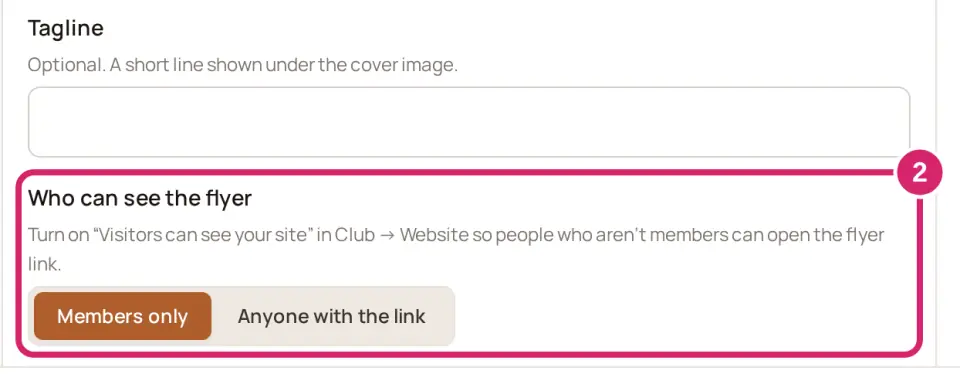
Members only — choose it for events just for your members: an annual general meeting, a members’ dinner. Anyone who opens the flyer is asked to sign in.
Anyone with the link — choose it for events open to the public: an open day, a fundraiser, a race. You can share the flyer’s link anywhere.
Changing to Members only later also limits Who can RSVP to members and takes the event off your website at once. Replies already made through the link are kept.
If the flyer is for anyone with the link, choose whether to Show on the club website. When it’s on, the event appears in the event blocks on your website, and the switch names the pages that show it.
Choose whether to Collect RSVPs, and how.
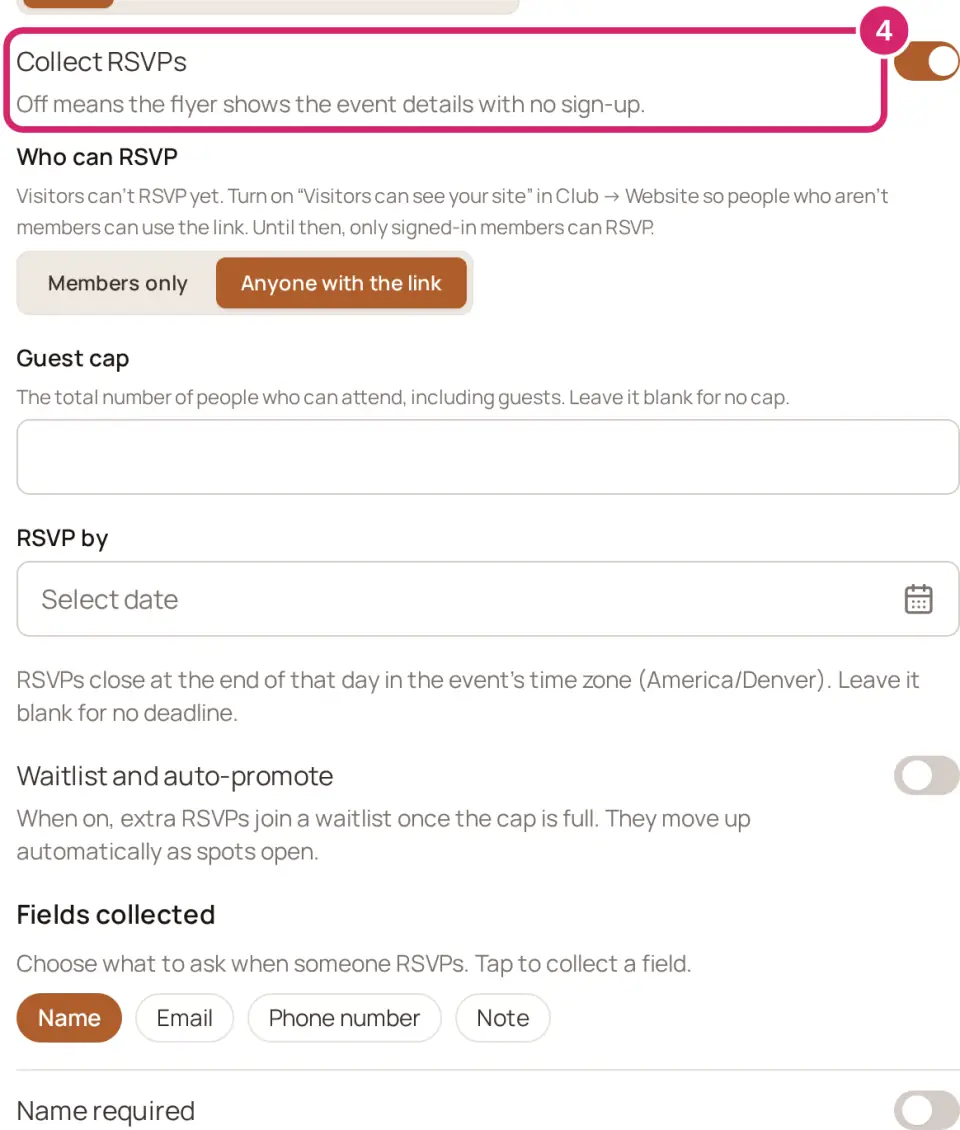
Off — choose it for a drop-in event where numbers don’t matter, such as a beach cleanup. The flyer shows the details with no way to reply.
On — choose it when you need to know who is coming. Who can RSVP is Members only, or Anyone with the link when the flyer is for anyone.
Guest cap — the most people who can come, counting everyone in each reply. Leave it blank for no limit.
Waitlist and auto-promote — when it’s off, replies after the cap is reached are turned away. When it’s on, they join the waitlist and move up by themselves as places open, with an email, You’re off the waitlist: and the event’s title.
RSVP by — the last day to reply. After it, nobody new can reply, but people who already replied can still change their answer.
Guest cap, RSVP by and Waitlist and auto-promote need Basic or above. On another plan, a RSVP caps and waitlists card takes their place. Whoever manages your club’s billing sees Upgrade to Basic on it. An event that already has a cap or a deadline keeps it if your club moves to a smaller plan.
Not sure? Set a Guest cap only when space is really limited, and turn on Waitlist and auto-promote with it, so nobody is simply turned away.
Select Create, or Save for an event you edited.
To see who’s coming, open the event and select Manage hosting. The guest list, sign-up slots, the flyer’s link and the event’s settings are there: see Run a hosted event.
Use templates, venues and the check-in kiosk
Event templates and Venues save the details you use again and again. See Save time with event templates and venues.
Check-in kiosk turns a tablet at the door into a check-in station. See Check people in at events.
Add club events to your own calendar app
In Community › Calendars, select ⋯ beside a calendar under My calendars.
Under Subscribe in your calendar app, select Apple, Google or Outlook.
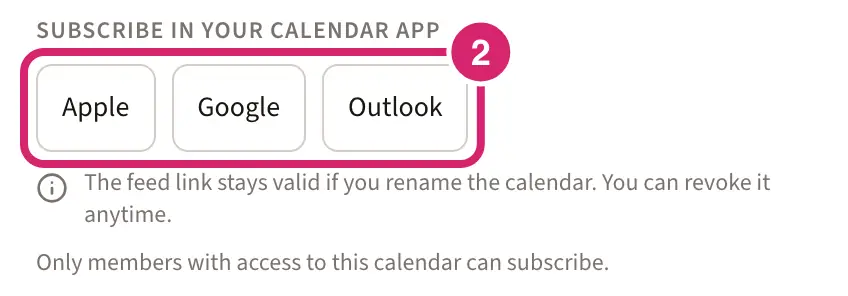
The club’s events then show up in your calendar app and stay up to date. The link is yours alone, and it stops working if you leave the club. Admins and Events managers also rename a calendar, change its color or delete it from the same panel.
Should people outside the club be able to subscribe?
Only members see the subscribe buttons. To let anyone subscribe, publish a calendar: open the menu beside Add event, select Public calendar feeds, and turn the calendar on in the Public calendar feeds panel. It gives you a link to share.

Not published (the default) — choose it when your events are only for members, or their details are private.
Published — choose it for a calendar of public events, such as races or open days, that supporters and neighbors want in their own calendar. Anyone with the link sees every event on that calendar, with its description and place.
Publishing needs Visitors can see your site turned on under Configuration › Club › Website. You can unpublish a calendar at any time: its link stops working, and works again if you publish it again.
Import events
To bring events in from another calendar app, save them as an iCal file. Select Import from iCal under My calendars, then Choose iCal file, pick the Destination calendar, and select Import events. Events you already imported from the same calendar are skipped, not copied twice.
Show events on your website
A Calendar block shows your calendars to signed-in members. To show events to people who aren't signed in, use an Event block, which shows one event or your next few hosted events.
If something goes wrong
RSVPs for this event have closed. The RSVP-by date has passed, so we couldn’t accept a new RSVP. The event stopped taking new replies. If you replied before the date, you can still change your answer.
This event is full. The guest cap has been reached. We couldn’t accept your RSVP. The event reached its Guest cap. Raise the cap, or turn on Waitlist and auto-promote.
This event already has RSVPs or claimed sign-up spots, so hosting can’t be turned off. Once anyone has replied, the event stays hosted.
Enter a date as MM/DD/YYYY The date you typed doesn’t match the format shown above the box. Type it in that order, such as 10/03/2026, or pick the day on the calendar.
Someone outside your club sees This event isn’t available on a flyer. Set Who can see the flyer to Anyone with the link, and turn on Visitors can see your site under Configuration › Club › Website.
We couldn’t read that file. Choose an iCalendar (.ics) file exported from another calendar. Save the events from your other calendar app again as an .ics file, then import that file.
Calendars isn’t in the menu, or a calendar link opens the club home with The Calendars section is turned off for this club. An admin has turned it off under Configuration › Club, in Features. Turning it back on brings every event back.