
Make sure at least two people can sign in to your club’s Stripe account, so the club keeps its access when a treasurer steps down. If someone has already left and taken that access with them, find your situation below.
Why use it
Stripe decides who can sign in, not LongTable. When someone opens the club’s Stripe dashboard from LongTable, Stripe sends a sign-in code to the phone or email on the club’s Stripe account. Whoever has that phone or inbox can get in. Giving someone the Treasurer role in LongTable doesn’t give them a way into Stripe.
Your club needs the dashboard for some jobs. Answering a disputed payment, changing the bank account the money goes to, and checking payouts all happen there.
Losing access doesn’t stop invoicing. Invoices still go out from LongTable and members can still pay them. So you have time to put it right, but don’t leave it: a disputed payment has a deadline.
Give access to the job, not the person. Put the Treasurer role on the treasurer’s position in LongTable, put a club email address and phone number on the Stripe account, and keep at least two people on it.
Set up Stripe so the club never depends on one person
Start before your club connects Stripe, and finish straight after. Collect dues with invoices has the steps to connect.
Before anyone starts Stripe’s setup, decide who does it, and which email address and phone number they give Stripe (below).
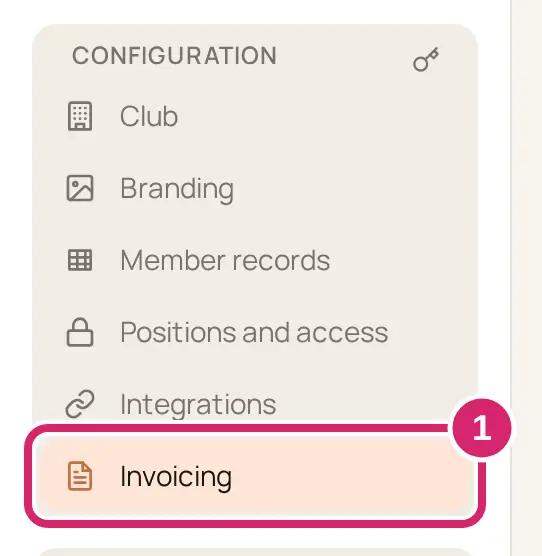
Once the Stripe card in Configuration › Integrations shows Connected, go to Configuration › Invoicing, open the Settings tab, select Stripe connection, then Open Stripe dashboard.
Enter the sign-in code Stripe sends to the phone or email on the account.
In Stripe, select Settings, open the Business details tab, and scroll to Team members.
Invite another club leader by email. You can add up to 24 people. Each person you add has full access to the account, including the bank details for payouts.
They accept Stripe’s email and confirm their own mobile number by text message. From then on, they sign in with their own email and phone.
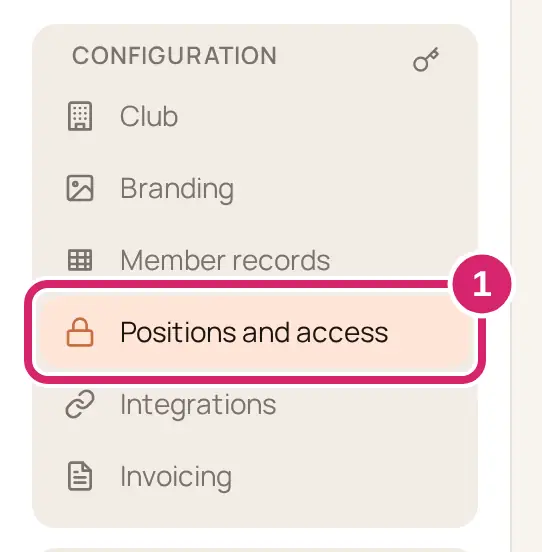
Give the Treasurer role to the treasurer’s position, not to the person, in Configuration › Positions and access. Give access with roles and positions has the details.
Write down in your club’s records who is on the Stripe account. LongTable can’t see who can sign in to Stripe.
Which email address and phone number should go on the account?
Stripe asks for an email address and a mobile number during setup. Its sign-in codes go there, so choose ones that stay with the club when people change.
A shared club email address and phone number. Choose it when your club has, or can set up, an email address that passes from treasurer to treasurer, such as one on the club’s own web address, and a phone the club keeps. When the treasurer changes, the way in stays with the club. If the phone is ever lost, whoever reads that inbox can still get in.
One person’s own email and phone. Choose it only when the club has no shared address or phone. It works, but only while that person stays in touch, so the second person in step 5 matters even more.
Not sure? Use the club’s. You can change both later in Stripe, under Settings › Profile settings › Authentication details.
Who should be on your club’s Stripe account?
The treasurer. They do the day-to-day work.
One other officer. Choose someone likely to still be around if the treasurer leaves suddenly, such as your president, an assistant treasurer or the secretary. They can answer a dispute and let the next treasurer in.
Not the whole committee. Everyone you add can see the club’s payments and change the bank account the money goes to. Two or three people is enough.
Not sure? Add one other officer now. You can add or remove people in Stripe at any time.
Hand over when your treasurer changes
Do this before the old treasurer steps down, while they can still sign in.
An admin gives the new treasurer the treasurer’s position in Configuration › Positions and access. Their LongTable access follows the position.
The old treasurer, or anyone else on the Stripe account, selects Open Stripe dashboard and signs in.
In Stripe, they invite the new treasurer under Settings › Business details › Team members.
The new treasurer accepts Stripe’s email and confirms their mobile number.
If the account’s email address or phone number is the old treasurer’s own, they change it to the club’s shared ones under Settings › Profile settings › Authentication details. If the club has none, use the new treasurer’s.
Once the new treasurer can sign in, take the old one off under Team members. Removing them from the club in LongTable doesn’t do this for you.
Get back in after your treasurer has left
Find the first situation that fits your club.
Someone else on the Stripe account can still sign in
They select Open Stripe dashboard in LongTable. If Stripe sends the code to the old treasurer, they sign in at Stripe Express’s sign-in page with their own email address instead.
They invite the new treasurer under Settings › Business details › Team members.
They take the old treasurer off under Team members.
The old treasurer is still in touch
Ask them to sign in once and follow steps 2 to 6 of Hand over when your treasurer changes. It takes a few minutes.
You can read the account’s email, but the code goes to a phone you don’t have
This happens when the account uses an address the club keeps. Stripe can send the code to that address instead.
Select Open Stripe dashboard in LongTable, or go to Stripe Express’s sign-in page and enter the account’s email address.
When Stripe asks for the 6-digit code, select Verify with email instead.
Enter the code Stripe emails to that address.
In Stripe, select Settings, open Profile settings, and under Authentication details change the phone number to the club’s, or to the new treasurer’s.
Add a second person under Team members, as in Set up Stripe so the club never depends on one person.
The same screen also offers I no longer have access to this phone number. It checks the email address the same way, then asks for the new number.
Nobody can sign in
Use this when the account’s phone and email both belong to someone who has left and can’t be reached, and nobody else is on the account. We can’t move your club’s Stripe account to someone else or change who signs in to it, and Stripe doesn’t let us. Only Stripe Support can give your club its access back, after it checks the new person.
Decide who takes over the Stripe account, usually your new treasurer. They contact Stripe themselves, because Stripe checks who they are.
Gather what Stripe may ask for, so the request doesn’t stall:
The new person’s own photo ID.
Proof they can act for the club, such as the minutes of the meeting that elected them, or a board resolution naming them treasurer.
The club’s details as they appear on its Stripe account, such as its legal name and its EIN.
The name of the person who set up Stripe, and the email address they used, if you know it.
The new person goes to Stripe Support and says that nobody can sign in to the club’s Stripe account. You can also get there from the Stripe card in Configuration › Integrations: under Nobody can sign in to the club’s Stripe account?, select Contact Stripe Support.
Stripe checks the request. It may ask the new person to prove who they are and their role in the club, and it may tell the old treasurer that a change was asked for.
When Stripe agrees, the new person gets an email from Stripe. They follow it and confirm their mobile number.
They select Open Stripe dashboard, sign in, and add a second person under Team members straight away.
Stripe decides whether to give access back, and how long its checks take. Answer anything Stripe asks quickly. Once your club has started connecting Stripe, the Stripe card in Configuration › Integrations shows the same list of what Stripe may ask for.
If something goes wrong
We couldn’t open the Stripe dashboard. Try again in a moment. LongTable couldn’t get Stripe to open the dashboard. Check your internet connection, then select Open Stripe dashboard again.
Stripe is no longer connected. Connect it again in Integrations. LongTable no longer has a Stripe connection for your club, for example after someone removed invoicing. Go to Configuration › Integrations and connect Stripe again on the Stripe card.
We couldn’t reach Stripe just now. Try again in a moment. LongTable couldn’t reach Stripe just then. Your club’s Stripe account isn’t affected. Try again in a moment. If it keeps happening, open a support ticket.
You can no longer manage invoicing for this club. Ask the club’s admin if you need it. Your access changed since you opened the page. Admins and people with the Treasurer role manage invoicing. Ask an admin to give you the Treasurer role, or the position that carries it.
We couldn’t open Stripe payment setup. Try again in a moment. This appears on the Stripe card in Configuration › Integrations. Try again in a moment.
Stripe sends the code to someone who has left. Stripe chose where to send it, not LongTable. See Get back in after your treasurer has left.