
Bring a whole roster into LongTable at once, or update many members in one go. Import a spreadsheet yourself, or let the LongTable assistant read your file and show you what will change before anything is saved.
Why use it
Your club is moving to LongTable and already keeps its members in a spreadsheet or another system.
Many people change at once, such as new statuses after renewals. One import is quicker than editing each record.
Keep an email address on every row you can. Both ways of importing use it to recognize people who are already in LongTable, so they're updated rather than added twice.
Choose how to import
Both ways add new members and update the ones you already have, matching people by email address. They differ in what files they can read.
Import CSV: choose it when your list is already a spreadsheet, such as last year's membership list. It takes a CSV file with your own column names or the template's, reads common ones such as Name, Email and Mobile by itself, and lets you choose a field for any other column. It shows what will change before you select Confirm import. It works in a web browser.
The assistant: choose it when your roster isn't a CSV file, such as an Excel workbook, a Word document or a PDF, or when you'd rather say what you want in your own words. It matches your columns to your club's fields, offers to add a status your club doesn't have yet, and lists what it will create and update before you select Confirm.
Not sure? Either way, nothing is saved until you confirm.
Import a CSV file yourself
In a web browser, you can import a CSV file straight from the Members page. Each row adds a new member, or updates the member who has the row's email address. Your file can use your own column names: LongTable reads common ones such as First name, Last name, Name, Email, Phone and Mobile, and you choose a field for the rest. You see what will change before anything is saved.
Go to Community › Members.
Select Import and export.
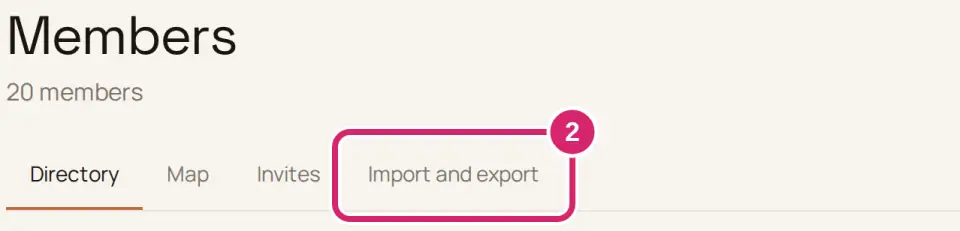
If you're starting a new list, select Download next to Import template. You get a CSV file with your club's columns, including your own fields. Already have a spreadsheet? Save it as a CSV file with the column names in its first row, and go to step 6.
If you use the template, leave its second row as it is, or delete it. It only describes what each column accepts, and the import skips it.
Add one row per member below the column names, then save the file as a CSV. To update someone you already have, give their row the email address on their record.
Next to Import CSV, select Choose file and pick your file. LongTable checks it and shows a preview. Nothing has changed yet.

Check how LongTable read your columns. Under Read from your file, each field shows the column it came from. Any column it couldn't place by itself is listed under … columns to match, with an example from your file and the reason, such as Left out: not a column the import knows.
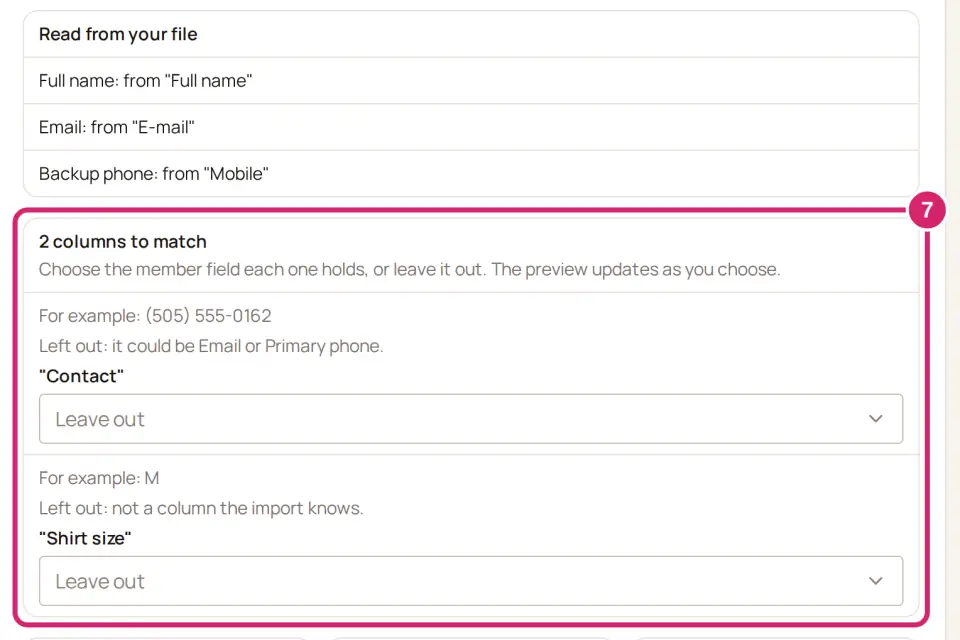
For each column to match, decide where it goes. The preview updates as you choose, and nothing is imported yet.
Choose a member field: choose it when the column holds something you want on each record, such as a "Contact" column that holds phone numbers. A field another column already fills isn't offered. Your club's own fields are in the list too when your plan includes them.
Leave out: choose it for a column you don't want in LongTable, such as private notes or a column you only used for sorting. Nothing from it is saved.
If some values don't fit the field you chose, such as a word in a date column, the line under it says how many rows don't fit and why. You can change a choice as often as you like before you confirm, and choosing a different file starts the matching again.
Check the preview. It counts New members, Already here, updated and Held back. Under What changes for people already here, it lists each field your file changes and for how many people, shows the first few people with their old and new values, and offers Download every change for … people. A blank cell leaves what is on file.
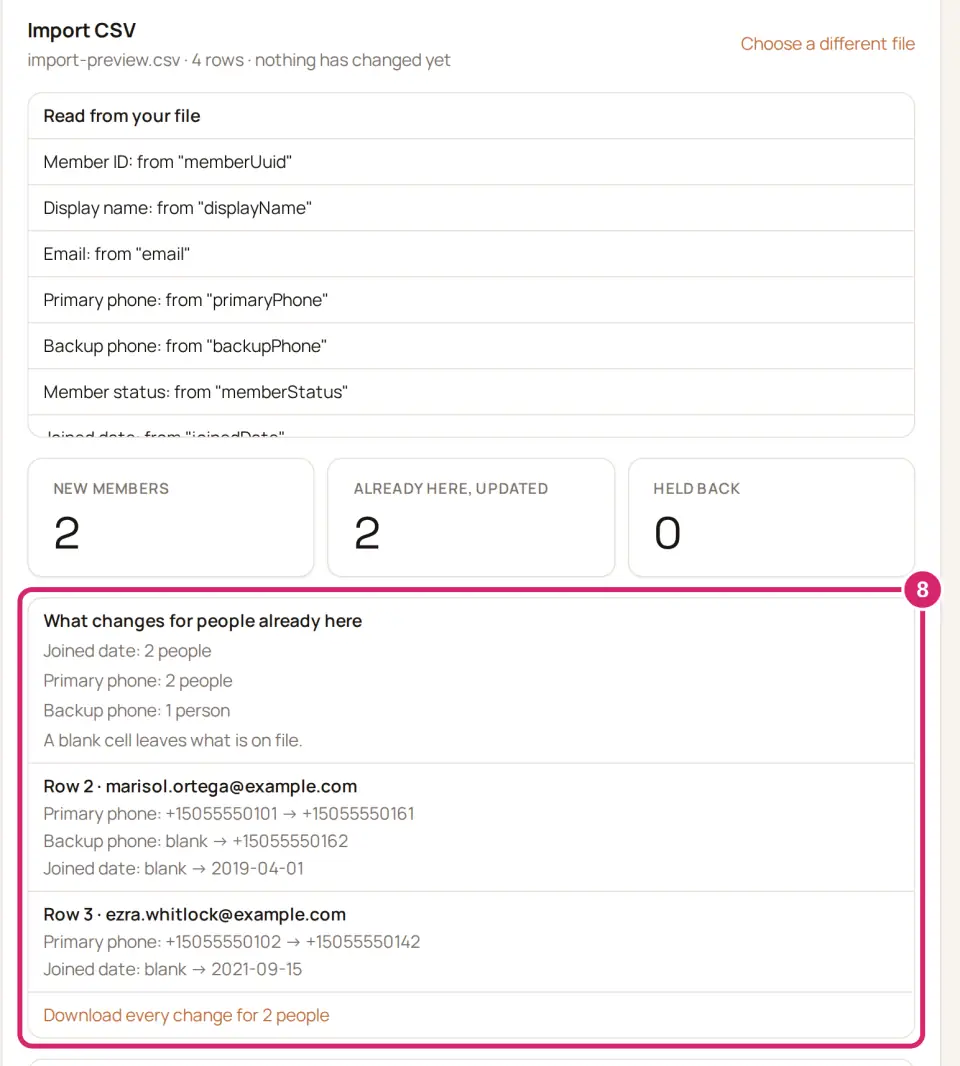
Each row that needs attention is listed with the reason. That includes a value the import can't keep, such as a status your club doesn't have or a date it can't read: the person is still added or updated, and the line says what they get instead. To fix those rows, select Download the … rows that need attention, correct them, then select Choose a different file.
If some people don't fit on your plan, the preview says so under Don't fit on your plan. Those people aren't added.
If the preview shows Overwrite what members keep up to date themselves, decide whether to tick it. Should your file replace details that members look after on their own record? The box appears only when your file would change something a member can edit themselves, for people who sign in or whose household looks after their record.
Unticked: choose it when members already keep their own phone numbers and addresses current, such as a club whose members updated their details at renewal. Your file leaves those details alone, and the line under the box names the fields and how many people. The rest of each row is still imported.
Ticked: choose it when your file is the more reliable copy, such as a roster you just checked against signed forms. LongTable checks the file again and lists those changes under What changes for people already here, so you see exactly what will be replaced before you confirm.
The box is unticked each time you choose a file. Not sure? Leave it unticked: members' own updates stay, and you can still change one record by hand.
Decide whether to tick Invite new members to sign in. Should the people you're adding hear from the club now? The box is unticked each time you choose a file, and the line under it says who will be emailed.

Unticked: choose it when you're loading a list people haven't heard about yet, such as last season's members before renewals open, or a club moving its records before it's ready to welcome everyone. New members are added quietly, and nobody gets an email. When you're ready, invite each person from their record.
Ticked: choose it when everyone in the file expects to hear from you and should start using LongTable now, such as new members from a sign-up night. Each new member with an email address gets an invitation, You've been invited to join …. Someone whose email already has a LongTable account gets the same invitation, and signs in to accept it. When a row leaves memberStatus blank, the person you invite starts on your club's Pending status and moves to your usual starting status once they accept.
Either way, people the import matches and updates are never emailed, and nobody is invited while Members can sign in is off.
Select Confirm import. To stop without changing anything, select Cancel.
When it's done, LongTable shows Import complete: Added … · Updated …. It adds how many rows were held back or didn't fit, if any, and after invitations, Access: … invited.
If some rows weren't saved, a card lists each one with the reason and offers Download the … rows not saved, in your file's own columns, ready to fix and import again.
If you use the template, leave its first column, memberUuid, empty.
A row whose email matches one member updates that member. An empty cell leaves what's already there; it never clears it.
A row is held back if its email appears twice in your file, or belongs to more than one member, so nobody is overwritten by mistake.
Every new member needs a name: a displayName, a full name column, or a first and last name. Fields your club made required need a value too.
For memberType and memberStatus, use the names your club set up on Types and status. A name your club doesn't have is flagged in the preview, and the person is imported without it.
joinedDate is the day each person joined your club, such as 2009-03-01. Leave it blank to keep the date already on their record. A date in the future isn't imported.
Write dates as year-month-day, such as 2026-04-23. A date that could be read two ways, such as 03/04/2020, is flagged rather than guessed.
smsConsent records whether someone agreed to get texts from the club at their phone numbers. The import treats primaryPhone and backupPhone as mobile numbers. Write Yes only when the member told you they agree, or No to stop texting them; leave it blank to keep what's on file. Their record then shows Agreed, recorded by a roster import. Texts go out only once your club has set up texting.
Import with the assistant
Open the assistant with the sparkle button at the right edge of the screen. If you don't see it, your club has turned the assistant off. An admin can turn it back on with Assistant in Features, on Configuration › Club › General.
In a web browser, select the paperclip (Attach a file) and choose your roster.
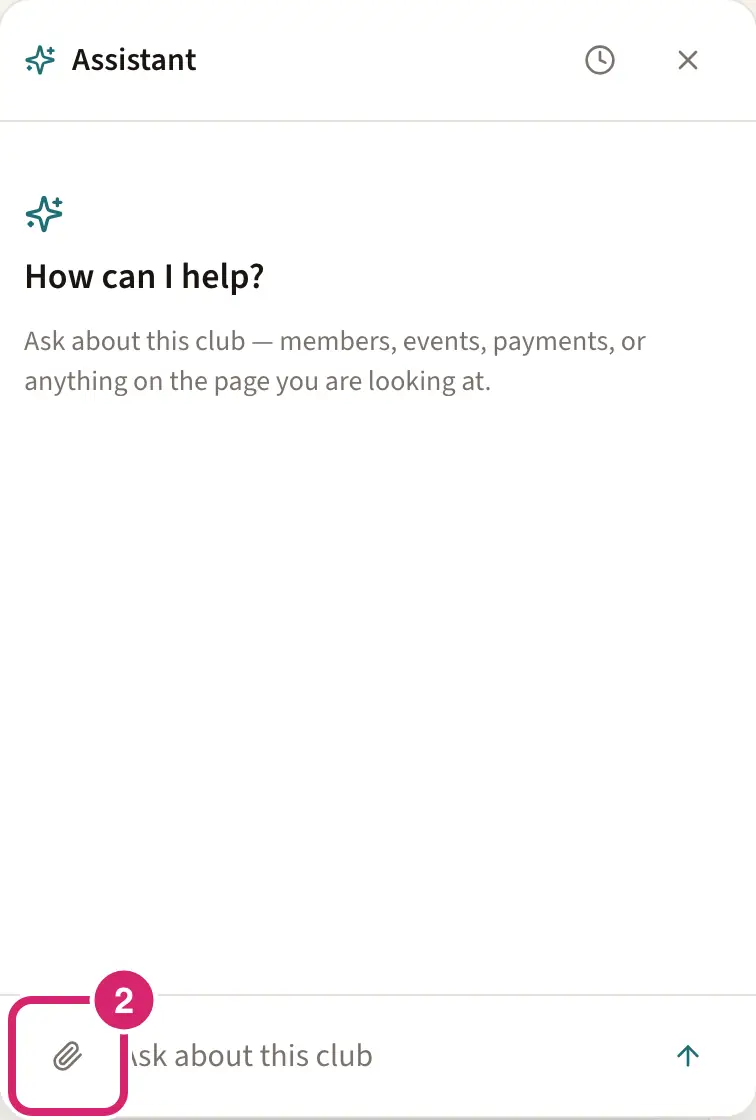
Ask the assistant to import your members. If they should get an invitation, say so.
Answer its questions. If your file has a column or a status your club doesn't have yet, it offers to add it first, and you confirm that on its own.
Check what it says will be created and updated, then select Confirm. Nothing is saved until you do.
The assistant can read a CSV file, an Excel spreadsheet, a Word document, a PDF or plain text, up to 5 MB each.
It matches people already in your directory by email address and updates them. If an email belongs to more than one member, it skips that row so you can choose.
It leaves alone the details members keep up to date themselves, unless you ask it to overwrite them.
It doesn't invite anyone unless you ask it to, so a roster of real people can go in without a wave of email.
A value it can't read, such as a birthday in an unusual format, is left out. The person is still added, and the assistant tells you what it skipped.
Running the same file again updates the same people, so you can fix your file and try again.
Export your members
On Community › Members › Import and export, select Export next to Export CSV. You get a spreadsheet of everyone's name, email, join date, phone numbers, type and status. If you can see members but not edit them, the tab is called Exports, and your file leaves out the contact details your club keeps private from members.

The export's column names differ from the import template's, so don't import it back as it is.
If something goes wrong
We couldn’t read the file. Check the format and try again. Save the file as a CSV, check it isn't empty or larger than 5 MB, and check that its first row holds the column names.
Held back in the preview. Each held-back row says why, such as an email that appears twice in the file or belongs to more than one member. Put each email address on one row only. If two records share an email, merge them first, then choose the file again.
We couldn’t import the file. Check the format and try again. Wait a moment, then select Confirm import again.
Nothing was imported: followed by the counts. No row could be saved as shown, often because your club's members changed after the preview. Choose the file again to see why each row was held back.
The import stopped partway. Rows already saved stay saved. The connection dropped or timed out. The card that follows lists the rows not saved. Import the same file again to finish: people already saved are matched, not added twice.
We couldn’t check the file again. Try again in a moment. The check after you chose a field for a column, or ticked or unticked the overwrite box, failed. Your choice goes back to what it was. Wait a moment, then try again.
We couldn’t read that file. Choose it again. Select Choose file and pick the file again.
We couldn’t download the template. Try again in a moment. Wait a moment, then select Download again.
We couldn’t export the directory. Try again in a moment. Wait a moment, then select Export again.