
Anyone can start a club on LongTable in a few minutes, and you become its first admin. You need an email address you can open, your club's name and its time zone.
Why use it
Keep your club's members, groups, messages, events, files and website in one place, instead of in spreadsheets and personal inboxes.
Start on the Free plan and try LongTable with a few officers before you invite everyone. Move to another plan when your club is ready.
Your club gets its own web address, where members sign in and visitors find your website.
Start your club
Watch it done in 20 seconds, or follow the steps below. The numbers in the video match the steps.
Go to longtable.app and select Start free. If you already use LongTable, select Sign in instead, then select Create a new club at the bottom of the page that lists your clubs.
Under Choose a plan, pick the plan your club starts on.
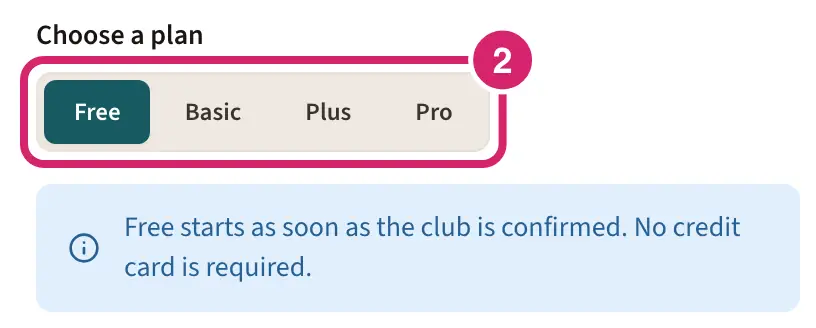
Which plan should your club start on? Plans differ in what they include, so compare plans before you pick.
Free: choose it when you're trying LongTable out, or when Free covers what your club needs: a book group finding its feet, or a committee trying LongTable before the whole club joins. It starts as soon as your club is confirmed, and no card is needed. Your club keeps its one 30-day demo of a paid plan for later.
Basic, Plus or Pro: choose one when you've compared plans and know which your club needs, such as a club moving everything to LongTable at the start of its season. After you create your club, we take you to checkout to add a card. The plan starts with a 30-day demo, and the card is charged when the demo ends. During the demo, the assistant and email run on smaller demo allowances, and texting isn't included. The plan's full allowances, and texting, start once the card is charged. A plan you pick here is billed monthly.
Not sure? Start on Free. You can start a plan any time from Administration › Billing, and if you cancel during the demo, nothing is billed.
Your club gets one 30-day demo. If you leave checkout without adding a card, nothing is charged, your club stays on Free, and it keeps its demo for later.
Enter your Email, your Club name and your Club time zone.
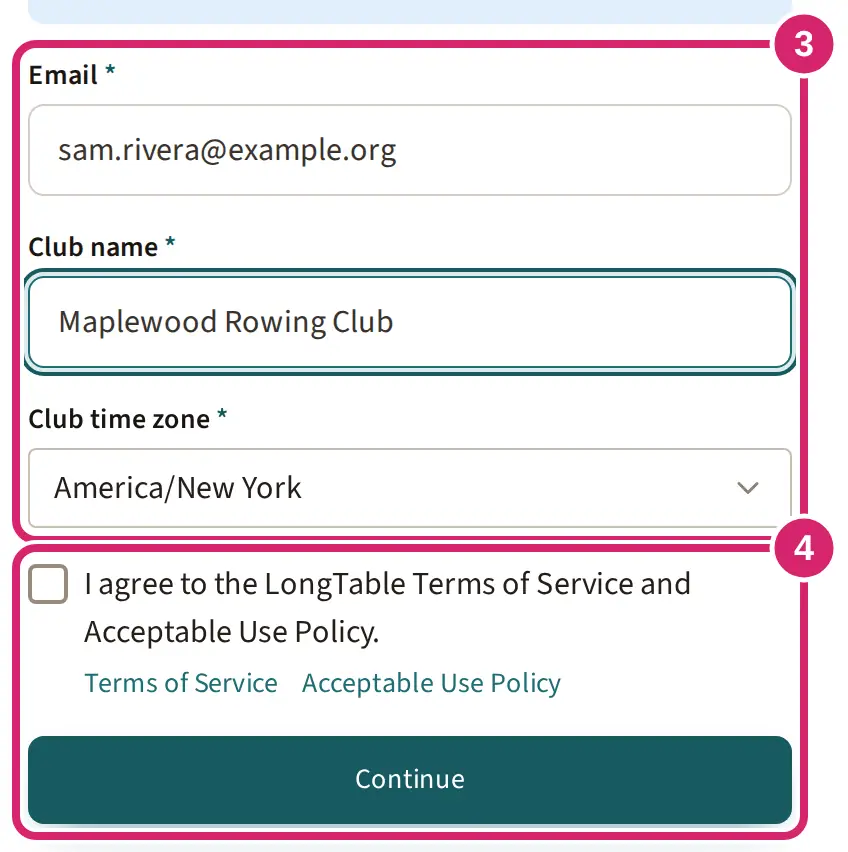
Email: use your own address, not a shared club inbox. It becomes how you sign in, and each address belongs to one person. Already signed in? Your address is filled in; select Use a different address to change it.
Club name: the name members see. Your club’s web address is made from it too, so Maplewood Rowing Club becomes maplewood-rowing-club. Use the name members know, spelled out in full. You can rename your club later on Configuration › Club, but its web address stays as it was. You can change the address on that page’s Website tab, under Site address, but the old one stops working right away, along with links members saved.
Club time zone: starts as your computer’s or phone’s time zone. Pick the zone where your club meets: your club’s dates and times are entered and shown in it. You can change it later on Configuration › Club.
How did you hear about LongTable? is optional. Leave it blank if you like. You aren’t asked it when you’re already signed in.
Tick I agree to the LongTable Terms of Service and Acceptable Use Policy., then select Continue.
Under Tell us about <your club>, answer what you like, then select Continue. You see Check your inbox.
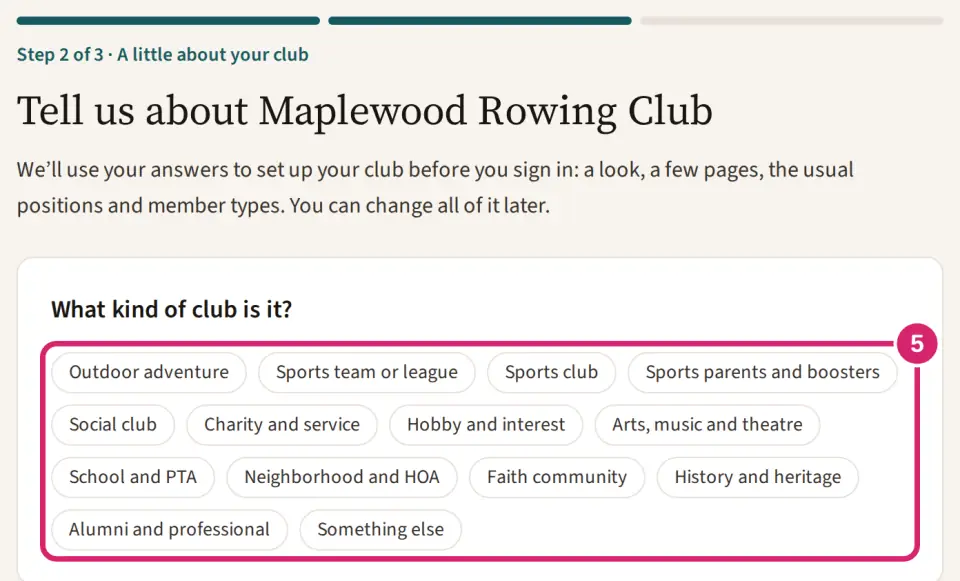
Every question is optional. We use your answers to set up your club before you first sign in, so it opens with a starting point instead of an empty page:
What kind of club is it? Choose the closest match. It decides your club’s starting look, a few starter pages, the usual positions and member types, and a few sample events that only your officers see. Choose Something else when nothing fits: you get a general set. You can change the answer later on your Setup page, and anything nobody has changed yet is swapped for the new kind’s.
Does the club have a website now? Enter its address when you have one: we bring over your logo and colors and rebuild your main pages in a cleaner design. Nothing is public until you say so. Otherwise tick We don’t have one yet.
What do you want LongTable to help with? Pick as many as you like. The matching jobs come first on your Setup list, marked From your goals.
Not sure? Select Skip, use the basics. Your club starts with the general set, and you can change all of it later.
Open the email Confirm your new club, … and select Confirm and continue. The link works for 24 hours.
Under Create your account, enter Your name: your own name, not the club's, because club members see it. Then enter a Password and type it again in Confirm password. It needs at least 12 characters, including a lowercase letter and a number.
Select Create my club.
When you see <Your club> is ready, select Open <your club>. Your club stays private until you invite anyone, so you can look around first.
Already have a LongTable account? You don't choose a new password. Select Sign in to continue if you're asked. Once you're signed in, we set up your club on its own.
Opened the link in a browser signed in to someone else's account? You see You’re signed in as someone else, with both addresses. Select Sign in as … or Continue as … with the address you signed up with. Nothing changes for the other person's account.
Chose Basic, Plus or Pro? After Create my club, we take you to checkout. Your demo starts when you finish adding your card. If you leave checkout without paying, you see Checkout didn’t finish, so nothing was charged. <Your club> is on Free. Select Continue to checkout to try again, or Choose later.
Set up the rest of your club
You’re your club’s first admin, so you can change every setting. Setup, at the top of the sidebar, lists what we set up for you and what is left, and leads to each page. Work through your Setup checklist explains it. Your club’s settings are under Configuration and Administration in the sidebar. Most clubs start with these:
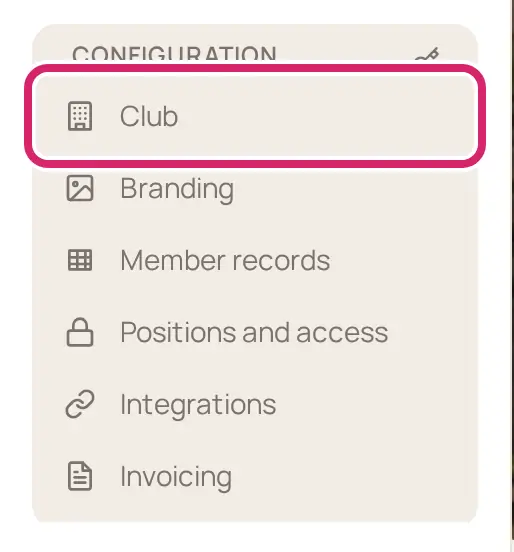
Check your club’s name and time zone, and turn off the parts your club doesn’t use, so members see a simpler LongTable.
Add your members, one at a time or from a spreadsheet.
Give other officers access with roles and positions, so running the club doesn't depend on one person.
Give your website your club's colors and logo.
If something goes wrong
Please enter a valid email address., Please enter a club name. or Please choose a time zone. Fill in that field, then select Continue again.
Agree to the Terms of Service and Acceptable Use Policy to continue. Tick the box above Continue, then select it again.
The email doesn't arrive. Check your spam or junk folder. Then, on Check your inbox, select Send it again. Each new email replaces the link before it, so use the newest one.
This link has expired or This link no longer works. The link is more than 24 hours old, was already used, or a newer email replaced it. Open the newest email, or select Start again.
Use at least 12 characters., Include at least one lowercase letter., Include at least one number. or The two passwords don’t match. Change your password to fit, then select Create my club again.
Enter your name. Your account needs one. Fill in Your name, then select Create my club again.
Your account is ready with We couldn’t finish your club. Your account and password are safe. Select Finish my club.
Too many tries just now. Wait a moment, then try again. Wait a while, then select Continue again.