
Turn a tablet or laptop at the door into a check-in kiosk, where volunteers check people in with a tap. You get a record of who really came, without a paper sign-in sheet or anyone’s own login on a shared device.
Why use it
A record of who actually came, kept apart from who said they would.
The door device needs no one’s password. The kiosk link opens straight to check-in, not to anyone’s account.
One link works on several devices at once. Put one at each entrance; each device picks its own event.
Share the link only with trusted volunteers, and make a new one after the event if it has spread too far.
Decide how to check people in
There are two ways to check people in. Both save check-ins to the same list for the event.
The check-in kiosk — choose it when the door is staffed by volunteers who don’t manage events themselves: helpers at a youth club’s open day, the registration table at a race. A tablet or laptop opens a special link, and nobody signs in on it. It works for every event, plain or hosted.
Check in guests, under Manage hosting — choose it when an admin or Events manager is at the door with their own phone or laptop, such as at a board dinner. It works for a hosted event that collects RSVPs, and you can add a member who isn’t on the list as a walk-in. It needs Basic or above.
Set up the kiosk link
Go to Community › Calendars and select the Check-in kiosk tab.

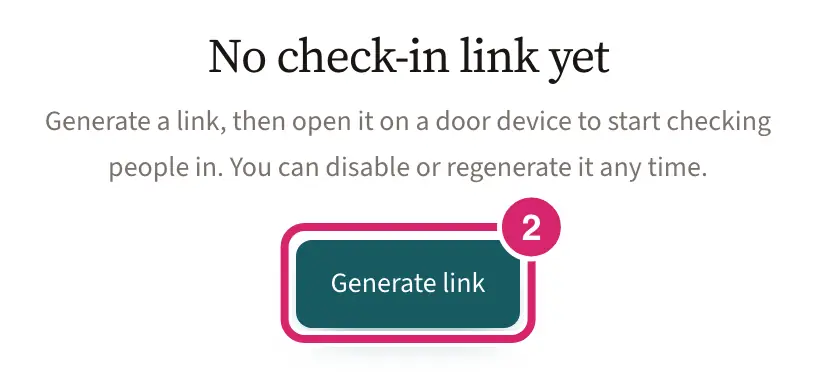
Select Generate link.
Copy the Kiosk link with the copy button beside it.
Open the link in the web browser on the tablet or laptop you’ll use at the door.
The tab shows when the link was Last used. You only generate the link once; it works for every event.
Get the door ready
Who is on the list. The kiosk lists the members of the groups invited to the event and the members who replied Going. Only members can be checked in, so people who replied through a flyer’s public link aren’t on it. Invite the groups who are coming, or collect RSVPs, before the day.
Which events show. The kiosk shows every event happening today, on every calendar, except canceled ones and the sample events a new club starts with. On a day with none, it shows the events of the next 30 days. You can’t hide an event from it.
One link for every entrance. Open the same link on a device at each door. Each device picks its own event, so two doors can check people in to the same event or to different ones.
Charge the device or plug it in, and put it on a stand where people arrive.
Open the link and choose the event before the doors open, so the first guest isn’t kept waiting.
Check people in at the door
On the kiosk, choose the event. It lists today’s events, or upcoming ones on a day with none.
Find the person: type part of their name in the search box, or use the All, Not in and In filters.
Select Check in beside their name. Checked in the wrong person? Select Undo.
The top of the screen counts how many people are checked in. To switch to another event, select Return to the event list.
The kiosk can’t add someone who isn’t on the list. For a hosted event, check them in from Manage hosting as a walk-in (below).
Check people in from Manage hosting
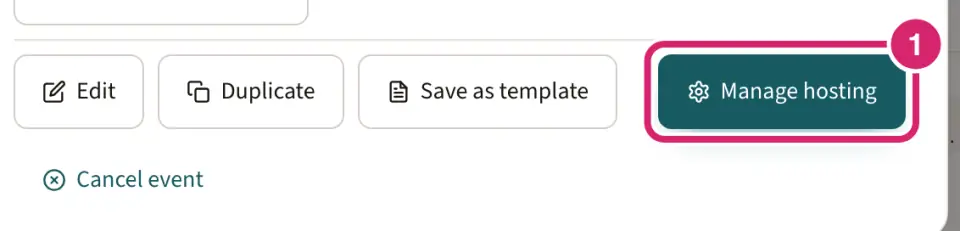
Open the event on the calendar and select Manage hosting.
On the Guests tab, select Check in guests.

Find the person by name or member ID, and select the circle beside their name. Select it again to undo. Absent marks someone who didn’t come, and Clear takes back either one.
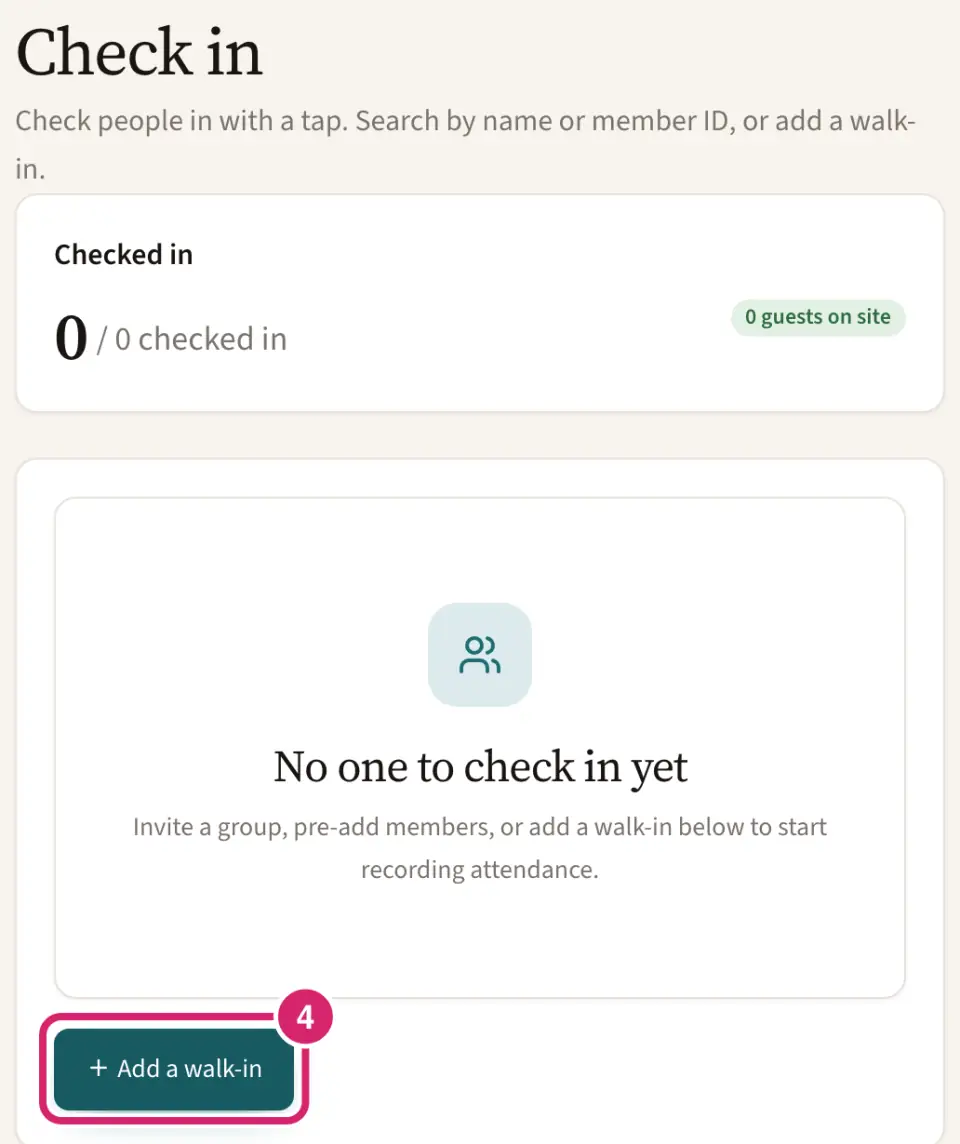
To check in a member who isn’t on the list, select Add a walk-in and find them.
The Guests tab appears only for a hosted event that collects RSVPs.
See who came
Check-ins are saved with the event. On the kiosk, the In filter shows everyone checked in. For a hosted event that collects RSVPs, open the event and select Manage hosting: the Guests tab shows how many are Checked in, and Check in guests lists them.
Turn the kiosk off
When an event is over, should you pause the link or replace it? Both are on the Check-in kiosk tab.
Turn off Link enabled — choose it between events or at the end of a season. Devices show This check-in link is unavailable until you turn it back on, and then the same link works again.
Regenerate link — choose it when the link may have reached the wrong people: it was posted in a group chat, or a volunteer who had it has left. After you confirm, the old link stops working at once, even on a device already open at the door. Open the new link on each device.
Not sure? Turn off Link enabled when an event ends. You lose nothing, and one switch brings the same link back.
If something goes wrong
This check-in link is unavailable. The link was turned off or replaced. Ask an admin or Events manager for the current link, then open it on the device.
No events to check into yet. There’s no event today or coming up soon. Add the event to a calendar; it appears on the kiosk as soon as it’s added.
No one matches. No one on the list matches the search or filter. Check the spelling, or select All. If the person wasn’t invited and didn’t reply, they aren’t on the list.
We couldn’t update … Tap Retry. The check-in didn’t save. Select Retry. The person’s row doesn’t change until it saves.