
Download one file with a copy of everything your club keeps in LongTable: its members, groups, events, messages, pages, files and more.
Why use it
A club's records outlive any one committee. Keep a copy for your records, such as when officers hand over or at the end of the year.
Take a copy before a big change, so you can look back at how things were.
Always take one before you close your club. Once a closed club is deleted, nothing can be recovered.
An archive holds every member's details. Store it somewhere safe, and delete copies you no longer need.
Decide when to take a copy, and who keeps it
An archive is a snapshot of the day you ask for it. LongTable keeps only your latest one, for 7 days, so save each one somewhere you'll find it again. Take one:
Before officers hand over, such as at your annual meeting, so the new committee starts with a record of who belonged and what was sent.
Once a season or at the end of your year, such as after a sports club's last game, so you can look back on it later.
Before a big clear-out, such as removing last year's members or old files. What you delete isn't in later archives.
Before you move to a plan without Club archive. You can't ask for a new one there, but one you've already made can still be downloaded until it expires.
Before you close the club or cancel your plan. Once it closes, nobody can reach its data.
Who keeps it? Only admins can ask for an archive or download one, and our email goes only to the admin who asked. An archive holds every member record your club has, with their contact details. Agree who keeps the club's copies, such as your secretary, and keep them where only the officers who need them can open them.
Request an archive
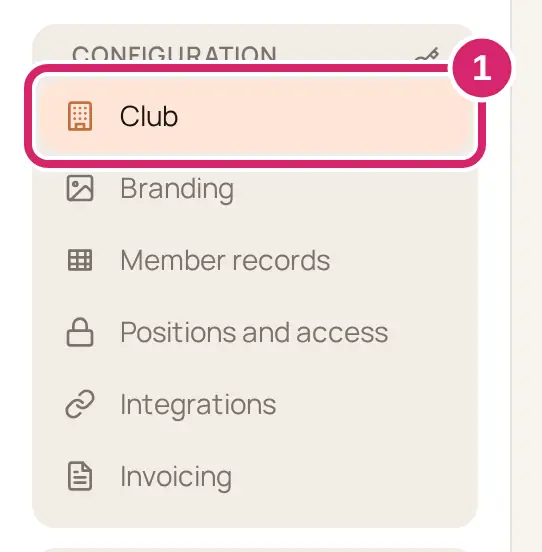
Go to Configuration › Club.
Select the Archive tab.
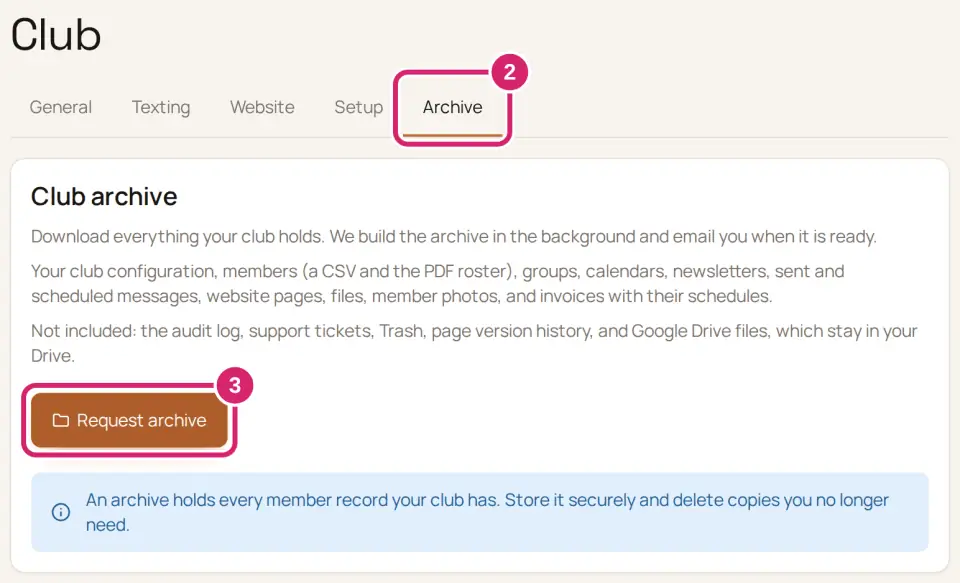
Select Request archive. If you already have one, the button says Request a new archive.
Wait for our email. While we build the archive, the tab shows how many files are added so far. You can leave the page.
We email the admin who asked for it, with the subject Your … archive is ready to download. Its Download your archive button opens the Archive tab.
Your club has one archive at a time. A new one replaces the old one once it's ready, so download the old one first if you want to keep it.
Download the archive
Go to Configuration › Club › Archive, or select Download your archive in our email.
Beside the file's name, select Download. The file downloads to your device.
The archive is one ZIP file, named after your club and the day it was made. However big your club is, it's one file.
You can download it for 7 days. The tab shows Available to download until …. After that, request a new one.
What's in the archive
Your club's settings.
Members: a CSV file of every member, in the same columns as a member import spreadsheet, with their positions and roles. Also the PDF roster, member photos, and requests to join that are waiting.
Groups, with their members and owners.
Calendars and events, with their RSVPs, check-ins and sign-up sheets.
Newsletters, each with a PDF copy.
Sent and scheduled messages, and announcements.
Website pages, published and draft, and your logo.
Every file in Files, in its folders, including the pictures on your website and in messages.
Member invoices and invoice schedules, with a PDF of each invoice.
It doesn't include:
The audit log.
Support tickets.
Anything in the Trash, or older versions of pages.
Files in Google Drive, which stay in your Drive.
Each person's own account: their sign-in, profile, household and assistant conversations.
Your club's LongTable plan and its invoices, which are on Administration › Billing.
If something goes wrong
We couldn’t build your archive. Request it again, and contact support if it keeps failing. Request the archive again. If it fails again, open a support ticket.
The archive stopped because the club was closed. Reopen the club, then request a new archive.
The download couldn’t be started. Try the download again. Select Download again.
Couldn’t load your club archive Select Retry.
Your request didn't go through and the tab shows Retry request. Select it. It picks up the same request, so it never starts a second archive.
There's no Archive tab. Only admins see it.