
Admins can ask our support team for help from inside LongTable, and every admin in your club can follow the conversation.
Why use it
Every admin in your club sees every ticket, so a question never waits in one volunteer's inbox.
Nothing is lost at a handover. A new admin sees the tickets your club opened before, including ones opened by admins who have since stepped down.
Tell us about a problem while it's fresh. The ticket carries the technical details for you, so you only need to say what you were doing and what happened.
What we can help with
LongTable itself: how a feature works, something that looks wrong, or your club's own LongTable plan.
Not the money your club collects from its members. Your club takes those payments through its own Stripe account, so questions about that account, a payment, or money reaching your bank go to Stripe. Once your club has started setting up Stripe, whoever manages it finds Stripe Support on the Stripe card in Configuration › Integrations. A disagreement about money between your club and a member is settled between them through Stripe, not by LongTable. See Collect dues with invoices.
Open a ticket
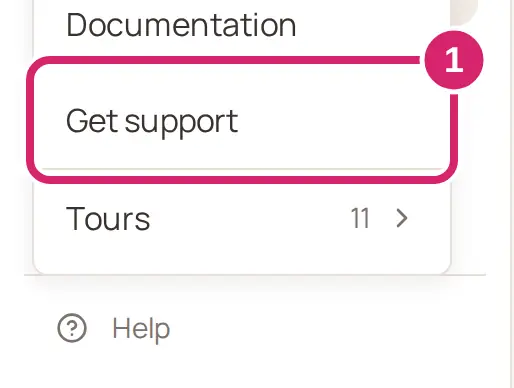
Select Help at the foot of the menu, then Get support.
Select New ticket.
Check Cc. Your club's other admins are all in it to start with. Everyone in Cc gets an email each time our team replies, and when the ticket closes.
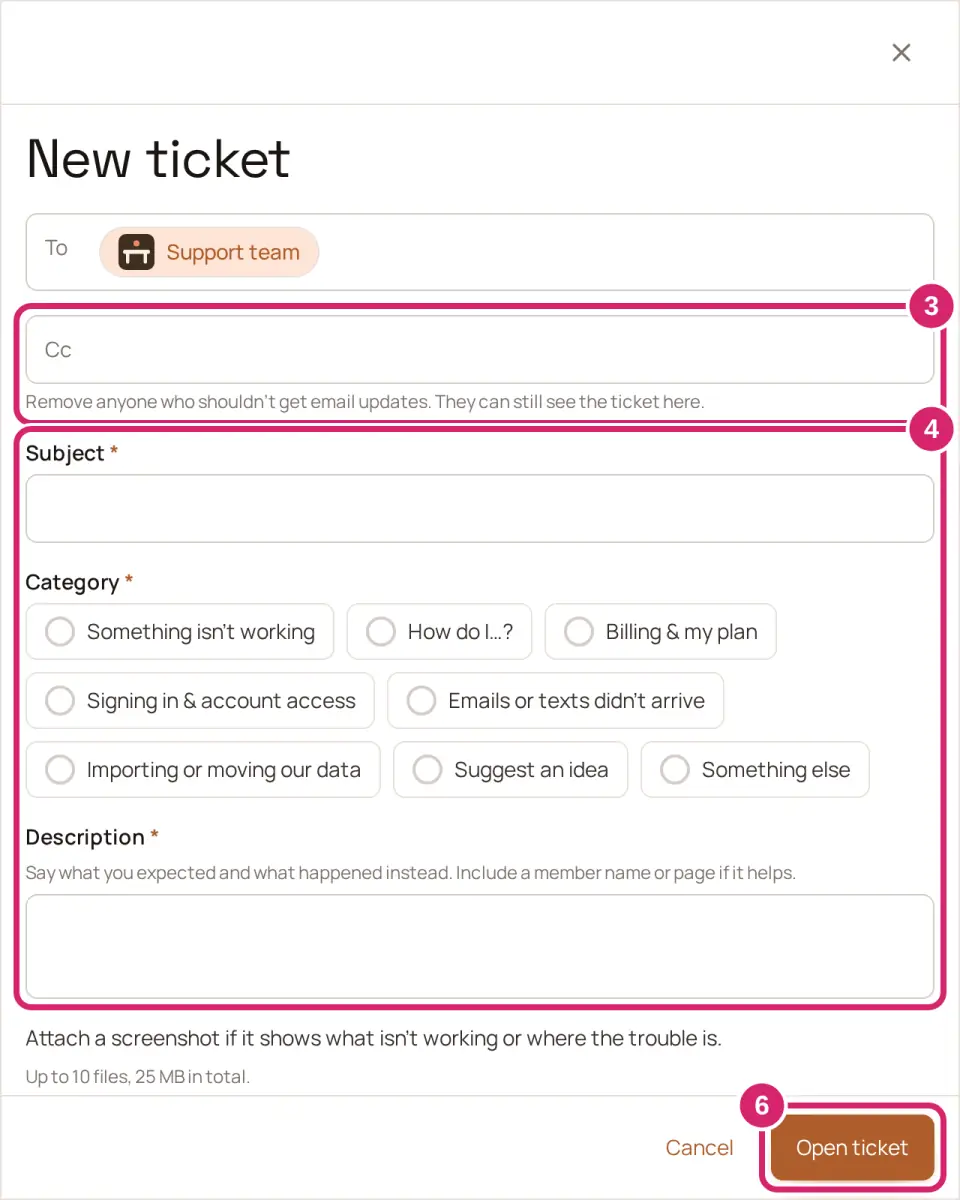
Who should hear about this ticket by email?
Leave everyone in: choose it for almost every ticket. If you're away when we reply, another admin sees it and can answer. A ticket that's waiting on your club's reply closes by itself after 7 days, so a second pair of eyes helps.
Remove someone: choose it when an admin has asked not to get support emails, or is away for the season. Select the ✕ beside their name. They can still read the ticket under Help › Get support; they just aren't emailed.
Not sure? Leave everyone in. Admins who join your club while the ticket is open are added to Cc by themselves.
Enter a Subject, choose a Category, and describe what's happening in Description.
Which category? Pick the one closest to what you need. The categories describe what you want help with, not which part of LongTable it's about. If none fits exactly, choose the nearest one: the category doesn't change who sees the ticket or who gets email about it. You can't change it once the ticket is open.
In Description, say what you expected and what happened instead. Name the member or the page, if it helps.
In a web browser, you can add screenshots or other files as attachments: select Attach files. You can attach up to 10 files, 25 MB in total.
Should you attach something? Attach a screenshot when it shows the trouble faster than words, such as an error message or a page that looks wrong. For a how-do-I question, you can skip it. To take a file off before you open the ticket, select the ✕ beside it.
Our support team sees everything you attach, and so can every admin in your club, from the ticket. Crop out anything private we don't need to see.
Select Open ticket.
When you open a ticket, we include details about your browser and device, and what you did recently in LongTable. That helps us find the problem faster.
Follow up on a ticket
Reply in LongTable with Send reply, or reply to our email. Our replies are emailed to everyone in Cc. A reply you send isn't emailed to the other admins; they see it on the ticket.
Select Close ticket when your question is answered. Everyone in Cc gets an email that it's closed.
A ticket that's waiting on your reply closes by itself after 7 days; the ticket shows the date. For 14 days after a ticket closes, you can reopen it with Reopen and reply.
If something goes wrong
Subject is required., Choose a category. or Description is required. Fill in that field, then select Open ticket again.
Up to 10 files, 25 MB total. Left out: … The files it names weren't attached; the rest were. Remove some files, or attach smaller ones.
<file> couldn’t be attached. Try again. If it still fails, attach it as an image, a PDF, or a Word, Excel, text or CSV file.
Your club can open 20 support tickets a day. Try again tomorrow. Your club has opened 20 tickets today. The count starts again tomorrow.
The support desk did not answer. Try again in a moment. Wait a moment, then select Open ticket again.
Couldn’t load the ticket form. Try again in a moment. Select Retry.