
Sign in to LongTable with your email address and your password or a passkey, or with your Google or Apple account. Your Security page is where you add a passkey, turn on a second step and choose how long you stay signed in.
Why use it
One account works for every club you belong to, so you never need a second password.
A passkey lets you sign in with your fingerprint, your face or your screen lock. It protects you from phishing scams, and there's no password to forget.
If you look after your club's members, money or settings, turn on two-factor authentication. A stolen password alone won't get anyone in.
On a shared computer, choose a short time under Stay signed in, and sign out when you finish.
Sign in
Go to your club's website and select Sign in, then Continue. You can also go to longtable.app and select Sign in there.
If your club’s website isn’t open to visitors yet, you see the club’s name and logo, This club’s site isn’t public. Only members can sign in., and a Sign in button. Select it.
Choose how to sign in.
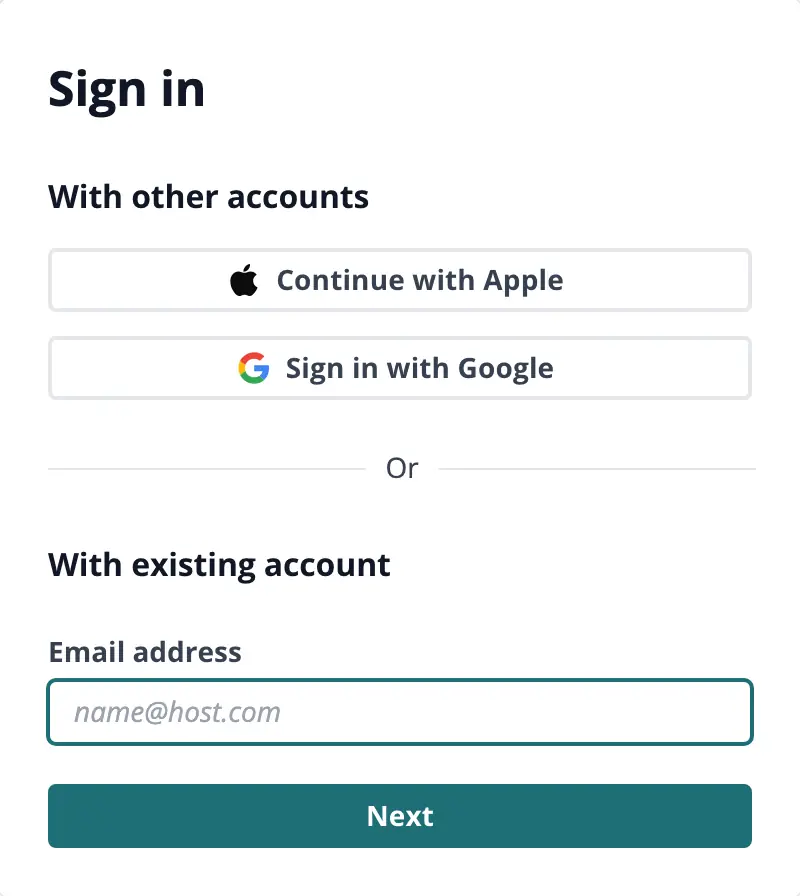
Which way in suits you? You can set up more than one and use whichever is handy.
Your email address and password: choose it when you sign in on different computers, including a shared one at the clubhouse or a library. Enter your Email address, select Next, then enter your password.
A passkey: choose it on your own phone or computer. Enter your email address and select Next, then use your passkey instead of typing a password. Add one first on your Security page (below).
Google or Apple: choose it when you already use that account every day and it has the same email address your club has for you. Select its button above the email box. There's no LongTable password to remember, and Google's or Apple's own second step protects you instead of ours.
If you turned on two-factor authentication, enter the 6-digit code from your authenticator app.
Signed in at longtable.app? You see Welcome back and your clubs. Select the club you want to open. It opens signed in as the account you chose.
If your only second step is a passkey and you sign in with your password instead, we email you a code. We never send sign-in codes by text message.
If you sign in with Google or Apple, their second step applies instead of ours. Set it up with them.
Reset a forgotten password
On the sign-in page, enter your Email address and select Next, then choose the link for a forgotten password.
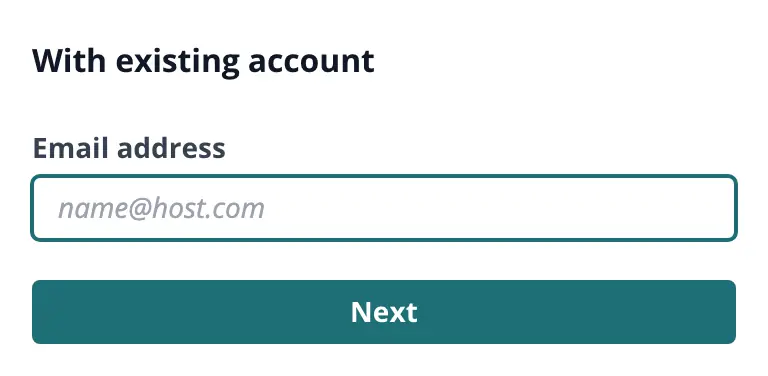
We email you a code. Enter it, then choose a new password. It needs at least 12 characters, including a lowercase letter and a number.
Stuck before the password box? In a web browser, on the LongTable Member portal page or on an invitation, select Can’t sign in? Reset your password. Enter your Email address and select Continue. When you finish, you're back where you started, signed in.
If you only ever sign in with Google or Apple, there's no LongTable password to reset. Use the same Google or Apple button you used before.
Manage your account's security
Select your picture or initials at the top right.
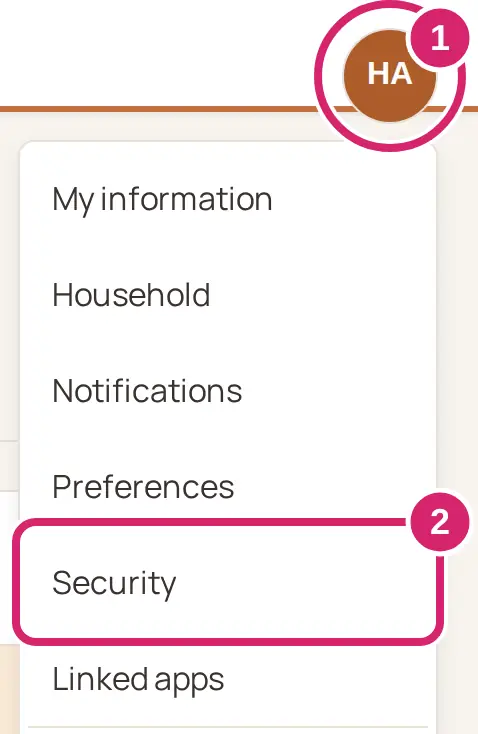
Select Security. Each row shows where you stand and has a button to change it.
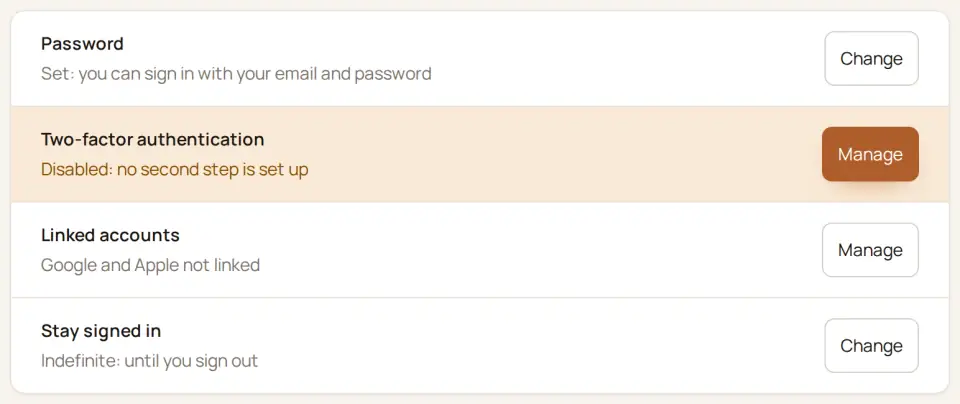
Password: select Change to change it. If you sign in with Google or Apple and have no password yet, select Create a password.
Two-factor authentication: select Manage to add an authenticator app or a passkey, and to turn Require a second step on or off.
Linked accounts: select Manage to Connect or Unlink your Google or Apple account.
Stay signed in: select Change, choose a time under Stay signed in for, from 2 hours to Indefinite (stay signed in), then select Save changes.
How long should you stay signed in?
Stay signed in decides how long LongTable keeps you signed in before it asks again. It's Indefinite (stay signed in) until you change it.
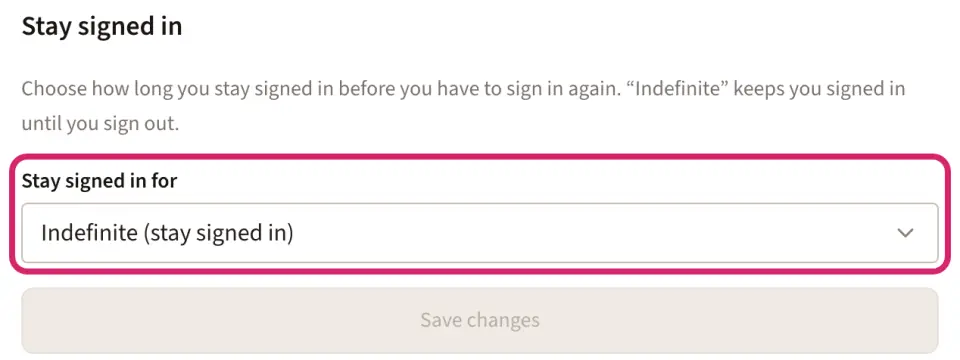
Indefinite (stay signed in): choose it when you use your own phone or computer, and it locks with a code, your fingerprint or your face. You sign in once and stay signed in until you sign out.
3 months down to 2 hours: choose a shorter time when other people use your computer, such as a shared computer at home or the laptop at the clubhouse. The shorter the time, the more often you sign in again.
The time is saved with your account, not with one computer, so it applies on your phone too. You can change it back any time. On a computer that isn't yours, select Sign out in the menu under your picture when you finish, whatever you chose.
Sign out signs you out of every LongTable club in that web browser, apart from a club that uses its own web address, such as www.ourclub.org.
Decide whether to use two-factor authentication
Two-factor authentication adds a second check after your password, so someone who learns your password still can't get in. It's off until you set it up. You decide on your Security page, under Two-factor authentication › Manage.
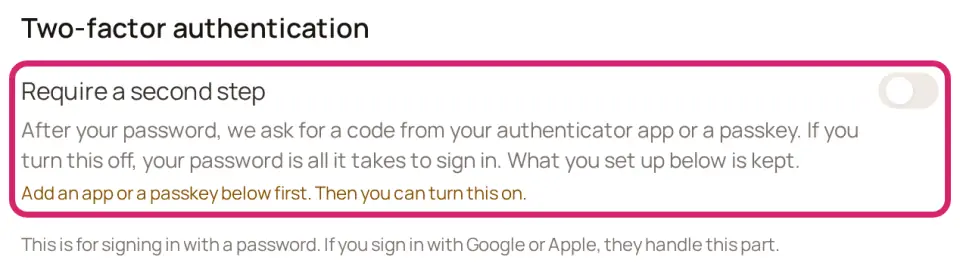
Should you turn it on?
On: choose it when you look after anything for your club: the treasurer, the membership secretary, an admin, or anyone who can see members' details or the club's money. A stolen password alone won't get anyone in.
Off: it's off for a new account. It can suit a member who signs in a few times a year to check the calendar and looks after nothing for the club. Even then, a passkey protects you with nothing extra to type.
Require a second step turns on once you add a passkey or an authenticator app. Turning it off and on again is safe: what you set up stays saved. It protects signing in with a password; if you sign in with Google or Apple, their own second step applies instead.
Which second step suits you?
A passkey: choose it when you sign in on your own phone or computer. Your fingerprint, face or screen lock is the second step, so there's nothing to type. If you lose that phone or computer, you can still sign in with your password and a code we email you.
An authenticator app: choose it when you'd rather type a code, or your computer can't use passkeys. The app on your phone shows a new 6-digit code every 30 seconds. Once it's set up, it's the code we ask for when you sign in with your password, even if you also have a passkey.
Not sure? Add a passkey. It turns two-factor authentication on, and losing it doesn't lock you out.
Add a passkey
On Security, next to Two-factor authentication, select Manage.
Select Add a passkey and follow your phone's or computer's prompts.
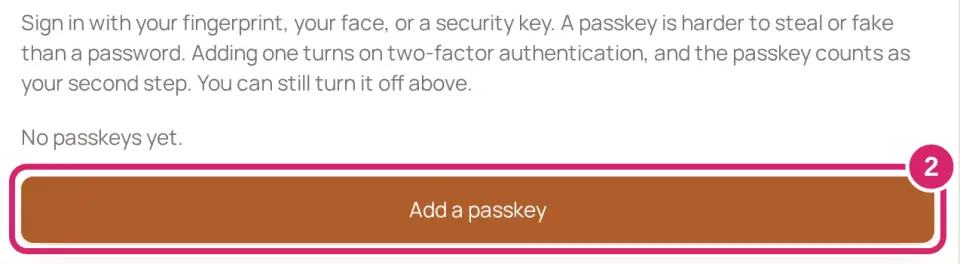
Adding a passkey turns on two-factor authentication, and the passkey counts as your second step. If you don't have a password yet, enter one in Create password first: you need both. If the page says This device doesn’t support passkeys., add your passkey on another phone or computer.
Turn on two-factor authentication with an app
Watch it done in 15 seconds, or follow the steps below. The numbers in the video match the steps.
On Security, next to Two-factor authentication, select Manage.
Select Add authenticator app.

Scan the QR code with your authenticator app.
Enter the app's 6-digit code in Verification code and select Verify and enable.
Save the 10 recovery codes we show you. Select Download codes or copy them, then select I’ve saved them. You won't see them again.
Two-factor authentication is now on. To pause it later, turn off Require a second step. Your app and passkeys stay set up. To see how many recovery codes you have left, open Two-factor authentication › Manage. Make new recovery codes gives you a fresh set, and the old codes stop working.
Get back in if you lose your authenticator app
A recovery code removes the lost app from your account, so you can sign in with your password and set up a new one.
In a web browser, go to longtable.app. On the Member portal page, select Lost your authenticator app? Use a recovery code.
Enter your Email address and one Recovery code, then select Remove my authenticator app.
Select Sign in and sign in with your password. Then set up a new authenticator app on Security.
We email you to say the app was removed. Each code works once. No codes left? If you belong to one club, ask its admin to remove the app for you. They check it's really you first, and we email you when they do.
Switch to another club
If you belong to more than one club, the menu under your picture or initials lists them all, with a dot next to the one you're in. Select another club to go to it.
If something goes wrong
You don’t have access to this club. Your sign-in is turned off in this club. If you think that's a mistake, ask the club's admin. You can still switch to your other clubs from the menu under your picture.
You don’t have access to any clubs yet. You get an account when a club invites you or when you start a club. If you used Google or Apple, try your email address instead: it may be a different account. Otherwise, ask your club's admin to send you an invitation, then sign in again.
This account isn’t in this club. You’re signed in with an account that isn’t a member of the club you opened, and the page names the account. Select Sign in as someone else and sign in with the account you use for that club.
Please sign in again. We couldn’t finish signing you in, which can happen when the sign-in page is left open for a while. Select Sign in again.
Use at least 12 characters., Include at least one lowercase letter. or Include at least one number. Change your new password to fit, then try again.
That code didn’t work. Double-check the 6-digit code and try again. The code was mistyped or had already changed. Your app shows a new code every 30 seconds, so type the one it shows now.
Your setup timed out. Select Add authenticator app to start again. Setting up the app took too long. Select Add authenticator app and scan the new QR code.
The email on that Google account doesn’t match this account, so nothing was linked. For an Apple account, it names Apple. Connect the account that uses the same email address as your LongTable account.
We couldn’t verify that. Check your email address and the recovery code, then try again. The address or code was mistyped, or that code was used already. Try another of your codes.