
Save an event you run often as an event template, and the places you meet as venues. A new event then takes seconds, and its details stay the same every time.
Why use it
A weekly practice or a monthly meeting has the same details every time. A template fills them in, so nothing gets forgotten.
A venue saved once gives every event held there the same, complete address. Change it once and every event that uses it follows.
Name templates for what they are, such as Tuesday practice or Monthly board meeting, so anyone can pick the right one.
Write each venue’s address in full, the way you’d give it to a visitor.
Decide how to reuse an event
A template, a copy, or a repeating event?
All three save you typing the same details again. Pick the one that fits how often the event comes back.
Repeats, in the event form — choose it for an event on a fixed pattern, such as Tuesday practice, a social on the 15th of each month or a board meeting on the first Monday. It’s one event on the calendar, so a change to the whole series is one edit. See Create events and collect RSVPs.
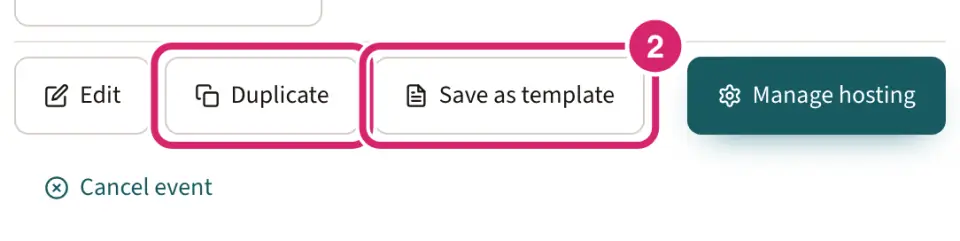
Duplicate — choose it to copy one event you already ran, such as this year’s fall supper from last year’s. Open the old event and select Duplicate: a new event opens, filled in, and you can put it on another calendar. It keeps the saved venue.
Save as template — choose it for an event you set up again and again on dates that don’t follow a pattern, such as a workshop you run a few times a year or a race you hold when the tides allow. Anyone who manages events can start from it, and it stays after the original event is deleted.
A copy and a template both bring the event’s details and times, its hosting setup, its RSVP settings and its sign-up slots. An RSVP by date stays the same number of days before the new event. Neither brings the invited groups, anyone’s replies or check-ins, or changes made to single dates of a repeating event, so invite the groups again. A copy of a hosted event gets its own flyer link. On a plan below Basic, the new event leaves out the Guest cap, the RSVP by date and Waitlist and auto-promote, since those need Basic or above.
Save an event as a template
Go to Community › Calendars and open the event on the calendar.
At the bottom of the event’s details, select Save as template.
Enter a Template name.
Select Save template.
A template copies the event's details, hosting setup, RSVP setup and sign-up slots. It doesn't copy the calendar, the groups you invited, the link to a saved venue, or anyone's replies.
Create an event from a template
Go to Community › Calendars and select Add event.
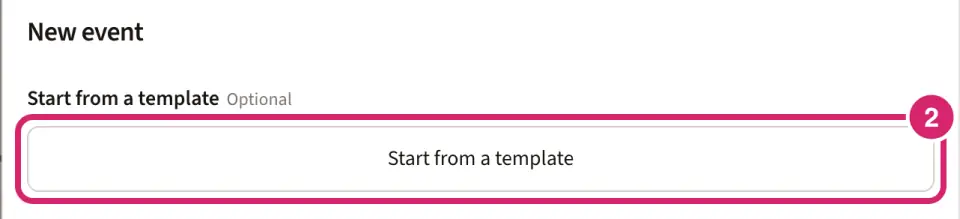
Select Start from a template, then the template you want.
Choose the Calendar, and check the date under Starts and Ends.
Under Invite groups, choose who to invite.
If the event is at a saved venue, pick it again under Saved venue. The template keeps only the address, so without this the event won't follow later changes to the venue.
Select Create.
You can also select Use template on the Event templates tab. There, Preview shows what a template holds, Edit changes its name and description, and Delete removes it without changing events already made from it. All, Hosted and Calendar only narrow the list.
Save a venue
Go to Community › Calendars and select the Venues tab.
Select New venue.
Enter a Venue name and its Address.
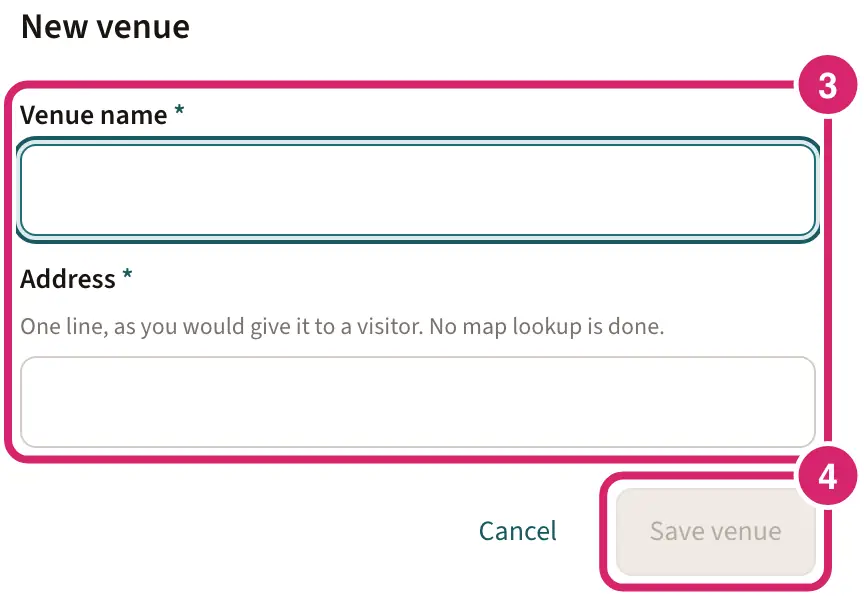
Select Save venue.
You can also save a venue while you add an event: under Saved venue, select Save a new venue.
Use a venue for an event
Should you pick a saved venue or type the place? Under Saved venue in the event form, choose one of your venues or Type a location.
A saved venue — choose it for a place you meet again and again: the clubhouse, the park pavilion, the school gym. Its name and address fill in the location, and editing the venue later updates every event held there.
Type a location — choose it for a one-off place, a room inside a building, or a link to an online meeting.
Change or remove a venue
On the Venues tab, select Where it’s used to see the events held there.
Select Edit to change the name or address. Saving updates every event that uses the venue. It doesn’t email members about those events.
Select Remove to delete a venue. You can only remove a venue that no event uses.
If something goes wrong
This venue is still in use. Events still use it, including events in the trash. Move those events to another venue or a typed location, then remove it.
No templates yet. Fill in the form below. Your club has no templates yet. Save an event as a template first, or fill in the form.
We couldn’t load your saved venues, so none can be picked right now. Type a location below instead. Type the address under Location, or close the form and try again later.
Save template doesn't respond. Enter a Template name first.
Save venue doesn't respond. Enter both a Venue name and an Address.