
Turn on Google Drive to keep your Google Docs, Sheets and Slides in a shared drive that belongs to your club, not to any one volunteer. Access follows your club's roles, positions and groups, so it changes by itself when officers change.
Why use it
When a volunteer keeps the club's documents in their own Google Drive, the files leave when they do. Here they live in a shared drive LongTable runs for your club, so no volunteer owns them.
Each role, position and group in LongTable has a matching Google group, and LongTable keeps it up to date. When someone takes over a position, they get the position's access to its files, and the person who handed it over loses it.
Nobody shares files one by one. Set who can see a folder once, in Files, and Google follows it.
Move the club's old files in from volunteers' own Drives with Import Drive files, so everything is in one place.
Decide which files belong in Google Drive
Turning on Google Drive doesn't replace uploading. Uploaded files and Google files sit side by side in the same folders, and both follow the access you set in Files. For each document, pick the kind that fits how people use it.
Should this document be an uploaded file or a Google file?
Upload: Choose it for finished papers people read or download: signed minutes, the bylaws, a membership form, photos. Members preview and download them without a Google account, and Replace file swaps in a new version.
New Google file: Choose it for documents several people write or update together: a budget the treasurer and president both edit, a volunteer schedule, a sign-up form made with Google Forms. It opens in Google in a new tab. The first time, each member may need to confirm who they are, and a Google file can't be downloaded from LongTable.
Not sure? Upload by default, and make a Google file when more than one person needs to edit it. Google files depend on the club's Drive staying on: if Google Drive is turned off, they disappear from Files, while uploaded files stay.
Turn on Google Drive
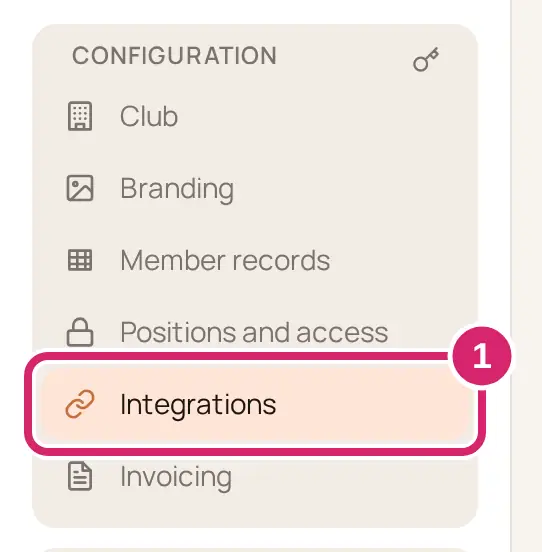
Go to Configuration › Integrations.
On the Google Drive card, select Enable Google Drive.
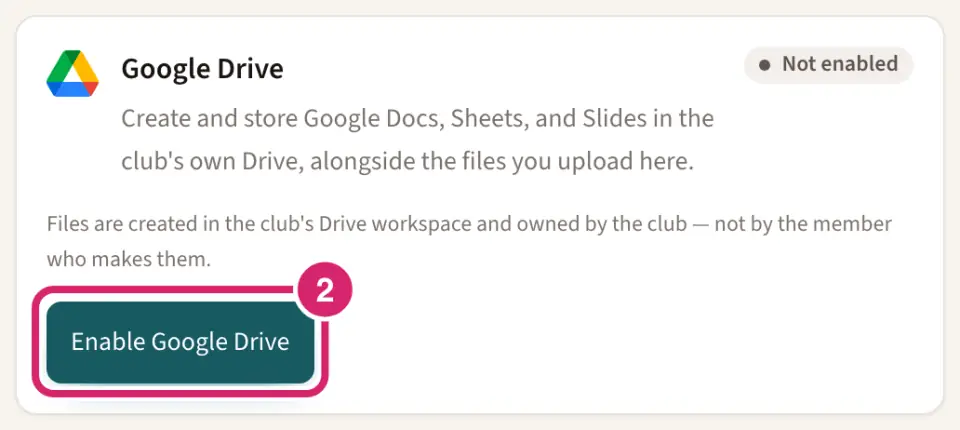
You don't need to sign in to Google. The card shows Enabled when the drive is ready. While it shows Setting up, Google is still building the drive, granting access and preparing the folders, so Google files aren’t available to members yet. It finishes on its own within a few minutes, and you don’t need to do anything. Finish setting up Google Drive is there if you'd rather not wait. We email the admin who turned it on when the drive is ready.
In Google, the drive is named LongTable followed by your club's name. At its top sits a read-only Google Doc, Where are the other Files, which tells anyone who opens the drive in Google that it holds only the club’s Google files, and that Files in LongTable shows everything.
Decide whether members confirm who they are
Should members prove who they are before a club file opens? That is Require a Google account or an email verification link, under Opening Drive files on the Google Drive card. It's on for a new club, and only admins see it.
On: Choose it for almost every club, and always when any file is private: minutes, budgets, anything with members' details. The first time a member opens a club file, they confirm who they are with a Google account or an emailed link. Files stay shared with the club only.
Off: Choose it only when every Google file the club keeps could be posted on your website, and members struggle with confirming who they are. Files open right away for anyone who has the link. Every member sees a warning at the top of Files, and each file opens with the message Opened without verification. Anyone with the link can read this file.
To turn it off, turn off the switch and select Turn verification off. Turning it back on takes one click, and access returns to members only within a few minutes.
Create a Google file
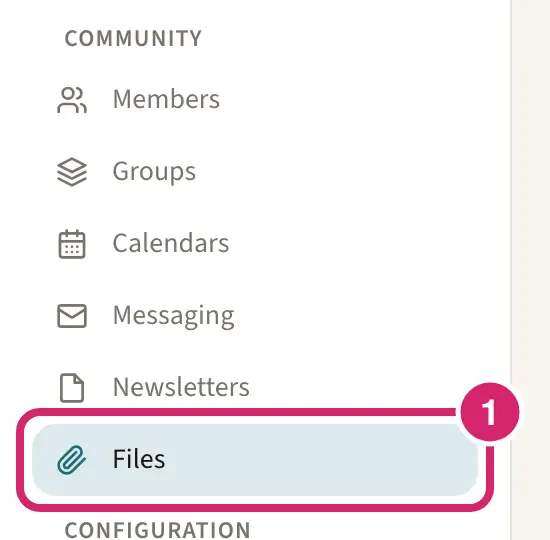
Go to Community › Files and open the folder the file belongs in.
Select New Google file and choose Google Doc, Google Sheet, Google Slides, Google Form or Google Drawing.
Enter a File name and select Create.
A Google file shows its kind, such as Google Doc, and its details end with club Drive. Select it to open it in Google, in a new tab.
You rename, move, delete and set permissions on Google files in Files, the same way as uploaded files. They can't be downloaded from LongTable.
Everyone with Edit on the folder can change a Google file in Google, and create, rename, move and delete Google files there in LongTable. Admins, and anyone whose role includes Manage all files, can change every Google file the club keeps. Give Edit to the people who should write in the document, and View to everyone else. See Share files with your club.
Files you upload stay in LongTable. Only Google files are kept in the club's drive.
Move files in from your own Google Drive
Go to Community › Files, open the folder the files should go to, and select Import Drive files. On a narrow screen, it's in the ⋮ menu. The Google Drive card in Configuration › Integrations has the same button.
Select Continue with Google, sign in to your Google account, and pick the files.
Check the folder they'll land in, or choose another one.
Under Bring them across as, choose Move or Copy. Move is chosen at first.
Move: Choose it for the club's files you made in your own Drive, such as last year's budget or the membership list. The file leaves your Drive and belongs to the club from then on. You can move only files you own, and nothing that sits in a shared drive.
Copy: Choose it only when you can't move a file: someone else owns it, such as a file a past treasurer shared with you, or it sits in a shared drive. You end up with two files, one in your own Drive and one in the club's, and they stop matching as soon as someone edits either one.
Select the button that counts them, such as Move 3 items.
Folders can't be brought in. Pick the files inside them instead. Nothing can go into a Managed folder such as Website.
Open the club's Google files
Select a Google file in Files to open it in Google. The first time, you may see Confirm it’s you. How do you want to open club files?
Continue with Google: Choose it if you have a Google account, such as Gmail, and you'll open club files often. It tells us which Google account to share the club's files with, and after that they open right away. It doesn't change how you sign in to LongTable.
Email me a one-time link: Choose it if you don't have a Google account, or you only need this one file. We email you a one-time link, with a subject that begins Your link to and names the file. Google may email you a code to check it’s you. Opening the same file again within 7 days takes you straight there.
If your email address is a Gmail address, you only see Continue with Google: sign in with that Gmail account. Google asks Gmail addresses to sign in rather than sending a code, so an emailed link would not work for you.
If someone else in a club you belong to already uses the Google account you pick, you see This Google account is shared. In Google, access follows the account, not the person, so anyone signed in to it can open every file any of its users can. Select Use this account to keep it, for example when your family shares one account, or Cancel and pick another. Your own access in LongTable stays the same.
Choose your Google account ahead of time
Select your picture at the top right, then Security.
Under Google account for club files, select Choose a Google account and sign in to Google.
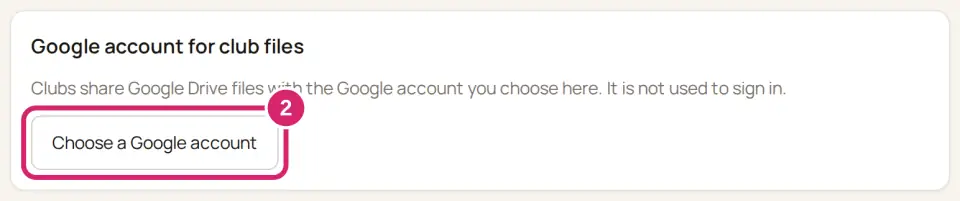
Club files then open without asking. It doesn’t change how you sign in to LongTable. To stop using the account, select Remove. After that, you need the emailed link or Google sign-in to open club files again.
Move the club's files to a Google account
When the club leaves LongTable, or wants its Google files kept somewhere else, you can hand everything in its Drive to one Google account. Google Drive stays turned on for the club while you do it.
Go to Configuration › Integrations.
On the Google Drive card, select Move files out of the club.
Select Continue with Google and sign in with the Google account that should keep the files.
Select Confirm in Google and confirm the files Google lists.
Select Move everything out of the club.
Everything the club keeps in Google Drive moves at once into one new folder in that account's Drive, and that account becomes the owner. Only they can share those files again.
The files leave the club’s Drive and stop appearing in Files for every member. LongTable keeps no copy.
Files you uploaded to LongTable are not part of the move. They stay with the club.
Use a club Google account rather than a personal one, so the files outlast the current officers.
Turn off Google Drive
Go to Configuration › Integrations.
On the Google Drive card, select Disable.
Type DISABLE to confirm.
Decide whether to keep the club's Google files.
Move files out of the club: Choose it when the club still needs anything in its Drive. It starts the same move as Move the club's files to a Google account, above. Google Drive stays on after the move, so select Disable again when it is done.
I don’t want to move the club’s files out before disabling: Check it only when nothing in the Drive is needed, or you'll turn Google Drive back on within 90 days.
If the club’s files were already moved out, the dialog says so and doesn’t ask. Only anything added since the move is deleted after 90 days.
Select Disable Google Drive.
Every Google file disappears from Files right away, and nobody in the club can open one.
The files are deleted after 90 days, and the card shows the date. Turn Google Drive back on before then to get them back.
Everyone who can manage integrations gets an email saying Google Drive was turned off, and reminders 30 days and 7 days before the files are deleted.
If something goes wrong
Google Drive isn’t available yet. Try again later. Google couldn’t start the drive just now, and the card still shows Not enabled. Try again later. If it keeps happening, open a support ticket.
The club’s Drive is still being set up. Try again in a minute. Wait a minute, then create the file again.
Move is grayed out, with a note that you must own an item to move it. The file belongs to someone else, or sits in a shared drive. Choose Copy, or ask the owner to move it in.
That took too long. Try again. Google sign-in ran out of time. Select Continue with Google again and finish signing in.
This link has expired. Open the file again to get a new one. The file opens its Confirm it’s you box again. Choose Email me a one-time link for a new link.
This file is no longer shared with you, or it has been removed. Your link no longer opens anything. Ask whoever looks after the folder whether you should still have access.
You’ve asked for this link a few times today. Check your spam folder, or try again tomorrow. Look for our email in your spam folder first.