
Decide who can do what in LongTable by giving each job in your club a position, such as Treasurer or Secretary. The position carries the roles the job needs, so whoever holds it gets exactly that access.
Why use it
Access follows the job, not the person. When a new treasurer takes over, you change who holds the position, and the access moves with it.
People only see the parts of LongTable their roles allow, so a volunteer isn't faced with settings they don't need.
A position can be open, or held by one person or several, such as two co-chairs.
Give roles to positions, not to people. Keep one-off access for a short job, such as covering while someone is away.
Decide what each volunteer can do
Everyone who can sign in can already view members, calendars, files and votes. A role only adds to that. Give each job the fewest roles it needs: adding a role later takes a minute, and every extra role is more that a volunteer can change or send by mistake.
Which role fits the job?
Admin: choose it for the two or three officers who run your club on LongTable, such as the president and the secretary. Admins can change everything, including the club's settings and billing, and who has which access. Give it only to people you'd trust with the club's keys.
Member manager: choose it when a membership secretary keeps your directory up to date. They can add, edit and remove members, and import members from a spreadsheet. They can't change settings, roles or positions.
Communications manager: choose it for whoever sends the club’s news, such as a newsletter editor. They create and manage every group, message anyone in the club, post announcements and send them as official email, and run votes. One message or announcement from them can reach every member.
Events manager: choose it for an events or fixtures coordinator. They create and manage every calendar and event, with its RSVPs and check-ins. Deleting a calendar also deletes its events.
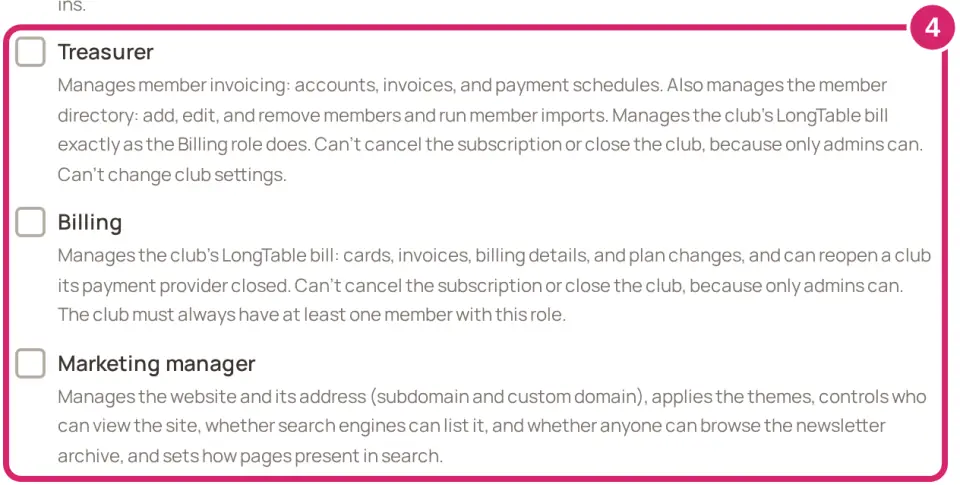
Treasurer: choose it for the officer who bills members, for dues or fees. They manage member invoicing (accounts, invoices and payment schedules), and they can also add, edit and remove members. They also manage your club’s LongTable bill, just as Billing does, but only admins can cancel the subscription. They can’t change the club’s settings.
Billing: choose it for someone who pays for LongTable itself but isn’t the treasurer, since Treasurer already covers the bill. They can change your club’s plan, the card that pays for it and its billing details, but only admins can cancel the subscription. Your club always has at least one person with Billing.
Marketing manager: choose it for whoever looks after your website. They edit its pages and its look, change its address and connect your own domain, decide whether visitors and search engines can see it and whether anyone can browse your newsletter archive, and set how pages appear in search. Changing the address stops the old one working straight away.
A job can take more than one role, and its holders get everything those roles allow, added together. Not sure? Start with the one role the job clearly needs, and add another when the volunteer finds something they can't do.
A position, or one-off access?
A position: choose it for any job that outlasts the person doing it: officers, coaches, committee chairs. When someone new takes over, you change who holds the position, and the access moves with it.
One-off access: choose it for a short job one person does, such as covering member sign-ups while the secretary is away. It gives one person one role, with a note saying why. Nothing reminds you to take it back, so remove it when the job is done.
Roles you check on a member’s record, under Roles, are one-off access too, and they’re listed in the same place. The person who set up your club is listed there with Admin and Billing. Leave those in place until another admin is set up.
Create a position
Watch it done in 20 seconds, or follow the steps below. The numbers in the video match the steps.
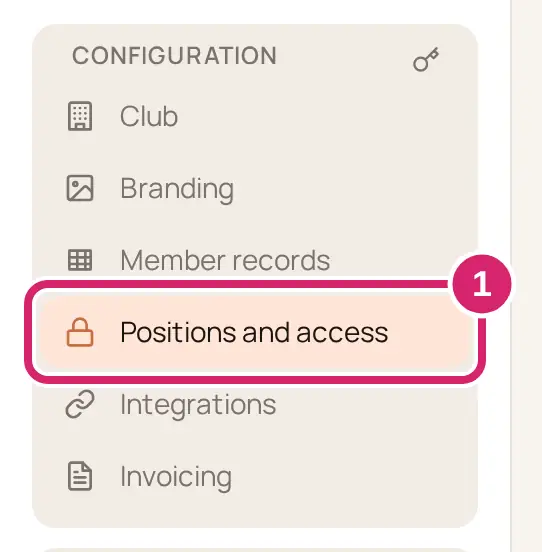
Go to Configuration › Positions and access.
Select Add position.
Enter a Position name and, if you like, a Description.
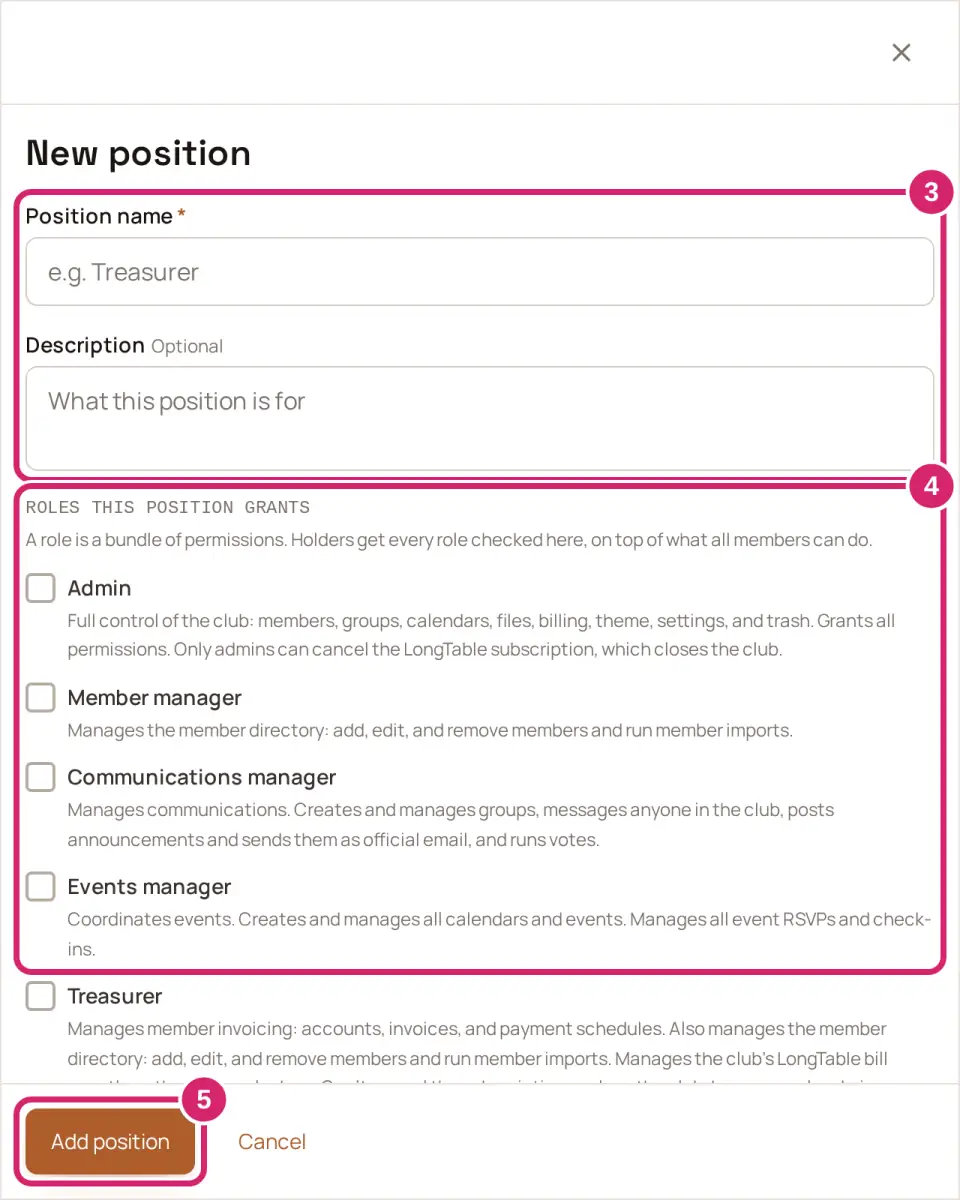
Under Roles this position grants, check the roles the job needs. The Holders: line below them says in plain words what they'll be able to do.
Select Add position.
A position with no roles is a title only. It shows who does the job and reads A title only. No extra access.
To change a position later, select it on Positions and access. Its name, description and roles save as you change them, and new roles apply to everyone who holds it.
Put someone in a position
Watch it done in 20 seconds, or follow the steps below. The numbers in the video match the steps.
On Positions and access, select the position.
Under People in this position, find each person in Add people and select them. Each person you pick waits above the field; select the × beside a name to take them off. People who already hold it show Already holds this position.
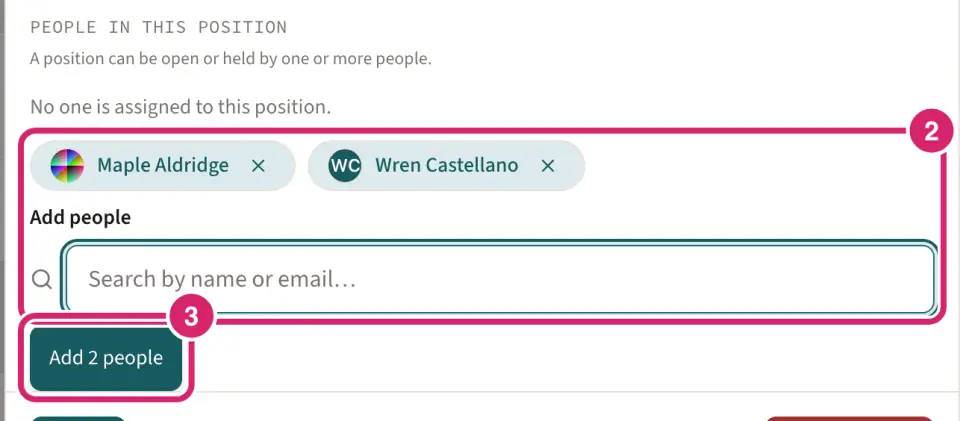
Select the button that names how many you picked, such as Add 2 people. LongTable confirms with a message such as Added 2 people to Treasurer. If someone can't be added, everyone else still goes in, and the people left over stay picked so you can try again.
Select Done.
Anyone in your directory can hold a position, including people who don't sign in; its roles only work for someone who signs in. To take someone out of the position, select Remove beside their name. That saves straight away. They lose the position's access, and anything else they hold stays.
You can also open a member's record from Community › Members and select Edit. Under Positions, check the positions they hold, then select Save at the top of the record.
Nobody is emailed when they're given a position or a role. Tell them yourself, along with what they can now do.
Give one person one-off access
Watch it done in 15 seconds, or follow the steps below. The numbers in the video match the steps.
Everyone who has one-off access is listed under One-off access on Positions and access, so you can review it later.
On Positions and access, under One-off access, select Give access.
Under Who needs the access?, find the person.
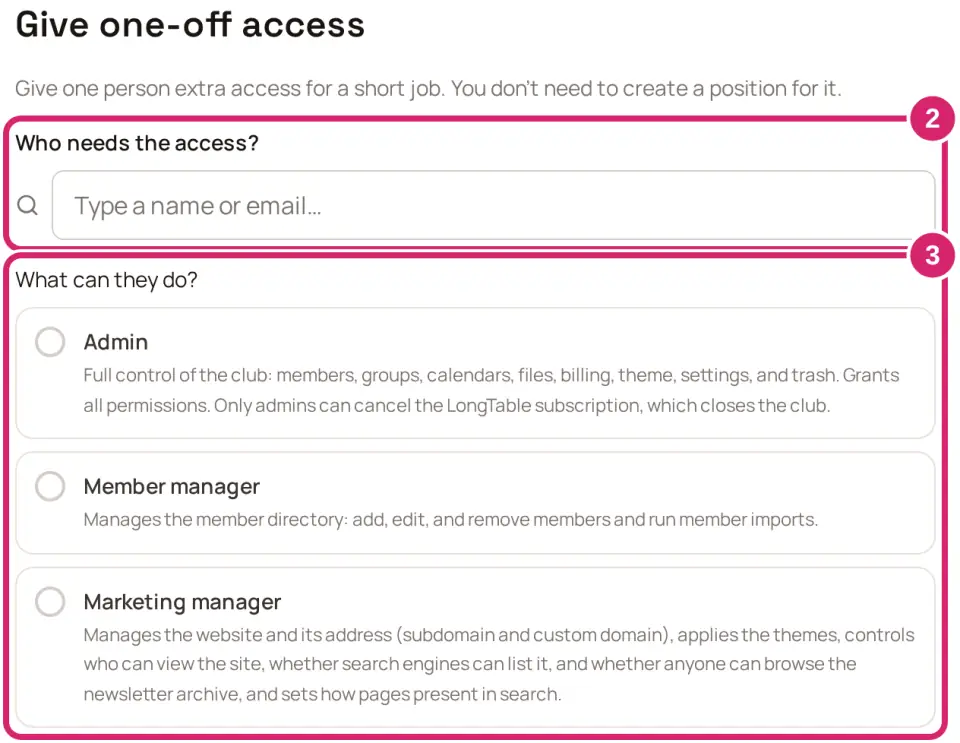
Under What can they do?, choose one role. The line that appears below says what they'll be able to do.
If you like, add a note under Why?, so whoever reviews the list later knows what it was for.
Select Give access.
To take it back, select Remove beside the person, then Remove access. Anything they hold through a position stays. You can also change a member's roles on their record: select Edit, change the roles under Roles, then select Save at the top of the record. Roles that come from a position show on the record under Inherited from positions.
Your club always needs a billing contact. If you take the Billing role from the last person who has it, it moves to you.
Create your own role
Most clubs never need their own role. A position can carry several built-in roles, so a job that needs more than one doesn't need a new role. The question is whether a built-in role gives too much:
A built-in role: choose it when its description fits the job. It can't be changed, so it means the same thing everywhere.
Your own role: choose it when a built-in role would give too much: a newsletter editor who should message groups but not manage them or run votes, or an assistant who sends invoices but shouldn't edit member records. You pick exactly what it allows.
Your own role can't include the club's settings; only Admin has those. Changing a role you made changes what every position and person using it can do, as soon as you save.
Watch it done in 20 seconds, or follow the steps below. The numbers in the video match the steps.
At the bottom of Positions and access, under Advanced · Roles, select Edit roles.
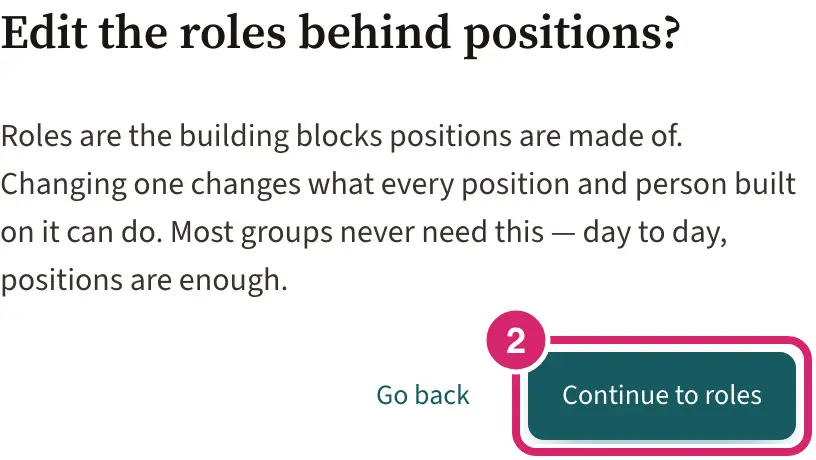
Select Continue to roles.
Select Add role.
Enter a Role name and, if you like, a Description. The description shows wherever the role is listed, so say what it's for.
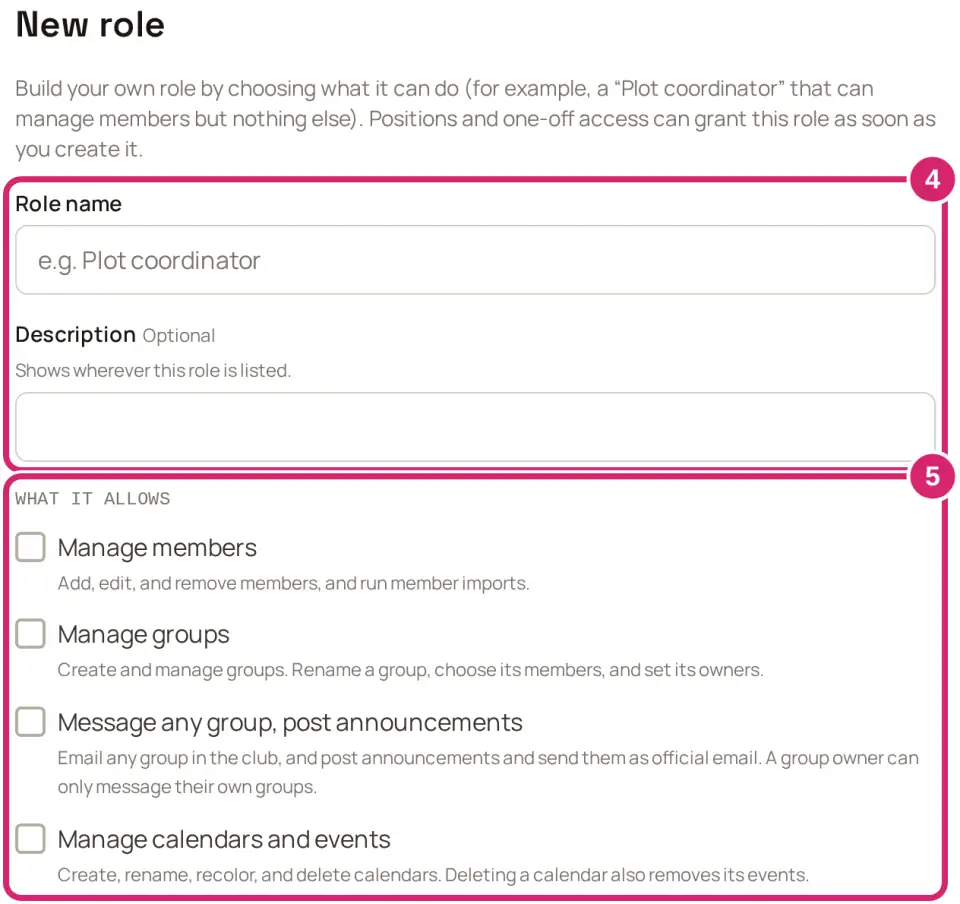
Under What it allows, check what the role can do. You can only choose things you can do yourself.
Select Add role.
Positions and one-off access can give the new role straight away. On Roles, select a role to see who holds it. For a role you made, select Edit to change it or Delete role to remove it. Built-in roles can't be changed.
If something goes wrong
Enter a position name. The name is empty. Type one, then select Add position again.
A position named “…” already exists. Choose a different name. Each position needs its own name, and capital letters don't make a name different.
The position was created, but its roles couldn’t be saved. Open it to set its roles. Select the position, check its roles again, then select Done.
Couldn’t add 1 of 3 people: Below it, each person who wasn't added to the position is listed with the reason. Everyone else now holds it. The people listed stay picked: select the button again to retry, or take them off.
Still saving the last change. Try again in a moment. You removed someone while another change to the position was still saving. Wait a moment, then select Remove again.
That person already holds this role directly. Their access is unchanged. Nothing was added. They already have that role as one-off access, so there's nothing to do.
This member has no account yet. Invite them from their record first. It shows beside someone who can't sign in yet, when you give one-off access or add someone on Roles. Invite them to sign in, then try again.
Choose at least one thing this role can do. A role has to allow something. Check at least one item, then select Add role again.