
Add a short note to an invitation. It shows with your name in the email and on the page it opens, so people know who's asking.
Why use it
An invitation from someone they know gets opened.
Say why you’re asking: “We’re trying out a new home for the club. Poke around and tell me what’s confusing.”
An invitation into a position also names the position and what it can do.
Add a note to invitations
Go to Community › Members, select the Invites tab, then Invite members.
Choose who to invite and select Review.
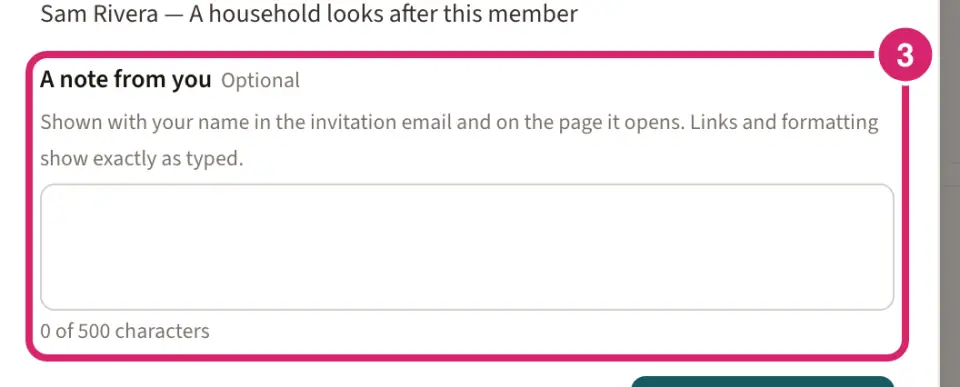
Type your note under A note from you.
Select Send N invitations.
You can also add a note when you invite someone into a position, under Invite by email, or from a member's record, in its Access section above Invite to set up an account. When you ask the LongTable assistant to invite people, it asks for a note once, and every invitation in that send carries it.
The note is plain text, up to 500 characters. Links and formatting show exactly as you type them. In the email and on the invitation page it appears under “<Your name> writes:”. With or without a note, the invitation page opens with “<Your name> invited you.” Each invitation works for 7 days. On the Invites tab, an invitation with a note shows With note.
If something goes wrong
Keep the note to 500 characters or fewer. Shorten the note. The box stops at 500 characters, so you usually see this only when the assistant writes the note.
The note can only contain plain text. Type the note again rather than pasting it, so no hidden characters come with it.
Your note wasn’t sent. The invitation into a position didn't go out, so neither did your note. Try again.