
Setup stays at the top of your menu until the important things are done. You can hide it sooner, open it again any time from Configuration › Club, and stop its reminder emails.
Why use it
Keep your menu short once you know what's left to look at.
Nothing is lost: hiding Setup only hides the menu entry. Your checklist and its marks stay as they are.
Stop the reminder emails if you'd rather come back on your own.
Decide whether Setup stays in the menu
Do you want Setup at the top of everyone's menu while you work? The choice is Hide setup from the menu on the Setup page. It's shown until the core items are done.
Leave it in the menu: choose it when you're working through the list over the next few weeks, like a new secretary setting things up after the annual meeting. The number beside it shows what's left, and Setup leaves the menu by itself once the core items are done.
Hide setup from the menu: choose it when you'd rather get on with running the club and come back later. Setup leaves the menu for every admin in your club, and the setup reminder emails stop for good.
Changed your mind? Show setup in the menu puts it back, but the reminder emails stay off. Not sure? Leave it in the menu until you've looked at the core items.
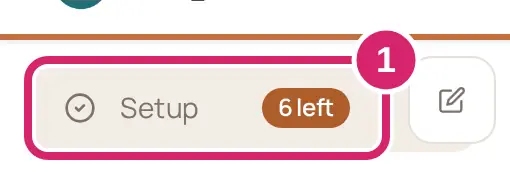
Select Setup at the top of the menu.
Select Hide setup from the menu. On a computer it's at the top right, under how many items are done; on a phone, it's below the list.
Open Setup from Club settings
Once the core items are done, Setup leaves the menu and says The important things are done, so Setup has left the menu. You can find it any time under Club › Setup. The same checklist is always there, hidden or not.
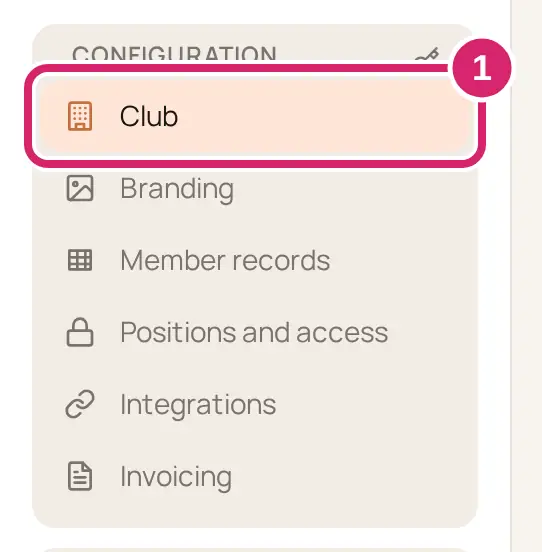
Go to Configuration › Club.
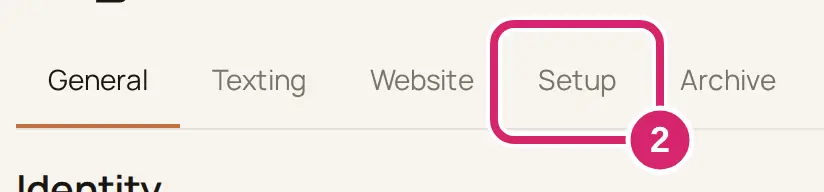
Select the Setup tab.
To put Setup back in the menu while core items are still open, select Show setup in the menu here.
Stop the setup reminder emails
If nothing on the checklist changes for a few days, we email one admin, usually whoever created the club: A few things worth a look in <your club>. It lists the core items still open under Still open, with Open your checklist. It comes after 3 quiet days and again 7 days later, never more than twice.
In the reminder email, select Stop these emails.
On the Stop setup emails page, select Stop these emails.
You see Setup reminders are off. Nothing else changes, and your checklist stays as it is. There's no way to turn the reminders back on. They also stop by themselves once the core items are done, 60 days after the club was created, or when someone hides Setup from the menu.
If something goes wrong
This link to stop setup emails isn’t valid. The link is incomplete. Open it again straight from the email, or hide Setup from the menu instead.
Something went wrong. Try again in a moment. The emails weren't stopped. Select Stop these emails again.
Someone else changed setup just now. Try again. Another admin changed Setup at the same moment. Do it again.
There's no Setup tab under Club. Your club was created before the Setup checklist, so it doesn't have one.