
Give each office in your club a position and each committee a group. Access then follows the job, so handing an office over is one change instead of a hunt through settings.
Why use it
Officers change every year. When the treasurer's access comes from the Treasurer position, the new treasurer takes the position and gets exactly its access, and the previous one loses it.
Nobody keeps access they no longer need, and nobody starts a job without the access it needs.
A committee set up as a group gets one place to be messaged, its own pages and files, and an email address that stays the same when members change.
Decide what's a position and what's a group
A role is what someone can do, such as manage members or run events. LongTable has built-in roles for the usual club jobs, and positions and one-off access hand them out. For each office or team, ask: does it need access, or do its people need to be reached together?
A position — choose it for an office: president, secretary, treasurer, coach. It carries the roles the job needs and outlasts whoever holds it. A position can be open, or held by one person or several, and one with no roles is a title only.
A group — choose it for a set of people you reach together: a committee, a team, the volunteers for an event. It decides who gets a message, who can see a page or a folder, and who gets mail sent to the group's address. A group can't give anyone a role.
Both — choose it for a board. Give each office a position, then make a dynamic group of everyone who holds those positions, so the board’s group changes by itself at every handover. Dynamic groups need the Plus plan or above; on another plan, make a manual group and update it when officers change.
One-off access gives one person one role for a short job. Use it rarely, and remove it when the job is done.
Set up an officer
Watch it done in 15 seconds, or follow the steps below. The numbers in the video match the steps.
Go to Configuration › Positions and access and select Add position.
Enter the office as the Position name, such as Secretary, and what the job involves as the Description.
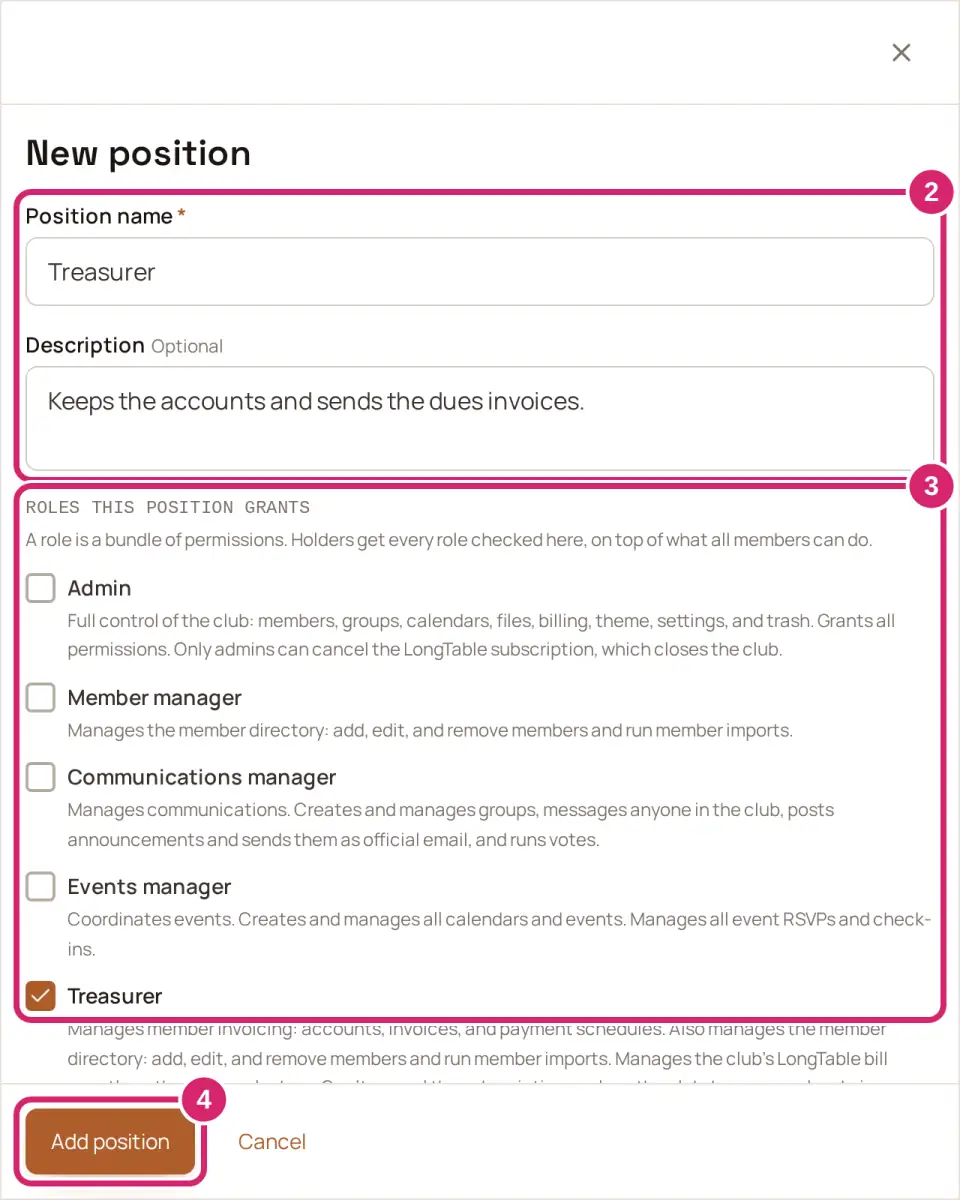
Under Roles this position grants, check the roles the office needs. Some common matches:
A president or chair who runs the club on LongTable takes Admin. Keep Admin to two or three people.
A membership secretary takes Member manager. Add Communications manager if they also send the club's news.
A treasurer takes Treasurer, which also manages your club’s LongTable bill, so they don’t need Billing as well. Whoever created your club starts with Billing, and your club always keeps at least one person with it.
An events or fixtures coordinator takes Events manager, and whoever runs the website takes Marketing manager.
A vice-president, trustee or honorary office takes no roles. The position is a title only: it shows who does the job without giving any extra access.
Select Add position.
Select the new position. Under People in this position, find the officer in Add people, then select Add 1 person.
Select Done.
What each role allows, and what to watch for, is in Give access with roles and positions. Nobody is emailed when they get a position, so tell the new officer yourself. Its access works only once they sign in, so invite them if they haven't yet.
Hand an office over
Watch it done in 20 seconds, or follow the steps below. The numbers in the video match the steps.
On Positions and access, select the position.
Under People in this position, find the new holder in Add people, then select Add 1 person.
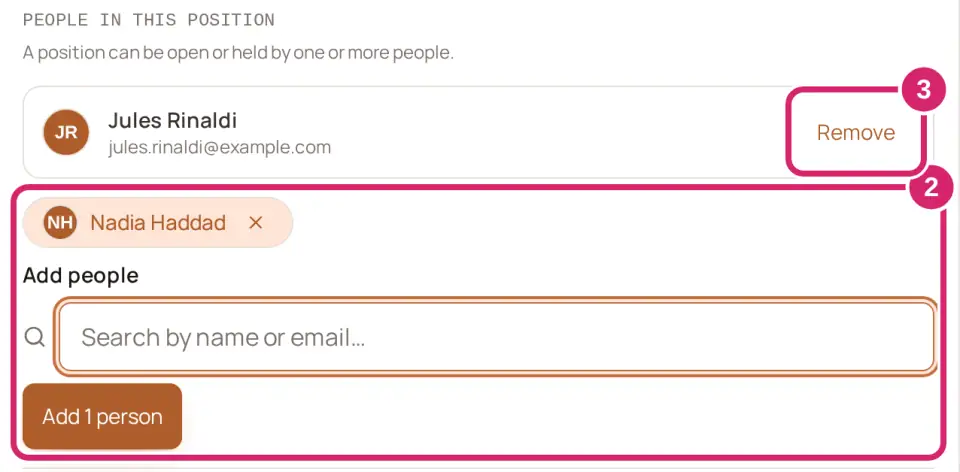
Select Remove beside the previous holder.
Select Done.
The new holder gets exactly the position's access, and the previous holder loses it. Anything they hold through another position stays. Then look under One-off access for anything the previous holder was given for a short job, and select Remove for what they no longer need.
Set up a committee
Watch it done in 15 seconds, or follow the steps below. The numbers in the video match the steps.
Go to Community › Groups and select Add group.
Enter the committee as the Group name, and one line under About this group.
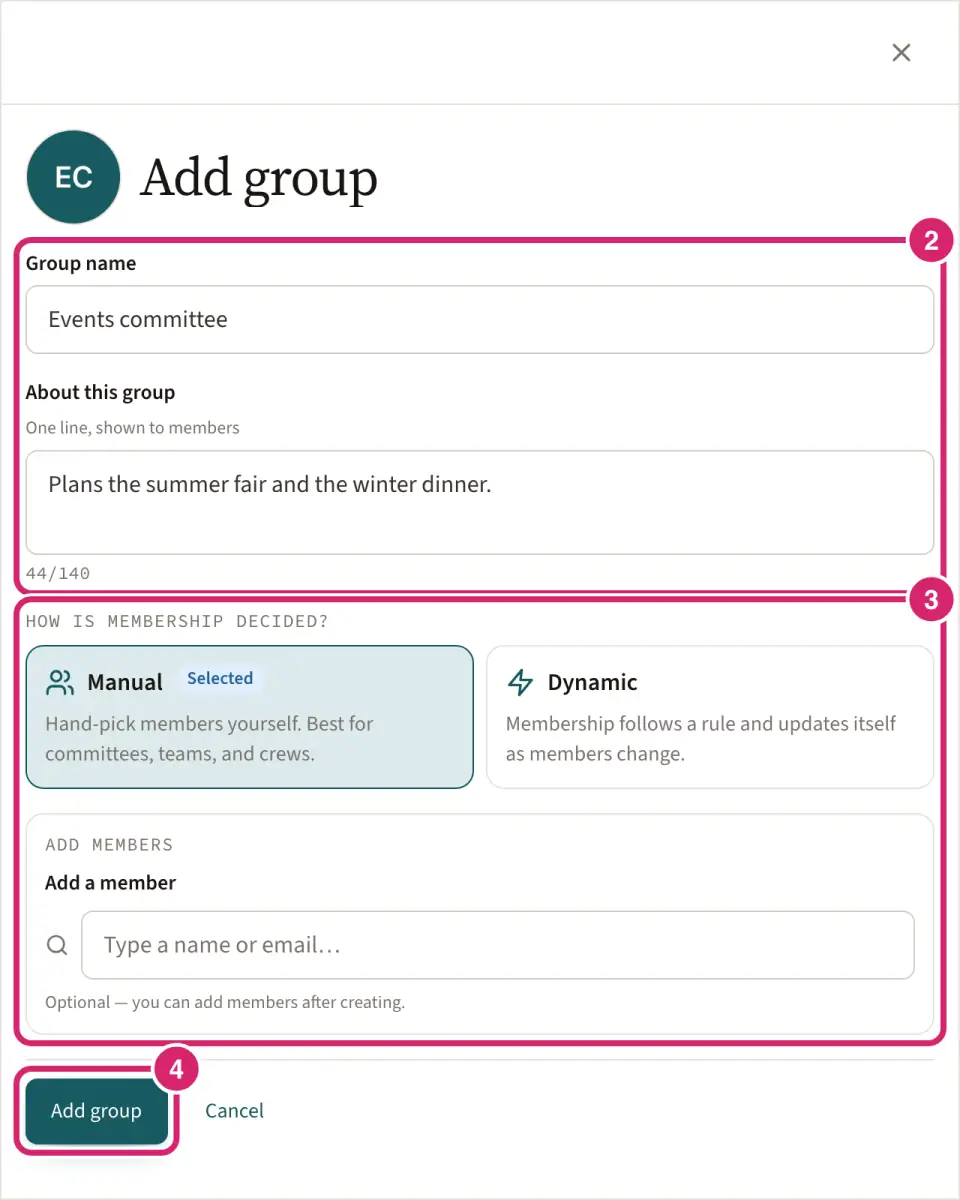
Under How is membership decided?, choose how people get onto the committee:
Manual — choose it for a committee people are elected or volunteer to, such as an events committee or a fundraising team. Add its members under Add a member.
Dynamic — choose it when the committee is made of positions, such as a board of every officer. Set the rule to Position includes each officer position. This needs the Plus plan or above. On another plan, the form offers only Manual.
Leave I’ll be in this group on if you're on the committee. If you turn it off, name the chair under Name an owner.
Select Add group.
Open the group. Under Owners, find the chair in Add owners, then select Add 1 person, so they can look after the committee's members.
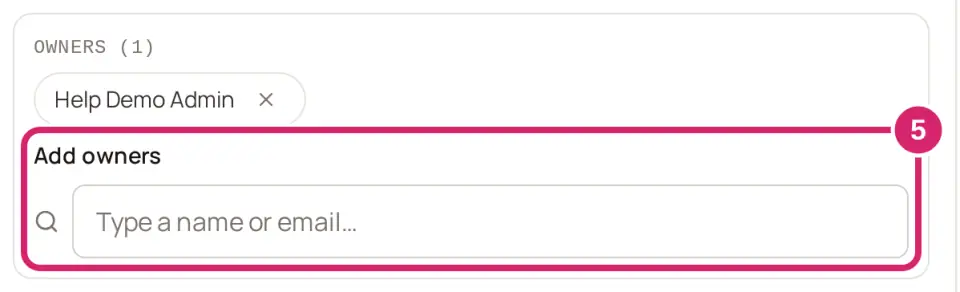
The chair is now an owner of the group. So are you, unless you turned off I’ll be in this group when you added it. Once the chair is added, you can remove yourself under Owners if you're not on the committee. In a manual group, owners are members too, so the chair gets the committee's messages and the mail sent to its email address. The chair can open Group settings on the group to make another member an owner with Make an owner, or to hand the job on with Step down as owner once there is another owner.
Why make the committee a group rather than just a list of names? Because a group lets you:
Message the whole committee with Message the group.
Show a page only to the committee: in the page's settings, choose the group under Restrict to groups, which shows the page only to members in the groups you pick.
Share a folder in Files with the group, so the committee's documents stay with the club when its members change.
Give the committee its own email address that keeps working when members change. See Use a group as an email list.
A committee that handles private matters, such as a welfare committee, can be hidden on the Plus plan or above. Only its own members and owners, and the admins and Communications managers who manage the club's groups, can then see it. Under Group settings, turn off List in member directory. A group members can join on their own always stays listed. See Create and manage groups.
Can a group have a role?
No. A role comes from a position or from one-off access, never from a group. To give a committee something, share it with the group: a page, a folder, messages or an email address. If every committee member needs a role, such as running events, make a position that carries it and add each of them to the position.
If something goes wrong
A position named “…” already exists. Choose a different name. Each position needs its own name, and capital letters don't make a name different. Open the existing position instead, or choose another name.
Still saving the last change. Try again in a moment. You changed who holds the position while the last change was still saving. Wait a moment, then try again.
A group called “…” already exists. Each group needs its own name. Open the existing group instead, or choose another name.
A group needs at least one owner. Add another owner first. When the chair changes, add the new chair as an owner first, then remove the previous one.