
Write a newsletter in LongTable, or upload one you made elsewhere as a PDF, and email it to your members. Every issue you send stays in your club's archive, where members can read it again at any time.
Why use it
Issues stay readable. New members, and anyone who missed the email, can catch up in the archive.
A club template keeps every issue looking the same. Set up your masthead and regular sections once.
Already make your newsletter in another program? Upload the PDF instead of rebuilding it.
Send yourself a proof before the real send. For a one-off notice, send a message instead: a newsletter stays in the archive for good. For news that should sit in front of members until a date, post an announcement.
Decide who can read your archive
Every issue you send goes into your club's newsletter archive. Before your first issue, decide who can read it. Admins and Marketing Managers can change this setting.
Go to Configuration › Club › Website.
Scroll to Visibility. The switch takes effect as soon as you change it.
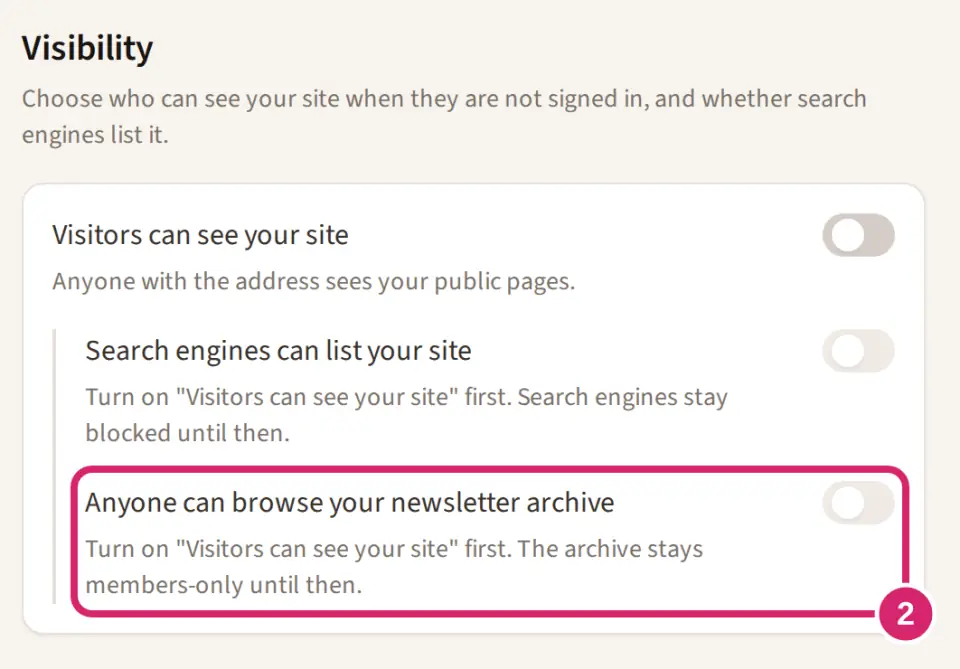
Should people outside the club be able to read your newsletters? That's Anyone can browse your newsletter archive. It's off for a new club.
Off — choose it when issues carry members' names, phone numbers, photos of young members or private club business. Only members who sign in can read the archive, under Community › Newsletters.
On — choose it when your newsletter doubles as publicity, such as a historical society that wants its articles read by the town. Anyone can read every sent issue at your club site's address followed by /newsletters, and download it as a PDF. If Search engines can list your site is on too, search engines can list your issues. That switch needs the Plus plan or above. Below Plus, a Search engine optimization (SEO) card takes its place, and search engines don’t list your site or your issues.
It works only while Visitors can see your site is on; see Make your site public. Turning that off, which LongTable asks you to confirm, closes the archive too, and it stays closed when you open your site again, so turn this switch back on yourself.
You can also list your past issues on a page of your club website with the Newsletter archive block, which signed-in members see.
Create an issue
Go to Community › Newsletters and select New newsletter.
Choose Write here, or Upload a PDF for an issue you made elsewhere.
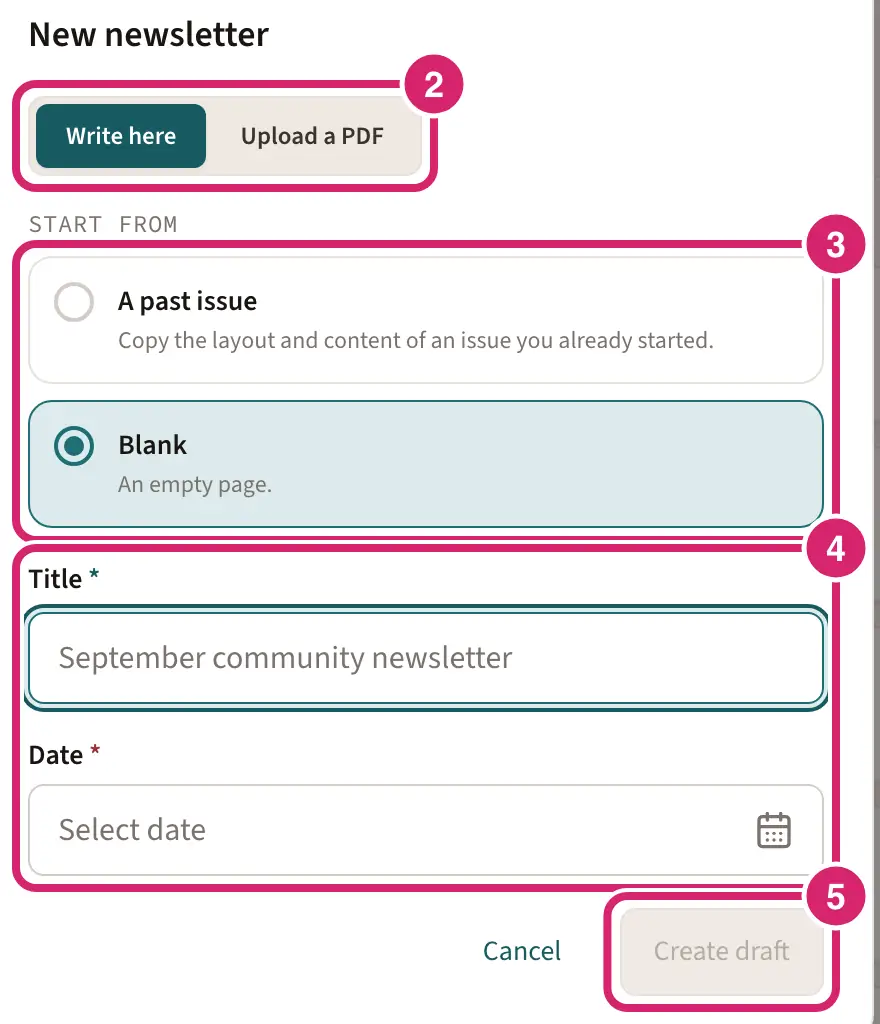
Will you write the issue here, or send one you've already designed? You can't switch an issue between the two later.
Write here — choose it for most clubs. You build the issue in LongTable from headings, pictures, buttons and more, and can start from your club template. Members read the whole issue in their email and in the archive, on any phone or computer.
Upload a PDF — choose it when your editor already lays the newsletter out in another program, such as Word or Canva, and you don't want to rebuild it. Members get a short email, your cover description, with the PDF attached, and the archive shows the PDF.
For a written issue, choose where it begins under Start from.
Should this issue start from a saved layout, or from an empty page? That's Start from. Club template is selected when your club has one; otherwise Blank is.
Club template — choose it for a regular issue, so every month looks the same. It appears once someone saves a club template (below).
A past issue — choose it to build on an issue you've started but not sent, such as a juniors' edition made from this month's draft. It copies that issue's layout and content. Only issues that haven't been sent are listed, so for a look you reuse every month, use the club template.
Blank — choose it for a one-off, such as a special edition for the club's anniversary.
Enter a Title and a Date. The date decides where the issue sits in the archive.
Select Create draft.
The draft opens in the editor. Add text, pictures and more from Build your newsletter, and open the Preview tab to see the email. Your changes save as you go. You edit newsletters in a web browser on a computer or tablet.
Drafts wait under In progress on Community › Newsletters. Select Open to keep working on one.
Send a PDF issue
After Create draft, select Upload PDF under Newsletter PDF. To swap the file, select Replace PDF.
Write a short Cover description. It becomes the email, and the PDF is attached to it.
A newsletter PDF can be up to 7 MB, the same limit as an email attachment. To schedule a PDF issue, the file must be much smaller. If it is too large, send it now instead.
Send it
When the issue is ready, select Finalize….
To check it first, under Send a proof, choose who gets a test copy and select Send proof. You can send as many proofs as you like.
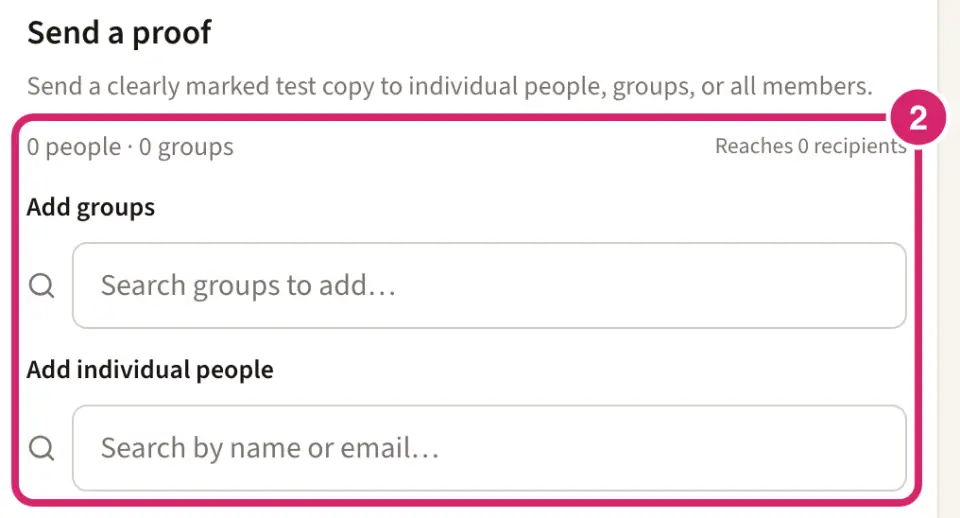
Who should check it before everyone gets it? Send proofs to yourself and whoever reads it over for you, such as the club secretary. A proof's subject starts with Proof: and it's marked as a test, so check the pictures, links and spelling in a real inbox. A proof is still a real email and counts toward your monthly allowance, so don't send it to All members.
If something in the issue still looks unfinished, such as a button that goes nowhere, a template placeholder or a photo with no description, a list above Send proof names it. The same list sits above Finalize and send. Select Show to go straight to that part of the issue and fix it. The list only warns: you can still send.
Under Finalize and send, choose who gets the issue.
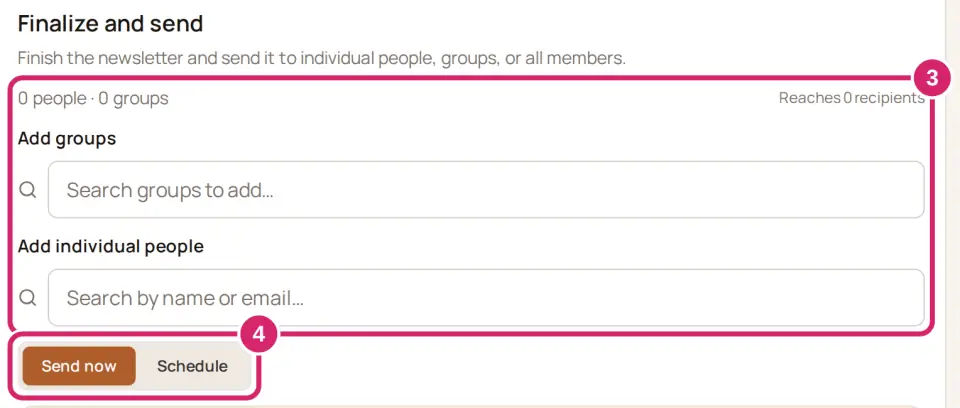
Who should get this issue? Nobody is chosen to start, so pick at least one group or person.
All members — at the top of the list that opens under Add groups. Choose it for the club newsletter everyone should get. It reaches every member in your directory with an email address, except those who unsubscribed.
Add groups — choose it for a newsletter meant for part of the club, such as a juniors' newsletter going to everyone in the Juniors group. Someone in the group who was invited but hasn't joined the club yet isn't sent it.
Add individual people — choose it to add a few members outside those groups, such as a past president who likes to keep up. Anyone chosen twice gets one copy.
Choose Send now or Schedule. Below the Plus plan there’s no choice to make: a Scheduled messages card takes their place, and the issue goes out when you finalize it.
Should it go as soon as you finalize, or at a set time? Send now is selected to start.
Send now — choose it when the proof looks right and the issue is ready.
Schedule — choose it to send at a regular time, such as the first Monday of the month at 8 AM, in your club's time zone. It goes to whoever is in the chosen groups at that time. A PDF issue must be much smaller to schedule.
Select Finalize and send, or Finalize and schedule.
The email's subject is the issue's title.
Every issue and proof opens with your club's name, and its logo when your club has one. The footer tells each member why they got it, such as belonging to one of the groups you chose.
Members who unsubscribed from your club's email don't get newsletter emails. They can still read every issue in the archive.
Each person a newsletter reaches counts toward your club's monthly email allowance. During your club's demo, a send that would go over the smaller demo allowance is refused, with a note that says whose limit it is. See Send a message.
A scheduled issue shows Final under In progress until it goes out. To stop it, select Cancel under Scheduled to send on Community › Messaging.
If your club’s plan no longer includes scheduling when the time comes, the issue isn’t sent. It goes back to In progress as a draft, and whoever scheduled it gets an email saying that scheduled sending needs the Plus plan. Open it and send it now instead.
After it's sent
The issue moves to Archive, grouped by year. Members select an issue to read it, and Download PDF to keep a copy. In a web browser, a PDF issue opens right on its page.
To correct a sent issue, open its menu in Archive and select Revise. This changes only the archived copy, not the email members already got. To email the correction, select Re-send…, then Re-send now or Schedule re-send.
If your club uses Files, sent issues also appear there in the Newsletters folder, by year and month.
To delete an issue that isn't sent yet, open its menu under In progress and select Delete. It goes to Trash, where you can restore it for 90 days.
Add past issues
Bring older issues into your archive without emailing anyone.
Select Import past issues, then Choose PDFs…. Name each file with its date and title, such as “2024-05-01 Spring news.pdf”. Fix any date or title the window flags, then select Import.
For an issue you wrote here with a past date, select Finalize…, then Archive as historical.
Imported issues are marked Imported and are never emailed.
Set up your club template
On Community › Newsletters, open the Club template tab.
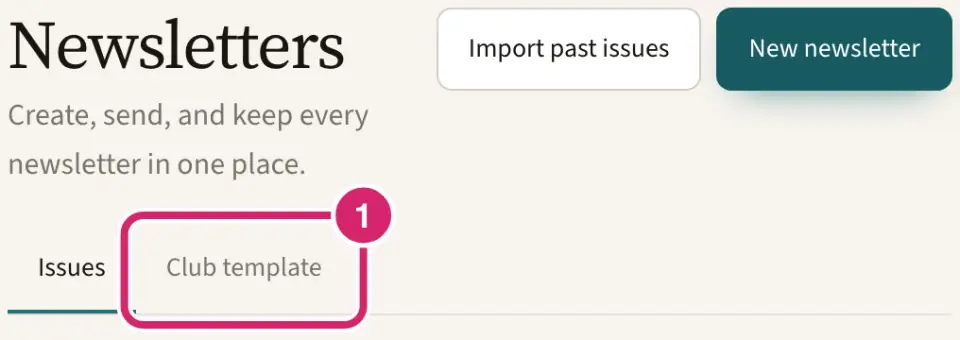
Build your masthead and the sections every issue shares.
Select Save template.
Changing the template never changes an issue you've already created.
If something goes wrong
You don't see Newsletters in the menu, or a newsletter link opens the club home with The Newsletters section is turned off for this club. Your club has switched newsletters off. An admin can turn Newsletters back on under Configuration › Club, in Features. Past issues come back unchanged.
Upload a PDF for this newsletter before sending it. Select Upload PDF in the editor first.
That PDF is … MB. A newsletter PDF must be 7 MB or smaller, the same limit as an email attachment. Make the file smaller, then upload it again. Save a smaller copy of the PDF, for example with lower-quality images, and upload that.
This PDF is too large to hold for a scheduled send. Send the newsletter now instead, or upload a smaller PDF.
This PDF couldn’t be shown here. Use Download PDF to read it. Some PDFs, such as password-protected ones, only open after you download them.
This newsletter is scheduled to send. Cancel it under Messaging › Compose › Scheduled to send, then delete it. Cancel it under Scheduled to send on Community › Messaging, then delete the issue.
Your changes are not saved yet. Someone else saved the issue first, or you did in another tab or on another device; the notice says who. Select Load the latest version. Your changes stay on this device: select View my changes to copy them back in. Delete my copy asks before it removes them.