
Ask the LongTable assistant a question, or ask it to do a job for you in your own words, such as importing members or building a page. It shows you each change first, and nothing changes until you confirm it.
Why use it
Get a job done by describing it, without hunting for the right screen: “Add Jamie Lee to the Garden Committee group.”
Take on big jobs in one go, such as importing the member spreadsheet you already keep or bringing your old website across.
The assistant can do only what your own role allows. Give each volunteer the role their job needs, and the assistant keeps to the same limits.
Read each change before you confirm it. If something doesn't look right, select Not now and tell the assistant what to change.
Decide what to ask the assistant
Should you ask the assistant, or do the job yourself? Each message you send uses some of your club’s AI credits.
Ask the assistant. Choose it when a job would take you across several screens, or there’s a lot of it: last season’s spreadsheet of members, your old website, a new page, this month’s newsletter. It knows these jobs from start to finish:
Import members from a spreadsheet or another file you already keep. It matches your columns to your club's member fields, then asks you to confirm the import.
Build or change your website's pages, and change its colors, logo, header and footer.
Bring your existing website across: its pages, pictures, documents, events and committee members.
Write, design and send a newsletter.
Give someone a role, by putting them in a position that carries it. Only admins can ask for this.
Handle everyday jobs with members, groups, events, messages, files, your club's settings and your own profile.
Do it yourself. Choose it for a quick change you know where to make, such as one member’s phone number or an event’s start time. It’s quicker than describing it, and it uses no credits.
You're offered only the jobs your role allows, for the features your club uses. The assistant can't change billing or your plan, member invoices, integrations, sign-in and security settings, support tickets or your club's web address, and it can't read the audit log. Do those yourself in LongTable.
Already pay for Claude or ChatGPT? You can also connect your own AI tool and ask it the same jobs. It uses none of your club’s credits.
Ask the assistant
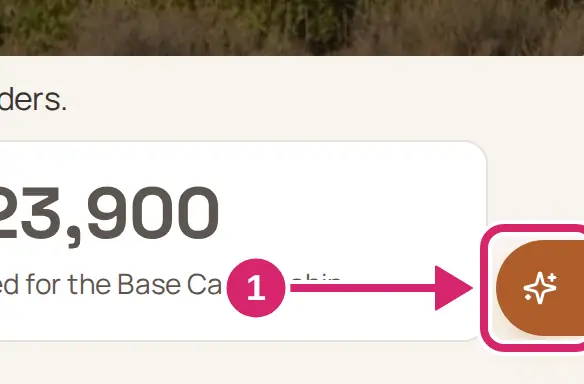
Select the sparkle button on the right edge of any screen, near the bottom. If you don't see it, your role can only view the club, or your club has turned the assistant off.
Type your question or request in Ask about this club.
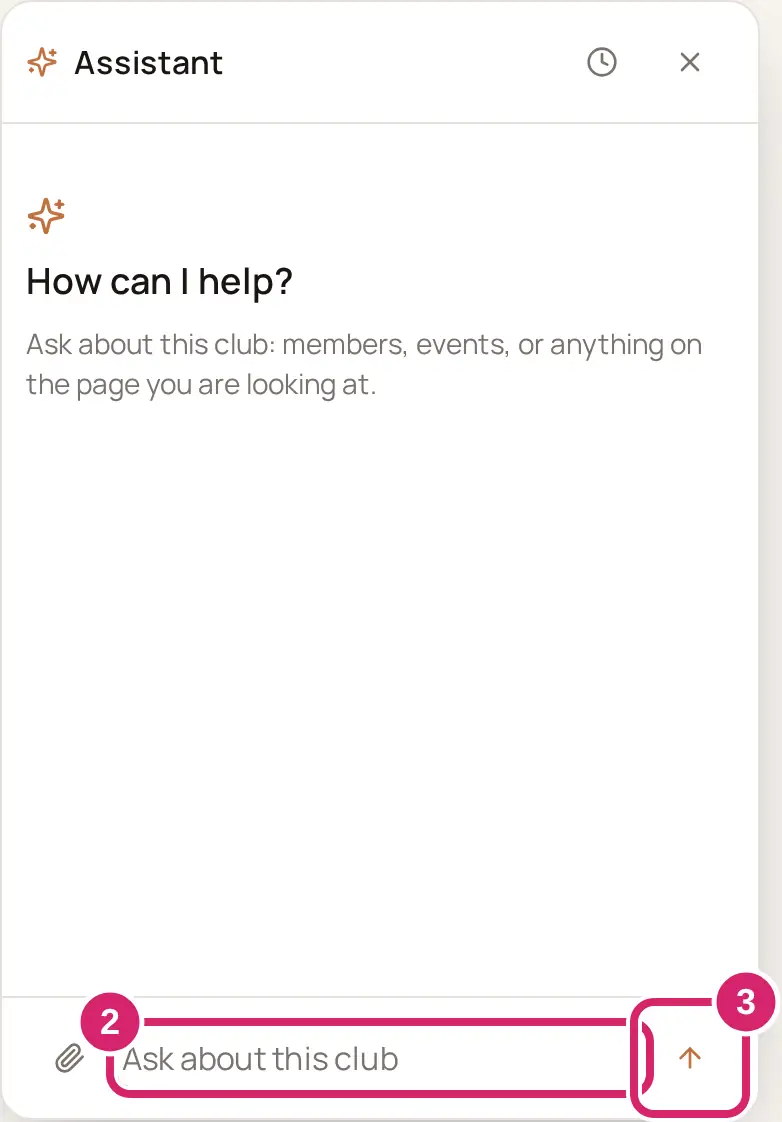
Select Send.
If the assistant asks you a question with choices, pick your answers and select Send answer. To pass on the question, select Skip.
While it works, the assistant says what it's doing, such as Checking your club’s information…
If a reply stops before it finishes, the assistant says My last reply was interrupted before it finished. Select Carry on to let it finish.
To put the assistant away, select the X. In a web browser, you can also click anywhere on the page. Open it again and your conversation is still there.
To start over, select the plus sign (New session) at the top of the assistant.
Approve a change
Before the assistant changes anything, it shows a card that says what it will do. A bigger job shows as a plan, with a numbered line for each change. LongTable writes the card from the exact change that will run, so the card, not the assistant’s reply above it, is what happens when you confirm.
Read the card. Its first line names the job. The line that starts This will … says what changes, such as the page, the file, or whether a message goes to all members.
Select Confirm to make the change, or Not now to leave everything as it is.
Confirm. Choose it when the card says exactly what you asked for: the right page, the right people, the right file. The change is made straight away.
Not now. Choose it when anything on the card surprises you: a step you didn’t ask for, more people than you meant, a different file. Nothing changes. Tell the assistant what to fix, and it shows you a new card.
After you confirm, the card says Making that change… and then what happened. It often links to what changed, so you can check it.
After Not now, the card says Left alone. Nothing was changed. The assistant is told you said no, so you can tell it what to change.
Confirm within 10 minutes. After that, nothing changes; ask the assistant again.
If a plan changed after the assistant showed it to you, nothing runs, and the assistant shows the updated plan for you to confirm.
If a plan stops partway, the card says Some steps were done and some weren’t. The ones that were done stay done. It lists the changes under Done and Not done, with the reason beside each one that wasn’t done. Ask the assistant to try the rest again, or make those changes yourself.
Give it files
In a web browser, you can give the assistant files as attachments: a spreadsheet of members, a photo of a noticeboard, or a meeting's minutes as a PDF.
Select the paperclip (Attach a file).
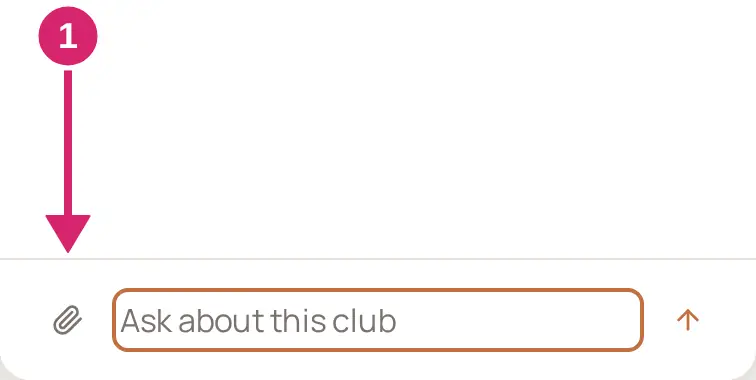
Choose your files. Attach only what the job needs.
Attach it when the job needs what’s in it: the roster you want imported, the flyer you want turned into an event, the minutes you want summarized for the newsletter.
Leave it out, or trim it first, when it holds private details about members that the job doesn’t need, such as dates of birth, health notes or bank details. Delete those columns from a spreadsheet before you attach it.
Type what you want done with them, then select Send.
A message can carry up to 4 files, each up to 5 MB. Pictures, PDFs and text files can add up to 8 MB per message.
The assistant reads pictures (JPEG, PNG, GIF and WebP), PDFs, text files, CSV and Excel spreadsheets, and Word documents.
Your files show under the message box until you send them. To take one off, select the X on its name.
Go back to an earlier chat
Select the clock (Earlier chats) at the top of the assistant.
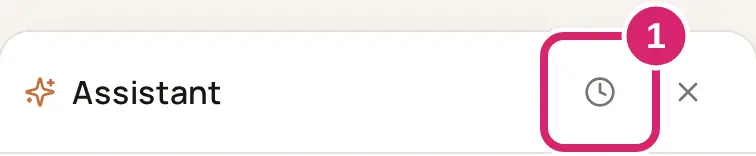
Select a chat to read it.
Earlier chats are read-only. To ask something new, select Start a new session.
Select Delete to remove a chat. Otherwise a chat is removed automatically seven days after its last message.
Only you can open your chats. An earlier chat shows what you wrote and what the assistant answered, not the files you attached.
A few minutes after the assistant's last answer, the session ends and the assistant says AI assistant session ended. Select Start a new session to carry on. Your chat stays in Earlier chats.
When your club's AI credits run out
When your club has used this month's AI credits, the assistant pauses and says This club has used its AI credits, with the date they start again. Everything else in your club works as normal.
If you can see your club's billing, select See plans to move to a plan with more credits. If you can't, the assistant says to ask whoever manages your club's billing.
Under Use the AI you already pay for, it shows how to connect your own AI tool. That uses none of your club's credits.
A change the assistant already showed you can still be confirmed.
During a demo, the assistant has a smaller allowance until your club's first payment goes through, and says This club is on a demo allowance instead. If you can pay for your club’s plan, select Start paying now to start the full allowance. Otherwise it says Ask a billing manager to start paying.
Admins can see how much of this month's credits the club has used: go to Administration › Billing and look at AI credits.
If your club turns the assistant off
An admin can turn the built-in assistant off for the whole club, with the Assistant switch under Features in Configuration › Club. Change your club’s name, time zone and features explains the switch.
Nobody in the club sees the sparkle button, and the buttons that offer to do a job with the assistant are hidden too.
Nothing is deleted. When it’s turned back on, earlier chats are still there, until seven days after their last message.
A member who has connected their own AI tool can keep using it. It doesn’t go through the built-in assistant.
If something goes wrong
This club has used its AI credits Your club's credits for the month are spent. Wait for the date shown, move to a bigger plan, or connect your own AI tool.
AI assistant session ended Select Start a new session.
I couldn’t finish that. Try again in a moment. Wait a moment, then send your message again.
The assistant is turned off for this club. An admin can turn it back on in Configuration, under Club and Features. An admin has turned the assistant off. Ask them whether it can come back on.
I couldn’t make that change, so nothing was changed. The card says why when it can. Ask the assistant to try again, or make the change yourself in LongTable.
A message can carry 4 files, so I left out … Send the files it kept first, then attach the rest to your next message.
We couldn’t attach … Check that the file is 5 MB or smaller, then attach it again.