
You're reading a LongTable club site
This help site is built the same way your club builds its website: pages, a menu, a look of its own, and a public face with members-only pages behind it. Here's how we run it, and some ideas you can borrow.
One home page, seven sections
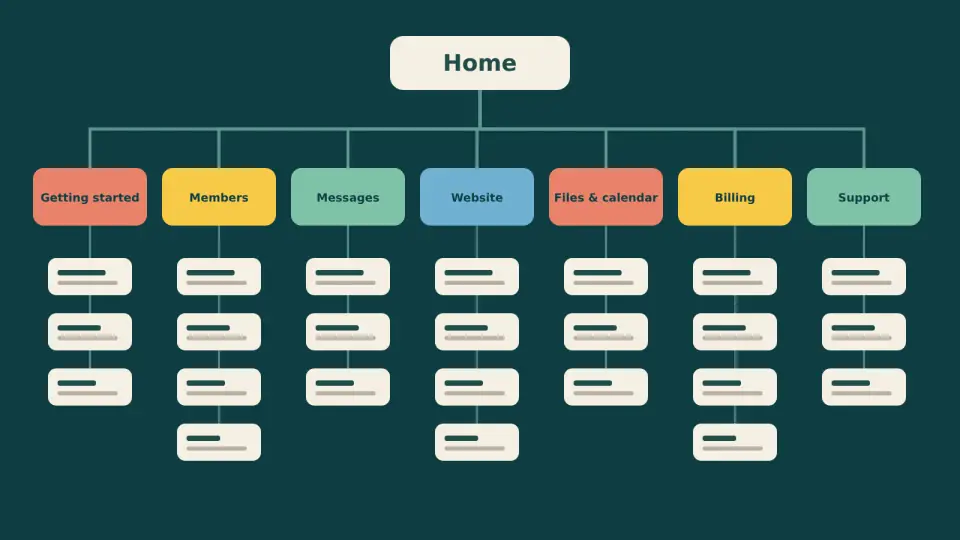
The site has a home page and seven sections: Getting started, Members, Messages, Website, Files and calendar, Billing, and Support. Each section is a page with guides underneath it, and the menu follows the same tree. Nobody is more than two clicks from a guide.
We build pages from blocks, the way you will, and we keep the order and labels in the menu tidy so a section reads like a table of contents. If you want to do the same, start with Build and edit pages and then Organize your website's menu.
Four habits that keep it easy to use
Habit 1
One job per page
Each guide answers one question, like how to send a newsletter. When a page starts doing two jobs, it becomes two pages.
Build and edit pagesHabit 2
Titles that name the task
A title starts with what you want to do. Invite members to sign in is easier to find than Invitations.
Organize the menuHabit 3
Pictures that are described
Every picture gets alt text, so someone using a screen reader knows what a screenshot shows.
Add pictures to a pageHabit 4
One look everywhere
Colors, logo, header and footer are set once, so every page matches without anyone fiddling with each one.
Change your lookOpen to everyone, private while we work
A help site that asks you to sign in doesn't help much, so this one is open to anyone. That comes from one switch, Visitors can see your site, plus a public setting on each page. Make your site public walks through both.
Every new page starts as members-only, so a guide can be half written for as long as it needs to be and nobody outside sees it or finds it in the menu. We make a page public when it's ready. Edits go through a draft too: nothing changes on the live page until someone publishes it.
A second pair of eyes on every page
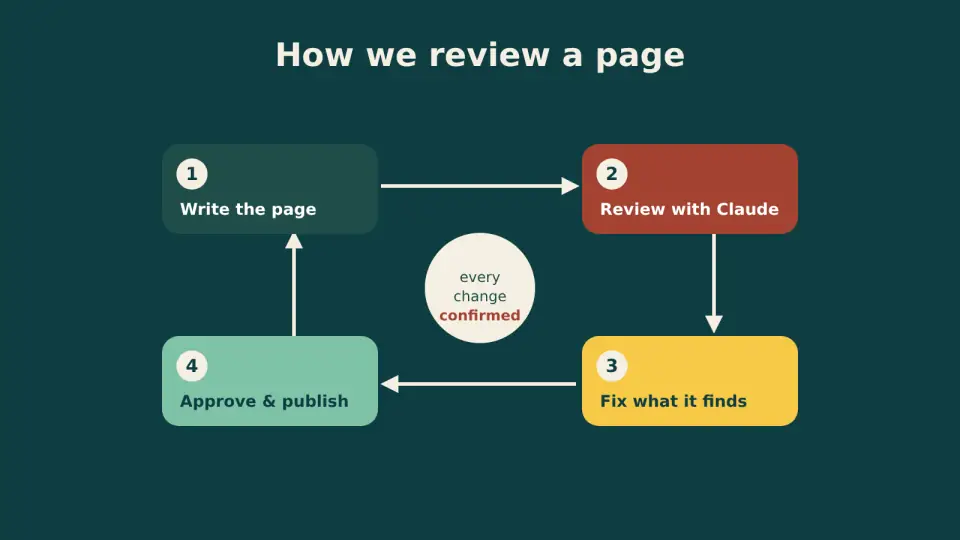
LongTable can connect to Claude with a custom connector. We use that connection to review the help site. Claude reads the pages, checks them against our list, and tells us what it finds. We decide what to change, and nothing is saved until someone confirms it. Setting this up for your own club is covered in Connect your own AI tool, and the in-app version is Use the LongTable assistant.
What a review looks at
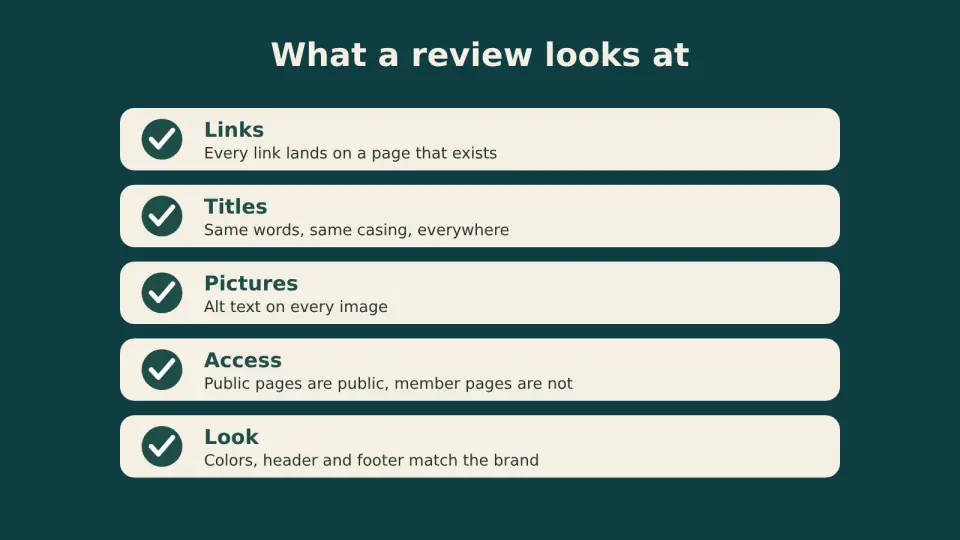
Links. Every link lands on a page that exists, and not on one that's still private.
Titles. The menu, the page and the links to it use the same words and the same casing.
Pictures. Each one loads and has alt text.
Access. Public pages are public and member pages are not.
Look. Colors, header and footer match what we chose.
Every change is recorded, so we can always see who changed what in the audit log.
Found through search, improved by what people read
We publish the site's sitemap to search engines, so Google and others know which guides exist and pick up new ones sooner. On the Plus plan and above, whether search engines list your site is your choice, and it's covered in Make your site public.
We also use LongTable's Google Analytics connection to see which help articles people open and use. Popular guides get checked and polished first. A guide that few people reach gets a clearer title or a link from somewhere more obvious. That's how a help site gets better for the people using it.
Ideas to borrow for your club's site
A club site doesn't have to be a brochure. These are some ways to use the same pieces.
For newcomers
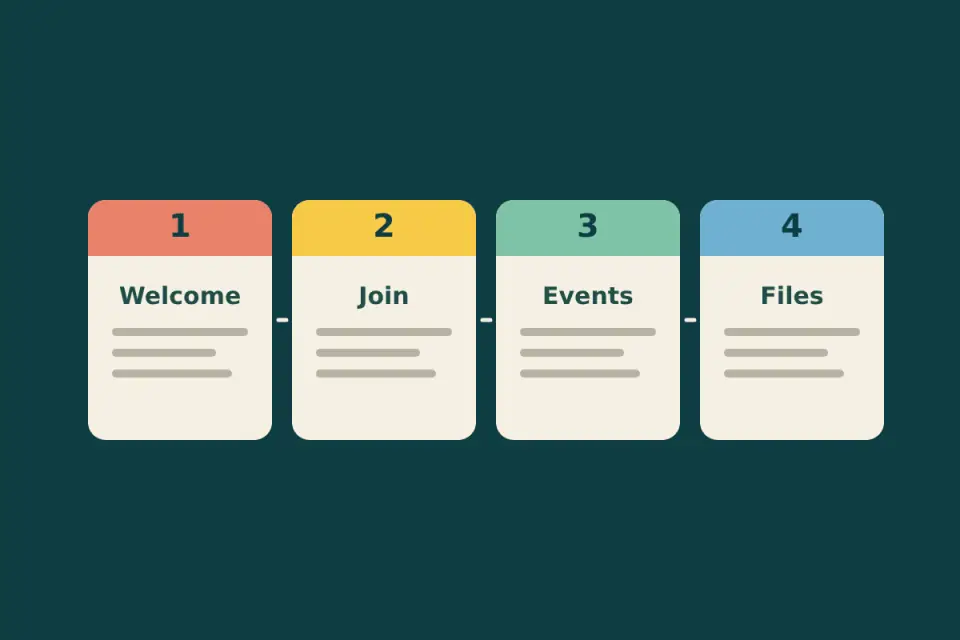
A welcome path
Welcome, then Join, then Events, then Files. Each page points to the next, so a newcomer always knows what to do.
Invite members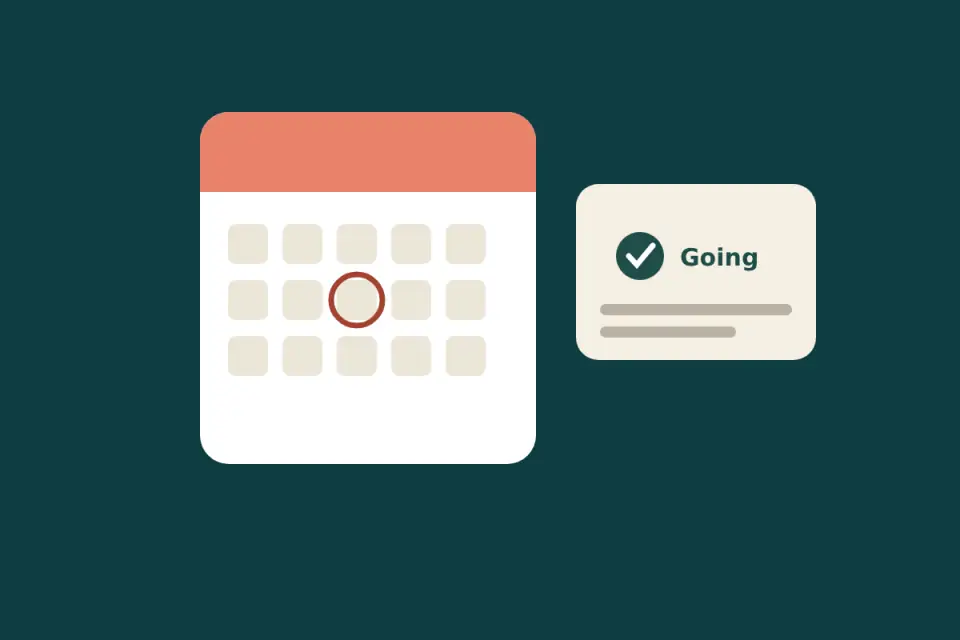
For the calendar
Events that take RSVPs
An Event block on a public page shows the details and takes replies. Visitors never see who's coming.
Create events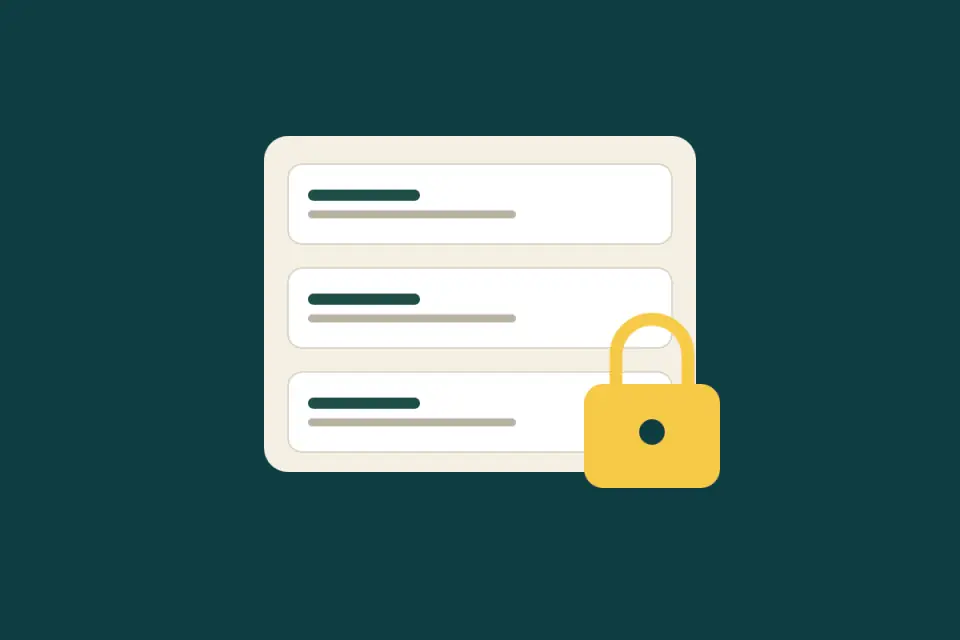
For the committee
Members-only files
Keep minutes and forms in folders only members can open, while the rest of the site stays public.
Share files
For the news
A newsletter archive
Every issue you send is kept. Open the archive and past issues read like a news page.
Send a newsletterMore ideas
Give each committee a page of its own
Make the committee a group, then restrict a members-only page to that group in Page settings. Only its members see the notes and plans.
Let people ask to join from the site
Put a Join request block on a public page. Requests arrive in LongTable, and you approve them as described in Invite members to sign in.
Show live information instead of typing it
Calendar, Files and Member directory blocks show the real thing, so a page never has a stale list of dates or names. They only show to signed-in members, which keeps them off your public pages.
Run a hosted event from one page
Follow replies, fill sign-up slots and share a flyer link from one place, with a QR code and printable PDF on the Basic plan and above. See Run a hosted event.
Start from the site you already have
Give the assistant your old site's address and it rebuilds your pages, pictures and events here. You confirm before anything changes. See Import your existing website.
Build yours
Set up your club, then make a site your members actually use.