
Send an email or a text to your whole club, to a few groups, or to a few people, now or at a time you choose. LongTable works out who is in each group, so you never keep a mailing list by hand.
Why use it
Reach the right people without keeping a mailing list. Choose groups, and each message goes to whoever is in them today.
Use email for news with detail, a file or an event. Use a text (SMS) for something short and urgent, such as a canceled practice.
Schedule reminders ahead, so they go out on time even on a busy day.
Save official messages for news every member must get. They also reach members who unsubscribed from your club’s email.
Choose a message, an announcement or a newsletter
LongTable gives you three ways to tell members something. Pick the one that fits the news.
A message — choose it for news that should land in inboxes or on phones once, such as a practice reminder, a change of place or a call for volunteers. It goes by email or text to the groups or people you pick.
An announcement — choose it for news members should notice every time they open LongTable until a date passes, such as a closure or a sign-up deadline. It shows as a banner, and can go out as an email too. See Post an announcement.
A newsletter — choose it for a regular roundup, such as a monthly issue. Each issue is dated and stays in your club's newsletter archive, where members can read past issues. See Send a newsletter.
Send an email
Watch it done in 20 seconds, or follow the steps below. The numbers in the video match the steps.
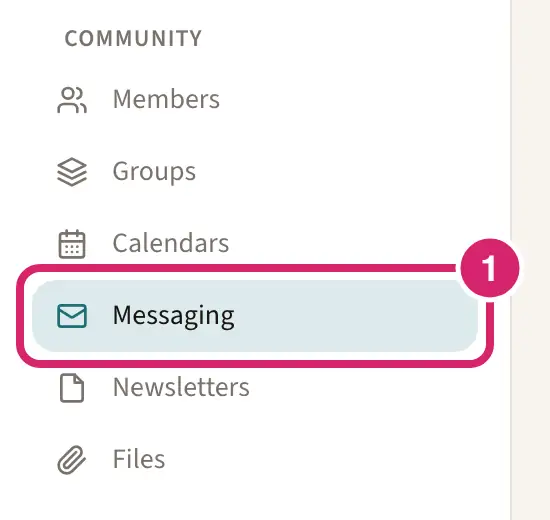
Go to Community › Messaging.
On the Compose tab, choose Email.

Email or a text? Most news goes by email. Save texts for news that can't wait.
Email — choose it for most news, and for anything with detail, pictures, a file or an event: the season's schedule, a volunteer rota, the minutes. It reaches everyone with an email address who hasn't unsubscribed, and they read it when they're ready.
Text — choose it for something short that people must see within the hour: practice canceled for rain, or a new meeting place on the day. An admin first sets up texting for your club. A text reaches only members who agreed to get texts from your club. A mobile number you entered or imported isn't enough. Most plans also allow far fewer texts than emails each month.
Choose who gets it.
Who needs this news? Choose the smallest audience that does.
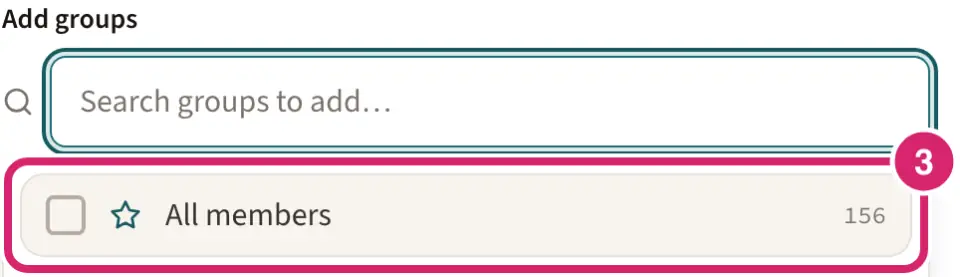
Add groups — choose it when the news is for one team, committee or class, such as the under-10s or the garden committee. Search for the group, then select it. The message goes to whoever is in the group when it's sent, owners included. Someone in two of the groups you chose gets one copy.
All members — at the top of the list that opens under Add groups. Choose it only for news that concerns everyone, such as the annual meeting or a closure. It reaches every member in your directory, including members in no group.
Add individual people — choose it for a few named people, such as this season's new members. You can add people and groups to the same message.
LongTable shows how many people the message will reach, and you get a copy too. Group owners see only Add groups, with the groups they own.
Enter a Subject.
Select Edit message. Write your message, adding pictures, buttons and more from Build your message. Select Done when you finish.

Should it look designed, or like a personal note? Choose at the top of the Message studio. Rich email is selected to start.
Rich email — choose it when pictures, buttons or headings help, such as an invitation to the summer picnic with a photo and a sign-up button. Members get a formatted email. Some email apps show a plain version instead.
Plain text only — choose it for a short note that should read like a personal email, such as a thank-you from the chair. Members get text only. The editor then offers plain paragraphs, pictures don't show (members see a short note in their place), and a button becomes its label and web address.
You can switch back at any time before you send. Nothing you wrote is lost.
To send a file as an attachment, select Attach file. To add an event from your calendar, turn on Calendar event and choose it.
Under Delivery options, decide whether to send it as an official message.
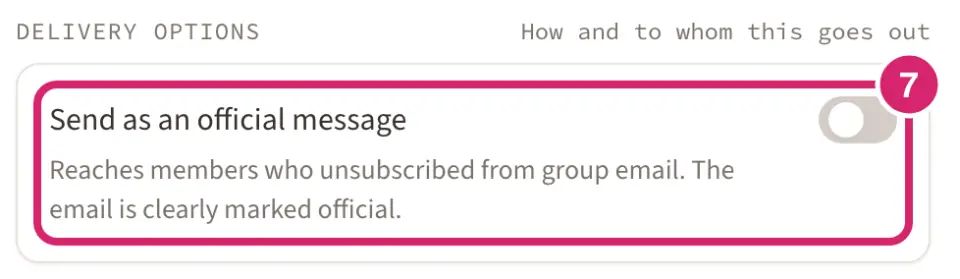
Should it reach members who unsubscribed from your club’s email? That's Send as an official message. It's off each time you start a message.
Off — choose it for almost everything: reminders, socials, fundraising, calls for volunteers. Members who unsubscribed are skipped, and the result after sending counts them.
On — choose it only for news every member must get, even those who asked for less email: notice of the annual meeting, a change to dues or rules, or a safety notice. Everyone gets it. Its subject starts with [Official], and the line at the top reads Official message from and your club’s name, with a line under it that names you as the sender.
Admins and Communications Managers see this switch. Group owners don't. It applies to email only.
Select Preview email to see the email as members will get it.
Under When to send, choose Send now or Schedule.
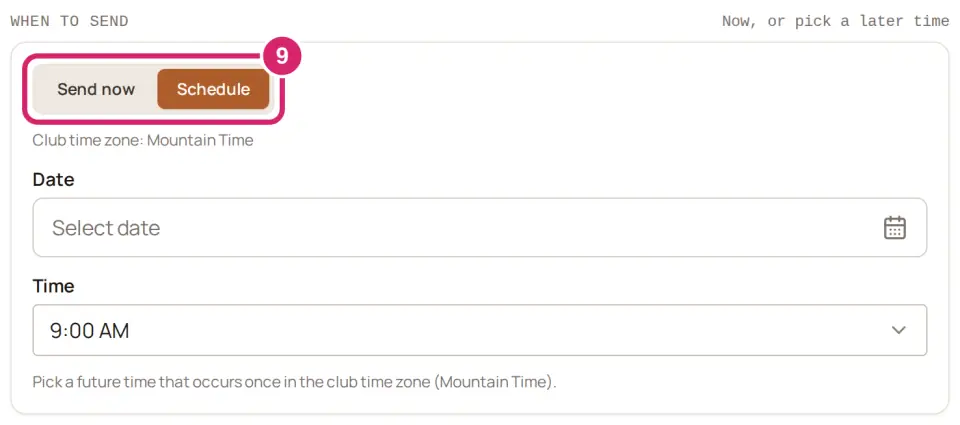
Should it go now, or arrive at a set time? That's When to send. Send now is selected to start.
Send now — choose it when the message is ready and the news is current. It goes as soon as you select Send email.
Schedule — choose it for a reminder that should arrive at a set time, such as the evening before a work party, or to write tonight and send in the morning. Pick a Date and Time. They use your club’s time zone, shown above them. Scheduling is on the Plus plan and above; below it, When to send is replaced by an upgrade note and every message goes when you send it.
A scheduled message goes to whoever is in the groups when it’s sent. If it can’t go out then (your club’s monthly allowance has run out, a group is gone, or you no longer have the right to send), nothing is sent. It comes back to the bottom of the Compose tab under Drafts that didn’t send, marked Didn’t send with the reason. Pick a new Date and Time and select Schedule again, or select Discard.
Select Send email, or Schedule email if you scheduled it.
You write an email in a web browser on a computer or tablet. The editor needs more room than a phone gives it.
Attached files can add up to 7 MB in total. They go out as copies inside the email.
When the message goes out, the app shows how many people it reached, and how many were skipped because they have no email address or unsubscribed.
If you own a group, you can message it even without Messaging in your menu. Go to Community › Groups, open the group, and select Message the group. You can send only to groups you own.
Send a text
Your club texts from its own number, which an admin registers first: see Set up texting for your club. Until it's ready, Text is greyed out with the reason, such as Texting isn’t set up for this club yet. Admins get a link to set it up.
On the Compose tab, choose Text.
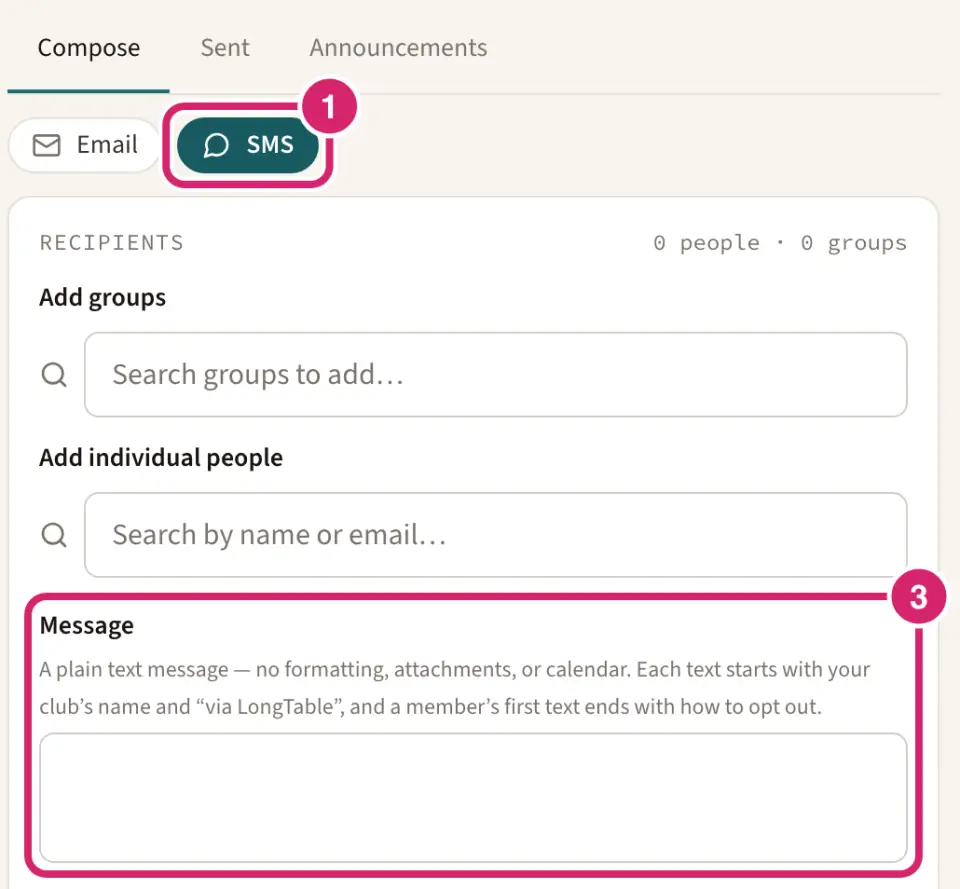
Choose who gets it, the same way as for an email. The count starts with Up to, because only members who agreed to texts get one.
Write your Message. From above it shows your club's number, the one every recipient sees.
Below the box, a line counts what the message uses, such as This message is 2 texts long, so sending it to the 10 phones that can get texts uses 20 texts. You have 250 left this month. A long text goes in several text parts, and one emoji or curly quote makes each part shorter; the line names the character when that happens. If the message needs more texts than your club has left, Send text is turned off and the line says how much to shorten it, or to send to fewer people.
Under When to send, choose Send now or Schedule, the same way as for an email.
Select Send text, or Schedule text if you scheduled it.
Texts are plain text, with no files, events or official-message switch.
Only members who agreed to get texts from your club receive them. Each member agrees in their own profile, or tells you and you record it on their record. A mobile number you entered or imported doesn't count on its own.
A member's first text from your club starts with the club's name and ends with Reply STOP to opt out. Later texts are your message alone.
A text can be up to 1,600 characters, including your club's name at the start and the line that tells members how to stop texts.
Cancel a scheduled message
Messages waiting to go out are listed under Scheduled to send, at the bottom of the Compose tab. Select Cancel to stop one. You can cancel on any plan.
See what you've sent
The Sent tab lists the messages sent to your groups, newest first, and shows who each one reached. Group owners see the messages sent to the groups they own. An announcement’s official email is listed here too: open it and its Type reads Official announcement email, with a View the announcement link.
Watch it done in 15 seconds, or follow the steps below. The numbers in the video match the steps.
Go to Community › Messaging and open the Sent tab.

Each row shows the Subject, when it was Sent, the Channel, the Groups, how many Recipients and the Sender. Search by subject, group or sender to find one.
Select a message. It opens beside the list with when it was sent, who it was from, the channel, the recipients, the groups and the message itself.
Under Delivery, check each recipient's outcome. The chips above the list count each outcome; select one to show only those people.
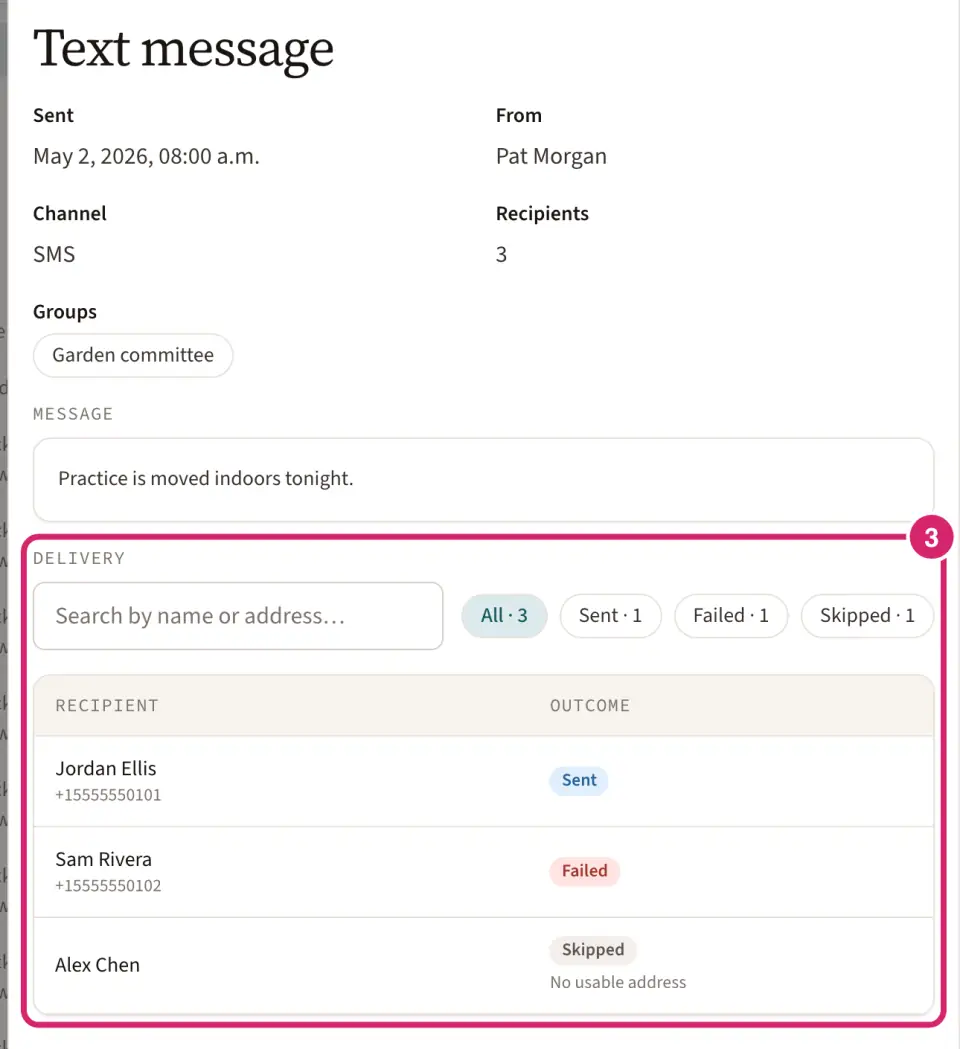
Delivered — the email reached the recipient's inbox.
Sent — it went out, and no delivery report has come back yet. Texts stay at Sent.
Bounced — the email address didn't accept it. Check the member's email address.
Failed — it couldn't be sent. The reason is under it, such as This number can’t get texts from the club or The address wasn’t accepted.
Skipped — it wasn't sent to this person, with the reason: No usable address, Hasn’t agreed to texts or Opted out.
Your monthly allowance
Each plan includes a number of emails and texts a month, and most include far fewer texts than emails. Every person a message reaches counts, you included, and an official message counts members who unsubscribed too. The count starts again at the beginning of each month. To see what each plan includes, compare plans.
If a message would take your club over what's left this month, nothing is sent, so nobody gets half a mailing. You can see this month's Emails sent and Texts sent on Administration › Billing.
While your club is in its demo, it sends on a smaller demo allowance, and texting starts once the plan is paid. On Administration › Billing, those counts are marked Demo allowance.
If something goes wrong
This plan allows … email recipients per month. This send of … is more than the … left this month, so nothing was sent. Send to fewer people, wait until next month, or move to a plan that includes more. For a text, the message counts texts instead of email recipients.
This club is on a demo allowance of … per month until its plan is paid. … Nothing was sent. Your club is in its demo, and a note below the message says This is the demo’s limit, not the plan’s. with the date it resets. If you manage billing, select Start paying now: your subject and message are kept for when you come back. Otherwise, ask a billing manager to start paying.
Scheduled sending needs the Plus plan. A scheduled message came back under Drafts that didn’t send because your club is no longer on a plan that includes scheduling. Send it now from a new message, or move to a plan that includes it.
Sent to … recipients. … skipped (no email). Those members have no email address in their record. For a text, they have no mobile number or haven't agreed to texts.
… left out (unsubscribed) Those members unsubscribed from your club’s email. Use an official message for news they must get.
Some blocks in this message can’t be shown in email. Members will see a placeholder instead of the parts it names. Select Edit message and remove them.
Open on a desktop or tablet browser to write the message. Open LongTable in a web browser on a computer or tablet to write an email. Texts work on a phone.
Couldn’t load groups Select Retry.