
Add people to your club's directory one at a time, keep their records up to date, and remove someone who has left. Send a new member an invitation so they fill in their own details, or enter everything yourself for someone who won't sign in.
Why use it
Someone joins between meetings or signs up in person, and you want them in the directory today.
Invite by email is the quickest way. New members type their own address, phone and other details, so they're right and nobody retypes them.
Enter full details suits someone whose details you already have on paper, or who won't sign in, such as a young member with no email address.
Record when long-standing members really joined, such as a founder from 2009, so the directory doesn't show the day your club moved to LongTable.
If someone ends up in the directory twice, merge the two records so they appear once.
When someone leaves, remove their record so the directory stays current. It waits in the trash for 90 days in case you need it back.
Add a member
Watch it done in 15 seconds, or follow the steps below. The numbers in the video match the steps.
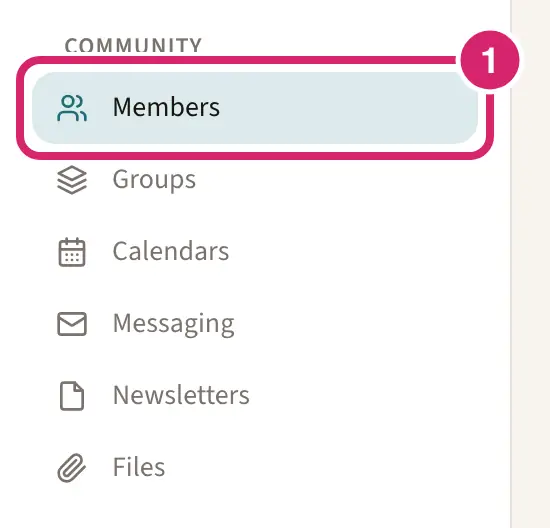
Go to Community › Members.
Select Add member.
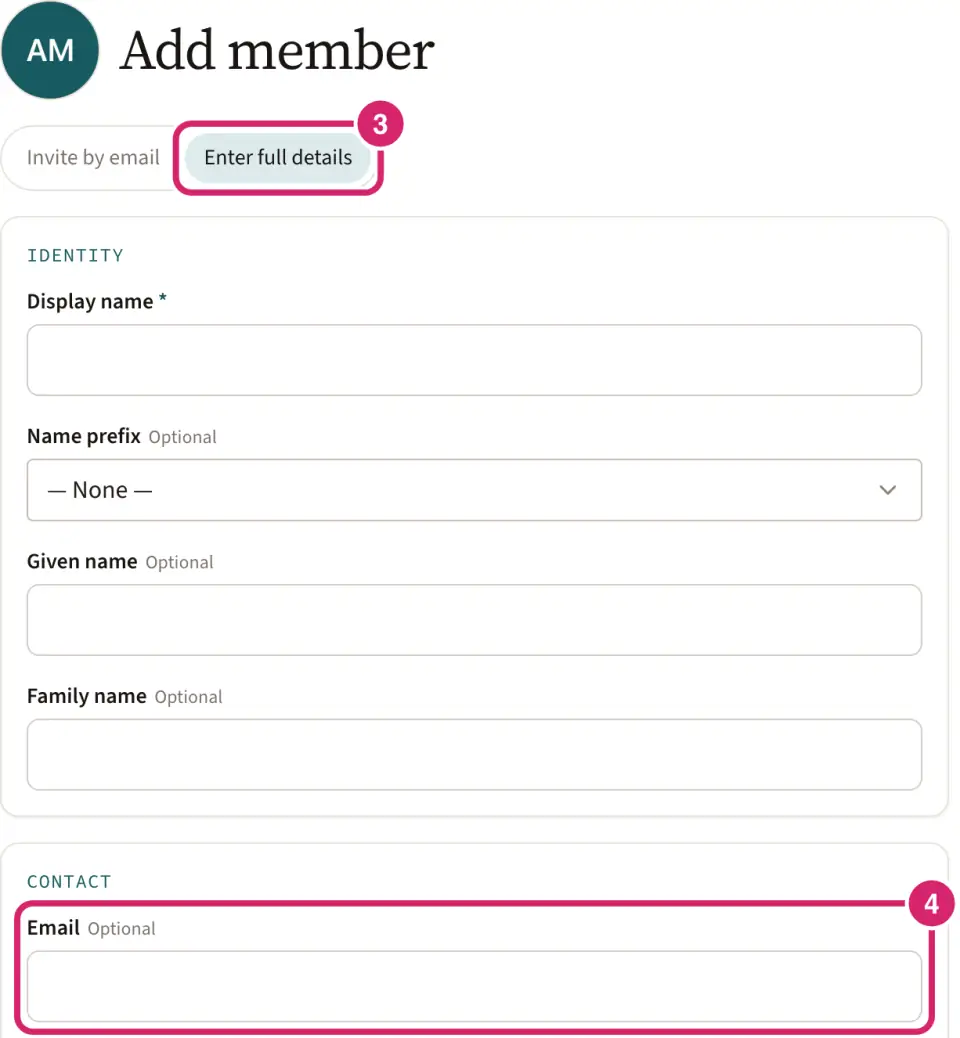
Choose how to add them. Will they fill in their own details, or will you? That's the choice between Invite by email and Enter full details. The panel opens on Invite by email.
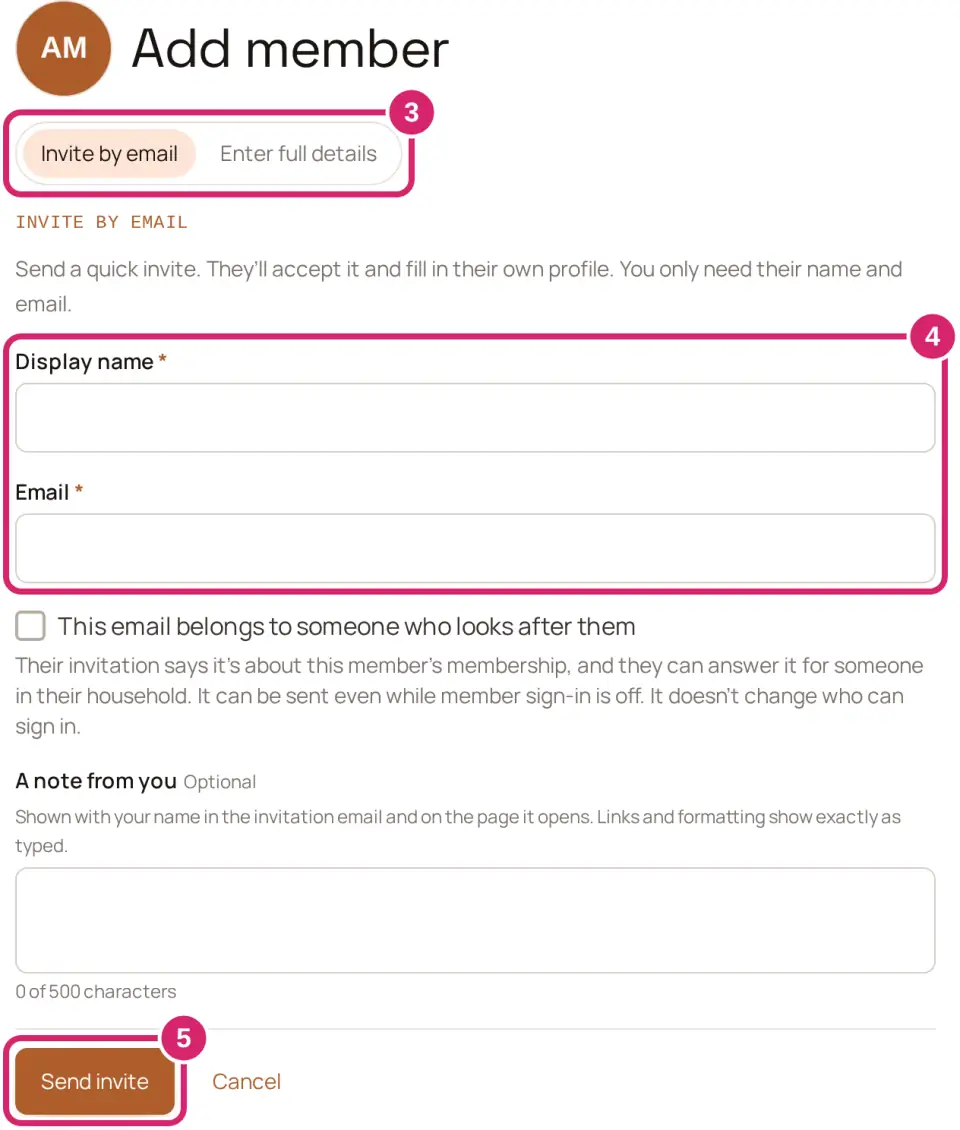
Invite by email: choose it for most adults, such as someone who signed up at your open day. You need only their name and email. They get an email, You've been invited to join …, choose a password or sign in, select Accept, and fill in their own address, phone and other details.
Enter full details: choose it when you already have their details, from a paper form or last season's list, and want the record complete now, or for someone who won't sign in. Adding them emails nobody. Afterwards, LongTable offers to send their invitation, so you decide whether they hear from the club now or later.
Is the email someone else's, such as whoever reads a young member's email? Tick This email belongs to someone who looks after them under Email. Their invitation then asks about this member's membership, and can be answered for someone in their household. It can be sent even while Members can sign in is off.
Not sure? Choose Invite by email: it's quicker, and members keep their own details up to date from then on. You can switch between the two until you save. Afterwards, you can still invite someone from their record, or cancel a waiting invitation on Community › Members › Invites.
Enter their Display name and Email.
With Invite by email, you can also write A note from you, up to 500 characters, such as a welcome or what to bring to the first meeting. It's shown with your name in the invitation email and on the page it opens. Leave it empty if you have nothing to add.
With Enter full details, fill in what you know. Only Display name is needed, unless your club made other fields required.
Does this member want texts from the club? Once you type a Primary phone in Enter full details, a Primary phone is a mobile number switch appears under it, already on. Club texts go only to mobile numbers, so turn it off for a landline. While a mobile number is entered, a Text messages switch appears below the phone numbers. It's off for every new member.
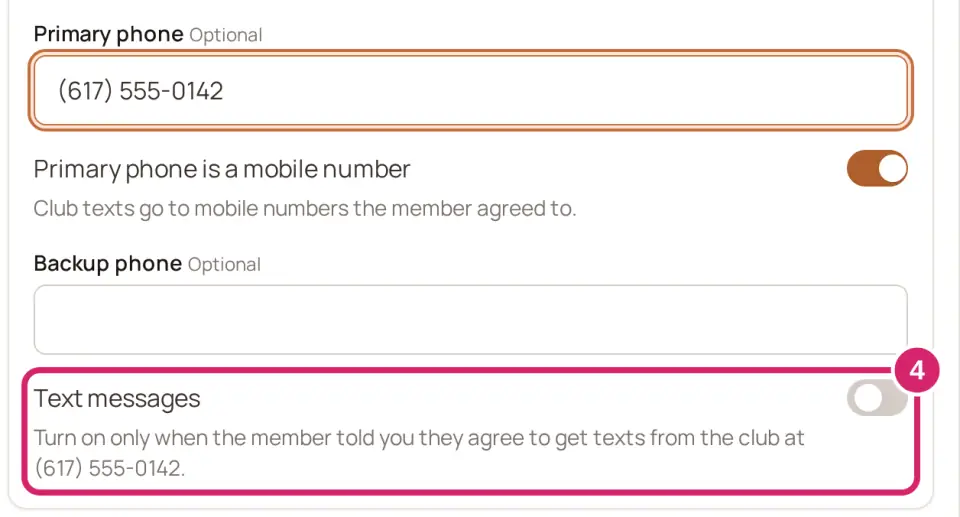
Off: choose it unless the member told you themselves that they agree to texts. Having their number isn't an agreement. They can still agree later in their own account.
On: choose it when they agreed in person, by phone or on a paper form, such as a parent who ticked the texting box on your sign-up sheet. Their record then shows Agreed, recorded by a member manager, with the date.
You can change it later on their record. Texts go out only once your club has set up texting.
Select Send invite, or Add member if you entered full details.
After an invitation, select Add another to add the next person, or View member to open their record. After full details, LongTable shows … added. Nobody was emailed. Select Invite … now to send their invitation, Add another or View member. Someone added without an email address can't be invited until you add one to their record.
In Enter full details, Member type and Member status start on the ones your club made the default for new members. Change them if they don't fit this person. Someone you add with Invite by email starts on your club's Pending status and moves to the default once they accept.
The invitation says who invited them and shows your note, if you wrote one. It has a Create your account button, or Sign in to accept for someone who already has a LongTable account. It works for 7 days.
If Members can sign in is turned off for your club, the member is added but no invitation is sent, unless you ticked This email belongs to someone who looks after them.
If the email already belongs to a LongTable account, they get an invitation all the same, and sign in to accept it. Nobody is connected to a member until they accept.
Change a member's details
Keep a record up to date when someone moves, changes their number, takes on a job in the club, or joined long before your club came to LongTable.
Watch it done in 20 seconds, or follow the steps below. The numbers in the video match the steps.
Go to Community › Members and select the member to open their record.
Select Edit.
Change what you need.
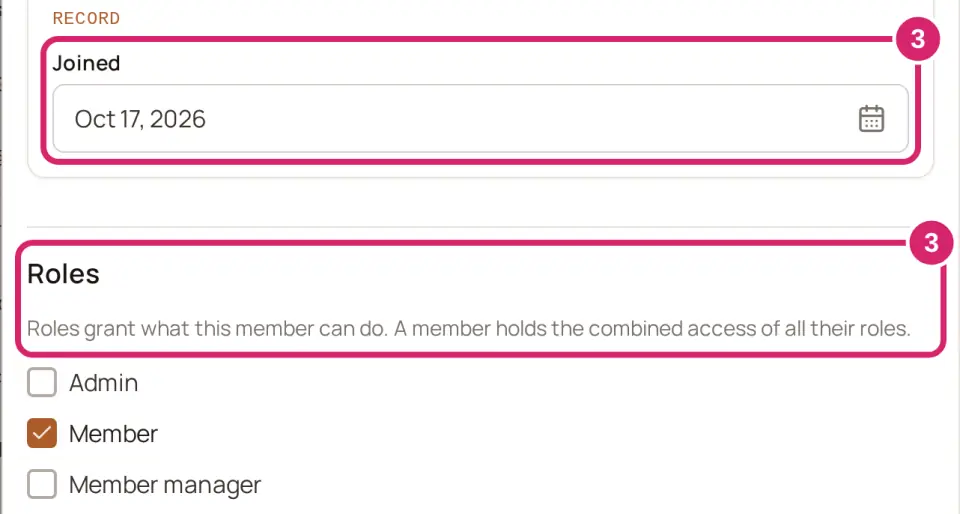
Joined: the day they joined your club. It starts on the day their record was added to LongTable. Change it for someone who joined long before, such as a founding member; it can't be in the future. The directory's Joined column and the roster show the same date.
Text messages: sits under the phone numbers while one of them is marked as a mobile number. Turn it on only when the member told you they agree to texts at that number. A new number starts with it off, because an agreement covers only the number it was given for. If the number replied STOP, turning it on records their new agreement, but texts stay blocked until they reply START.
Roles and Positions: only admins see them. Tick what this person can do, or the position they hold, such as Treasurer. See Give access with roles and positions.
Select Save. Everything you changed saves together, roles and positions included. Cancel beside it leaves the record as it was.
Changed your own name? LongTable asks Use this name across LongTable? first. Select Use everywhere to change the name every club you belong to sees, or Only this club to change only this club's record. Cancel saves nothing.
Add a photo
In a web browser, you can add a photo once the member is in the directory.
Watch it done in 15 seconds, or follow the steps below. The numbers in the video match the steps.
Go to Community › Members and select the member to open their record.
Select Edit.
Select Add photo.
Select Choose image… and pick a PNG, JPEG or WebP picture.
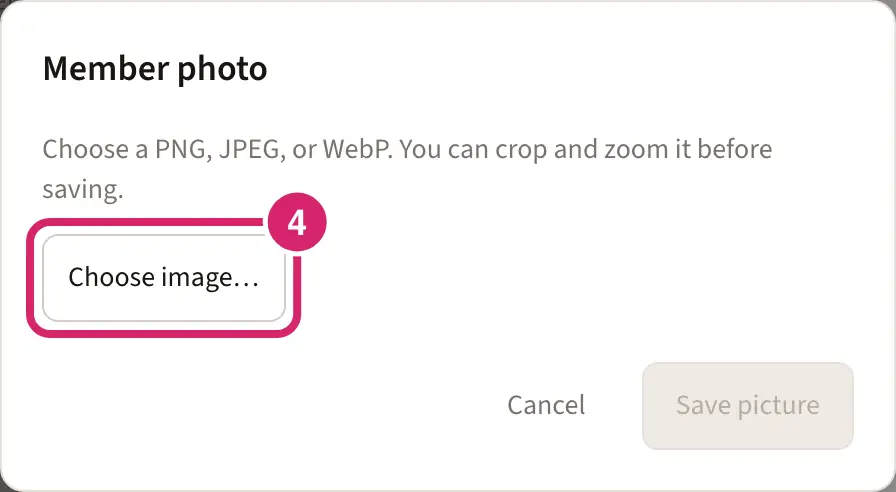
Crop and zoom it, then select Save picture.
Find and merge duplicate records
Find duplicates lists records that look like the same person, because they share an email, a name or a phone number, so you can merge them into one.
Go to Community › Members › Import and export.
Next to Find duplicates, select Find duplicates.

Under Keep: choose the record to keep.
Where the two records differ, under Resolve conflicts: choose which value to keep.
Select Merge.
Or let the LongTable assistant find and merge them for you:
Open the assistant with the sparkle button at the right edge of the screen.
Ask it to find duplicate members.
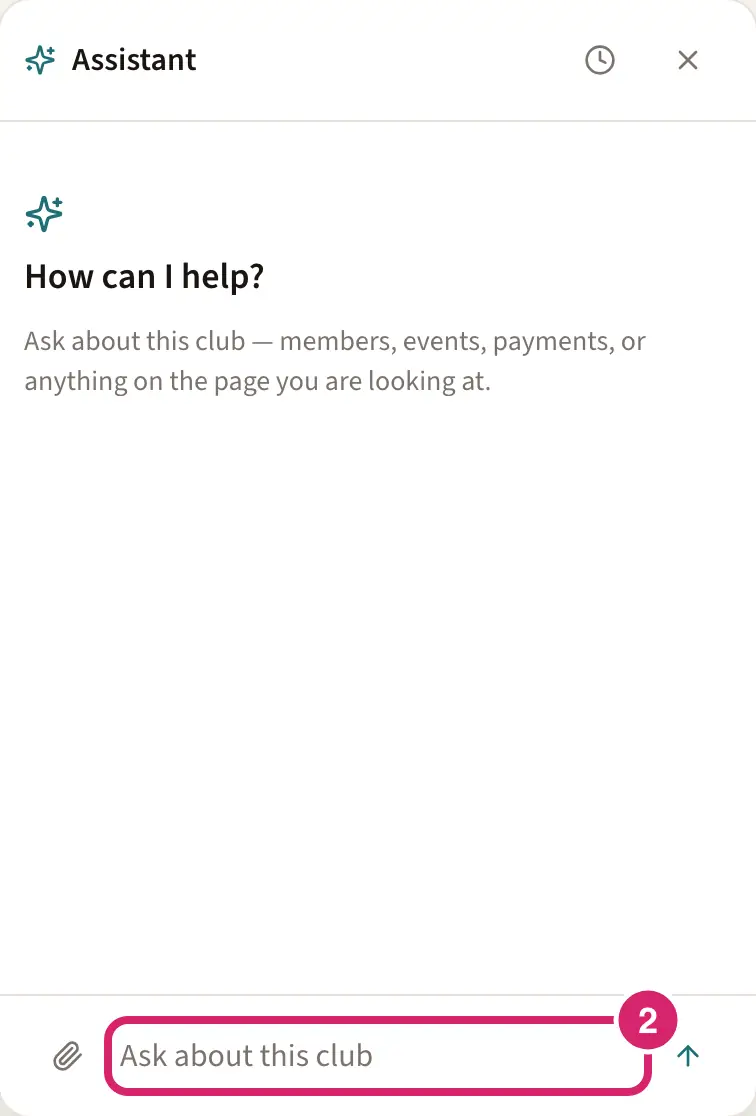
Tell it which record to keep, and which details to keep where the two differ.
Check the merge it proposes, then select Confirm.
The other record moves to the trash. Its roles, positions and groups are added to the record you keep.
If the record you remove holds a role or position that the other one doesn't, only an admin can merge them.
An email address or phone number doesn't count as a match on a record whose address you marked as someone else's, or that a household looks after: one person's address can sit on several records. A shared name still counts.
Two records that each have a sign-in, or a household tie, can't be merged. Remove one record's sign-in or household tie first.
Remove a member
Remove someone who has left, or a record added by mistake. It moves to the trash, and you can restore it within 90 days.
Watch it done in 15 seconds, or follow the steps below. The numbers in the video match the steps.
Go to Community › Members and select the member to open their record.
At the foot of the record, under Danger zone, select Delete member.
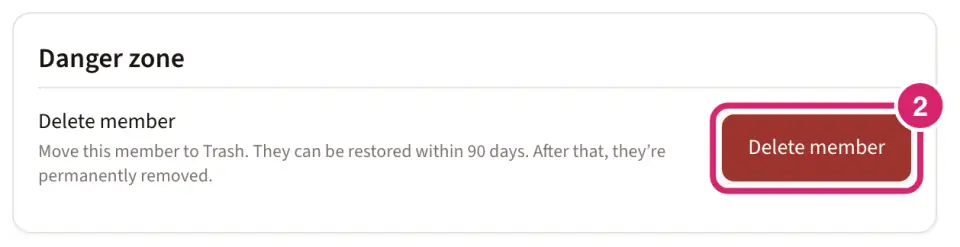
Type DELETE in the box.
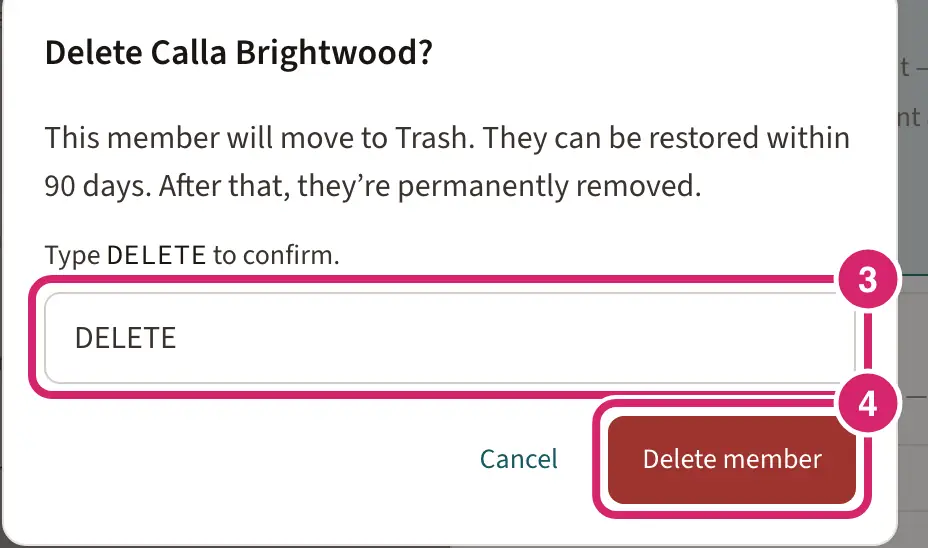
Select Delete member.
If the member has open invoices, LongTable asks what happens to them first: Void open invoices or Keep them collectible. Without permission to manage invoicing, you see only that they stay collectible; ask your treasurer to void them first if that's what you need.
If a household looks after the member, deleting also removes the household tie. The household stops seeing the record and its invoices, and sees a notice. Restoring the record within 90 days brings it back without the household tie.
Changed your mind? See Restore something you deleted.
If something goes wrong
Display name is required Enter the person's name. The same message names any other field your club made required. Invite by email doesn't show those fields, so switch to Enter full details to fill them in.
Enter an email so we can send them an invite. Add their email, or choose Enter full details to add someone without one.
Must be a valid email Check the address for typos.
… already has an invitation at this address. Resend or cancel that one instead of sending another. Another member's invitation already goes to this email, so nothing was added. Resend or cancel that invitation on Community › Members › Invites. If the address belongs to someone who looks after this member, tick This email belongs to someone who looks after them and send again.
The other changes are saved, but the role change was not. Everything else you changed saved. The Roles list says why the role change was refused. The same message names a position change or the agreement to texts when one of those didn't save; select Save again to retry an agreement.
We saved this record but couldn’t change your name across LongTable. You can change it on your profile. You chose Use everywhere, but only this club's record changed. Change your name on your profile instead.
Your club has reached its plan’s limit of … people. People invited who haven't joined yet count too. Remove someone who has left to make room, or ask a club admin, the treasurer or anyone with the Billing role to upgrade the plan. If you can choose the plan yourself, Choose a plan appears below the message.
… still pays for …. Reassign or clear every responsibility before deleting this member. The member pays for someone in their household. Nothing was deleted. Change who pays for whom, then delete again.