
Arrange your website's menu so visitors and members find what they need in one or two clicks. You can change the order of your pages, put pages under a parent page, and give a page a shorter name in the menu.
Why use it
A short menu reads well on a phone and on a computer. Keep the top level to a handful of pages, and give each one a short label.
Group related pages as sub-pages under one parent, such as each season's page under Events. On your public site the parent opens a dropdown with its sub-pages, so the top of the menu stays tidy.
A page can keep a long, descriptive title while the menu shows a short label, such as “Join” for “How to join the club”.
Reorder pages and put pages under others
Open LongTable on a computer, or a tablet held sideways. On a phone, or a tablet held upright, the menu opens from the menu button (☰) at the top left, and you can't rearrange it there.
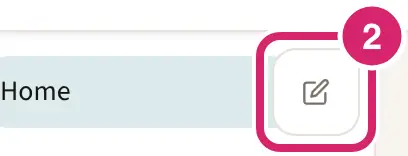
In the sidebar, select Edit menu, the pencil at the top right beside your home page. The pencil in a page's own corner edits that page instead.
Drag a page by the grip beside its name, up or down, to its new place.
To put a page under another, drag it a little to the right as you drop it. It goes under the page just above where you drop it.
Should a page have its own place in the menu, or sit under another?
At the top level: choose it for the few pages most people come for, such as what your club does, its events and how to join. Each one gets its own place in the bar across your public site.
Under another page: choose it for pages that belong together, such as each team's page under Teams, or each committee's under Committees. On your public site the parent opens a dropdown that starts with Overview, the parent page itself. It keeps the bar across your site short.
Moving a page under another page, or out from under one, changes its web address, because the parent's address comes first. A link to the old address in a flyer, an email or a social post stops working. Links you made with Choose a page keep working (below).
When you're done, select the check mark, Done editing menu.
Each move saves straight away and changes the menu for everyone. Your home page always stays first. To take a sub-page out from under its parent, drag it above or below a top-level page without moving it to the right. A new page goes to the end of the list it belongs to. A page you have never published is a draft: only people who can edit pages see it in the menu, marked Draft, until you publish it.
Give a page a shorter name in the menu
Open the page and select Edit page, the pencil in the page's top-right corner.
Open More options › Page settings.
In Menu label, type the name the menu should show, up to 32 characters. The line below it shows what the menu will say once the page is published.
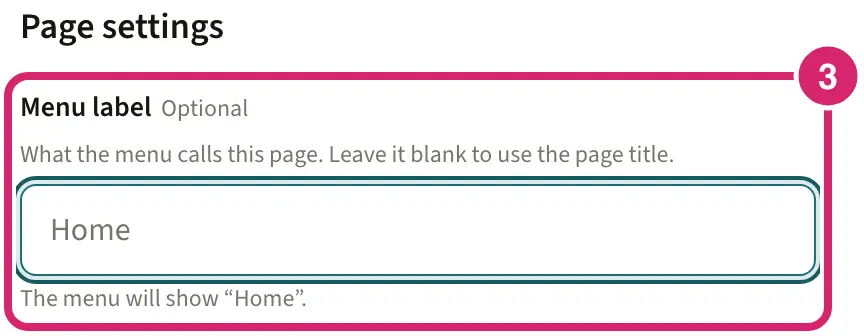
How short? One or two words, so the whole menu fits on one line on a computer: “Join” for “How to join the club”, or “Results” for “Race results and standings”. The page keeps its full title at the top of the page, as long as Show page title is on.
Select Done, then Publish, and confirm with Publish now.
The new label reaches the menu only when you publish the page. Until then everyone, you included, sees the old one. A new page title and the Show page title switch wait for publishing in the same way. To go back to the page title, clear Menu label and publish the page again.
Link to your pages
Buttons and links can take readers to another of your pages. In a button's settings, under Link, choose Page and pick the page from Choose a page. A link chosen this way keeps working if you rename or move the page. For a website elsewhere, choose Address and enter it in Web address.
What visitors and members see
On a computer or tablet, visitors see your public pages across a bar under your site's header. A page with sub-pages opens a dropdown: Overview goes to that page itself, followed by its sub-pages.
When the pages don't fit on one line, the last ones move into a More menu at the end of the bar. Sign in is always last.
On a phone, visitors select Menu to open the list of pages.
Visitors see only your public pages. Members see every page they're allowed to see, at the top of the sidebar, or behind the menu button (☰) at the top left on a phone or a tablet held upright. A page limited to certain groups appears only for members of those groups.
Members don't see a page until it has been published once. If a published page sits under one that never has been, members see the published page in its parent's place in the menu. Its web address stays the same.
If something goes wrong
This page changed somewhere else, so your change wasn’t saved. Reload and try again. Someone else changed your pages at the same time. Reload the page, then make the move again.
That no longer exists. It may have been deleted somewhere else. Refresh and try again. The page was deleted while you were moving it. Refresh to see the current menu.
You can't see Edit menu. It appears only on a computer or a tablet held sideways, and only if your role lets you edit pages.
A page is missing from your public menu. Visitors see only public pages. Make the page public in Page settings, after you have published it once. If it's a sub-page, its parent pages must be public too. If you've just moved it, check the page you moved it under.
A link you shared no longer opens a page. The page was moved under another page, or out from under one, so its address changed. Open the page and share its new address.
A button on a public page is missing for visitors, or a link shows as plain text. It points to a members-only page, which visitors can't open. Make that page public, or link to a public page instead.